1. Introduktion
The EPOMAKER x Aula F65 is a compact 65% layout mechanical keyboard designed for gaming and general use, featuring 67 keys. It incorporates a gasket mount structure for enhanced typing feel and sound. This keyboard offers versatile connectivity options, vibrant RGB backlighting, and hot-swappable switch sockets for customization.

Billede 1.1: Top-down view of the EPOMAKER x Aula F65 Wireless Mechanical Keyboard, showcasing its 65% layout with light blue and black keycaps on a white frame.

Image 1.2: The F65 keyboard with callouts for its key features including 65% layout, BT5.0/2.4G/Wired connectivity, hot-swappable switches, RGB backlit, gasket structure, 4000mAh battery, pre-lubed linear switches, and PBT keycaps. Dimensions are also shown.
2. Pakkens indhold
Kontroller venligst, at alle varer er til stede i pakken:
- EPOMAKER x Aula F65 Mechanical Keyboard
- Keycap aftrækker
- USB-kabel (USB-C til USB-A)
- Brugervejledning (dette dokument)
- Mechanical Switches (additional/replacement)
3. Opsætning og tilslutning
The F65 keyboard supports three primary connection modes: Bluetooth, 2.4GHz wireless, and wired USB-C. Ensure the keyboard is charged before initial use.
3.1 Opladning af tastaturet
Connect the provided USB-C cable to the keyboard's USB-C port and the other end to a powered USB port on your computer or a wall adapter. The RGB lighting will indicate charging status.
3.2 Forbindelsestilstande
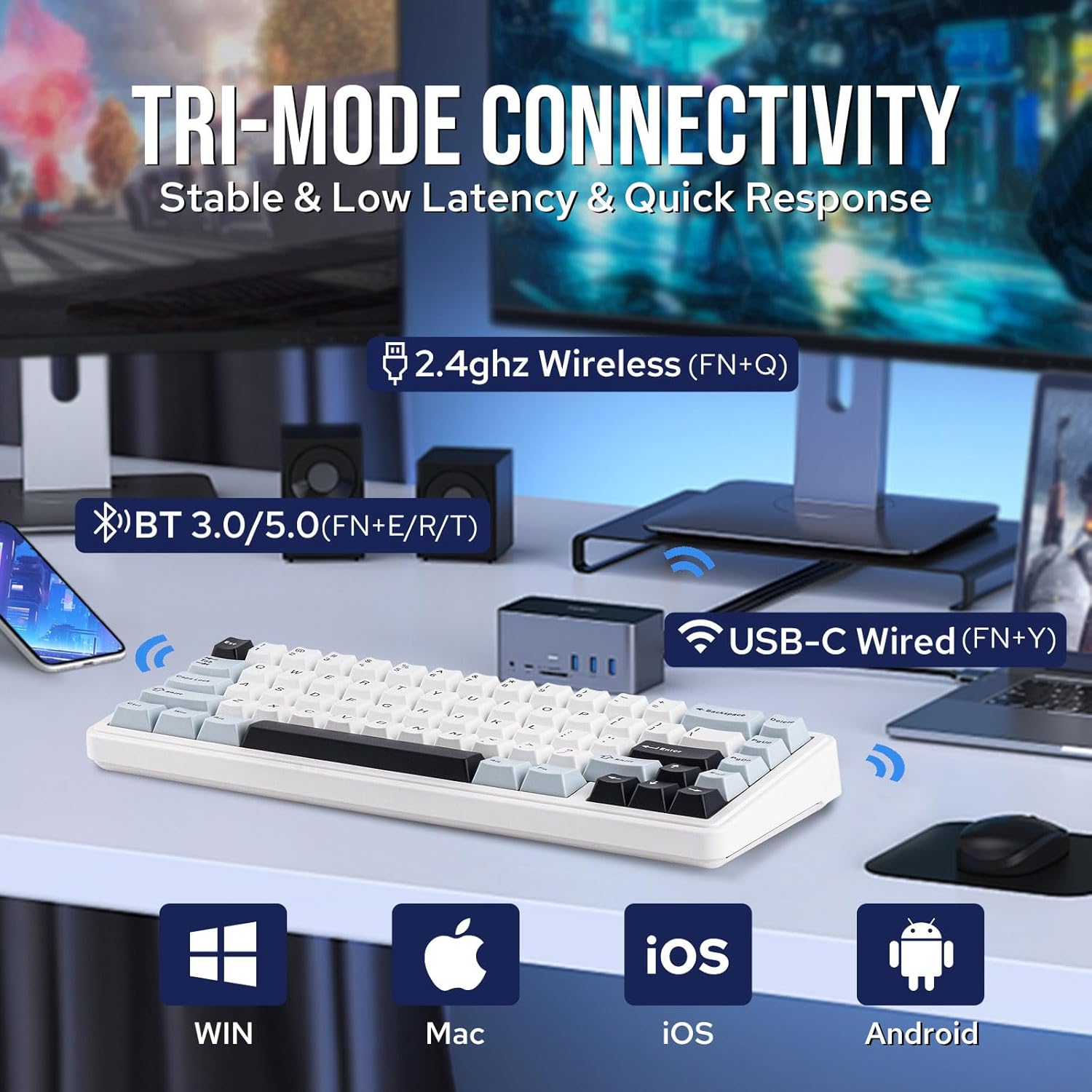
Image 3.1: Diagram illustrating the three connectivity modes: 2.4GHz Wireless (FN+Q), Bluetooth 3.0/5.0 (FN+E/R/T), and USB-C Wired (FN+Y), along with compatibility icons for Windows, Mac, iOS, and Android.

Image 3.2: An illustration showing the EPOMAKER x Aula F65 keyboard connected to a smartphone via Bluetooth, a desktop PC via 2.4GHz wireless dongle, and a laptop via USB-C cable, demonstrating its multi-device compatibility.
- Kablet tilstand (USB-C):
- Tilslut USB-C-kablet til tastaturet og din computer.
- Trykke FN + Y to switch to wired mode. The keyboard will be recognized automatically by your system.
- 2.4 GHz trådløs tilstand:
- Sæt 2.4 GHz USB-modtageren i en ledig USB-port på din computer.
- Trykke FN + Q for at aktivere 2.4 GHz trådløs tilstand. Tastaturet burde oprette forbindelse automatisk.
- Bluetooth-tilstand:
Tastaturet understøtter op til tre Bluetooth-enheder.
- Trykke FN + E, FN + R, eller FN + T to select a Bluetooth channel (BT1, BT2, BT3).
- Hold den valgte FN + E/R/T tastekombinationen i 3-5 sekunder, indtil indikatorlampen blinker hurtigt og angiver parringstilstand.
- On your device (computer, tablet, smartphone), search for Bluetooth devices and select "EPOMAKER F65" to pair.
- Når parringen er afsluttet, holder indikatorlampen op med at blinke.
4. Betjeningsvejledning
4.1 Tilpasning af RGB-belysning
The F65 features vibrant RGB backlighting with multiple effects and colors.

Image 4.1: The F65 keyboard illuminated with RGB backlighting, showing key combinations for toggling backlight color (FN + TAB) and backlight effect (FN + \|).

Image 4.2: Close-up of the F65 keyboard's side, highlighting the RGB sidelight and showing key combinations to toggle sidelight effect (FN + Right Shift) and sidelight color (FN + /?).
- To toggle backlight color: Press FN + TAB.
- To toggle backlight effect: Press FN + \|.
- To toggle sidelight effect: Press FN + Højre Shift.
- To toggle sidelight color: Press FN + /?.
4.2 Hot-swap-kontakter
The F65 features hot-swappable sockets, allowing you to change mechanical switches without soldering. It is compatible with 3-pin and 5-pin mechanical switches.

Image 4.3: A hand using a switch puller to remove a mechanical switch from the F65 keyboard, illustrating the hot-swappable PCB feature. Insets show a pre-lubed linear switch, hot-swap socket, and lubed & tuned stabilizer.

Billede 4.4: En detaljeret view of the hot-swappable PCB, showing compatibility with 3/5 pin mechanical switches, pre-lubed linear switches, lubed & tuned stabilizers, hot-swap sockets, and south-facing LEDs.
- Using the provided keycap puller, gently remove the keycap from the switch you wish to replace.
- Using the provided switch puller, carefully grip the switch from its top and bottom clips and pull it straight up.
- Juster stifterne på den nye kontakt med hullerne på printkortet. Sørg for, at stifterne er lige for at undgå at de bøjes.
- Tryk forsigtigt den nye kontakt ned, indtil den klikker på plads.
- Sæt tastaturdækslet på igen.
4.3 Batteristyring
The F65 keyboard is equipped with a 4000mAh battery for extended usage.

Image 4.5: An image highlighting the 4000mAh battery capacity of the F65 keyboard, showing estimated usage times: 18 hours with RGB, 270 hours without RGB, and 7.5 hours for full charging. Icons for fast charging, durability, and long-lasting are also present.
- The keyboard can last approximately 18 hours with RGB lighting on, and up to 270 hours with RGB off.
- En fuld opladning tager cirka 7.5 timer.
- Connect the USB-C cable to charge the keyboard when the battery is low.
5. Vedligeholdelse
5.1 Rengøring af tastaturet
- Use a soft, lint-free cloth to wipe down the keycaps and frame.
- For deeper cleaning, use the provided keycap puller to remove keycaps and clean dust or debris from the plate using compressed air or a small brush.
- Undgå at bruge skrappe kemikalier eller slibende materialer.
5.2 Vedligeholdelse af kontakter og taster
- When removing switches, ensure the switch puller is properly aligned to avoid damaging the switch housing or PCB socket.
- Store spare keycaps and switches in a clean, dry place.
6. Fejlfinding
6.1 Forbindelsesproblemer
- Tastaturet opretter ikke forbindelse i 2.4 GHz-tilstand: Ensure the USB receiver is securely plugged in and the keyboard is set to 2.4GHz mode (FN+Q). Try a different USB port.
- Bluetooth-parringsfejl: Ensure the keyboard is in pairing mode (FN+E/R/T held for 3-5 seconds). Delete previous pairings on your device and try again. Ensure your device's Bluetooth is enabled.
- Kablet tilstand virker ikke: Check the USB-C cable connection at both ends. Try a different USB port or cable. Ensure the keyboard is set to wired mode (FN+Y).
6.2 RGB Lighting Not Functioning
- Sørg for, at tastaturets batteri er tilstrækkeligt opladet.
- Try cycling through RGB effects and colors using the FN key combinations (FN+TAB, FN+\|).
6.3 Taster reagerer ikke
- If a specific key is not responding, try removing and re-inserting the switch for that key.
- Sørg for, at kontakten sidder helt i hot-swap-sokkelen.
- If multiple keys are not responding, try switching connectivity modes or restarting the keyboard and your device.
7. Specifikationer

Image 7.1: The F65 keyboard with detailed dimensions: 12.8 inches / 32.5 cm length, 4.6 inches / 11.6 cm width, and height ranging from 1.2 inches / 3 cm to 1.7 inches / 4.4 cm. The weight is indicated as 0.8kg.
| Feature | Detalje |
|---|---|
| Model | F65 |
| Layout | 65% (67 taster) |
| Forbindelse | Bluetooth (3.0/5.0), 2.4GHz Wireless, USB-C Wired |
| Hot-swappable | Yes (3/5-pin switches) |
| Baggrundsbelysning | RGB (16.8 millioner farver) |
| Batterikapacitet | 4000mAh |
| Afstemningsfrekvens | 1000 Hz |
| Keycap materiale | PBT |
| Monteringsstil | Pakningsmontering |
| Produktdimensioner | 12.8 x 4.6 x 1.7 tommer (32.5 x 11.6 x 4.4 cm) |
| Varens vægt | 2.24 pund (1.02 kg) |
| Kompatible enheder | Spillekonsol, bærbar computer, pc, smartphone, tablet |

Image 7.2: An illustration demonstrating the anti-ghosting and low-latency capabilities of the F65 keyboard across its connectivity modes: Bluetooth (18ms), 2.4G (7ms), and Wired (3ms).
8. Garanti og support
For garantioplysninger og teknisk support henvises til den officielle EPOMAKER-side. webwebstedet eller kontakt deres kundeservice direkte. Gem din købskvittering til garantikrav.


