1. Introduktion
This manual provides detailed instructions for the setup, operation, customization, and maintenance of your CHERRY XTRFY M50 Wireless Gaming Mouse. Please read this manual thoroughly to ensure optimal performance and longevity of your device.
1.1. Pakkens indhold
- CHERRY XTRFY M50 trådløs gamingmus
- USB-C til USB-A opladerkabel
- Trådløs USB-modtager (2.4 GHz)
- Hurtig startvejledning
2. Opsætning
2.1. Tilslutning af musen
The CHERRY XTRFY M50 Wireless Gaming Mouse offers multiple connectivity options: 2.4 GHz wireless via USB receiver, Bluetooth, and wired via USB-C cable.
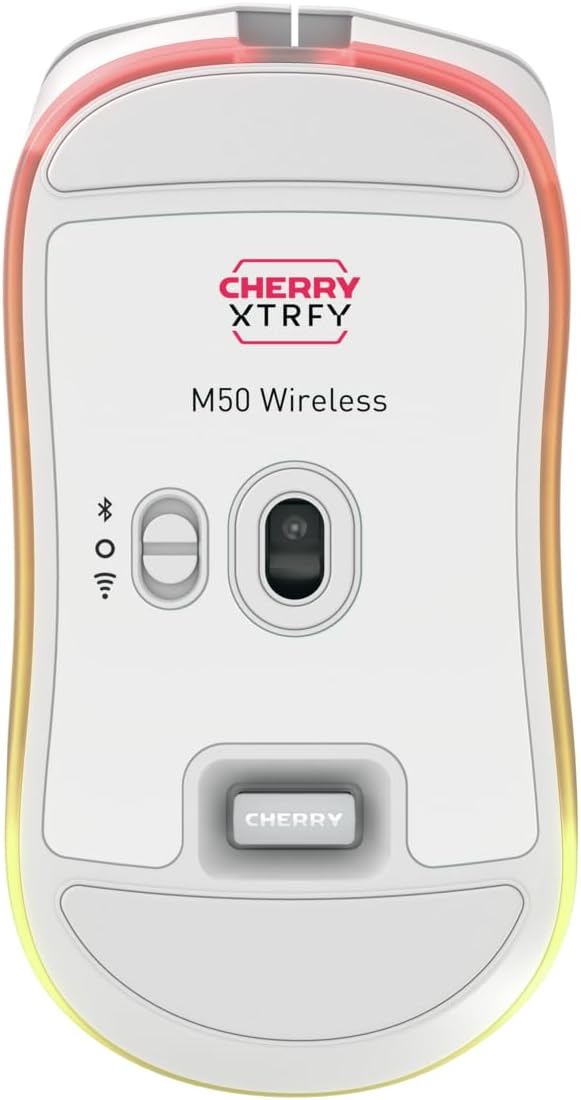
Billede: Bund view of the M50 Wireless mouse, highlighting the sensor and the connectivity mode switch.
2.1.1. 2.4 GHz trådløs forbindelse
- Find den trådløse USB-modtager. Den opbevares typisk i et rum på undersiden af musen.
- Sæt den trådløse USB-modtager i en ledig USB-A-port på din computer.
- On the underside of the mouse, slide the switch to the '2.4 GHz' position (often indicated by a wireless icon).
- Musen burde automatisk oprette forbindelse til din computer.
2.1.2. Bluetooth-forbindelse
- On the underside of the mouse, slide the switch to the 'Bluetooth' position (often indicated by a Bluetooth icon).
- Gå til Bluetooth-indstillinger på din computer, og aktiver Bluetooth.
- Vælg 'Tilføj en enhed' eller 'Par ny enhed'.
- The mouse should appear as 'CHERRY XTRFY M50' or similar. Select it to pair.
2.1.3. Kablet forbindelse
- Connect the USB-C end of the charging cable to the front port of the mouse.
- Connect the USB-A end of the charging cable to an available USB-A port on your computer.
- Musen fungerer i kablet tilstand og oplades samtidigt.

Billede: The M50 Wireless mouse connected via its USB-C charging cable, illustrating wired mode and charging.
2.2. Opladning af musen
To charge the M50 Wireless mouse, connect the provided USB-C cable to the mouse and the USB-A end to a powered USB port on your computer or a USB wall adapter. The RGB lighting may indicate charging status.
3. Betjeningsvejledning
The CHERRY XTRFY M50 Wireless Gaming Mouse features an ergonomic design for comfortable use and precise control.

Billede: Front view of the M50 Wireless mouse, displaying its main buttons and scroll wheel.
3.1. Grundlæggende funktioner
- Venstre klik: Primær handlingsknap.
- Højreklik: Sekundær handlingsknap, typisk til kontekstmenuer.
- Scrollhjul: Used for vertical scrolling. The 4D tilt wheel also supports horizontal scrolling.
- DPI knap: Located behind the scroll wheel, this button cycles through pre-set CPI (Counts Per Inch) levels.
- Sideknapper: Typically used for 'forward' and 'back' navigation in web browsers or customizable in software.
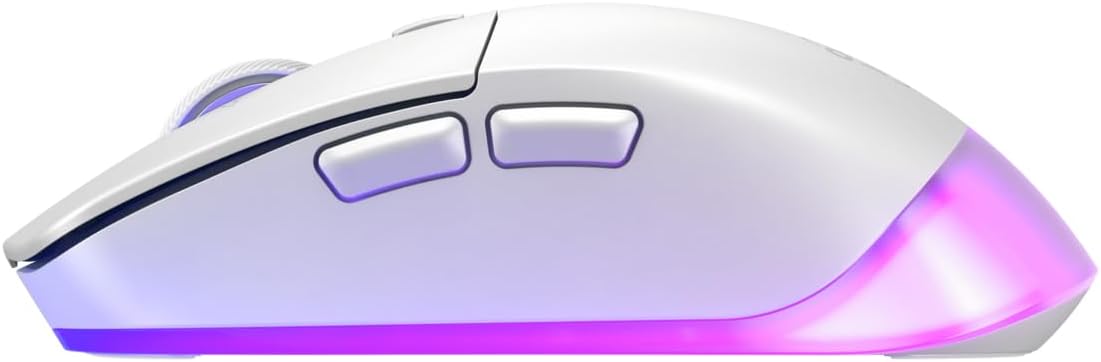
Billede: Side view of the M50 Wireless mouse, showing the ergonomic curve and the two side buttons.
4. Customization (CHERRY UTILITY Software)
The CHERRY XTRFY M50 Wireless Gaming Mouse features 5 customizable on-board profiles. To unlock the full potential of your mouse, download and install the CHERRY UTILITY software from the official CHERRY XTRFY webwebsted.
4.1. Softwarefunktioner
With the CHERRY UTILITY software, you can:
- Adjust CPI (Counts Per Inch) sensitivity levels.
- Configure Polling Rate.
- Assign macros to buttons.
- Omformuler knapfunktioner.
- Customize RGB illumination effects and colors.
- Create and manage up to 5 on-board profiles, which are stored directly on the mouse.
5. Vedligeholdelse
5.1. Rensning
For at opretholde optimal ydeevne og udseende:
- Ensure the mouse is disconnected from your computer or powered off before cleaning.
- Brug let en blød, fnugfri klud dampafsluttes med vand eller en mild rengøringsopløsning.
- Undgå at bruge skrappe kemikalier, slibende materialer eller for meget fugt.
- Rengør sensorområdet forsigtigt med en vatpind, hvis der opstår sporingsproblemer.
5.2. Opbevaring
When not in use for extended periods, store the mouse in a dry, cool environment away from direct sunlight and extreme temperatures.
6. Fejlfinding
6.1. Forbindelsesproblemer
- Musen svarer ikke (2.4 GHz): Ensure the USB receiver is securely plugged into a working USB port. Check that the mouse's mode switch is set to 2.4 GHz. Try a different USB port.
- Musen svarer ikke (Bluetooth): Ensure Bluetooth is enabled on your computer and the mouse's mode switch is set to Bluetooth. Re-pair the device if necessary.
- Intermitterende forbindelse: Move the mouse closer to the receiver or Bluetooth adapter. Avoid sources of interference (e.g., other wireless devices, large metal objects).
6.2. Sporingsproblemer
- Rengør musesensoren med en vatpind.
- Sørg for at bruge musen på en passende overflade (f.eks. en musemåtte).
- Adjust CPI settings via the DPI button or CHERRY UTILITY software.
6.3. Opladningsproblemer
- Ensure the USB-C cable is properly connected to both the mouse and a powered USB port.
- Prøv en anden USB-port eller et andet opladningskabel.
7. Specifikationer
| Mærke | CHERRY XTRFY |
| Modelnavn | M50 trådløs |
| Modelnummer | JW-5000-0 |
| Forbindelsesteknologi | 2.4 GHz trådløs, Bluetooth, USB-kablet |
| Bevægelsesdetekteringsteknologi | Laser |
| Speciel funktion | Lightweight, Adjustable RGB Illumination, 4D Tilt Wheel |
| Farve | Hvid |
| Omtrentlige pakkemål (L x B x H) | 7.2 x 4.09 x 2.72 tommer |
8. Garanti og support
For warranty information and technical support, please refer to the official CHERRY XTRFY webwebstedet eller kontakt deres kundeservice. Gem din købsbevis til garantikrav.
Webwebsted: www.cherryxtrfy.com


