1. Produktet er slutview
The ZAGG Pro Keys 2 is a comprehensive keyboard and case solution designed specifically for the iPad Pro 13 (M4). It integrates a full-featured keyboard with a protective case, enhancing both productivity and device safety. The design allows for flexible use, transforming your iPad into a more versatile tool for various tasks.

Nøglefunktioner:
- Holdbar beskyttelse: Polycarbonate case with rubberized edges and corner bumpers provides 6.6 ft (2m) drop protection.
- Aftageligt tastatur: Allows for flexible use, separating the keyboard from the case.
- Laptop-Style Backlit Keys: Designed for accurate and comfortable typing, with seven customizable backlight colors.
- Magnetic Folio Cover & Adjustable Stand: Protects the screen and offers two viewing vinkler.
- Multi-Device Bluetooth Pairing: Connects to up to two devices simultaneously for seamless switching.
- Integrated Stylus Holder: Securely stores your Apple Pencil or Pro Stylus.
- Langtidsholdbart batteri: Up to one year of battery life with energy-saving features.
2. Opsætning og installation
2.1 Kompatibilitet
The ZAGG Pro Keys 2 is specifically designed for the iPad Pro 13-inch (M4) model. Ensure your device is compatible before proceeding with installation.

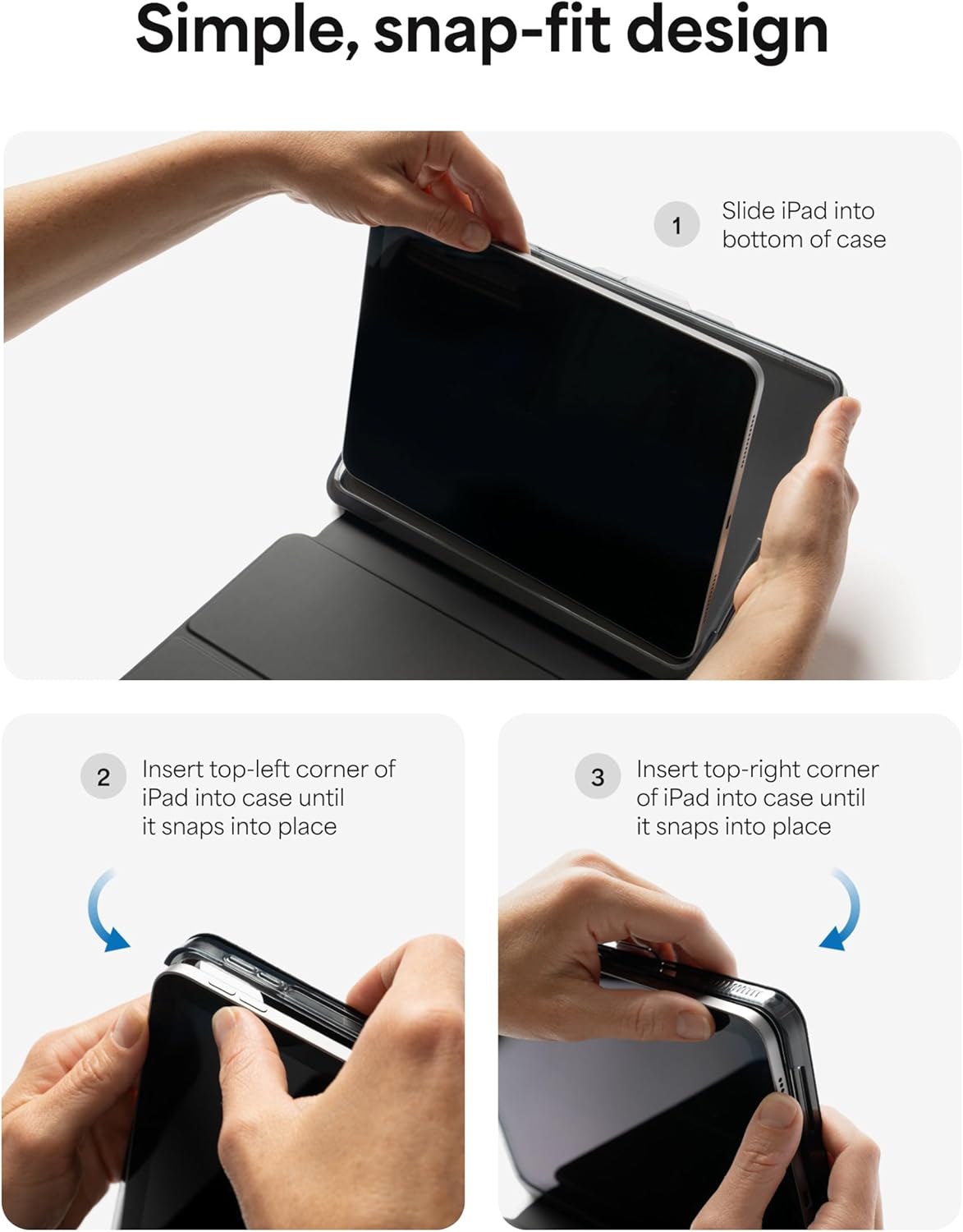
2.2 Attaching Your iPad to the Case
Follow these steps to securely attach your iPad to the Pro Keys 2 case:
- Slide iPad into bottom of case: Gently slide the bottom edge of your iPad into the case, ensuring it aligns with the charging port and speakers.
- Insert top-left corner: Press the top-left corner of your iPad into the case until it snaps securely into place.
- Insert top-right corner: Press the top-right corner of your iPad into the case until it snaps securely into place.
2.3 Pairing the Keyboard via Bluetooth
The Pro Keys 2 keyboard connects wirelessly via Bluetooth. It can pair with up to two devices simultaneously.
- Tænd: Sørg for, at tastaturet er opladet og tændt.
- Aktiver parringstilstand: Press and hold the Bluetooth pairing key (usually indicated by a Bluetooth icon or a number like '1' or '2' with a Bluetooth symbol) for a few seconds until the indicator light flashes, signifying pairing mode.
- Enable Bluetooth on iPad: På din iPad skal du gå til Indstillinger > Bluetooth and turn Bluetooth on.
- Select Keyboard: Your iPad will search for available devices. Select "ZAGG Pro Keys 2" from the list.
- Bekræft parring: Follow any on-screen prompts to complete the pairing process. The indicator light on the keyboard will turn solid when successfully paired.
- Pairing a Second Device (Optional): To pair a second device, repeat steps 2-5 using the other Bluetooth pairing key (e.g., '2'). You can switch between paired devices by pressing the corresponding Bluetooth key.

3. Betjeningsvejledning
3.1 Using the Detachable Keyboard and Folio Cover
The Pro Keys 2 offers versatile configurations for different uses:
- Skrivetilstand: Place the iPad into one of the two magnetic grooves on the keyboard for a stable typing experience.
- Fritliggende tilstand: The keyboard can be detached from the case, allowing you to place your iPad on one surface and the keyboard on another for ergonomic flexibility.
- Viewing-tilstand: The magnetic folio cover folds back to create an adjustable stand, offering two optimal viewing angles for media consumption or presentations.

3.2 Keyboard Backlighting
The keyboard features backlit keys with seven color options to enhance visibility in low-light conditions.
- Juster lysstyrke: Use the dedicated backlight keys (often F11/F12 or similar) to cycle through brightness levels.
- Skift farve: Use the dedicated color key (often a lightbulb icon) to cycle through the seven available backlight colors.

3.3 Stylusholder
The integrated stylus holder provides a secure place for your Apple Pencil or Pro Stylus, ensuring it is always within reach and protected.

4. Vedligeholdelse og pleje
Proper care will extend the life and performance of your ZAGG Pro Keys 2 keyboard case.
- Rengøring af kabinettet: Brug en blød, damp klud til at tørre ydersiden af kabinettet af. Undgå skrappe kemikalier eller slibende rengøringsmidler.
- Rengøring af tastaturet: Brug en blød, fnugfri klud til forsigtigt at tørre tasterne af. Ved genstridigt snavs kan du bruge en let tør klud.ampened cloth can be used. Ensure no liquid enters the keyboard.
- Batteriopladning: Charge the keyboard using the provided USB-C cable. A full charge can last up to one year with typical use. The keyboard features a sleep/wake function to conserve battery life when not in use.

5. Fejlfinding
If you encounter issues with your ZAGG Pro Keys 2, refer to the table below for common problems and solutions.
| Problem | Mulig årsag | Løsning |
|---|---|---|
| Tastaturet opretter ikke forbindelse via Bluetooth | Keyboard is off, low battery, or not in pairing mode. iPad Bluetooth is off or already connected to another device. | Ensure keyboard is charged and powered on. Put keyboard into pairing mode. Check iPad Bluetooth settings. Forget device on iPad and re-pair. |
| Taster reagerer ikke | Low battery, connection issue, or keyboard is off. | Charge the keyboard. Re-establish Bluetooth connection. Power cycle the keyboard. |
| Baggrundsbelysningen virker ikke eller er svag | Backlight is off or set to lowest brightness. Low battery. | Press backlight brightness keys to increase brightness. Charge the keyboard. |
| iPad does not fit securely in case | Incorrect iPad model or improper installation. | Verify iPad model is Pro 13-inch (M4). Re-install iPad following the snap-fit instructions carefully. |
6. Specifikationer
Detailed technical specifications for the ZAGG Pro Keys 2 iPad Pro 13 (M4) Keyboard Case.
| Feature | Detalje |
|---|---|
| Modelnavn | Pro-nøgler 2 |
| Kompatibilitet | iPad Pro 13 (M4) |
| Forbindelse | Bluetooth |
| Tastaturtype | Laptop-style, Detachable |
| Baggrundsbelysning | 7-color RGB Backlit |
| Drop beskyttelse | Op til 6.6 fod (2 m) |
| Batterilevetid | Up to 1 year (based on 1 hour/day use) |
| Strømkilde | Batteridrevet (1 lithium-ion-batteri inkluderet) |
| Materiale | Plastic, Polycarbonate, Rubber |
| Farve | Sort |
| Varens vægt | 3.76 pund |
| Pakkedimensioner | 13.23 x 10.43 x 1.54 tommer |
7. Garanti og support
7.1 Garantioplysninger
ZAGG products are designed for durability and performance. For specific warranty details regarding your Pro Keys 2 keyboard case, please refer to the warranty card included with your product or visit the official ZAGG webGarantibetingelserne dækker typisk fabrikationsfejl.
7.2 Kundesupport
For further assistance, technical support, or inquiries about your ZAGG Pro Keys 2, please contact ZAGG Customer Support through their official channels. You can typically find contact information (phone, email, or support portal) on the ZAGG webwebsted:
- ZAGG Official Webwebsted: zagg.com
- ZAGG Store on Amazon: Visit the ZAGG Store


