Indledning
The Maxcom FW59 Kiddo is a 4G smartwatch specifically designed for children, offering a blend of safety features and communication capabilities. It allows parents to stay connected with their children and monitor their location, providing peace of mind. Key features include video and voice calls, GPS tracking with safe zone definition, an SOS button for emergencies, and a user-friendly interface.
This manual provides detailed instructions on how to set up, operate, and maintain your Maxcom FW59 Kiddo smartwatch to ensure optimal performance and safety.
Pakkens indhold
Markér venligst feltet for følgende elementer:
- Maxcom FW59 Kiddo Smartwatch
- USB opladningskabel
- Brugervejledning (dette dokument)
- SIM Card Ejector Tool (if applicable)
Opsætningsvejledning
1. SIM-kort installation
The Maxcom FW59 Kiddo requires a nano SIM card for 4G connectivity, enabling calls and GPS tracking. Ensure the SIM card is active and supports 4G LTE networks.
- Find SIM-kortstikket på siden af smartwatchet.
- Using the provided SIM ejector tool or a small pin, gently press into the small hole next to the SIM slot to open the tray.
- Carefully place the nano SIM card into the tray with the gold contacts facing down, ensuring it is correctly oriented.
- Skub forsigtigt SIM-kortbakken tilbage i åbningen, indtil den klikker på plads.
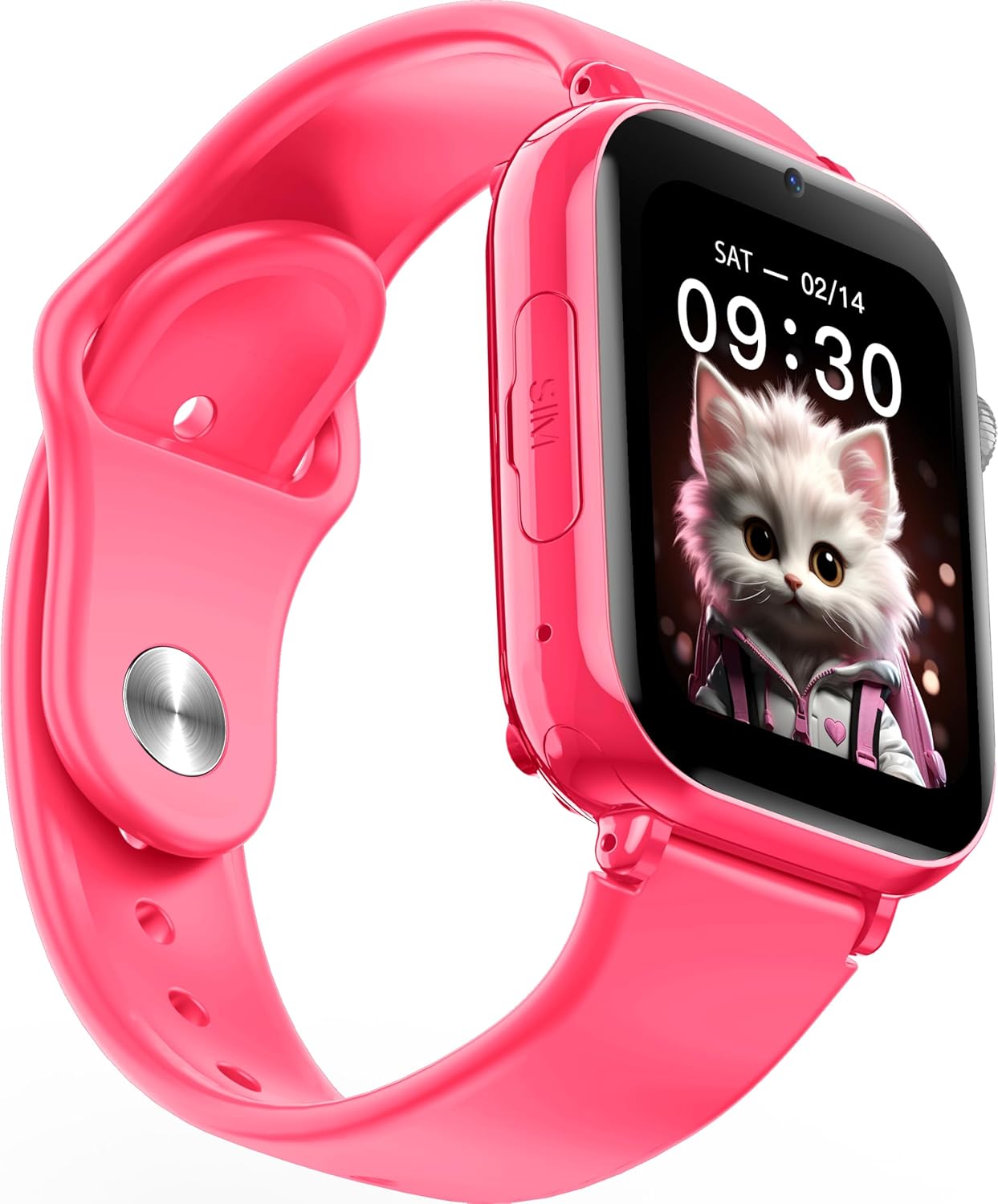
Billede: Vinklet view of the Maxcom FW59 Kiddo smartwatch, highlighting the location of the SIM card slot on the side.
2. Opladning af smartwatchet
Before first use, fully charge the smartwatch. The device is equipped with a 670 mAh Lithium Ion battery.
- Connect the USB charging cable to the charging port on the smartwatch.
- Tilslut den anden ende af USB-kablet til en kompatibel USB-strømadapter (medfølger ikke) eller en computers USB-port.
- The screen will indicate charging status. A full charge typically takes approximately 2-3 hours.
3. Appinstallation og parring
To utilize all features, parents must install the "MAXCOM TRACKER" mobile application on their smartphone and pair it with the smartwatch.
- Download the "MAXCOM TRACKER" app from your smartphone's app store (Google Play Store for Android or Apple App Store for iOS).
- Åbn appen og opret en konto eller log ind, hvis du allerede har en.
- Follow the in-app instructions to add a new device. This usually involves scanning a QR code displayed on the smartwatch screen or manually entering the device ID.
- Once paired, you can configure settings, add contacts, define safe zones, and track the smartwatch's location from the app.
Betjening af smartwatchet
Grundlæggende navigation
The Maxcom FW59 Kiddo features a 1.85" IPS touchscreen display for easy interaction. Swipe left/right or up/down to navigate through menus and applications. Press the side button to return to the home screen or wake the device.

Billede: Forside view of the Maxcom FW59 Kiddo smartwatch displaying the time and a cute cat wallpaper.
Video and Voice Calls
With a nano SIM card inserted, the smartwatch supports both video and voice calls to pre-approved contacts.
- Foretag et opkald: Navigate to the "Contacts" or "Phone" application, select the desired contact, and choose to initiate a voice or video call.
- Modtagelse af et opkald: When a call comes in, the smartwatch will ring and display the caller ID. Tap the green icon to answer or the red icon to decline.
SOS funktion
The dedicated SOS button provides an immediate way for the child to alert pre-set emergency contacts.
- Aktivering af SOS: Press and hold the SOS button (usually a prominent side button) for a few seconds.
- The smartwatch will automatically call the emergency contacts in a pre-defined sequence until one answers. It will also send an alert with the child's current location to the parent's app.
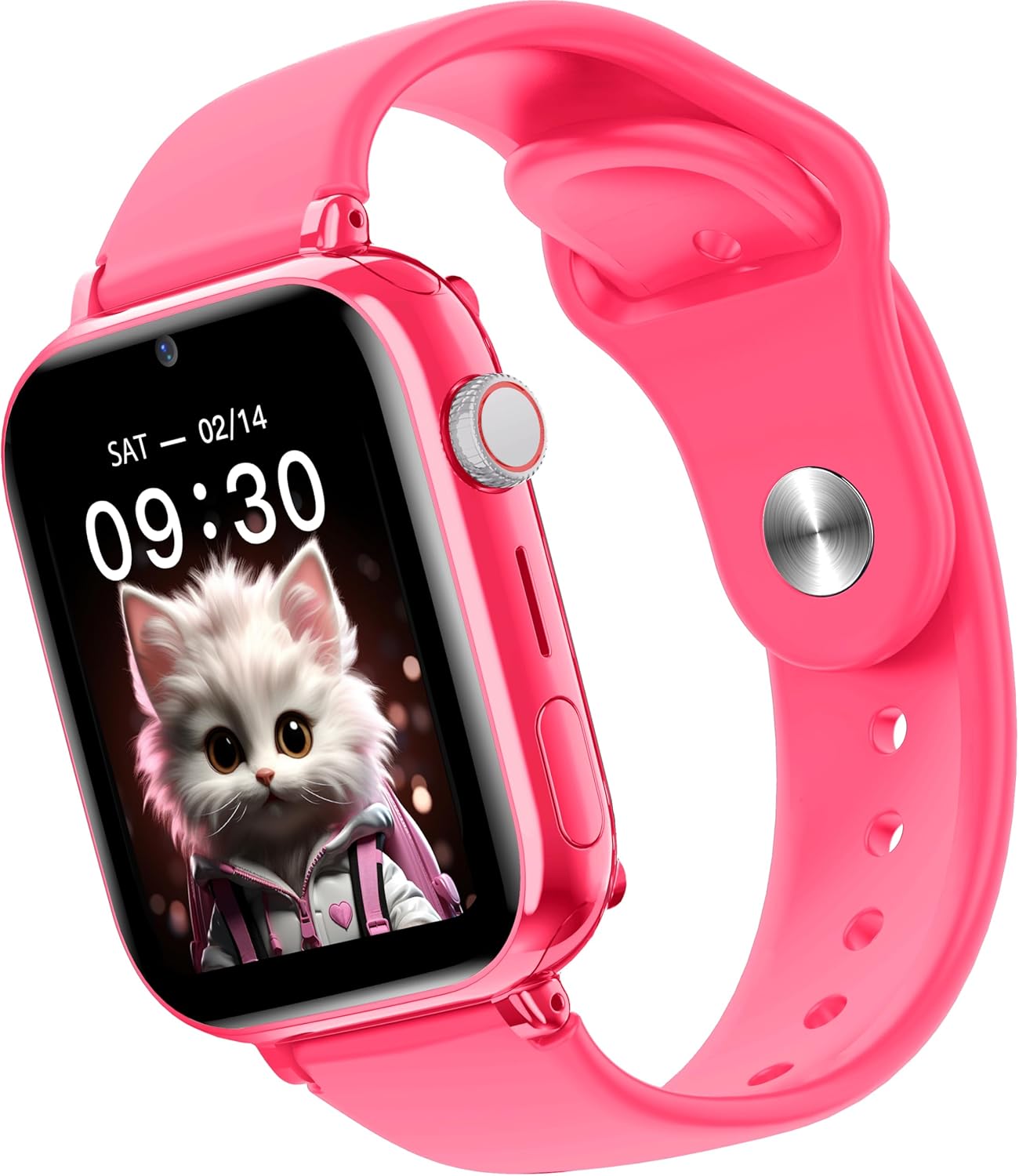
Billede: Side view of the Maxcom FW59 Kiddo smartwatch, illustrating the physical buttons, including the SOS button.
GPS Tracking and Safe Zones
Parents can monitor the child's location in real-time via the MAXCOM TRACKER app.
- Sporing i realtid: Open the MAXCOM TRACKER app on your smartphone to view the smartwatch's current location on a map.
- Sikre zoner: In the app, you can define virtual geographic boundaries (e.g., home, school). You will receive notifications when the smartwatch enters or exits these designated safe zones.
- Rutehistorik: The app also allows you to review the historical movement data of the smartwatch.
Kamera funktion
The smartwatch includes a built-in camera. Children can take photos directly from the watch, and parents can remotely activate the camera from the MAXCOM TRACKER app to capture images of the surroundings.
Phone Book Management
Contacts can only be added and managed through the MAXCOM TRACKER app by the parent. This ensures that the child can only communicate with pre-approved numbers.
Opretholdelse
Rensning
To keep your smartwatch clean and in good condition:
- Tør skærmen og kabinettet af med en blød, fnugfri klud.
- For genstridige mærker, let dampRengør kluden med vand. Undgå at bruge skrappe kemikalier eller slibende materialer.
- Ensure the charging port and SIM slot are free of dust and debris.
Batteripleje
Korrekt batteripleje forlænger din enheds levetid:
- Undgå ekstreme temperaturer, da de kan forringe batteriets ydeevne.
- Oplad enheden regelmæssigt, men undgå at lade den være helt afladet i længere perioder.
- Brug kun det medfølgende ladekabel.
Fejlfinding
If you encounter issues with your Maxcom FW59 Kiddo, refer to the following common solutions:
- Smartwatch tænder ikke: Sørg for, at batteriet er opladet. Tilslut det til opladeren, og vent et par minutter, før du forsøger at tænde det.
- No network signal/cannot make calls:
- Check if the nano SIM card is correctly inserted and active.
- Verify that the SIM card has sufficient credit or an active data plan.
- Ensure you are in an area with 4G network coverage.
- GPS location inaccurate:
- Ensure the smartwatch has a clear view af himlen for optimal GPS-signalmodtagelse.
- Location accuracy can be affected by dense buildings, underground areas, or poor network signal.
- Check the MAXCOM TRACKER app settings to ensure location services are enabled for the smartwatch.
- Kan ikke parres med app:
- Ensure the smartwatch is powered on and has a network connection.
- Verify that the QR code or device ID is entered correctly in the app.
- Try restarting both the smartwatch and your smartphone.
- Kort batterilevetid:
- Frequent video calls, high screen brightness, and continuous GPS tracking can consume more battery.
- Juster indstillingerne i appen for at optimere batteriforbruget (f.eks. hyppigheden af placeringsopdateringer).
If the issue persists, please contact Maxcom customer support for further assistance.
Specifikationer
| Feature | Detalje |
|---|---|
| Mærke | Maxcom |
| Modelnavn | FW59 Kiddo |
| Skærmstørrelse | 1.85 tommer |
| Display Type | IPS (240 x 280 resolution) |
| Operativsystem | Closed OS |
| Hukommelseslagringskapacitet | 2 MB |
| Batterikapacitet | 670 mAh (lithium-ion) |
| Cellulær teknologi | 4G |
| Forbindelsesteknologi | Bluetooth, radiofrekvens |
| Særlige funktioner | Kids Tracking, SOS Button, Video/Voice Calls |
| Varens vægt | 300 g |
Garanti og support
For information regarding warranty coverage and terms for your Maxcom FW59 Kiddo smartwatch, please refer to the warranty card included with your purchase or visit the official Maxcom website. For technical support, troubleshooting beyond this manual, or service inquiries, please contact Maxcom customer support through their official channels.


