Indledning
This manual provides comprehensive instructions for the installation, operation, and maintenance of your Bisofice A2 Biometric Time Clock Attendance Machine. Please read this manual thoroughly before using the device to ensure proper functionality and to maximize its benefits for accurate employee time tracking.
Nøglefunktioner
- Impressive Storage Capability: Supports up to 1000 fingerprint entries, 1000 password entries, and 1000 ID card inputs.
- Multilingual and User-friendly Interface: Features a 2.4-inch high-definition LCD color screen with 5 language options (English, Spanish, German, Italian, French).
- Hurtig genkendelse: Utilizes superior biometric technology for fingerprint recognition in under 1.5 seconds.
- Højhastighedsdataoverførsel: Enables quick download of attendance reports via USB drive without network connection, generating automatic reports.
- Alsidig anvendelse: Suitable for various environments including offices, factories, hotels, schools, and retail stores.
Pakkens indhold
Bekræft, at alle nedenstående varer er til stede i din pakke:
- Bisofice A2 Biometric Time Clock Attendance Machine
- Strømadapter
- USB Disk (U Disk)
- ID Card (1 piece)
- Monteringsskruer og vægdyvler
- Brugervejledning (dette dokument)

Image: All components included in the Bisofice A2 package, including the time clock, power adapter, USB disk, ID card, mounting hardware, and user manual.
Produkt overview
Familiarize yourself with the main components of the Bisofice A2 device.

Billede: Forside view of the Bisofice A2 time clock, displaying the LCD screen, keypad, fingerprint scanner, and RFID card reader area. A USB drive and an ID card are shown alongside the device.

Image: Close-up of the Bisofice A2 highlighting the 2.4-inch high-definition color LCD screen and the T9 input keypad with large, clear buttons.

Billede: Side view of the Bisofice A2 showing its dimensions: approximately 12cm (4.7 inches) in height, 3cm (1.2 inches) in depth, and 17cm (6.7 inches) in width.
Opsætning
1. Udpakning og placering
Carefully remove all components from the packaging. Choose a suitable location for the time clock, ensuring it is easily accessible for all users and away from direct sunlight or extreme temperatures.
2. Strømtilslutning
- Connect the power adapter to the DC IN port on the side of the device.
- Sæt strømadapteren i en almindelig stikkontakt.
- The device will power on automatically and display the welcome screen.
3. Montering (valgfrit)
If wall mounting is desired, use the provided screws and wall plugs. Mark the desired mounting points on the wall, drill pilot holes, insert wall plugs, and secure the device using the screws.
4. Indledende konfiguration
Upon first power-on, you may need to set the date, time, and system language. Navigate through the menu using the keypad and follow the on-screen prompts. The device supports 5 languages: English, Spanish, German, Italian, and French.

Image: The Bisofice A2 display indicating support for 5 system languages: English, Spanish, German, Italian, and French.
Operation
1. Brugerregistrering
Before employees can use the time clock, their data must be registered. Access the 'User Management' section in the device menu (usually by pressing 'MENU' and entering an administrator password).
Fingeraftryksregistrering
- Select 'Add User' and choose 'Fingerprint'.
- Follow the on-screen instructions to place the employee's finger on the scanner multiple times until the fingerprint is successfully registered.
- Assign a unique User ID to the employee.
Adgangskoderegistrering
- Select 'Add User' and choose 'Password'.
- Enter a numerical password for the employee and confirm it.
- Assign a unique User ID.
ID-kort registrering
- Select 'Add User' and choose 'ID Card'.
- Present the ID card to the RFID reader area on the device until it is recognized and registered.
- Assign a unique User ID.

Image: The Bisofice A2 device illustrating its multiple attendance methods: fingerprint, password, and ID card, each with a capacity of 1000 entries.
2. Clocking In/Out
Medarbejdere kan stemple ind eller ud ved hjælp af deres registrerede metode:
- Fingeraftryk: Place the registered finger on the scanner.
- Adgangskode: Enter the User ID, then the password using the keypad.
- ID-kort: Present the registered ID card to the RFID reader.
A successful recognition will be indicated on the screen, usually with a confirmation message or sound.
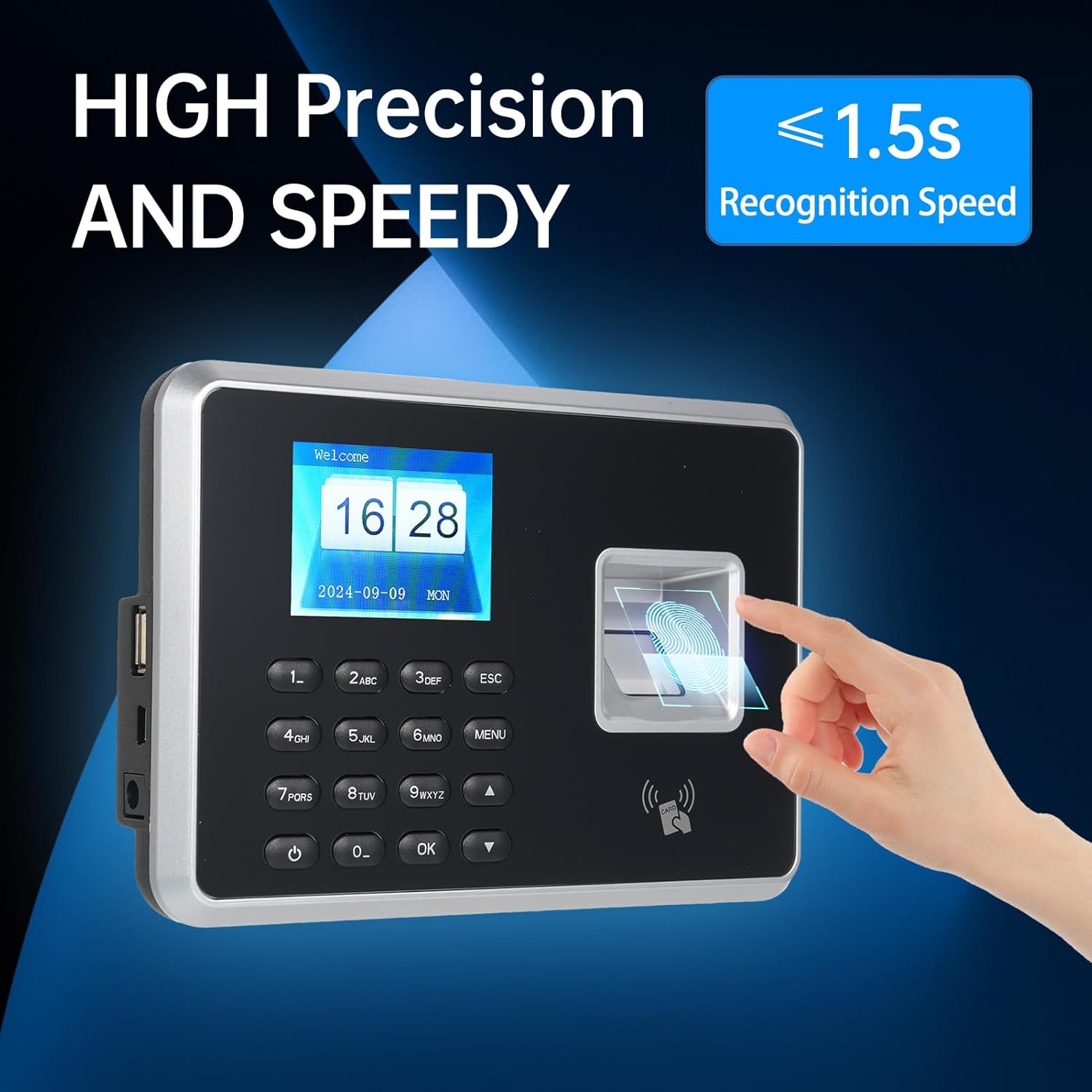
Image: A hand demonstrating fingerprint recognition on the Bisofice A2, highlighting its high precision and recognition speed of less than 1.5 seconds.
3. Data Management and Report Generation
The device automatically generates attendance reports. To access these reports:
- Insert the provided USB Disk into the USB port on the side of the time clock.
- Navigate to the 'Report' or 'Data Download' section in the device menu.
- Select the desired date range or report type.
- Initiate the download. The device will save the attendance data as an Excel (.xls) file onto the USB disk.
- Safely remove the USB Disk and transfer the report to a computer for analysis.

Image: The Bisofice A2 connected to a USB flash disk, with a laptop in the background displaying an Excel spreadsheet, illustrating the process of downloading attendance reports.
Opretholdelse
1. Rensning
Regularly clean the device, especially the fingerprint scanner and screen, with a soft, dry cloth. Avoid using abrasive cleaners or solvents that could damage the surface.
2. Databackup
It is recommended to regularly download and back up attendance data to an external storage device or computer to prevent data loss.
Fejlfinding
| Problem | Mulig årsag | Løsning |
|---|---|---|
| Enheden tænder ikke. | Ingen strømforsyning eller defekt adapter. | Check power connection and adapter. Ensure the outlet is functional. |
| Fingerprint recognition fails. | Finger is wet, dirty, or improperly placed. Fingerprint not registered correctly. | Ensure finger is clean and dry. Place finger firmly and completely on the scanner. Re-register fingerprint if issues persist. |
| ID card not recognized. | Card not registered or faulty card. | Ensure the ID card is registered. Try another registered card. |
| Cannot download data to USB. | USB disk is full, corrupted, or incompatible format. | Ensure USB disk has sufficient space and is formatted correctly (FAT32 recommended). Try a different USB disk. |
| Incorrect date/time displayed. | Date/time settings are incorrect. | Access the system settings via the menu to adjust the date and time. |
Specifikationer
| Modelnummer | A2 |
| Mærke | Bikontor |
| Fingeraftrykskapacitet | 1000 |
| Adgangskodekapacitet | 1000 |
| ID-kortkapacitet | 1000 |
| Genkendelseshastighed | < 1.5 sekunder |
| Vise | 2.4-inch High-Definition LCD Color Screen |
| Systemsprog | English, Spanish, German, Italian, French |
| Dataoverførsel | USB Disk (Automatic Excel Report Generation) |
| Produktdimensioner | 9.25 x 3.15 x 7.09 tommer (ca. 23.5 x 8 x 18 cm) |
| Varens vægt | 1.08 pund (ca. 0.49 kg) |
| Inkluderede komponenter | U disk |
Garanti og support
For warranty information and technical support, please refer to the documentation included with your purchase or visit the official Bisofice webwebsted. Behold din købskvittering som købsbevis i tilfælde af garantikrav.
You can find more information about Bisofice products and support at the Bisofice Store on Amazon.


