1. Introduktion
This manual provides detailed instructions for the installation, operation, and maintenance of your TMEZON WLAN IP Video Door Intercom System. This system is designed for two-family homes, offering enhanced security and communication features. Please read this manual thoroughly before using the product to ensure proper function and safety.

Figur 1.1: Overview of the TMEZON WLAN IP Video Door Intercom System, showing two indoor monitors, an outdoor doorbell unit, access cards, and a smartphone displaying the app interface.
2. Sikkerhedsoplysninger
- Ensure all wiring is performed by a qualified electrician to prevent electrical hazards.
- Do not expose the outdoor doorbell unit to extreme temperatures or direct water immersion.
- Use only the power adapters and cables supplied with the system.
- Keep the indoor monitor away from moisture and direct sunlight.
- Forsøg ikke selv at adskille eller reparere enheden. Kontakt kundesupport for at få hjælp.
3. Pakkens indhold
Bekræft at alle varer er til stede i pakken:
- 7-inch IP Touchscreen Monitors (x2)
- 1080P Outdoor Doorbell Unit (x1)
- Monteringsbeslag og skruer
- Strømadaptere
- 2-Wire Connection Cables
- IC Access Cards (x8)
- Brugervejledning (dette dokument)
4. Produktet er slutview
4.1 Indendørs skærm
The 7-inch TFT touchscreen monitor serves as the central control unit for your intercom system. It allows you to view visitors, communicate, unlock doors, and access system settings.
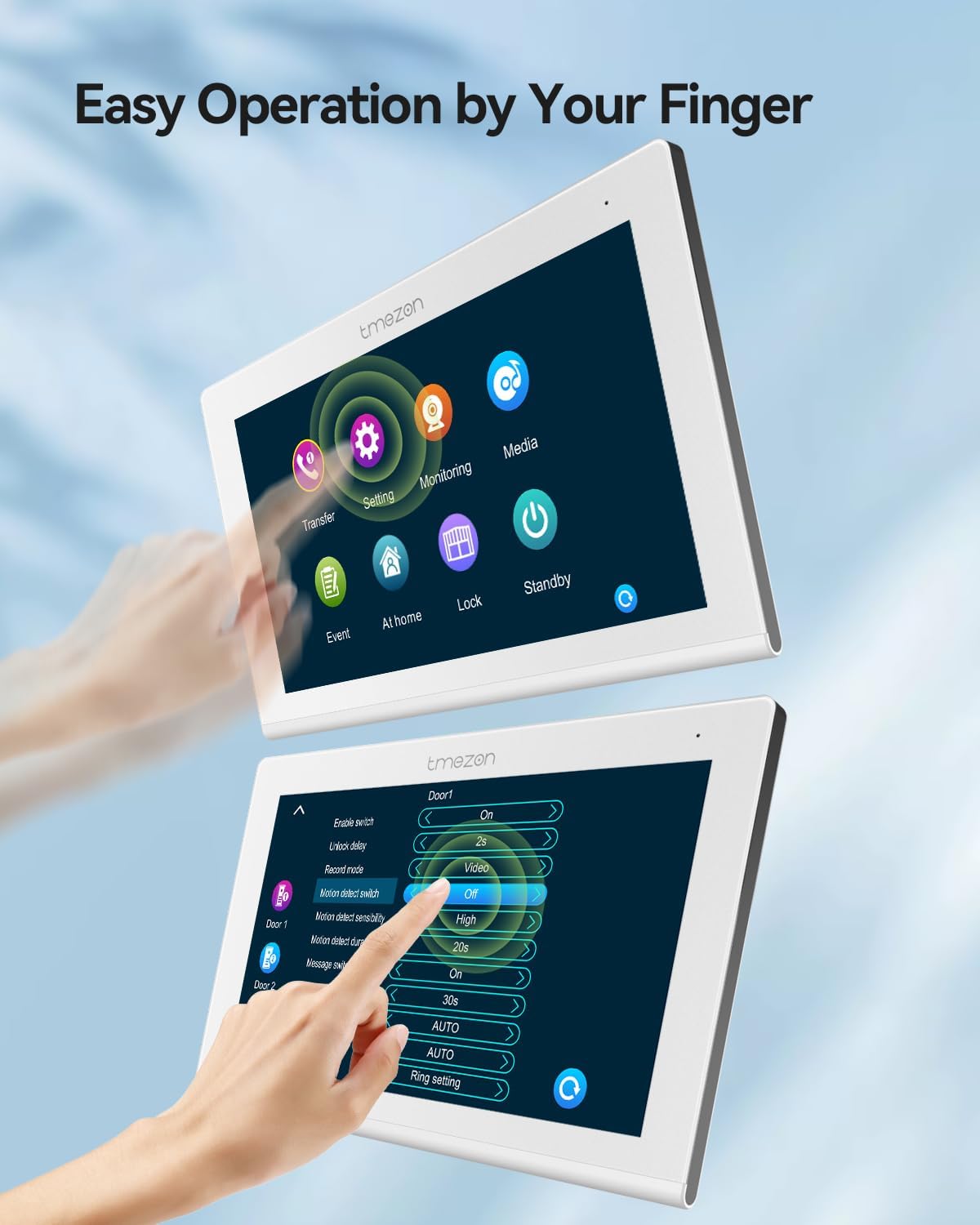
Figur 4.1: The indoor monitor displaying its touch-sensitive interface and various settings options.
4.2 Outdoor Doorbell Unit
The outdoor doorbell unit features a 1080P camera with a 110° wide-angle lens, infrared night vision, and a waterproof, dustproof, and vandal-proof housing. It includes two call buttons for two separate families and an IC card reader for access control.

Figur 4.2: The outdoor doorbell unit demonstrating the IC card unlock feature.
5. Opsætning
5.1 Wiring and Installation
The system utilizes 2-wire technology for simplified installation. Ensure power is disconnected before beginning any wiring.
- Montering af udendørsenheden: Choose a suitable location near your entrance, ensuring it is within reach of the 2-wire cable and at an appropriate height for visitors. Secure the mounting bracket and attach the doorbell unit.
- Mounting the Indoor Monitors: Install the indoor monitors at desired locations within each family's residence.
- Connecting the 2-Wire Cable: Connect the 2-wire cable from the outdoor unit to each indoor monitor. Ensure correct polarity if specified.
- Strømtilslutning: Connect the power adapters to the indoor monitors and plug them into a power outlet.
- Electric Lock Connection (Optional): If using an electric lock, connect it to the designated terminals on the outdoor unit or indoor monitor as per the wiring diagram (refer to the full wiring diagram in the separate installation guide).
5.2 Network Configuration (WLAN)
To enable app functionality, the indoor monitor must be connected to your home's Wi-Fi network.
- On the indoor monitor, navigate to the "Settings" menu.
- Select "Network" or "WLAN Settings".
- Vælg dit Wi-Fi-netværk fra listen, og indtast adgangskoden.
- Bekræft forbindelsen.
5.3 Appinstallation og parring
Download the "TuyaSmart" application from your smartphone's app store (iOS or Android).
- Install and open the TuyaSmart app.
- Registrer eller log ind på din konto.
- Follow the in-app instructions to add a new device. This typically involves scanning a QR code displayed on the indoor monitor or selecting the device type manually.
- Once paired, you will be able to control and monitor your intercom system remotely.

Figur 5.1: The TuyaSmart app interface on a smartphone, showing options for screenshot, unlock, playback, record, and advanced settings.
6. Betjeningsvejledning
6.1 Answering a Call and Two-Way Audio
When a visitor presses the doorbell button:
- The indoor monitor will ring and display the visitor's image.
- On the monitor, tap the "Answer" icon to establish two-way audio communication.
- If using the app, you will receive a notification. Tap the notification to view the visitor and communicate.

Figur 6.1: An indoor monitor displaying a visitor's image, allowing the resident to confirm identity before granting access.
6.2 Door Unlocking
The system supports three methods for unlocking an electric lock (if connected):
- Via Indoor Monitor: During a call or while monitoring the outdoor unit, tap the "Unlock" icon on the monitor screen.
- Via mobilapp: From the TuyaSmart app, tap the "Unlock" button.
- Via IC Access Card: Present a registered IC card to the card reader on the outdoor doorbell unit.
6.3 Snapshot and Recording
The system can automatically capture images or record video:
- Automatic Capture: When a visitor presses the doorbell or motion detection is triggered, the system can automatically take a snapshot or record a short video. These files are stored on a micro SD card (not included, supports up to 128GB) inserted into the indoor monitor.
- Manual Capture: You can manually take a snapshot or start recording from the indoor monitor or the TuyaSmart app during live view.
- Afspilning: Recorded videos and snapshots can be reviewed directly on the indoor monitor or through the TuyaSmart app.

Figur 6.2: The mobile application interface displaying a recorded video for playback.
6.4 Bevægelsesdetektion
The outdoor doorbell unit features motion detection capabilities.
- Aktivering: Enable motion detection in the indoor monitor's settings or via the TuyaSmart app.
- Meddelelser: When motion is detected, you will receive a notification on your smartphone via the TuyaSmart app.
- Indspilning: Motion events can trigger automatic snapshots or video recordings, stored on the micro SD card.

Figur 6.3: A smartphone displaying a motion detection alert from the TMEZON intercom system.
6.5 Nattesyn
The 1080P camera on the outdoor unit is equipped with infrared sensors for clear visibility in low-light conditions.
- Night vision activates automatically when ambient light levels are low.
- Images and recordings will be in black and white during night vision mode.

Figur 6.4: A visual comparison demonstrating the clarity of 1080P images during both day and night conditions.
7. Vedligeholdelse
- Rensning: Use a soft, dry cloth to clean the indoor monitor screen and the outdoor doorbell lens. Do not use abrasive cleaners or solvents.
- Firmwareopdateringer: Periodically check for firmware updates via the indoor monitor settings or the TuyaSmart app to ensure optimal performance and security.
- SD-kortadministration: Regularly back up important recordings and format the micro SD card to maintain recording capacity and performance.
8. Fejlfinding
| Problem | Mulig årsag | Løsning |
|---|---|---|
| Intet billede på indendørsskærmen. | Power issue, loose cable, faulty unit. | Check power connection. Ensure 2-wire cable is securely connected. Contact support if problem persists. |
| Kan ikke oprette forbindelse til Wi-Fi. | Forkert adgangskode, svagt signal, routerproblem. | Verify Wi-Fi password. Move monitor closer to router. Restart router. |
| App notifications not received. | App permissions, network issue, app settings. | Check app notification permissions on your phone. Ensure monitor is connected to Wi-Fi. Verify app settings for notifications. |
| Door unlock not working. | Electric lock wiring, power to lock, system settings. | Check wiring to the electric lock. Ensure the lock has power. Verify unlock settings on the monitor/app. |
| Dårlig videokvalitet om natten. | Infrared sensor obstruction, dirty lens. | Clean the doorbell camera lens. Ensure no obstructions are blocking the infrared sensors. |
9. Specifikationer
| Feature | Detalje |
|---|---|
| Modelnummer | MZ-IP-V718TW*2+MZ-VDP-NF404/EU |
| Skærmstørrelse | 7-inch TFT Touchscreen |
| Opløsning på dørklokkekamera | 1080P |
| Kameravinkel | 110° vidvinkel |
| Forbindelse | WLAN (Wi-Fi), 2-Wire Technology |
| App support | TuyaSmart |
| Oplåsningsmetoder | App, Swipe Card, Monitor |
| Opbevaring | Micro SD-kort (op til 128 GB, medfølger ikke) |
| Funktioner | Snapshot, Auto Recording, 2-Way Audio, Motion Detection, Night Vision |
| Systemkapacitet | Up to 6 IP monitors + 2 doorbells + 2 1080P CCTV cameras + 3 electric locks |
| Varens vægt | 1.83 kilogram (samlet pakke) |
| Pakkedimensioner | 24.1 x 22.9 x 8.4 cm |
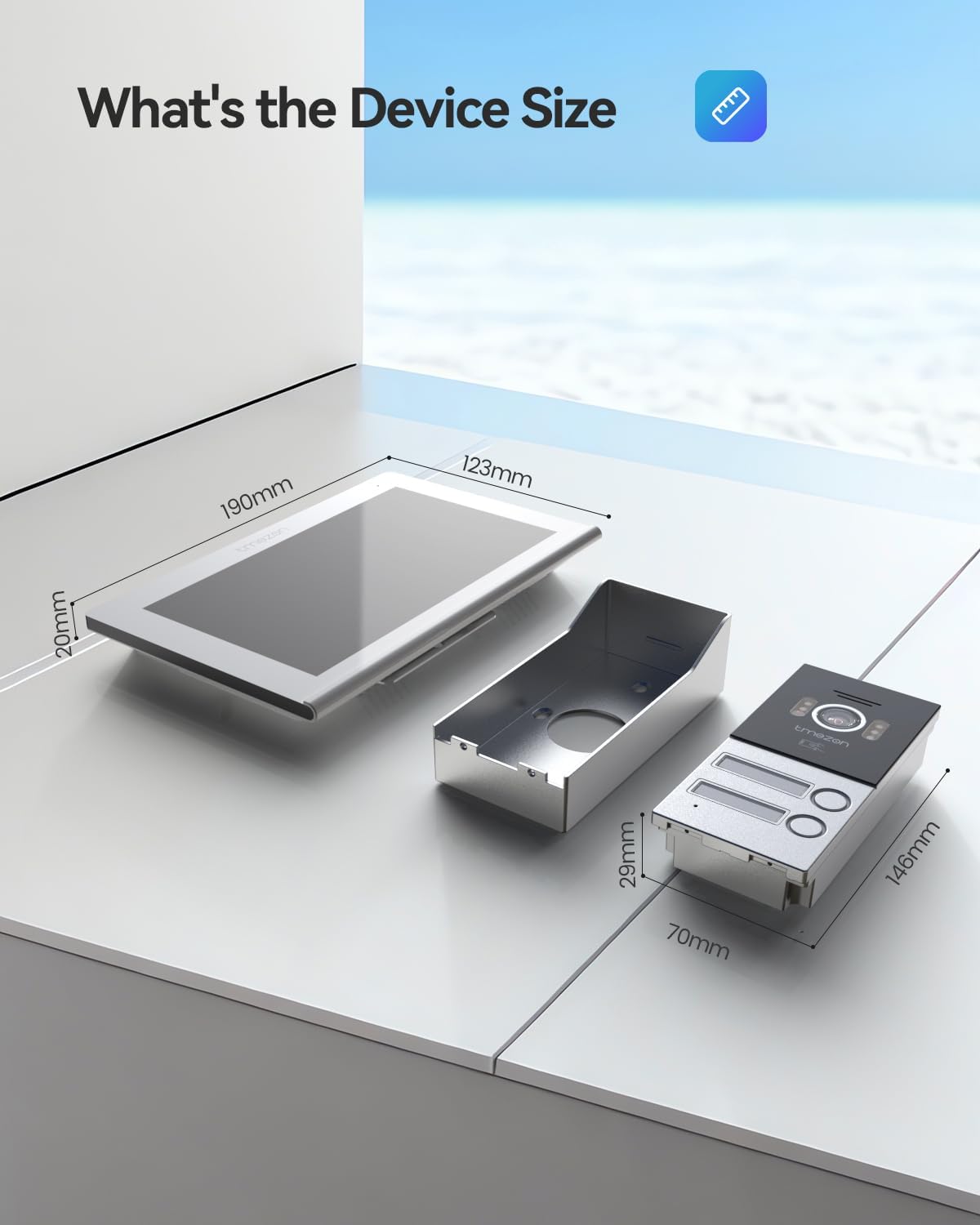
Figur 9.1: Dimensions of the TMEZON indoor monitor and outdoor doorbell unit.
10. Garanti og support
TMEZON products are designed for reliability and performance. For warranty information, please refer to the warranty card included in your package or visit the official TMEZON webwebsted.
If you encounter any issues or require technical assistance, please contact TMEZON customer support. Provide your model number and a detailed description of the problem for efficient service.
- Kundesupport: Refer to your product packaging or the official TMEZON webwebsted for kontaktoplysninger.
- Online ressourcer: Check the TMEZON webwebsted med ofte stillede spørgsmål, opdaterede manualer og softwaredownloads.


