1. Introduktion
This manual provides comprehensive instructions for the setup, operation, maintenance, and troubleshooting of your vretti D467B Bluetooth Thermal Shipping Label Printer. This high-performance thermal printer is designed for efficient label printing for various applications, including shipping, address, and barcode labels, supporting both USB and Bluetooth connectivity.

Figure 1: vretti D467B Printer and accessories. A sample label with barcode 4206047823456789012345678901 er vist.
2. Opsætning
2.1 Udpakning og indhold
Fjern forsigtigt alle komponenter fra emballagen. Sørg for, at følgende dele er til stede:
- vretti D467B Thermal Label Printer
- Strømadapter
- USB kabel
- USB Flash Drive (containing drivers and software)
- Label Spindle and Holders
- Hurtig startvejledning
2.2 Tilslutning af printeren
- Connect the power adapter to the printer's power port and then to an electrical outlet.
- Til USB-forbindelse: Tilslut USB-kablet fra printeren til din computer.
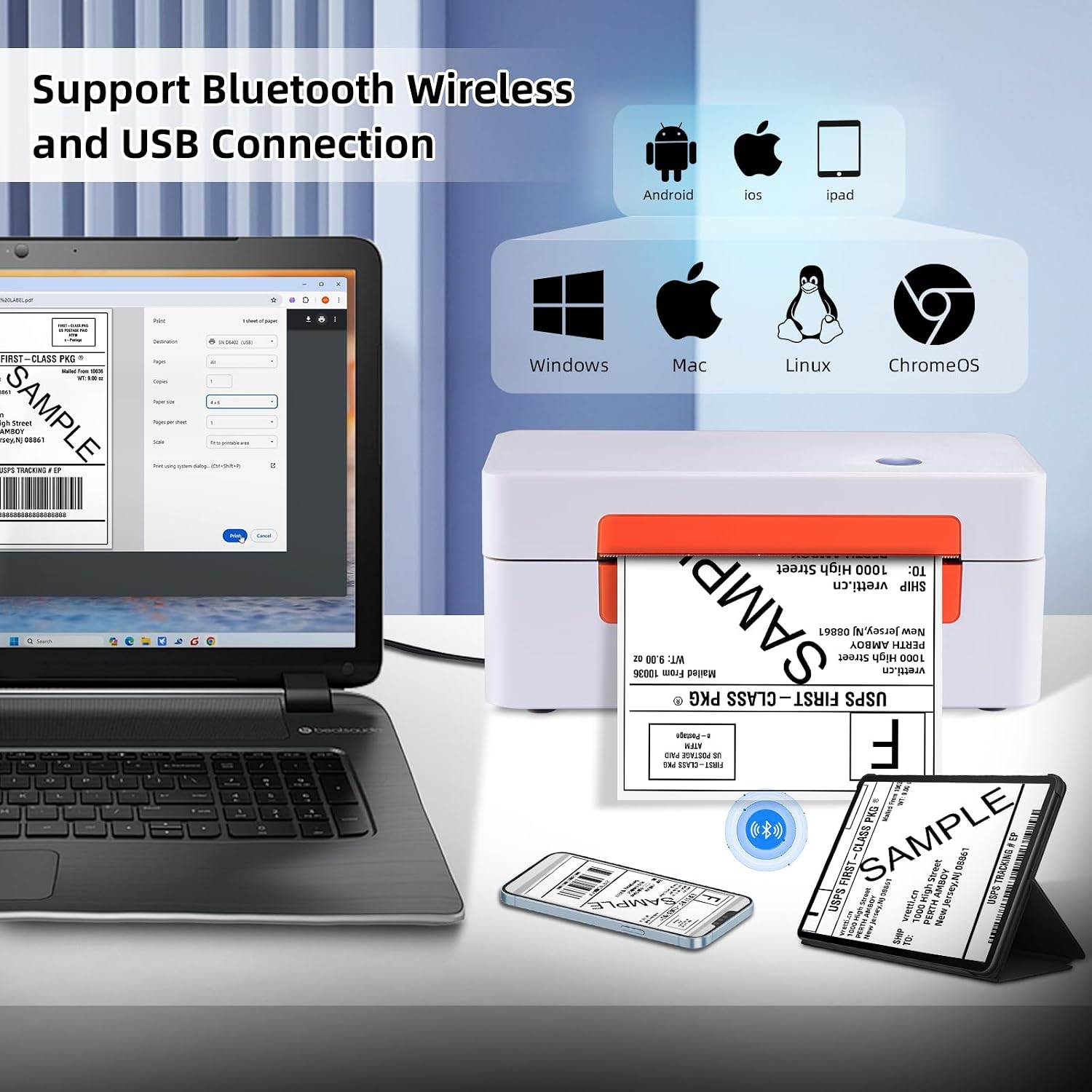
Figure 2: Printer connectivity options (USB and Bluetooth).
2.3 Ilægning af etiketter
- Åbn printerdækslet.
- Place the label roll onto the label spindle and secure it with the holders.
- Feed the labels through the guide until the leading edge is slightly past the print head.
- Luk printerdækslet.
- Press the feed button once to allow the printer to automatically detect and calibrate the label size.

Figure 3: Label loading and supported label sizes. A nutrition facts label with barcode 0403685400125 er vist.
2.4 Driver Installation and Software
The printer supports Windows, macOS, Chrome OS, and Linux systems via USB, and Android/iOS via Bluetooth using the "Ezlabel" app.
- For USB-forbindelse: Insert the provided USB flash drive into your computer. Follow the instructions to install the appropriate drivers for your operating system. For Chrome OS users, an extension may need to be installed from the USB flash drive.
- For Bluetooth-forbindelse: Download the "Ezlabel" app from your device's app store (available for Android and iOS).
3. Betjening
3.1 Basic Printing Steps
- Ensure the printer is powered on and labels are loaded correctly.
- For USB Printing:
- Åbn dokumentet eller etiketten file på din computer.
- Select the vretti D467B printer from your print options.
- Adjust print settings (e.g., label size, orientation) as needed.
- Initiate printing.
- For Bluetooth Printing (via Ezlabel App):
- Open the "Ezlabel" app on your Android or iOS device.
- Pair your device with the printer via Bluetooth.
- Import or create your label design within the app.
- Customize and preview etiketten.
- Send udskriftsjobbet til printeren.

Figure 4: High-speed and high-resolution printing capabilities.
3.2 Platformkompatibilitet
The vretti D467B printer is compatible with various e-commerce and shipping platforms, including but not limited to:
- Amazon
- eBay
- Shopify
- Etsy
- USPS
- UPS
- FedEx
- DHL
- Walmart
- Stamps.com
- ShipStation
- ShipWorks
- Shippo
- EasyPost
- Endicia
- Wish
- AliExpress
- XPS Ship

Figure 5: Compatible e-commerce and shipping platforms.
3.3 Supported Label Types
The printer supports a wide range of thermal label types, including:
- Shipping Labels (e.g., 4x6 inches)
- Adresseetiketter
- Stregkodeetiketter
- Produktetiketter
- DIY etiketter
- Business Logos

Figur 6: Eksamples of supported label applications.
4. Vedligeholdelse
4.1 Rengøring af printhovedet
To ensure optimal print quality, regularly clean the print head. Use an alcohol swab or a specialized print head cleaning pen. Power off the printer and allow the print head to cool before cleaning. Gently wipe the print head surface to remove any dust or adhesive residue.
4.2 Generel pleje
- Opbevar printeren i et rent og støvfrit miljø.
- Undgå at udsætte printeren for direkte sollys eller ekstreme temperaturer.
- Use only high-quality thermal labels to prevent damage to the print head.
- Brug ikke slibende rengøringsmidler eller opløsningsmidler på printerens yderside.
5. Fejlfinding
This section addresses common issues you might encounter with your vretti D467B printer.
5.1 Printeren svarer ikke
- Sørg for, at strømkablet er korrekt tilsluttet, og at printeren er tændt.
- Kontroller, at USB-kablet er korrekt tilsluttet til både printeren og computeren.
- For Bluetooth, ensure the printer is paired with your device and the "Ezlabel" app is open.
- Genstart printeren og din computer/mobilenhed.
5.2 Dårlig udskriftskvalitet
- Check if the thermal labels are loaded correctly and are facing the right direction.
- Rengør printhovedet som beskrevet i afsnittet Vedligeholdelse.
- Sørg for at bruge termiske etiketter af høj kvalitet.
- Adjust print density settings in your printer preferences or the "Ezlabel" app.
5.3 Labels Not Feeding Correctly
- Ensure labels are properly aligned within the guides.
- Perform a label calibration by pressing the feed button.
- Kontrollér for eventuelle forhindringer i etiketbanen.
5.4 Forbindelsesproblemer
- USB: Reinstall the printer drivers from the provided USB flash drive. Try a different USB port or cable.
- Bluetooth: Ensure Bluetooth is enabled on your device. Forget the printer from your device's Bluetooth settings and re-pair it through the "Ezlabel" app. Ensure the printer is within range.
6. Specifikationer
| Feature | Detalje |
|---|---|
| Model | D467B |
| Udskrivningsteknologi | Termisk |
| Forbindelse | Bluetooth, USB |
| Udskriftsopløsning | 203 DPI |
| Maksimal udskrivningshastighed | 152 mm/s (72 etiketter/minut for 4x6) |
| Understøttet etiketbredde | 1 inch to 4.5 inches (25.4mm to 115mm) |
| Understøttede mediestørrelser | 4x6 inches (standard shipping labels) and other custom sizes |
| Printer output | Monokrom |
| Produktdimensioner | 7.6 x 3.9 x 3.9 tommer |
| Varens vægt | 2.89 pund |
| Kontrolmetode | App, USB |
| UPC | 692878863544 |
7. Support og garanti
7.1 Teknisk support
For any technical assistance or inquiries, vretti offers comprehensive support through various channels:
- Teknisk fjernsupport: Available for complex issues.
- E-mail support: Contact via email for detailed queries.
- Instant Messaging: Support available via WhatsApp.
- Online Q&A: Check the product's Q&A section for common questions and answers.
Please refer to the contact information provided with your product packaging or on the official vretti webwebstedet for de mest opdaterede supportoplysninger.
7.2 Produktgaranti
Information regarding the product warranty is typically provided with your purchase documentation or can be obtained from the retailer where the printer was purchased. Please retain your proof of purchase for warranty claims.


