1. Introduktion
This manual provides essential instructions for the installation, setup, and operation of your TONGOU Wi-Fi Smart Switch 1P+N DIN Rail DIY with Power Monitoring. This device allows you to transform traditional household appliances into smart, connected devices, offering remote control, voice control, and energy consumption monitoring through the Smart Life or Tuya application.

Image 1.1: TONGOU Wi-Fi Smart Switch integrated into a smart home system, showing app control and Wi-Fi connectivity.
2. Sikkerhedsoplysninger
WARNING: Electrical installation should only be performed by qualified personnel. Incorrect installation can lead to electric shock, fire, or property damage.
- Afbryd altid strømmen ved hovedafbryderen før installation eller vedligeholdelse.
- Sørg for, at enheden er installeret i et tørt miljø, væk fra fugt og ekstreme temperaturer.
- Kontroller, at voltage and current ratings of the switch match your electrical system requirements.
- Do not exceed the maximum current rating of 6A for this model.
- Sørg for, at alle ledningsforbindelser er sikre og korrekt isolerede.
3. Pakkens indhold
Bekræft at alle varer er til stede i pakken:
- 1 x TONGOU Wi-Fi Smart Switch (Model: With Power Monitoring 6A)
- 1 x brugermanual
4. Specifikationer
| Feature | Specifikation |
|---|---|
| Mærke | TONGOU |
| Modelnummer | With Power Monitoring 6A |
| Operation Voltage | AC 90 - 240 V, 50/60 Hz |
| Trådløs type | Wi-Fi 2.4 GHz (5/4 GHz not supported) |
| Nuværende vurdering | 6 A |
| Maximum Wiring Capacity | 10 mm² (Power side and Load side) |
| Monteringstype | DIN -skinne montering |
| Dimensioner (L x B x H) | 9 x 2 x 8 cm |
| Vægt | 120 gram |
| Kontaktmateriale | Silver-plated relay contacts |
| Driftstilstand | Til/Fra |
| Certificeringer | CE |
| Driftstemperatur | Op til 80 grader Celsius |
5. Installation
The TONGOU Wi-Fi Smart Switch is designed for DIN rail mounting. Follow these steps for proper installation:
- Strømafbrydelse: Før du påbegynder noget elektrisk arbejde, skal du sørge for, at hovedstrømforsyningen til kredsløbet er afbrudt ved afbryderen.
- Montering: Mount the smart switch onto a standard 35mm DIN rail. The device occupies one position (18mm width).
- Ledningsføring: Connect the power input (N for Neutral, L for Live) to the top terminals labeled 'Power'. Connect the load output (N for Neutral, L for Live) to the bottom terminals labeled 'Load'. The maximum wiring capacity is 10 mm² for both power and load sides. Ensure correct polarity.
- Kredsløb: It is recommended to install an upstream residual current circuit breaker (RCBO/A type, 30mA/10kA) to protect the circuit.
- Sikre forbindelser: Use a screwdriver to securely tighten all wire connections.

Image 5.1: Wiring diagram illustrating the connection of the TONGOU Wi-Fi Smart Switch to a circuit with an upstream circuit breaker and a light bulb as a load.
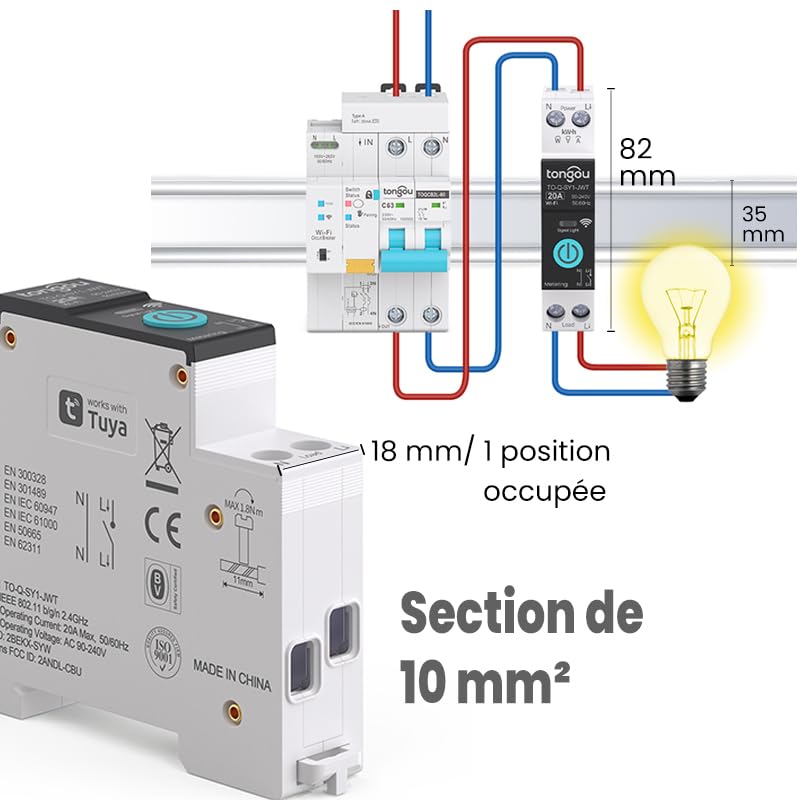
Image 5.2: Close-up of the smart switch showing its dimensions (82mm height, 35mm depth, 18mm width) and indicating a 10 mm² wiring section capacity.
6. Opsætning
To enable smart functionalities, connect your TONGOU Wi-Fi Smart Switch to the Smart Life or Tuya application.
- Download appen: Download the "Smart Life" or "Tuya Smart" application from the App Store (iOS) or Google Play Store (Android).
- Registrer/Log ind: Åbn appen, og opret en ny konto, eller log ind med en eksisterende.
- Gå ind i parringstilstand: After restoring power to the switch, press and hold the main button on the device for 5 to 10 seconds until the signal light blinks rapidly in blue. This indicates the device is in pairing mode.
- Tilføj enhed i appen: In the Smart Life/Tuya app, tap the "+" icon (usually in the top right corner) to add a new device. The app should automatically discover the switch. If not, manually select "Electrical" > "Circuit Breaker (Wi-Fi)" or similar.
- Opret forbindelse til Wi-Fi: Follow the in-app instructions to connect the device to your 2.4 GHz Wi-Fi network. Note: The device only supports 2.4 GHz Wi-Fi; 5 GHz networks are not compatible.
- Omdøb enhed: Once connected, you can rename the device for easier identification (e.g., "Living Room Light").

Image 6.1: Visual guide showing how to press and hold the button for 5-10 seconds until the blue indicator light blinks rapidly, signifying pairing mode.

Image 6.2: Screenshot of the Smart Life/Tuya app showing the login/register screen, a Wi-Fi router, and the process of adding a discovered "WiFi Din Rail Switch" device.
7. Betjening
Once the smart switch is successfully paired, you can control it and monitor energy usage through the app or voice commands.
7.1. Fjernbetjening via app
Open the Smart Life or Tuya app. Select your TONGOU Smart Switch from the device list. You can:
- Turn the connected appliance On or Off remotely from anywhere.
- Set up various timer modes:
- Timingstilstand: Schedule specific on/off times for daily or weekly routines.
- Nedtællingstilstand: Indstil en nedtællingstimer, så enheden slukker efter en bestemt periode.
- Cyclic Timing Mode: Konfigurer gentagne tænd/sluk-cyklusser.
- Astronomical Timing Mode: Automate based on sunrise and sunset times.
7.2. Stemmekontrol
The TONGOU Smart Switch is compatible with Amazon Alexa and Google Assistant. To enable voice control:
- Link your Smart Life/Tuya account to Amazon Alexa or Google Home app.
- Opdag nye enheder.
- Brug stemmekommandoer såsom:
- "Alexa, tænd for [Enhedsnavn]"
- "Hej Google, sluk [Enhedsnavn]"

Image 7.1: An Amazon Echo device displaying a voice waveform, indicating it is processing a command to turn off a lamp.
7.3. Strømovervågning
The smart switch provides real-time and historical energy consumption data:
- View realtidsstrøm, voltage, and power consumption of the connected load.
- Access historical data (hourly, daily, monthly, yearly) to track energy usage patterns.
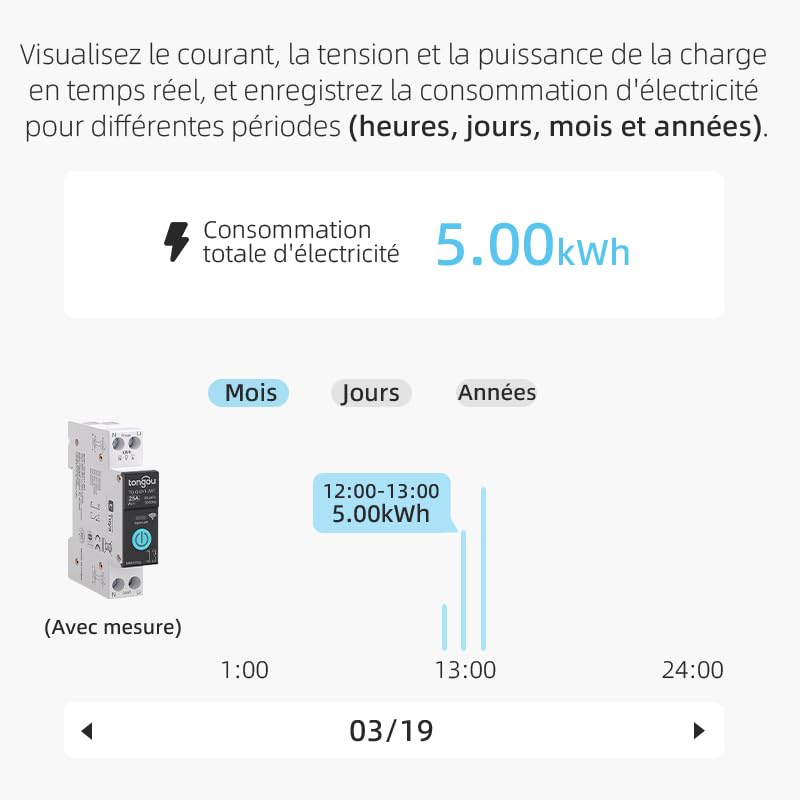
Image 7.2: A graphical representation within the app showing total electricity consumption (5.00 kWh) and a bar chart illustrating hourly consumption data for a specific date.
8. Vedligeholdelse
To ensure optimal performance and longevity of your TONGOU Wi-Fi Smart Switch:
- Hold enheden ren og fri for støv. Brug en tør, blød klud til rengøring.
- Brug ikke flydende rengøringsmidler eller opløsningsmidler.
- Sørg for tilstrækkelig ventilation omkring enheden for at forhindre overophedning.
- Kontrollér regelmæssigt ledningsforbindelser for tæthed, især efter den første installation.
9. Fejlfinding
If you encounter issues with your TONGOU Wi-Fi Smart Switch, refer to the following common problems and solutions:
| Problem | Mulig årsag | Løsning |
|---|---|---|
| Enheden opretter ikke forbindelse til Wi-Fi | Incorrect Wi-Fi band (5GHz), weak signal, incorrect password, device not in pairing mode. | Ensure your Wi-Fi is 2.4 GHz. Move the device closer to the router. Re-enter Wi-Fi password carefully. Put the device back into pairing mode (rapid blue blinking). |
| Enhed offline i appen | Wi-Fi disconnected, power outage, router issues. | Check your Wi-Fi router and internet connection. Verify the device has power. Re-pair if necessary. |
| Stemmestyring virker ikke | Kontoen er ikke tilknyttet, enheden er ikke fundet, forkerte kommandoer. | Ensure Smart Life/Tuya account is linked to Alexa/Google Home. Discover devices in the voice assistant app. Use the exact device name. |
| Power monitoring data is inaccurate or missing | Forkert ledningsføring, enhedfejl. | Double-check wiring according to the installation diagram. Contact support if the issue persists. |
| Device not responding to manual button press | No power, internal fault. | Check power supply to the device. If power is present and the device is unresponsive, contact support. |
10. Garanti og support
For warranty information and technical support, please refer to the documentation provided with your purchase or contact TONGOU customer service through their official channels. Keep your purchase receipt as proof of purchase.