1. Introduktion
This manual provides essential instructions for setting up, operating, and maintaining your JIMTAB F11 11-inch Android 14 Tablet. Please read this manual thoroughly before using your device to ensure proper function and longevity.

The JIMTAB F11 tablet is designed for versatile use, supporting activities such as work, studying, reading, gaming, and media consumption.
2. Hvad er der i æsken
Bekræft at alle varer er til stede i pakken:
- JIMTAB F11 11-inch Tablet
- Bluetooth tastatur
- Stylus
- 3-Position Free Angle Leather Case
- HD Screen Protector
- USB-C datakabel
- Strømadapter
- Type C 3.0 Data Adapter
- SIM-kort ejektorværktøj
- Betjeningsvejledning (dette dokument)

The JIMTAB F11 package includes the tablet and a range of accessories for enhanced functionality.
3. Opsætning
3.1 Opladning af tabletten
Before first use, fully charge the tablet. Connect the USB-C data cable to the tablet's USB-C port and the power adapter. Plug the power adapter into a wall outlet. The charging indicator will show the charging status.

The tablet supports USB fast charging via its Type-C port.
3.2 Tænd/sluk
- For at tænde: Press and hold the Power button until the JIMTAB logo appears.
- For at slukke: Tryk og hold tænd/sluk-knappen nede, og vælg derefter "Sluk" fra mulighederne på skærmen.
- For at genstarte: Tryk og hold tænd/sluk-knappen nede, og vælg derefter "Genstart" fra valgmulighederne.
3.3 Indledende opsætning
Når du tænder den første gang, skal du følge instruktionerne på skærmen for at:
- Vælg dit sprog.
- Opret forbindelse til et Wi-Fi-netværk.
- Log ind med din Google-konto, eller opret en ny.
- Set up screen lock (PIN, pattern, password, or Face Recognition).
- Review og accepterer vilkår og betingelser.
3.4 Installation af SIM-kort og TF-kort
The tablet supports Nano SIM cards for cellular connectivity and TF (microSD) cards for expandable storage.
- Find SIM-/TF-kortbakken på siden af tabletten.
- Insert the SIM card ejector tool into the small hole next to the tray and press gently until the tray pops out.
- Place the Nano SIM card(s) and/or TF card into the designated slots on the tray, ensuring correct orientation.
- Skub forsigtigt bakken tilbage i tabletten, indtil den klikker på plads.
4. Betjeningsvejledning
4.1 Grundlæggende navigation
- Tryk på: Vælg et element eller aktiver en knap.
- Langt tryk: Få adgang til kontekstmenuer eller flyt ikoner.
- Stryg: Naviger gennem skærme, rul i lister eller afvis notifikationer.
- Knib-for-at-zoome: Forstør eller formindsk indholdet på skærmen.
4.2 Skærmindstillinger
Juster skærmindstillinger for optimal viewing:
- Gå til Indstillinger > Skærm.
- Tilpasse Lysstyrkeniveau (up to 850 nits).
- Aktiver Eye Comfort Shield (TÜV blue light eye protection certified) for reduced eye strain.
- Sæt Skærm timeout.

The 2K IPS display offers up to 850 nits brightness for a clear visual experience.
4.3 Lydindstillinger
The tablet features 4 Hi-Res Stereo Box Speakers for immersive audio.
- Gå til Settings > Sound & Vibration.
- Adjust media, call, ring, and alarm volumes.
- Select notification sounds and vibration patterns.

Experience rich audio with the tablet's four stereo speakers.
4.4 Kamerabrug
The tablet is equipped with a 5MP front camera and a 13MP + 5MP dual rear camera system.
- Åbn Kamera anvendelse.
- Tryk på udløserknappen for at tage billeder.
- Skift mellem forreste og bageste kamera ved hjælp af kamera-til/fra-ikonet.
- Vælg videotilstand for at optage videoer.

The tablet's multiple cameras are suitable for photography, video recording, and video conferencing.
4.5 Forbindelse (Wi-Fi, Bluetooth)
- Wi-Fi: Gå til Indstillinger > Netværk og internet > Wi-Fi to connect to available networks. Supports 2.4G and 5G Wi-Fi.
- Bluetooth: Gå til Indstillinger > Forbundne enheder > Bluetooth to pair with Bluetooth accessories like the included keyboard.

The tablet supports Bluetooth for connecting to various devices, including the provided keyboard.
4.6 Ansigtsgenkendelse
Set up Face Recognition for convenient and secure unlocking:
- Gå til Indstillinger > Sikkerhed og privatliv > Ansigtslåsning.
- Follow the on-screen instructions to register your facial data.
- Once registered, you can unlock your tablet by looking at the front camera.

Face Unlock provides a secure and quick way to access your tablet.
4.7 Opdelt skærmfunktionalitet
Android 14 allows for split-screen multitasking:
- Åbn den første applikation.
- Tryk på knappen for de seneste apps (normalt et firkantet ikon) for at view åbne applikationer.
- Long-press the icon of the first app at the top of its card, then select "Split screen".
- Vælg den anden applikation fra listen over seneste apps eller appskuffen for at optage den anden halvdel af skærmen.
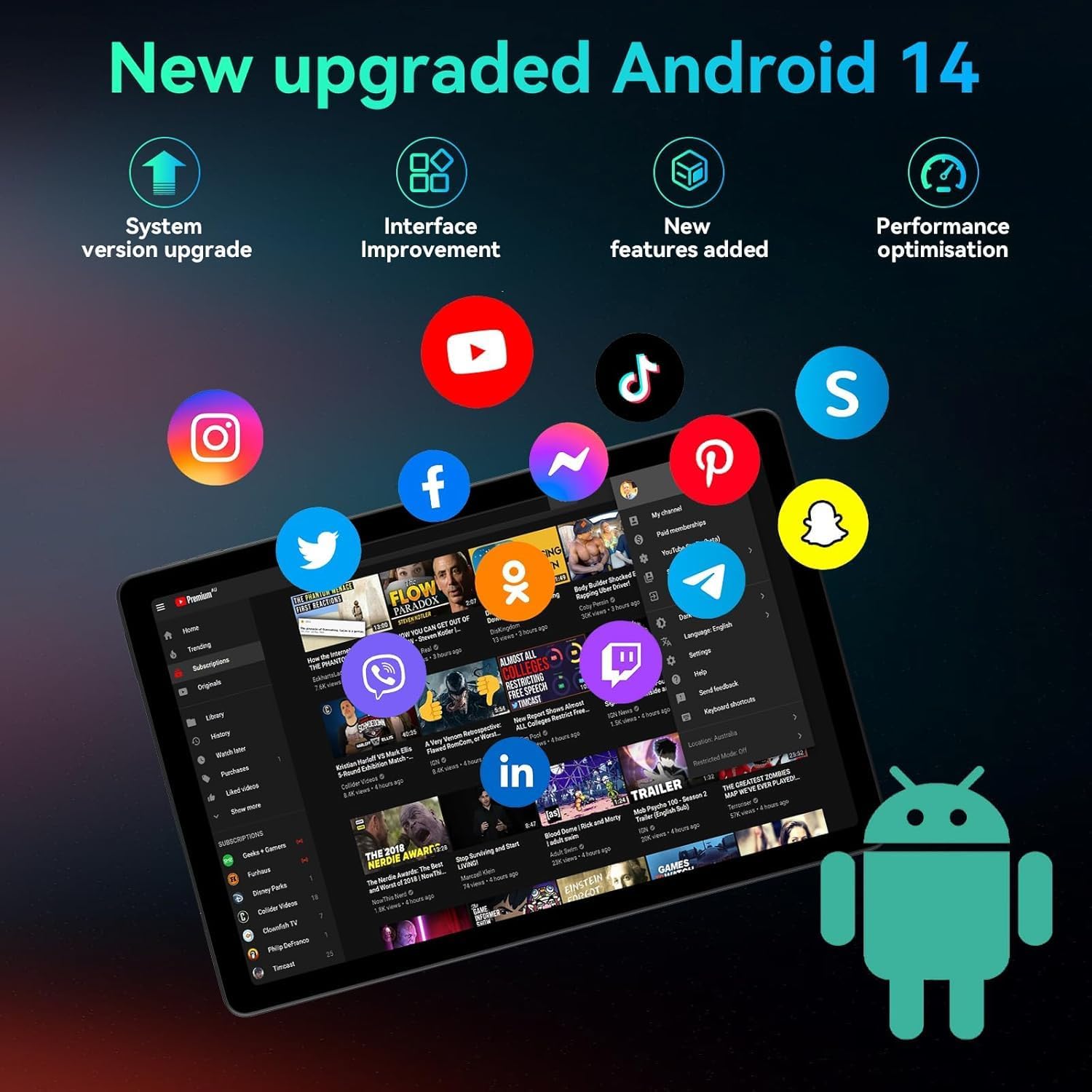
The Android 14 operating system offers enhanced features like split-screen for improved productivity.
4.8 Using the Bluetooth Keyboard and Stylus
The included Bluetooth keyboard and stylus enhance productivity.
- Bluetooth-tastatur:
- To pair, turn on the keyboard and enable Bluetooth on your tablet. Søg efter the keyboard in Bluetooth settings and connect.
- The keyboard supports fast charging via USB-C.
- To switch input systems: Android: FN + A, Windows: FN + S, iOS: FN + D.
- To switch languages: Android: Shift + Space key, Windows: Alt + Shift, iOS: Control + Space key.
- Stylus: Use the stylus for precise input, drawing, or navigation on the touchscreen. No pairing is required for basic stylus functionality.
- Leather Case: The 3-position free angle leather case allows for various viewing and typing angles (30°, 60°, 150°).

The Bluetooth keyboard offers extended use and fast charging.

The multi-angle protective leather case provides versatile viewing- og skrivepositioner.
5. Vedligeholdelse
- Rensning: Brug en blød, fnugfri klud til at rengøre skærmen og tablettens kabinet. Undgå slibende materialer eller barske kemikalier.
- Batteripleje:
- Undgå ekstreme temperaturer, da disse kan forringe batteriets levetid.
- Lad ikke batteriet aflades helt for ofte.
- Brug den medfølgende oplader for optimal opladning.
- Softwareopdateringer: Søg regelmæssigt efter og installer systemopdateringer for at sikre optimal ydeevne og sikkerhed. Gå til Indstillinger > System > Systemopdatering.
- Lagerstyring: Ryd periodisk unødvendigt files and apps to maintain performance. Expand storage with a TF card if needed (up to 2TB).
6. Fejlfinding
| Problem | Løsning |
|---|---|
| Tabletten tænder ikke. | Ensure the battery is charged. Connect the charger and wait a few minutes before attempting to power on again. If unresponsive, perform a force restart by holding the Power button for 10-15 seconds. |
| Problemer med Wi-Fi-forbindelse. | Check if Wi-Fi is enabled in Settings. Restart your router and the tablet. Forget the network and reconnect. Ensure you are within range of the Wi-Fi signal. |
| Langsom ydeevne eller apps der går ned. | Close unnecessary background apps. Clear cache for problematic apps (Settings > Apps > [App Name] > Storage & cache > Clear cache). Restart the tablet. Ensure sufficient storage space is available. |
| Bluetooth keyboard not connecting. | Ensure the keyboard is charged and powered on. Check if Bluetooth is enabled on the tablet. Unpair and re-pair the keyboard. Try restarting both devices. |
| Skærmen reagerer ikke. | Perform a force restart. If the issue persists, contact customer support. |
7. Specifikationer
| Feature | Detalje |
|---|---|
| Model | F11 |
| Operativsystem | Android 14 |
| Vise | 11-inch 2K IPS INCELL (2000x1200 pixels), Max 850 nits brightness, TÜV blue light eye protection certified |
| Processor | Unisoc T616 Octa-Core (2 GHz) |
| VÆDDER | 18 GB (6 GB fysisk + 12 GB virtuel) |
| Intern opbevaring | 128 GB |
| Udvidelig opbevaring | Up to 2TB via TF (microSD) card |
| Kameraer | Front: 5MP, Rear: 13MP + 5MP |
| Batteri | 9000mAh, Type-C fast charging, up to 20 hours average battery life |
| Lyd | 4 Hi-Res Stereo Box Speakers |
| Forbindelse | Wi-Fi (802.11g, 2.4G+5G), Bluetooth, Nano SIM card slot |
| Dimensioner (LxBxH) | 10 x 2.9 x 6.6 tommer (256x168x7.6 mm) |
| Vægt | 1.1 pund (500 g) |
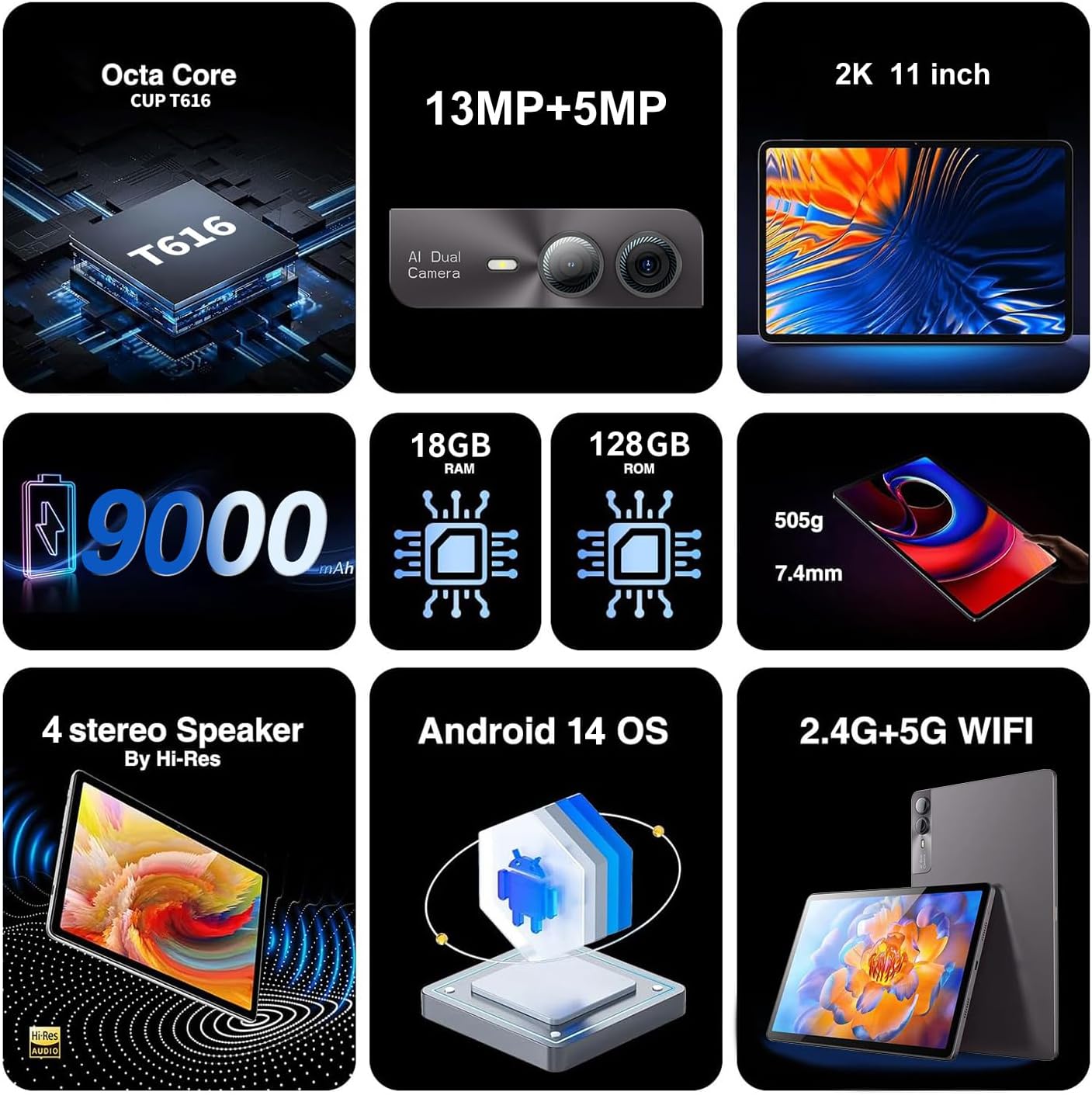
Key features and specifications of the JIMTAB F11 tablet.
8. Sikkerhedsoplysninger
- Udsæt ikke tabletten for ekstreme temperaturer, direkte sollys eller fugt.
- Undgå at tabe tabletten eller udsætte den for hårde stød.
- Brug kun godkendte opladere og tilbehør.
- Do not attempt to disassemble or repair the tablet yourself. This may void the warranty and cause damage.
- Keep the tablet away from children and pets.
- Bortskaf tabletten og dens batteri på en ansvarlig måde i henhold til lokale regler.
9. Garanti og support
For warranty information, please refer to the documentation included with your purchase or contact JIMTAB customer support.
If you encounter any issues or have questions regarding your JIMTAB F11 tablet, please contact our customer support team for assistance.
- Facebook Official Homepage: iJimtab
- YouTube Official Homepage: Jimtab (Placeholder URL, please verify official channel)

JIMTAB offers 24/7 customer support for product assistance.


