1. Introduktion
This manual provides detailed instructions for the MESWAO 15.6 Inch Android 14 Tablet, model MES-B3. It covers essential information regarding product features, setup, operation, maintenance, and troubleshooting to ensure optimal performance and user experience. Please read this manual thoroughly before using your device.
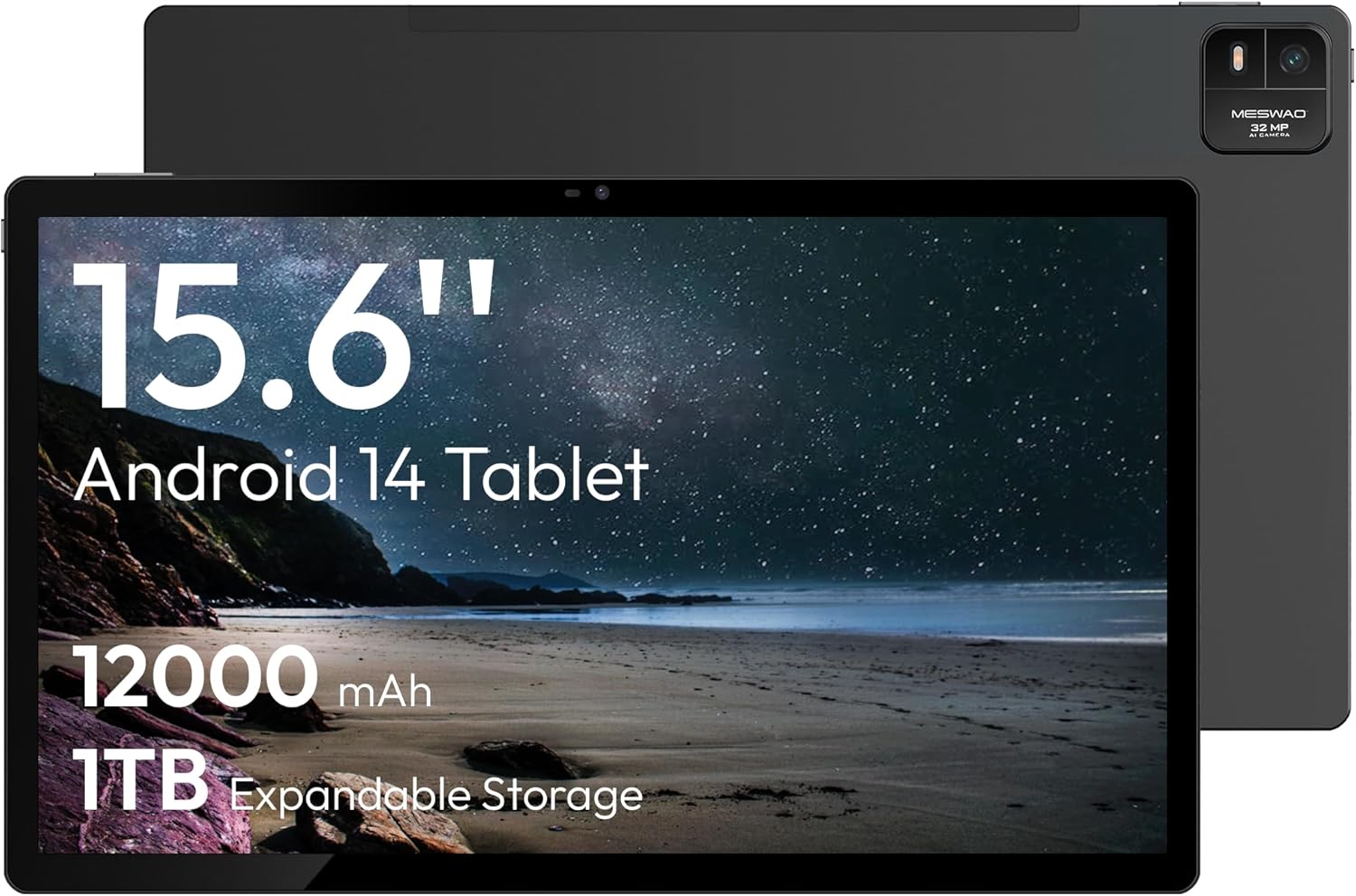
Figure 1.1: MESWAO 15.6 Inch Android 14 Tablet. This image displays the front and back view of the tablet, highlighting its large screen and rear camera module.
2. Sikkerhedsoplysninger
For at forhindre skader på din enhed eller skader på dig selv eller andre, bedes du overholde følgende forholdsregler:
- Udsæt ikke tabletten for ekstreme temperaturer, direkte sollys eller høj luftfugtighed.
- Avoid dropping or subjecting the tablet to severe impact.
- Brug kun godkendte opladere og tilbehør.
- Do not attempt to disassemble or repair the tablet yourself.
- Hold tabletten væk fra vand og andre væsker.
- Observe all local regulations regarding the use of electronic devices.
3. Pakkens indhold
Bekræft at alle varer er til stede i pakken:
- 15.6-inch Tablet x1
- 15W Charger x1
- Type-C to 3.5mm Adapter x1
- USB-A to Type-C Adapter x1
- Stuck Pin x1 (for SIM/TF card tray)
4. Enhed overview
Familiarize yourself with the physical components of your MESWAO tablet.
4.1. Fysiske egenskaber
- Forreste kamera: Placeret øverst i midten af skærmen, når den holdes vandret.
- Bagkamera med blitz: Located on the back, typically in a corner.
- Power knap: Usually on the side, used to power on/off or wake/sleep the device.
- Lydstyrkeknapper: Juster lydniveauer.
- USB-C-port: Til opladning og dataoverførsel.
- TF-kortslot: Til udvidelig lagerplads.
- Højttalere: Quad speakers with 8 sound chambers for audio output.

Figur 4.1: Overview of MESWAO Tablet's physical features. This image illustrates the location of stereo speakers, power and volume buttons, front camera, rear camera with flashlight, Type-C port, and TF card slot.
5. Opsætning
5.1. Første opladning
Before first use, fully charge the tablet using the provided 15W charger and USB-C cable. Connect the charger to the USB-C port on the tablet and plug it into a power outlet. The battery indicator on the screen will show charging progress.

Figure 5.1: Tablet charging illustration. This image shows the tablet connected to a charger, displaying a charging icon and indicating 100% charge in 3.5 hours.
5.2. Tænd/sluk
- For at tænde: Press and hold the Power button until the MESWAO logo appears.
- For at slukke: Tryk på tænd/sluk-knappen og hold den nede, indtil menuen med strømindstillinger vises, og vælg derefter "Sluk".
- At sove/vågne: Tryk kort på Power-knappen.
5.3. Indledende konfiguration
Når du tænder din tablet første gang, skal du følge instruktionerne på skærmen for at konfigurere den:
- Vælg dit foretrukne sprog.
- Opret forbindelse til et Wi-Fi-netværk.
- Log ind med din Google-konto, eller opret en ny.
- Review og accepterer vilkårene og betingelserne.
- Konfigurer skærmlås (pinkode, mønster eller adgangskode).
5.4. Indsættelse af et TF-kort
To expand storage, insert a TF (microSD) card:
- Locate the TF card slot on the side of the tablet.
- Use the provided stuck pin to gently eject the card tray.
- Place the TF card into the tray with the gold contacts facing down.
- Sæt forsigtigt bakken tilbage i tabletten.

Figure 5.2: Tablet storage capabilities. This image highlights the 128GB ROM and support for up to 1TB expandable storage via TF card.
6. Betjeningsvejledning
6.1. Grundlæggende navigation
The MESWAO tablet uses Android 14, offering intuitive touch-based navigation:
- Tryk på: Vælg et element, eller åbn et program.
- Stryg: Rul gennem skærme eller lister.
- Knib-for-at-zoome: Forstør eller formindsk indholdet på skærmen.
- Langt tryk: Få adgang til kontekstmenuer eller flyt ikoner.

Figure 6.1: Android 14 operating system interface. This image displays various application icons and highlights features like smooth multitasking, parental control, and enhanced privacy.
6.2. Tilslutning til Wi-Fi
- Gå til Indstillinger > Netværk og internet > Wi-Fi.
- Slå Wi-Fi til/fra On.
- Vælg det ønskede netværk fra listen.
- Indtast adgangskoden, hvis du bliver bedt om det, og tryk derefter på Forbinde.
6.3. Administration af applikationer
- Installer apps: Download fra Google Play Butik.
- Afinstaller apps: Long-press an app icon, then drag it to "Uninstall" or go to Indstillinger > Apps.
- Close Apps: Swipe up from the bottom of the screen and swipe away the app card.
6.4. Kamerabrug
The tablet features a 32MP rear camera with flash and a 5MP front camera.
- Åbn Kamera anvendelse.
- Tryk på udløserknappen for at tage et billede.
- Skift mellem forreste og bageste kamera ved hjælp af kameraskifterikonet.
- Access settings for flash, modes, and other options.
6.5. Batteristyring
12000mAh-batteriet giver længere tids brug. Sådan optimerer du batterilevetiden:
- Juster skærmens lysstyrke.
- Luk ubrugte applikationer.
- Aktivér batterisparetilstand i Indstillinger > Batteri.
6.6. Forbindelse
- Bluetooth: Pair with wireless headphones, speakers, or other devices via Indstillinger > Tilsluttede enheder > Bluetooth.
- USB-C: Tilslut til en computer for file transfer or use with compatible USB-C accessories.
- Trådløs skærmcasting: Share your tablet's screen to a compatible smart TV or monitor. Access this feature from the Quick Settings panel or Indstillinger > Tilsluttede enheder > Cast.
6.7. Lydindstillinger
Adjust volume and audio output options:
- Use the physical volume buttons on the side of the tablet.
- Access detailed settings in Indstillinger > Lyd & vibration.
- The tablet supports multiple audio options, including USB-C audio and 3.5mm via the provided adapter.
7. Vedligeholdelse
7.1. Rengøring af din tablet
Brug en blød, fnugfri klud til at rengøre tabletten. Tør let ved genstridige pletter.ampRengør kluden med vand eller en skærmrens, der er beregnet til elektronik. Undgå skrappe kemikalier eller slibende materialer.
7.2. Softwareopdateringer
Søg regelmæssigt efter og installer softwareopdateringer for at sikre optimal ydeevne, sikkerhed og adgang til nye funktioner. Gå til Indstillinger > System > Systemopdatering.
7.3. Lagerstyring
To maintain performance, periodically manage your tablet's storage:
- Delete unnecessary apps and files.
- Flyt stort files to the TF card or cloud storage.
- Ryd cachedata for apps i Indstillinger > Apps > [Appnavn] > Lagring og cache.
8. Fejlfinding
Se følgende almindelige problemer og løsninger:
| Problem | Løsning |
|---|---|
| Tabletten tænder ikke. | Sørg for, at batteriet er opladet. Tilslut opladeren, og vent et par minutter, før du forsøger at tænde igen. |
| Kan ikke oprette forbindelse til Wi-Fi. | Check if Wi-Fi is enabled. Verify the Wi-Fi password. Restart your router and the tablet. |
| Apps går ned eller fryser. | Close background apps. Clear the app's cache. Restart the tablet. Ensure the app is updated. |
| Langsom ydeevne. | Free up storage space. Close unused apps. Restart the tablet. |
| Batteriet aflades hurtigt. | Reduce screen brightness. Disable unused features like Bluetooth or GPS. Close background apps. Check battery usage in settings. |
9. Specifikationer
Key technical specifications for the MESWAO 15.6 Inch Android 14 Tablet (MES-B3):
| Feature | Detalje |
|---|---|
| Mærke | MESWAO |
| Modelnavn | MES-B3 |
| Operativsystem | Android 14 |
| Skærmstørrelse | 15.6 tommer |
| Skærmopløsning | 1920 x 1080 pixels (IPS HD) |
| Processor | Octa-Core (MediaTek Helio G99, up to 2.2 GHz) |
| Grafik coprocessor | Mali-G57 |
| RAM (Memory Storage Capacity) | 6GB (DDR3 SDRAM) |
| Internal Storage (Flash Memory Size) | 128 GB |
| Udvidelig opbevaring | Op til 1 TB via TF-kort |
| Bagkameraopløsning | 32 MP |
| Forreste kameraopløsning | 5 MP |
| Batterikapacitet | 12000mAh |
| Gennemsnitlig batterilevetid | 12 timer |
| Trådløs type | 802.11a/b/g/n/ac (Wi-Fi 5) |
| Farve | Grå |
| Varens vægt | 2.35 pund |
| Produktmål (LxBxH) | 14.53 x 8.78 x 0.43 tommer |
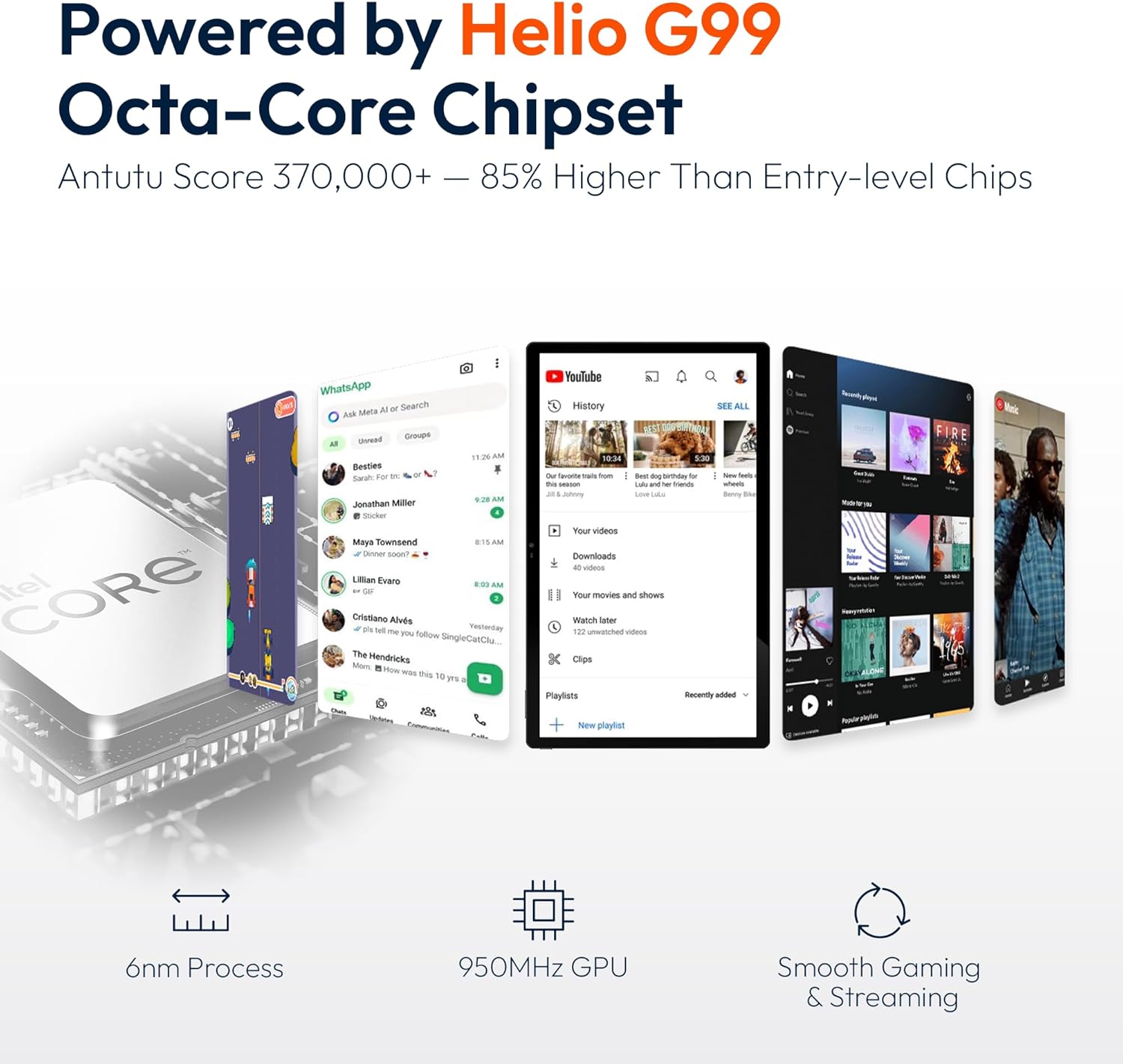
Figure 9.1: Processor and performance details. This image highlights the Helio G99 Octa-Core chipset, 6nm process, 950MHz GPU, and smooth gaming/streaming capabilities.
10. Garanti og support
10.1. Garantioplysninger
The MESWAO 15.6 Inch Android 14 Tablet comes with a 12 måneders garanti dækker fabrikationsfejl. Gem venligst din købsbevis til garantikrav.
10.2. Kundesupport
For technical assistance, troubleshooting, or warranty inquiries, please contact MESWAO customer support. They offer 24-timers kundesupport og har local service centers in the US, EU, and Japan.
- Kontaktmetode: Refer to the contact information provided with your product packaging or visit the official MESWAO webwebsted.
- Problemløsning: Issues reported are typically responded to within 24 hours, with problems resolved or replaced according to policy.

Figure 10.1: MESWAO customer support and warranty details. This image highlights the 12-month warranty, 24-hour customer support, local after-sales centers, and quick response flow.


