1. Introduktion
This manual provides essential instructions for the safe and efficient operation of your Phomemo M832 Portable Thermal Printer. Please read this manual thoroughly before using the device and retain it for future reference.
2. Pakkens indhold
Bekræft at alle varer er til stede i pakken:
- 1x Phomemo M832 Portable Printer (Purple)
- 1x Carrying Case (Black)
- 1x US Letter Size Thermal Roll Paper (pre-installed in printer paper bin)
- 1x 4.33'' Width Thermal Roll Paper
- 1x 3.15'' Width Thermal Roll Paper
- 1x 2.08'' Width Thermal Roll Paper
- 1x USB-C opladerkabel
- 1x Type C Adapter
- 1x Brugermanual (dette dokument)
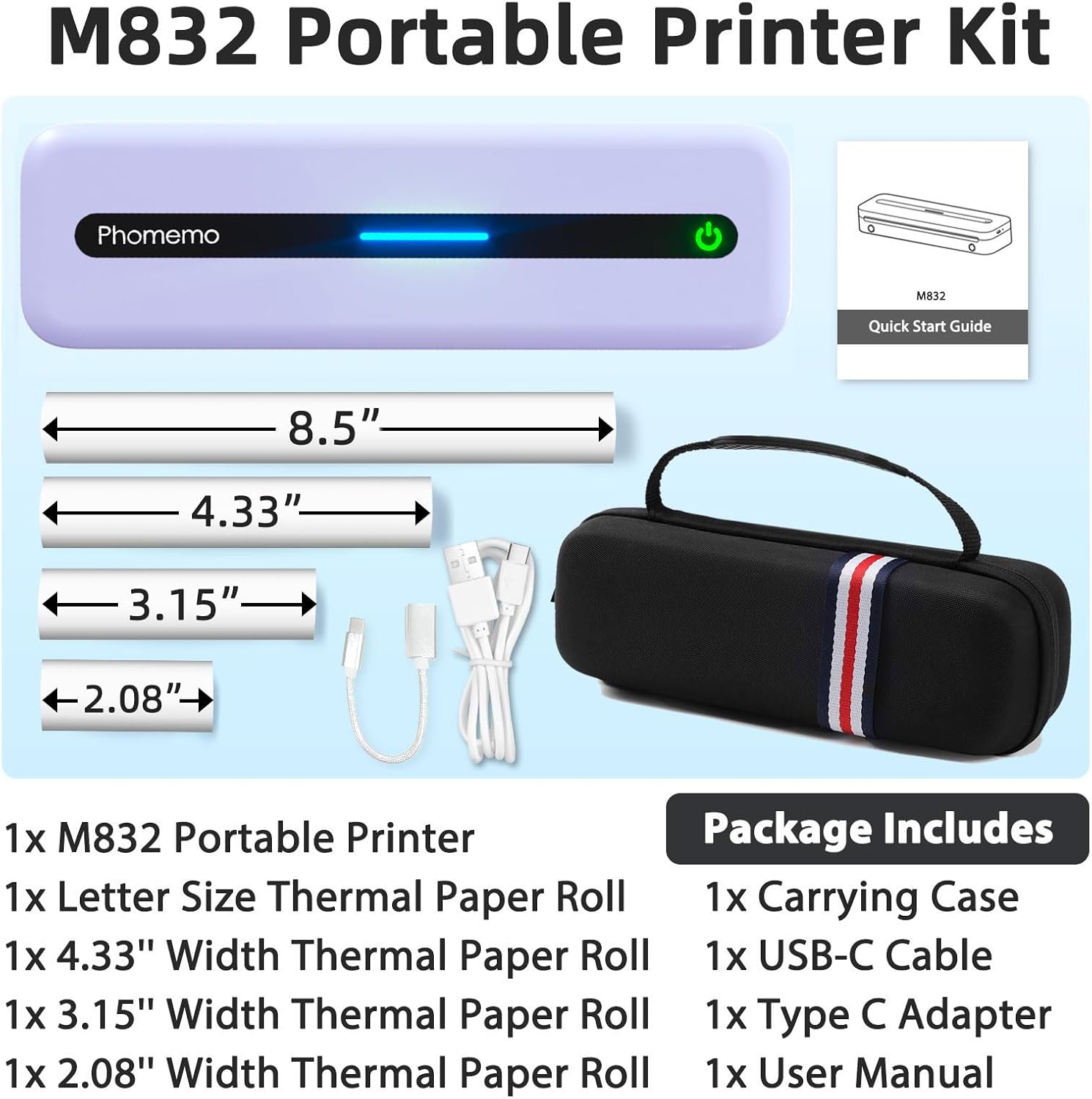
Image: Contents of the Phomemo M832 Portable Printer Kit, including the printer, carrying case, various thermal paper rolls, and cables.
3. Opsætning
3.1. Opladning af printeren
The Phomemo M832 printer features a built-in 2600mAh rechargeable battery. For optimal performance, fully charge the device before first use.
- Connect the provided USB-C charging cable to the printer's charging port.
- Connect the other end of the cable to a 5V 2A power adapter (do not use chargers with output above 5V).
- Indikatorlampen viser opladningsstatus.
A full charge allows for printing up to 150 sheets.
3.2. Ilægning af termopapir
The M832 supports various thermal paper types and sizes, including roll paper, folded paper, and single sheets.
- Press the cover open buttons on the sides of the printer to open the top cover.
- If using a paper roll, adjust the paper roll stoppers to match the width of your thermal paper roll.
- Insert the thermal paper roll into the paper bin, ensuring the printing side faces upwards. Pull out approximately 2 cm of paper.
- Luk topdækslet forsvarligt.
- If using single sheets, feed the paper from the back feed slot, ensuring it is aligned straight.
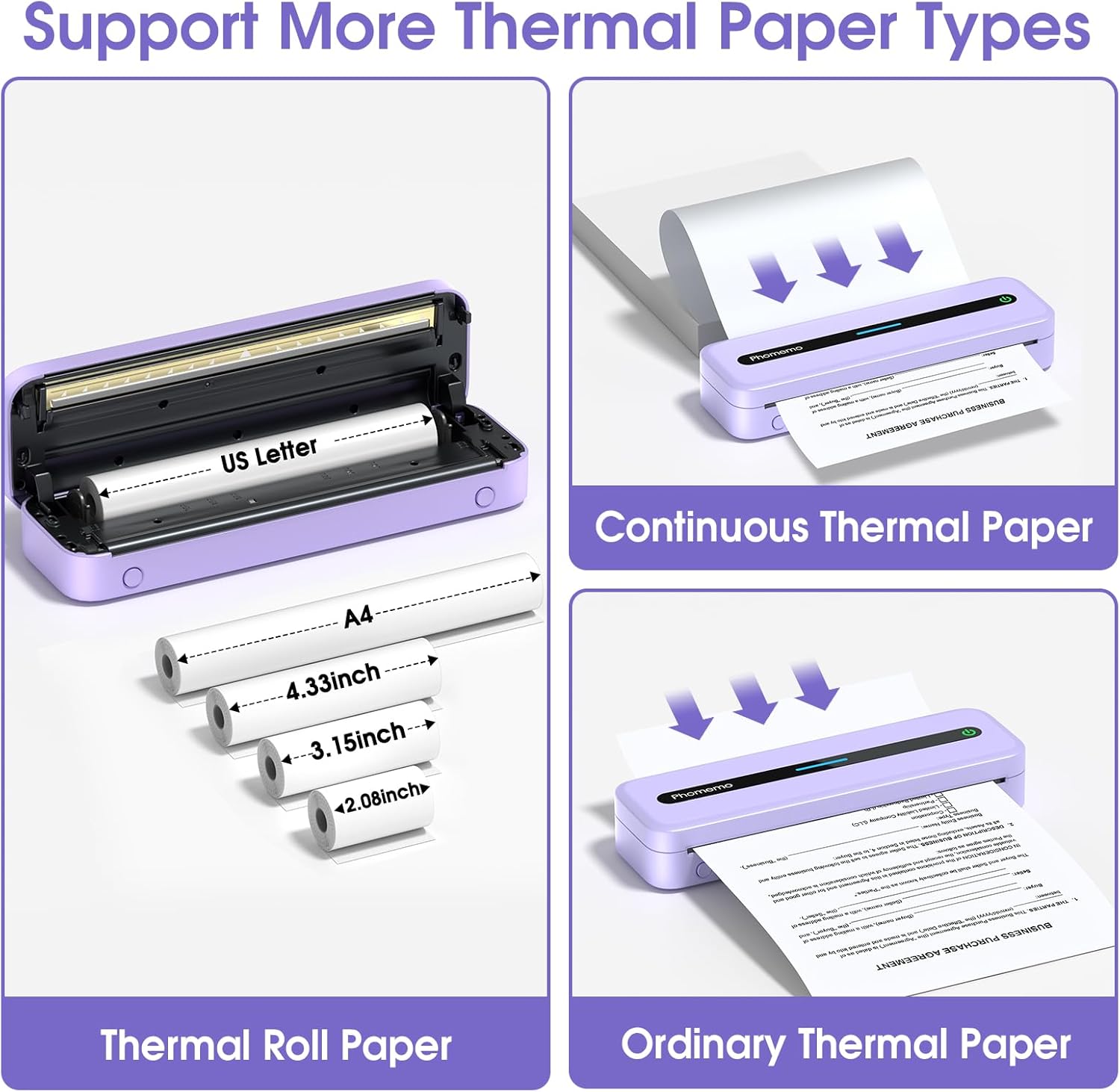
Image: Illustration of the Phomemo M832 printer showing support for continuous thermal paper, thermal roll paper, and ordinary thermal paper.
Video: Demonstrates how to correctly place the paper roll stopper in the Phomemo M832 printer.
4. Betjeningsvejledning
4.1. Tænd/sluk
Press and hold the power button for approximately 3 seconds to turn the printer on or off.
4.2. Connecting to a Phone or Tablet (Bluetooth)
- Download the "Phomemo" App from your device's app store (compatible with iPhone, Android Phone, iPad).
- Turn on the M832 printer and enable Bluetooth on your phone or tablet.
- Open the "Phomemo" App. Click the "Printer" icon within the App to search for and connect to the M832 printer via Bluetooth.
- Once connected, select the desired paper size and file type within the App to initiate printing.

Image: Step-by-step guide for connecting the Phomemo M832 printer to a phone or tablet via Bluetooth using the Phomemo app.
4.3. Connecting to a Laptop or Computer (USB-C)
- Download and install the appropriate driver for your computer's operating system from the official Phomemo webwebstedet (M832.phomemo.com).
- Connect the M832 printer to your laptop or computer using the provided USB-C cable.
- Open the document you wish to print and select the M832 printer from the printer list in your operating system's print dialogue.

Image: Step-by-step guide for connecting the Phomemo M832 printer to a laptop or computer via USB-C cable.
Video: Instructions on how to set up the M832 Portable Printer on a Linux System.
Video: Instructions on how to set up the M832 Portable Printer on a Mac System.
5. Vedligeholdelse
5.1. Rengøring af printhovedet
To ensure clear printing and prolong the life of your printer, regularly clean the print head:
- Sluk printeren, og afbryd den fra enhver strømkilde.
- Åbn printerens topdæksel.
- Use an alcohol wipe to gently clean the cutting section of the printer, especially any areas with black lines. This removes adhesive residue or foreign objects.
- Forsigtighed: Do not scratch the print head with any hard objects.
- Lad printhovedet tørre helt, før du lukker dækslet og genoptager brugen.
6. Fejlfinding
| Problem | Mulig årsag | Løsning |
|---|---|---|
| Printeren tænder ikke. | Lavt batteri eller ingen strøm. | Charge the printer using the provided USB-C cable and a 5V 2A adapter. |
| Dårlig udskriftskvalitet (svag, stribet). | Dirty print head or incorrect paper type. | Clean the print head as described in Section 5.1. Ensure you are using thermal paper. |
| Printeren opretter ikke forbindelse via Bluetooth. | Bluetooth is off, incorrect pairing, or app issue. | Ensure Bluetooth is enabled on your device. Re-pair the printer through the Phomemo App. Restart both devices. |
| Printeren genkendes ikke af computeren. | Missing or incorrect driver. | Download and install the correct driver from M832.phomemo.com. Ensure the USB-C cable is securely connected. |
| Papirstop. | Forkert papirilægning eller fremmedlegeme. | Turn off the printer, open the cover, and carefully remove any jammed paper or obstructions. Reload paper correctly. |
7. Specifikationer
- Model: M832
- Udskrivningsteknologi: Termisk
- Printer output: Monokrom (sort-hvid)
- Maksimal udskriftsopløsning: 300 DPI
- Maksimal udskrivningshastighed: 15 ppm (sort/hvid)
- Forbindelse: Bluetooth, USB type C
- Kompatible enheder: Laptops, PC, Smartphones, Tablets (iOS 13+, Android 7+, Mac OS 10.14+, Windows 7/8/10/11, Chrome OS, Linux)
- Understøttede mediestørrelser: 8.5" x 11" (US Letter), A4, 4.33" (110 mm), 3.15" (80 mm), 2.08" (53 mm)
- Understøttede medietyper: Thermal Roll Paper, Folded Thermal Paper, Single Sheet Thermal Paper
- Batteri: 2600mAh litiumpolymer (genopladelig)
- Batterilevetid: Up to 150 sheets per full charge
- Produktdimensioner: 10.39" D x 3.07" B x 1.77" H
- Varens vægt: 1.5 pund
8. Garanti og support
For warranty information, technical support, or customer service inquiries, please visit the official Phomemo website or contact their customer support directly. Refer to the product packaging or the official webwebstedet for de mest opdaterede kontaktoplysninger og garantivilkår.
Officiel Phomemo-butik: Phomemo-butik på Amazon


