1. Introduktion
Thank you for choosing the Darmoshark N3PRO 8K Wireless Gaming Mouse. This manual provides detailed instructions for setting up, operating, and maintaining your new gaming mouse. Please read this manual thoroughly before use to ensure optimal performance and longevity of the product.
2. Pakkens indhold
- Darmoshark N3PRO Wireless Gaming Mouse
- USB-C til USB-A opladerkabel
- 2.4G USB-modtager
- Brugermanual

Image: The Darmoshark N3PRO wireless gaming mouse shown with its accompanying 2.4G USB receiver.
3. Produktet er slutview
The Darmoshark N3PRO features a lightweight, ergonomic design with multiple connectivity options and programmable buttons.
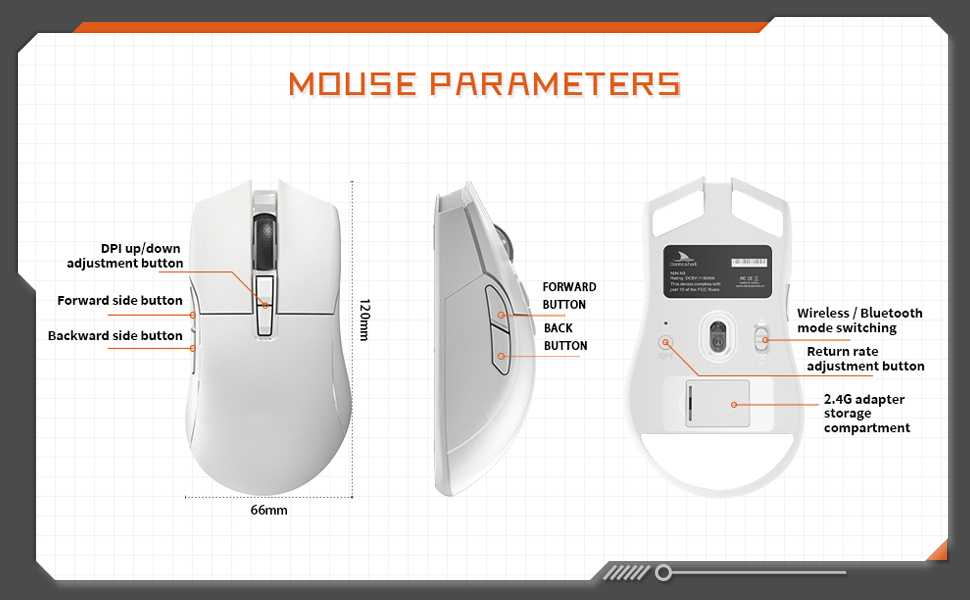
Image: A diagram illustrating the Darmoshark N3PRO mouse from top, side, and bottom views, with labels for buttons and dimensions. Key labels include DPI up/down adjustment button, forward side button, backward side button, forward button, back button, wireless/Bluetooth mode switching, return rate adjustment button, and 2.4G adapter storage compartment.
Knap funktioner:
- Venstreklikknap: Standard left mouse button function.
- Højreklik-knap: Standard right mouse button function.
- Scrollhjul: Scroll up/down, and middle click function.
- DPI Up/Down Adjustment Buttons: Adjust the mouse's sensitivity (DPI) levels.
- Knap forrest: Default function is 'Forward' in web browsers/applications.
- Backward Side Button: Default function is 'Back' in web browsers/applications.
- Mode Switch (Bottom): Toggles between 2.4G wireless and Bluetooth modes.
- Return Rate Adjustment Button (Bottom): Justerer afstemningsfrekvensen.
4. Opsætning
The Darmoshark N3PRO supports three connection modes: Wired (USB-C), 2.4G Wireless, and Bluetooth 5.0. You can connect up to 3 devices simultaneously.

Image: The Darmoshark N3PRO mouse connected to a laptop via a 2.4G receiver, to a device via USB-C cable, and wirelessly to a smartphone via Bluetooth 5.0, illustrating its tri-mode connectivity.
4.1 Kabelforbindelse
- Tilslut USB-C-enden af opladningskablet til musen.
- Tilslut USB-A-enden af opladningskablet til en ledig USB-port på din computer.
- The mouse will be automatically detected and ready for use. This mode also charges the mouse.
4.2 2.4G trådløs forbindelse
- Locate the 2.4G USB receiver, typically stored in a compartment on the underside of the mouse.
- Sæt 2.4G USB-modtageren i en ledig USB-port på din computer.
- Slide the mode switch on the bottom of the mouse to the 2.4G position.
- Musen vil oprette forbindelse automatisk.
4.3 Bluetooth-forbindelse
- Slide the mode switch on the bottom of the mouse to the Bluetooth position.
- Åbn Bluetooth-indstillingerne på din computer eller enhed.
- Søg efter new devices and select "Darmoshark N3PRO" from the list.
- Følg eventuelle anvisninger på skærmen for at fuldføre parringsprocessen.
5. Betjeningsvejledning
5.1 DPI-justering
The mouse features a PAW3395 optical sensor with adjustable DPI settings up to 26000 DPI. Use the dedicated DPI adjustment buttons on the top of the mouse to cycle through preset DPI levels. The current DPI level may be indicated by an LED color change or through the software.
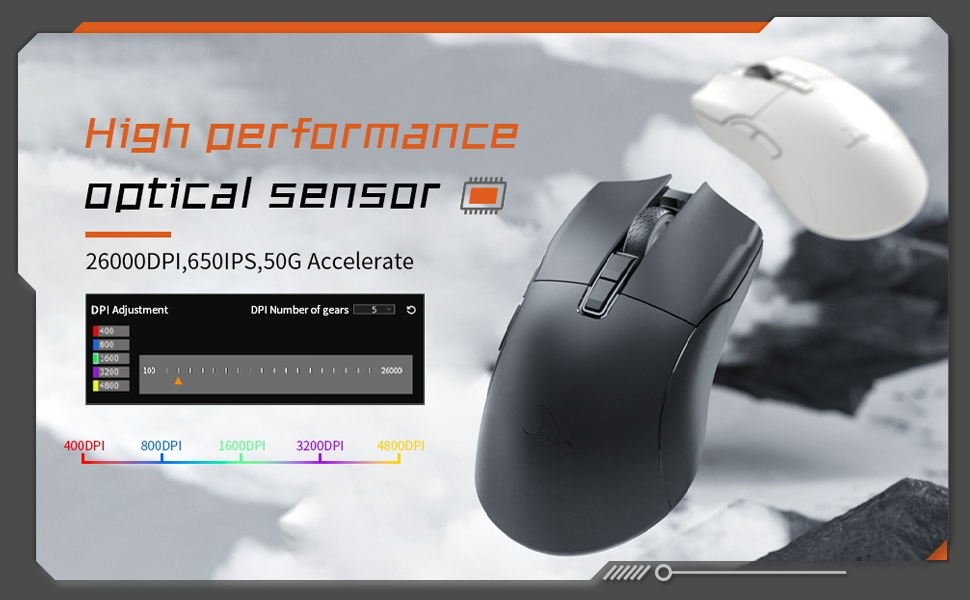
Image: The Darmoshark N3PRO mouse with a blue glowing light, highlighting its adjustable DPI (up to 26000) and IPS (650) settings for precision and speed.
5.2 Justering af afstemningsfrekvens
The polling rate can be adjusted using the button on the underside of the mouse or through the customization software. The N3PRO supports polling rates up to 8000Hz for ultra-responsive tracking.
5.3 Programmable Buttons and Software Customization
The Darmoshark N3PRO features 7 programmable buttons. To customize button functions, DPI settings, macros, and other advanced features, download the official Darmoshark software from the manufacturer's website. The software allows for personalized configurations to suit your preferences.
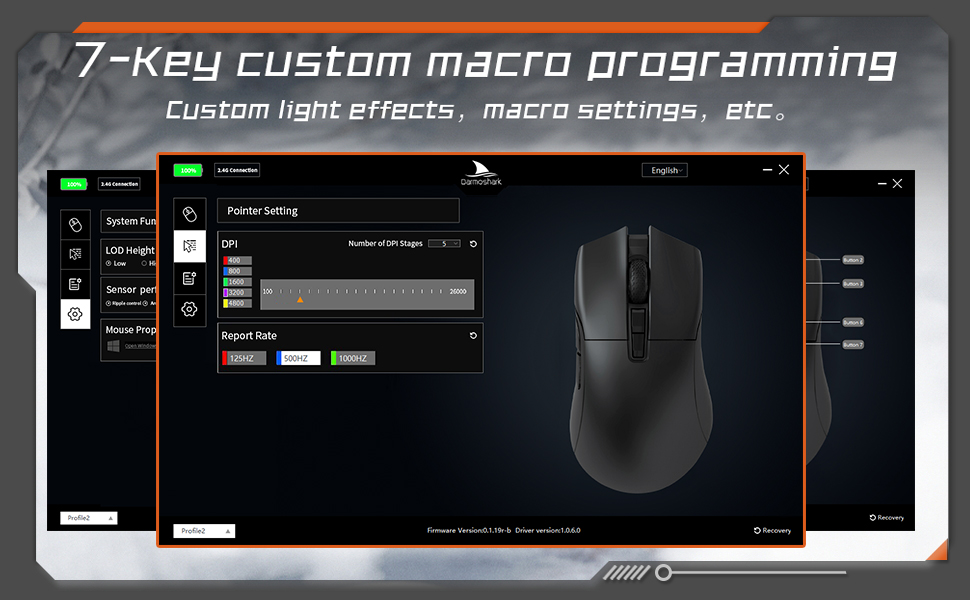
Image: A screenshot of the Darmoshark N3PRO customization software interface, showing options for DPI settings, polling rate, and button assignments, with a visual representation of the mouse.
5.4 Opladning af musen
Connect the mouse to your computer using the provided USB-C cable. The mouse will charge automatically. A full charge provides approximately 80 hours of battery life (depending on usage and polling rate). The mouse is equipped with a 300mAh Lithium Ion battery.

Image: A close-up of the Darmoshark N3PRO mouse, indicating its 300mAh battery capacity.
6. Vedligeholdelse
- Rensning: Brug en blød, tør klud til at rengøre musen. Ved genstridigt snavs, brug en let tør klud.amp cloth can be used, ensuring no liquid enters the mouse.
- Sensor: Keep the optical sensor on the underside of the mouse clean and free from dust or debris for accurate tracking.
- Opbevaring: Når musen ikke er i brug i længere perioder, skal den opbevares et tørt og køligt sted.
- Batteripleje: Undgå at aflade batteriet helt for ofte. Oplad musen, når batteriindikatoren er lav.
7. Fejlfinding
| Problem | Løsning |
|---|---|
| Musen svarer ikke (kablet) |
|
| Musen svarer ikke (2.4G trådløs) |
|
| Musen svarer ikke (Bluetooth) |
|
| Unøjagtig sporing eller markørforsinkelse |
|
| Knapperne fungerer ikke som forventet |
|
8. Specifikationer
- Model: N3PRO
- Forbindelse: Tri-Mode (2.4G Wireless, Bluetooth 5.0, USB-C Wired)
- Sensor: PAW3395 Optisk Sensor
- DPI: Op til 26000 DPI
- Sporingshastighed: 650 IPS
- Acceleration: 50G
- Afstemningsfrekvens: Up to 8000Hz (wired/2.4G, depending on settings)
- Knapper: 7 Programmerbare knapper
- Vægt: Cirka 64g
- Dimensioner: 120mm x 66mm x 40mm (Length x Width x Height)
- Batteri: 300mAh Lithium Ion (Rechargeable)
- Tastetryklevetid: 60 million clicks (approx.)
- Kompatibilitet: PC, Laptop, Windows, Linux (Bluetooth for various devices)
9. Garanti og support
Darmoshark products are designed for reliability and performance. For warranty information, technical support, or to download the latest software and drivers, please visit the official Darmoshark webwebstedet eller kontakt deres kundeservice. Gem din købsbevis til garantikrav.
Bemærk: Produktspecifikationer og funktioner kan ændres uden forudgående varsel.


