Indledning
Keychron M7 er en højtydende trådløs optisk gamingmus designet til alsidighed og præcision. Med tri-mode-forbindelse (2.4 GHz, Bluetooth 5.1 og USB-kablet) tilbyder den problemfri overgange mellem forskellige brugsscenarier. Udstyret med den avancerede PixArt 3395-sensor leverer den enestående nøjagtighed med op til 26,000 DPI. Dens ergonomiske og lette design sikrer komfort under længere tids brug, mens Keychron Engine-softwaren giver omfattende tilpasningsmuligheder for knapper, makroer og ydeevneindstillinger.

Billede: Keychron M7-musen i sort, vist med tilhørende trådløse USB-C- og USB-A-modtagere.
Opsætning
Pakkens indhold
- Keychron M7 trådløs optisk gamingmus
- USB-C 2.4 GHz-modtager
- USB-A 2.4 GHz-modtager
- USB-C til USB-A-kabel (til kabelforbindelse og opladning)
- Brugervejledning (dette dokument)
Tilslutning af musen
Keychron M7 understøtter tre forbindelsestilstande: 2.4 GHz trådløs, Bluetooth 5.1 og USB-kablet.
2.4 GHz trådløs forbindelse
- Find 2.4 GHz-modtageren (enten USB-C eller USB-A) fra pakken.
- Sæt modtageren i en ledig USB-port på din computer.
- Skub kontakten på undersiden af musen til "G"-positionen (2.4 GHz-tilstand).
- Musen burde automatisk oprette forbindelse til din computer.

Billede: Keychron M7-musen placeret ved siden af en bærbar computer med USB-A 2.4 GHz-modtageren tilsluttet den bærbare computers USB-port, hvilket demonstrerer trådløs forbindelse.
Bluetooth 5.1 forbindelse
- Skub kontakten på undersiden af musen til positionen "B" (Bluetooth-tilstand).
- Musen vil gå i parringstilstand (indikatorlampen kan blinke).
- Åbn Bluetooth-indstillingerne på din computer, og søg efter nye enheder.
- Vælg "Keychron M7" fra listen over tilgængelige enheder, der skal parres.
USB kablet forbindelse
- Tilslut den ene ende af det medfølgende USB-C til USB-A-kabel til musens forreste port.
- Tilslut den anden ende af kablet til en ledig USB-A-port på din computer.
- Musen fungerer som en kablet mus og oplader også sit interne batteri.
- På undersiden af musen skal du skubbe kontakten til "OFF"-positionen for kun at bruge den med ledning, eller til "G" eller "B" for at tillade opladning i trådløs tilstand.
Oplader musen
Keychron M7 har et indbygget genopladeligt batteri på 800 mAh, der giver op til 70 timers kontinuerlig brug på en enkelt opladning. For at oplade musen skal du tilslutte den til din computer med det medfølgende USB-C til USB-A-kabel. Indikatorlampen viser opladningsstatus.

Billede: En visuel repræsentation, der fremhæver Keychron M7's imponerende batterilevetid på op til 70 timer og dens batterikapacitet på 800 mAh.
Betjeningsvejledning
DPI justering
Keychron M7 har en PixArt 3395-sensor med justerbar DPI (Dots Per Inch) op til 26,000. Du kan justere DPI-indstillingerne direkte på musen uden software.
På undersiden af musen finder du knappen "DPI". Tryk på denne knap for at gennemgå de forudindstillede DPI-niveauer. Indikatorlamperne ved siden af DPI-knappen viser den aktuelle DPI-værdi.tage.
Afstemningshastighedsjustering
Polling-hastigheden bestemmer, hvor ofte musen rapporterer sin position til computeren. M7 understøtter polling-hastigheder på op til 1000 Hz i 2.4 GHz og kabelbaseret tilstand.
På undersiden af musen finder du knappen "RPT" (rapporteringshastighed). Tryk på denne knap for at skifte mellem 3 niveauer af pollinghastighed: 125 Hz, 500 Hz og 1000 Hz. Den tilsvarende indikatorlampe skifter farve (hvid for 125 Hz, blå for 500 Hz, rød for 1000 Hz).

Billede: Et nærbillede view på undersiden af Keychron M7-musen, hvor DPI-knappen, rapporthastighedsknappen (RPT) og G/OFF/B-tilstandskontakten er fremhævet.
Tilpasning af Keychron Engine-software
For avanceret tilpasning, herunder omlægning af taster, indstilling af genveje, konfiguration af RGB-lyseffekter og oprettelse af dedikerede makroer, skal du downloade og installere Keychron Engine-softwaren fra den officielle Keychron. webDenne software giver også mulighed for professionelle indstillinger for LOD (Lift-Off Distance), polling rate og præcise DPI-justeringer.
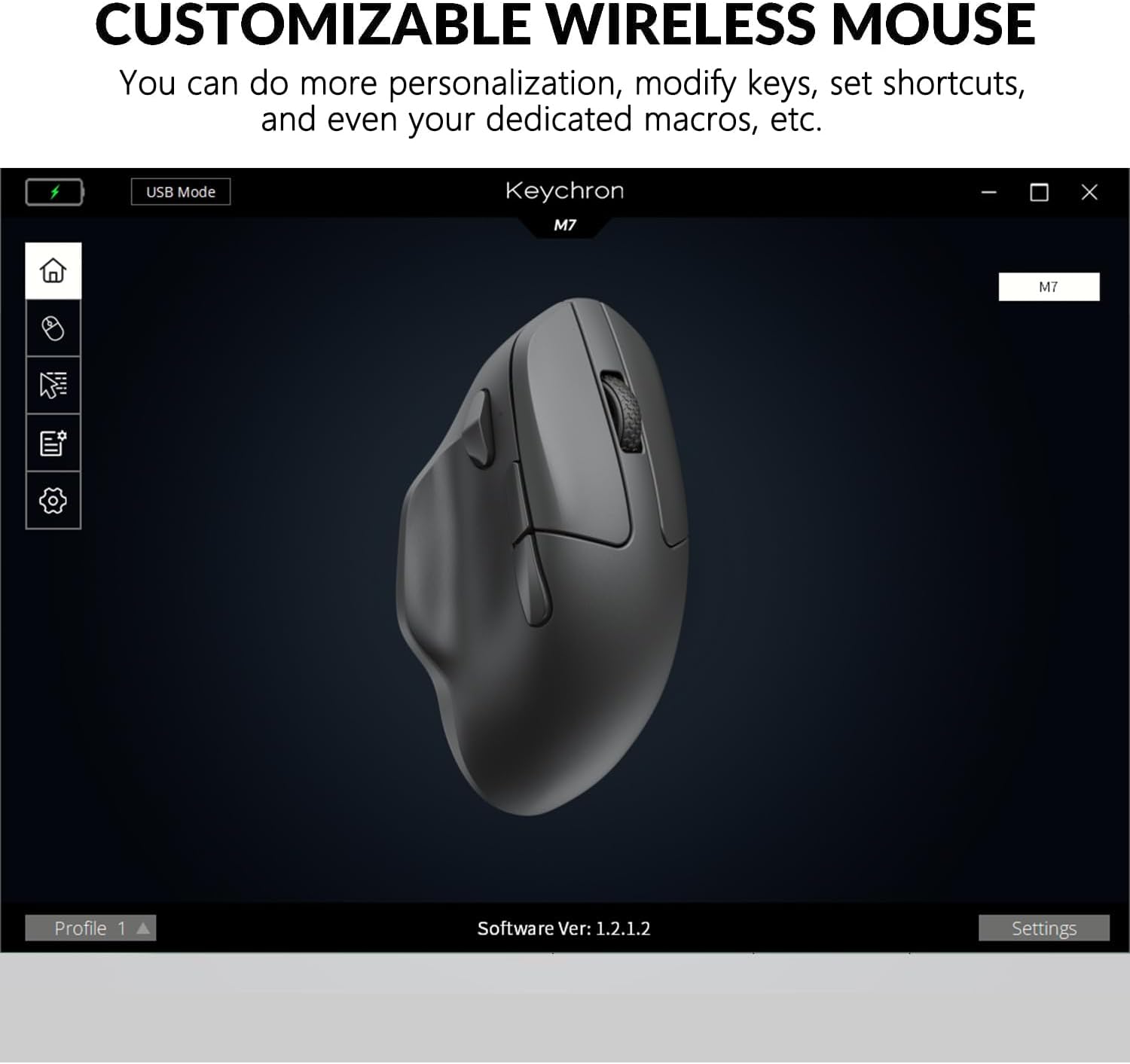
Billede: Et skærmbillede af Keychron Engine-softwaregrænsefladen, der viser Keychron M7-musen og forskellige tilpasningsmuligheder for dens funktioner og indstillinger.
Ergonomisk design og letvægtsfornemmelse
M7 er designet med en ergonomisk buet form for at sikre et behageligt greb, selv ved længere tids brug. Med en vægt på kun 63 gram giver den en let og ubesværet oplevelse, der reducerer belastningen under længere spillesessioner eller arbejde. Grebmønsteret på begge sider forbedrer håndteringen.
Opretholdelse
- Rensning: Brug en blød, tør klud til at tørre musen af. Ved genstridigt snavs, tør let afampRengør kluden med vand eller en mild rengøringsopløsning. Undgå skrappe kemikalier eller slibende materialer.
- Opbevaring: Opbevar musen et køligt, tørt sted væk fra direkte sollys og ekstreme temperaturer.
- Batteripleje: For at forlænge batteriets levetid, undgå at aflade musen helt ofte. Oplad den, når indikatoren for lavt batteri vises.
- Sensorpleje: Hold den optiske sensor på undersiden af musen ren og fri for støv eller snavs for optimal sporingsydelse.
Fejlfinding
| Problem | Mulig løsning |
|---|---|
| Musen reagerer ikke i 2.4 GHz-tilstand. |
|
| Musen opretter ikke forbindelse via Bluetooth. |
|
| Musemarkøren er ujævn eller sporer ikke jævnt. |
|
| Batteriet oplades ikke. |
|
Specifikationer
| Feature | Detalje |
|---|---|
| Modelnummer | M7-A1-Mus |
| Forbindelse | 2.4 GHz trådløs, Bluetooth 5.1, USB-kablet |
| Sensor | PixArt 3395 optisk sensor |
| DPI rækkevidde | Op til 26,000 DPI |
| IPS (tommer pr. sekund) | Op til 650 IPS |
| Afstemningsfrekvens | Op til 1000 Hz (2.4 GHz / Kablet) |
| Vægt | 63 gram (ca. 2.22 ounces) |
| Dimensioner (L x B x H) | 127.7 x 77.1 x 40.5 mm (ca. 4.8 x 2.95 x 1.97 tommer) |
| Batteritype | Lithium polymer |
| Batterikapacitet | 800 mAh |
| Batterilevetid | Op til 70 timer (kontinuerlig brug) |
| Afbrydere | Huano 80M mikroafbrydere |
| Kompatibilitet | Windows PC, Mac |

Billede: Et teknisk diagram, der illustrerer de præcise dimensioner af Keychron M7-musen, inklusive længde, bredde og højde.
Garanti og support
Keychron-produkter leveres typisk med en begrænset garanti. For detaljerede garantioplysninger henvises til garantikortet, der følger med dit produkt, eller besøg den officielle Keychron-side. webwebsted. For teknisk support, download af drivere (Keychron Engine-software) og ofte stillede spørgsmål, besøg venligst Keychrons supportside:
Keychrons officielle supportside
Du kan også kontakte Keychrons kundeservice direkte for at få hjælp til produktproblemer eller forespørgsler.


