1. Introduktion
This manual provides detailed instructions for the installation, operation, and maintenance of your AZDOME GS63H 4K WiIFi Dash Cam. Please read this manual thoroughly before using the device to ensure proper function and safety.

Image 1.1: AZDOME GS63H Dash Cam, showing the device, its suction mount, a smartphone displaying the companion app, and the included 128GB SD card.
2. Pakkens indhold
Bekræft, at alle nedenstående varer er til stede i din pakke:
- AZDOME GS63H Dash Cam
- Sugebeslag
- 128 GB hukommelseskort
- Strømkabel (biloplader)
- USB datakabel
- Brugermanual

Image 2.1: The included 128GB SD card, designed for fast data transfer speeds, compatible with the AZDOME GS63H dash cam.
3. Produktet er slutview og funktioner
The AZDOME GS63H is a 4K WiIFi Dash Cam designed to record driving footage. Nøglefunktioner omfatter:
- 4K UHD Recording: Captures video at 2880x2160P resolution for detailed footage.
- Indbygget WiFi: Allows connection to a smartphone via the AZDOME app for video management.
- Indbygget GPS: Records driving speed, route, latitude, and longitude data.
- Super nattesyn: Equipped with WDR (Wide Dynamic Range) and a SONY IMX335 sensor for clear recording in low-light conditions.
- Loop-optagelse: Overskriver automatisk den ældste files når hukommelseskortet er fuldt.
- G-sensor: Detects sudden movements or collisions and locks the current video file to prevent overwriting.
- Parkeringsmonitor: Records automatically when motion or impact is detected while parked (requires hard-wire kit, sold separately).
- Bevægelsesdetektion: Initiates recording when movement is detected in front of the camera.

Image 3.1: Visual representation of the AZDOME GS63H dash cam's core features, including 4K Ultra HD video, WiFi connectivity, GPS, and various recording modes.
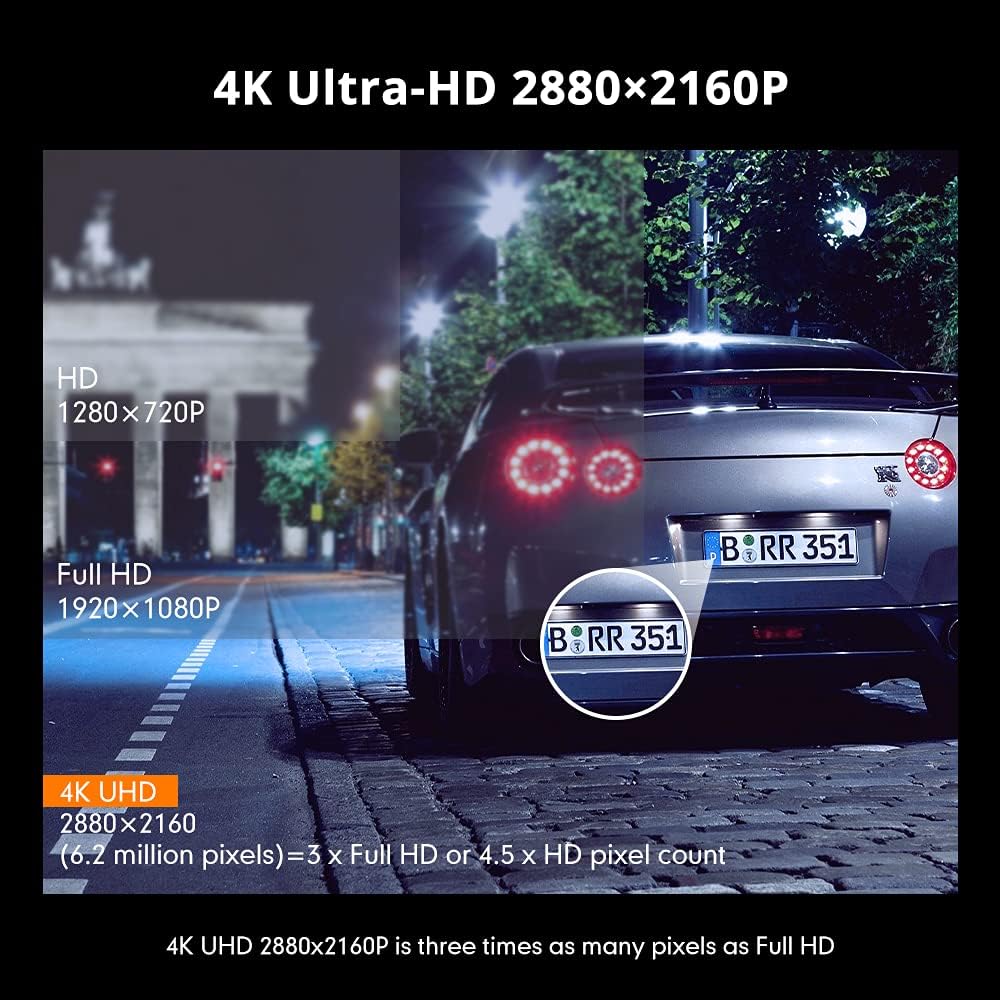
Image 3.2: Comparison illustrating the higher detail of 4K Ultra-HD (2880x2160P) resolution compared to Full HD (1920x1080P) and HD (1280x720P).
4. Opsætning
4.1. Montering af Dash Cam
- Rengør forruden, hvor du har til hensigt at montere dashcam'et.
- Attach the suction bracket to the dash cam.
- Tryk sugekoppen godt mod forruden, og vip håndtaget for at fastgøre den.
- Juster kameravinklen for at sikre et klart billede view af vejen.
4.2. Isætning af SD-kortet
- Sørg for, at dashcam'et er slukket.
- Find SD-kortstikket på siden af dashcam'et.
- Insert the 128GB SD card with the gold contacts facing the back of the camera until it clicks into place.
- For at fjerne det skal du forsigtigt skubbe kortet ind, indtil det springer ud.
4.3. Tilslutning af strøm
- Tilslut bilopladeren til dashcam'ets strømindgang.
- Sæt den anden ende af bilopladeren i bilens 12V-stikkontakt (cigarettænder).
- Dashcam'et tænder automatisk og begynder at optage, når bilens tænding tændes.
5. Betjeningsvejledning
5.1. Grundlæggende optagelse
Once powered on, the dash cam will automatically start recording. The recording indicator light will flash. Videos are saved in segments (loop recording) to the SD card.
5.2. Menu navigation
Use the physical buttons on the dash cam to navigate through the menu options. Refer to the on-screen icons for specific functions such as video playback, settings, and mode switching.
5.3. WiFi Connection and AZDOME App
The built-in WiFi allows you to connect your smartphone to the dash cam for live view, video playback, download, and settings adjustment.
- Download the 'AZDOME' app from the Apple App Store or Google Play Store.
- On the dash cam, enable WiFi mode (refer to the dash cam's display for the WiFi icon).
- On your smartphone, go to WiFi settings and connect to the AZDOME dash cam's WiFi network (SSID and password will be displayed on the dash cam screen).
- Open the AZDOME app to access the dash cam's functions.

Image 5.1: Illustration of the built-in WiFi functionality, showing the AZDOME app on a smartphone connected to the dash cam for video management.
5.4. GPS sporing
The integrated GPS module records your driving route, speed, and coordinates. This data can be viewed using the dedicated AZDOME GPS Player software on a computer.
- Download the AZDOME GPS Player from the official AZDOME webwebsted.
- Transfer recorded video files fra SD-kortet til din computer.
- Åbn videoen files using the AZDOME GPS Player to view synchronized video and GPS data (route map, speed, etc.).

Image 5.2: A laptop screen displaying the AZDOME GPS Player interface, showing a recorded video alongside a map with the tracked driving route and speed information.
5.5. Advanced Recording Modes
- G-sensor: When a sudden impact or collision is detected, the G-Sensor automatically locks the current video file, hvilket forhindrer den i at blive overskrevet af loop-optagelse.
- Parkeringsmonitor: If connected to a hard-wire kit (sold separately), the dash cam can detect motion or impact while the vehicle is parked and automatically start recording for a short duration.
- Bevægelsesdetektion: When enabled, the camera will start recording if it detects movement in its field of view while stationary.
- WDR (bredt dynamisk område): This feature enhances video quality in challenging lighting conditions by balancing bright and dark areas of the image.

Image 5.3: Visual explanation of the dash cam's multifunctional capabilities, including Motion Detection, WDR for balanced exposure, G-Sensor for impact detection, and Parking Monitor.
6. Vedligeholdelse
6.1. Formatering af SD-kort
It is recommended to format the SD card regularly (e.g., once a month) to ensure optimal performance and prevent data corruption. Formatting can be done through the dash cam's menu settings.
6.2. Rengøring af enheden
Brug en blød, tør klud til at rengøre dashcam-kameraets linse og kabinet. Undgå at bruge slibende rengøringsmidler eller opløsningsmidler, der kan beskadige enheden.
7. Fejlfinding
- Dashcam tænder ikke: Ensure the power cable is securely connected to both the dash cam and the vehicle's 12V power outlet. Check if the vehicle's power outlet is functioning.
- Optagelsen stopper uventet: Format the SD card. Ensure the SD card is a high-speed card (Class 10 or higher).
- Videokvaliteten er dårlig: Clean the camera lens. Ensure the protective film has been removed from the lens. Check video resolution settings.
- Problemer med WiFi-forbindelse: Ensure the dash cam's WiFi is enabled. Keep the smartphone within 9 feet (3 meters) of the dash cam.
- GPS data not recording: Sørg for, at dashcam'et har en klar view of the sky for GPS signal reception.
8. Specifikationer
| Feature | Specifikation |
|---|---|
| Mærke | AZDOME |
| Modelnavn | GS63H |
| Videooptagelsesopløsning | 2160p (4K UHD) |
| Forbindelsesteknologi | Wi-Fi |
| Flash-hukommelsestype | SD (Supports up to 128GB) |
| Monteringstype | Sugemontering |
| Kontrolmetode | App |
| Type køretøjstjeneste | Bil |
| Inkluderede komponenter | Memory Card, Suction Bracket |
9. Garanti og support
For warranty information and technical support, please refer to the official AZDOME website or contact AZDOME customer service directly. Keep your purchase receipt as proof of purchase.


