1. Introduktion
This manual provides detailed instructions for the setup, operation, and maintenance of your A4tech FBK27C AS Bluetooth & 2.4G Rechargeable Keyboard. Please read this manual thoroughly to ensure proper use and to maximize the keyboard's features.
The A4tech FBK27C AS keyboard is designed for enhanced comfort and productivity, featuring dual connectivity options, QuietKey technology for silent typing, and multi-device pairing capabilities. Its ergonomic design aims to reduce wrist strain during extended use.
2. Funktioner
- Dobbelt tilslutning: Seamlessly switch between 2.4GHz wireless (via USB dongle) and Bluetooth connections.
- Parring af flere enheder: Connect and switch between up to three devices (one 2.4GHz and two Bluetooth devices).
- Ergonomisk design: Features a split keyboard layout and an integrated wrist rest to promote a natural hand and wrist posture, reducing discomfort during prolonged typing.
- QuietKey Technology: Designed for silent typing, minimizing noise in shared environments.
- Genopladeligt batteri: Equipped with a built-in rechargeable battery, charged via a USB-C port.
- Multimedia & Function Keys: Dedicated keys for media control, system functions, and quick access to common tasks.
- Bred kompatibilitet: Supports Windows, Mac, iOS, and Android operating systems.
3. Pakkens indhold
Bekræft at alle varer er til stede i pakken:
- A4tech FBK27C AS Keyboard
- USB-C ladekabel
- 2.4 GHz USB-modtager (dongle)
- Hurtig startvejledning
4. Opsætning
4.1 Opladning af tastaturet
Before first use, fully charge the keyboard. Connect the provided USB-C cable to the charging port on the keyboard (located on the upper top left edge, near the ON/OFF button) and the other end to a USB power source. The power LED will illuminate during charging and turn off when fully charged.
4.2 Tilslutning via 2.4 GHz trådløst netværk
- Locate the 2.4GHz USB receiver (dongle), typically stored magnetically on the underside of the keyboard.
- Sæt USB-modtageren i en ledig USB-port på din computer.
- Tænd for tastaturet ved hjælp af ON/OFF-knappen.
- Press the '2.4G' key on the keyboard to activate 2.4GHz mode. The indicator light will confirm the connection.
4.3 Tilslutning via Bluetooth
The keyboard supports two Bluetooth connections (BT1 and BT2).
- Tænd for tastaturet ved hjælp af ON/OFF-knappen.
- Press and hold either the 'BT1' or 'BT2' key for a few seconds until its indicator light starts blinking rapidly. This indicates pairing mode.
- Gå til Bluetooth-indstillingerne på din enhed (computer, tablet, smartphone) og søg efter nye enheder.
- Select 'A4tech FBK27C AS' (or similar name) from the list of available devices.
- Follow any on-screen prompts to complete the pairing process. The indicator light on the keyboard will become solid when successfully paired.
- Gentag for den anden Bluetooth-kanal, hvis det ønskes.
4.4 Justering af tastaturhældning
The keyboard features adjustable feet on both the front and back. To achieve a more ergonomic typing angle, you can extend the front feet to raise the keyboard's front edge, further enhancing wrist comfort.
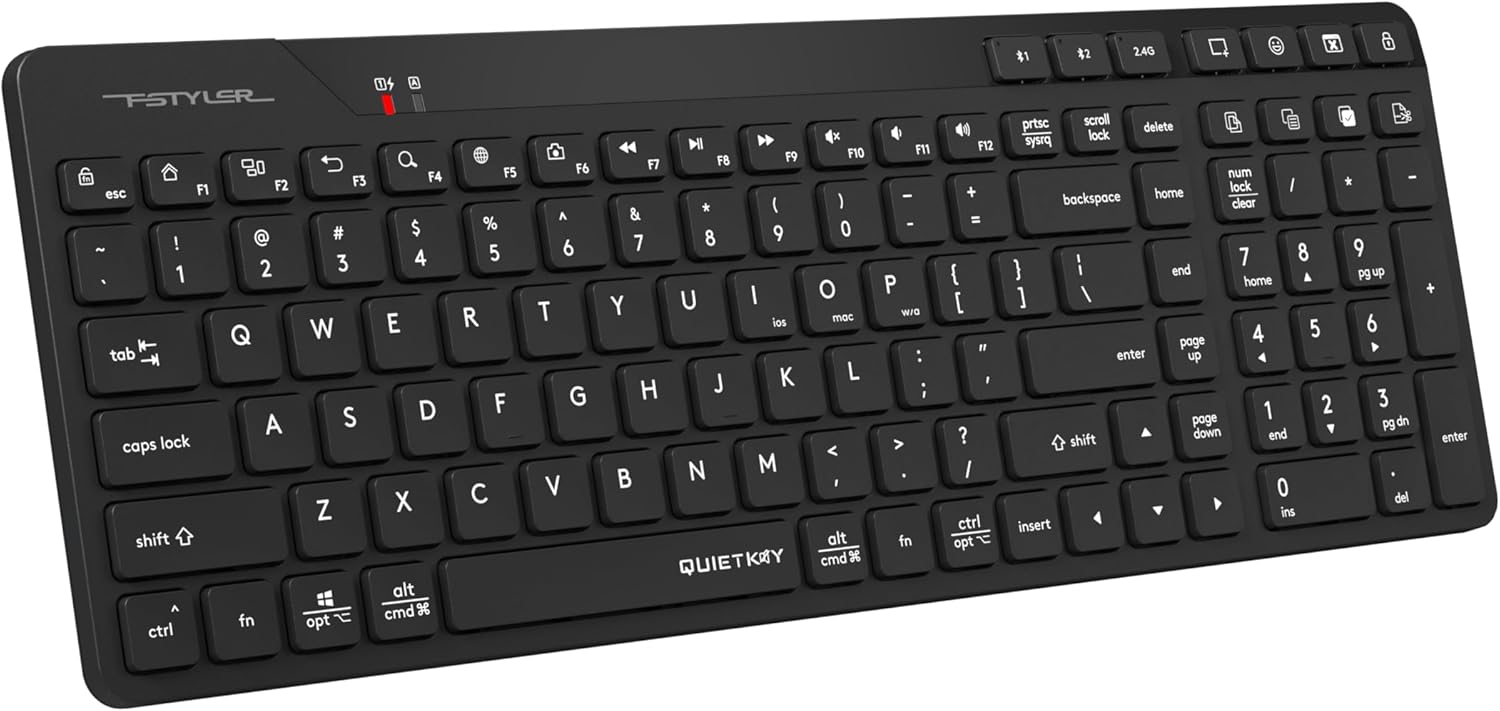
Figur 1: Øverst view of the A4tech FBK27C AS keyboard, showcasing its ergonomic split design and integrated wrist rest.
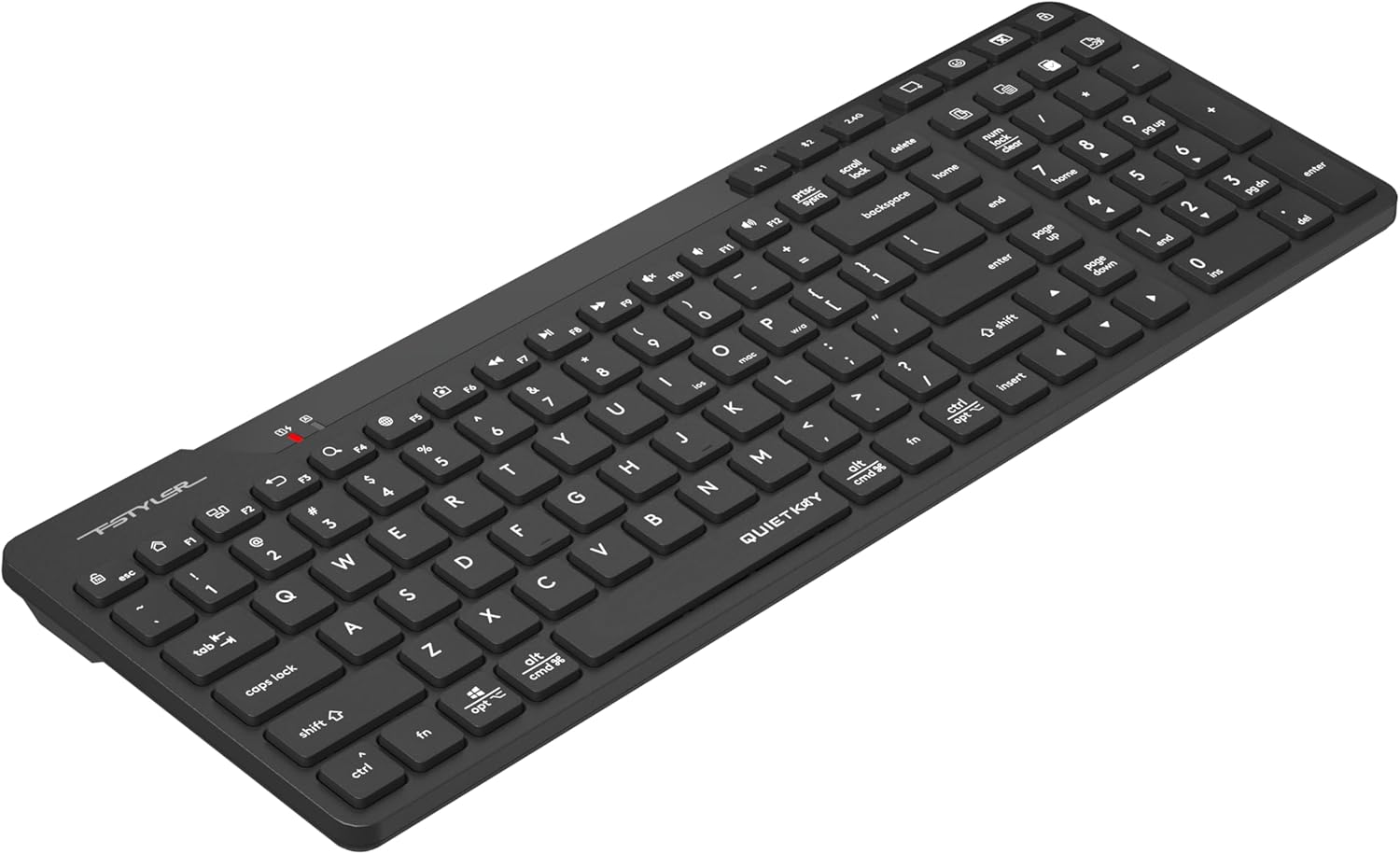
Figur 2: Vinklet view of the A4tech FBK27C AS keyboard, highlighting the contoured shape for natural hand positioning.
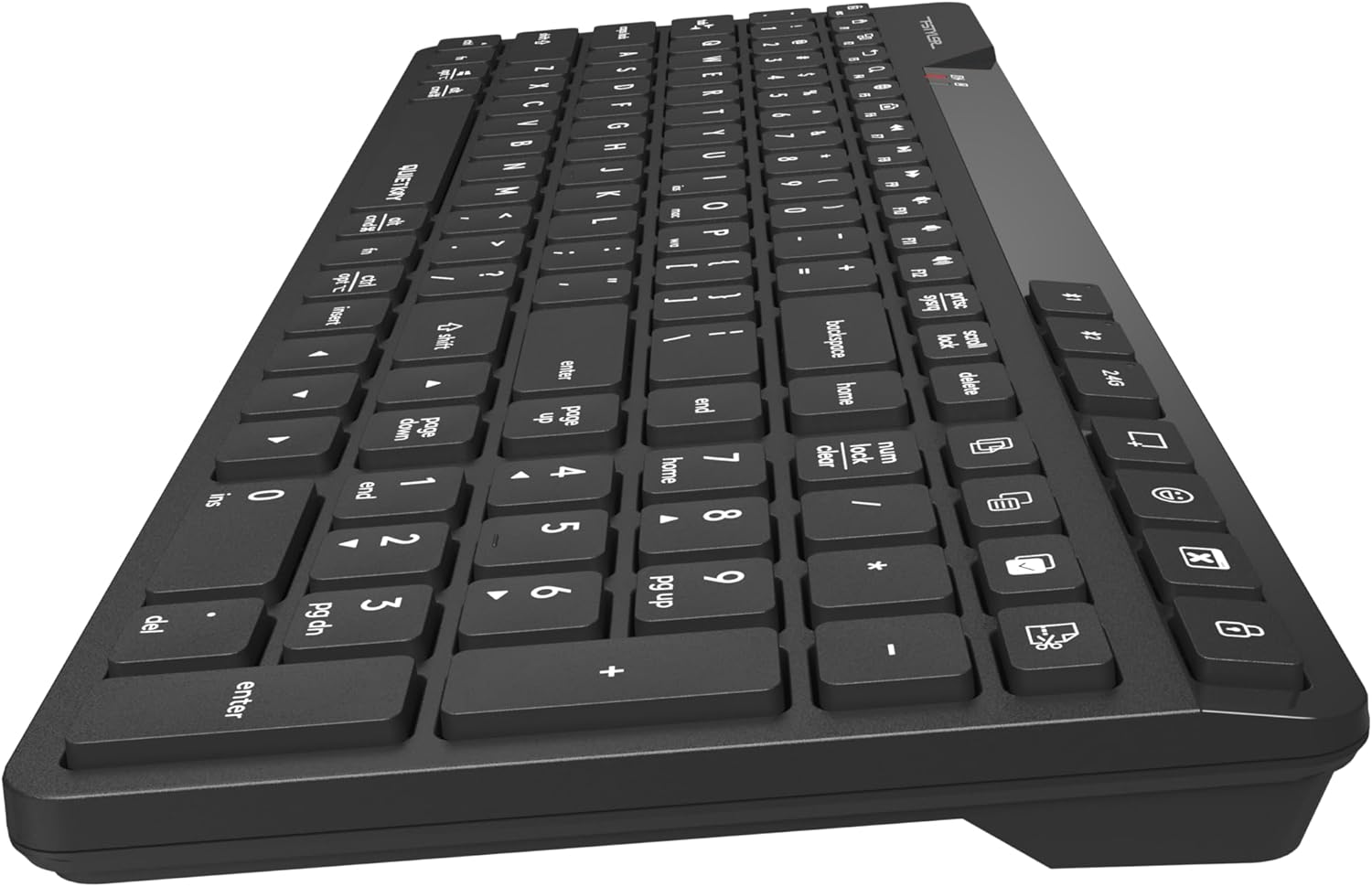
Figur 3: Side view of the A4tech FBK27C AS keyboard, showing the profile and the integrated wrist rest.

Figur 4: Top-down vinklet view of the A4tech FBK27C AS keyboard, providing a comprehensive look at the key layout and ergonomic design.
5. Betjeningsvejledning
5.1 Skift mellem tilsluttede enheder
To switch between your connected devices, simply press the corresponding connectivity key:
- Press '2.4G' to connect to the device using the USB receiver.
- Press 'BT1' to connect to the first Bluetooth-paired device.
- Press 'BT2' to connect to the second Bluetooth-paired device.
5.2 Multimedie- og funktionstaster
The keyboard features a row of function keys (F1-F12) that double as multimedia or special function keys. To use these functions, you may need to press the 'Fn' key simultaneously with the desired function key, depending on your operating system and keyboard settings.
| Nøgle | Fungere |
|---|---|
| Fn + F1 | Hjem |
| Fn + F2 | Søg |
| Fn + F3 | |
| Fn + F4 | Indstillinger for skærmbillede |
| Fn + F5 | Emoji symboler |
| Fn + F6 | Skjul applikation |
| Fn + F7 | Forrige spor |
| Fn + F8 | Afspil/pause |
| Fn + F9 | Næste spor |
| Fn + F10 | Dæmp lydstyrke |
| Fn + F11 | Lydstyrke ned |
| Fn + F12 | Lydstyrke op |
| Dedikerede nøgler | Copy, Paste, Select All, Calculator, Computer Lock |

Figure 5: Icons representing special functions like Screenshot, Emoji, Hide Application, Copy, Paste, and Select All.
5.3 Operating System Mode Switching
The keyboard is compatible with multiple operating systems. Use the following key combinations to switch modes:
- Press 'Fn + Win/Alt' for Windows/Android mode.
- Press 'Fn + Cmd/Alt' for Mac/iOS mode.

Figure 6: Keyboard layout illustrating the keys for switching between iOS, Mac, and Windows/Android operating system modes.
6. Vedligeholdelse
6.1 Rengøring
For at rengøre dit tastatur skal du forsigtigt tørre overfladen af med en blød kludamp cloth. Avoid using harsh chemicals or abrasive materials that could damage the finish or key legends. For debris between keys, use compressed air.
6.2 Pleje af batterier
To prolong battery life, avoid fully discharging the keyboard frequently. Charge it when the low battery indicator appears. If storing the keyboard for an extended period, charge it to about 50% and store it in a cool, dry place.
7. Fejlfinding
7.1 Forbindelsesproblemer
- Tastatur forbinder ikke: Ensure the keyboard is turned on and fully charged. For 2.4GHz, check if the USB receiver is properly inserted. For Bluetooth, ensure your device's Bluetooth is enabled and the keyboard is in pairing mode (blinking BT1/BT2 light).
- Intermitterende forbindelse: Move the keyboard closer to your device to reduce interference. Avoid placing large metal objects between the keyboard and the receiver/device.
7.2 Taster reagerer ikke
- Specific keys: Kontrollér for fysiske forhindringer eller snavs under tastaturet.
- Alle nøgler: Ensure the keyboard is powered on and properly connected to your device. Try restarting your device or re-pairing the keyboard.
7.3 Opladningsproblemer
- Tastaturet oplader ikke: Verify the USB-C cable is securely connected to both the keyboard and the power source. Try a different USB-C cable or power adapter.
8. Specifikationer
| Feature | Detalje |
|---|---|
| Mærke | A4tech |
| Modelnavn | FBK27C AS |
| Forbindelsesteknologi | Bluetooth, 2.4 GHz |
| Kompatible enheder | PC (Windows, Mac, iOS, Android) |
| Tastaturbeskrivelse | Quiet Keys, Ergonomic |
| Anbefalede anvendelser | Hverdagsbrug |
| Speciel funktion | Programmerbare nøgler |
| Varens vægt | 1.3 pund |
| Pakkedimensioner | 16 x 6.5 x 1.25 tommer |
9. Garanti og support
For warranty information and technical support, please refer to the documentation included with your product or visit the official A4tech webwebsted. Gem din købsbevis til garantikrav.


