1. Produktet er slutview
Many modern car navigation and multimedia systems support Apple CarPlay and Android Auto. Traditionally, accessing these features required a wired connection from your smartphone to your car. The Olvy 2-in-1 Wireless Dongle eliminates the need for cables. Simply connect the dongle to your vehicle's USB port, and it will wirelessly stream Apple CarPlay or Android Auto from your iPhone or Android device directly to your car's display. This allows you to enjoy all the functionalities and benefits of CarPlay and Android Auto without the inconvenience of a physical cable connection.

Figure 1: The Olvy Wireless Dongle, showing its compact design and included USB-A and USB-C cables, alongside a smartphone indicating compatibility with Android Auto and Apple CarPlay.
2. Nøglefunktioner
- Nem installation: Plug and play functionality for quick setup.
- Dobbelt kompatibilitet: Works seamlessly with both Apple CarPlay and Android Auto.
- Faster Connection: Equipped with the latest 5.8 GHz chip for rapid wireless connectivity.
- Full Functionality Support: Retains support for all original car functions, buttons, and voice assistants like Siri.
- Bred kompatibilitet med køretøjer: Supports approximately 98% of cars with factory-integrated CarPlay.
- Alsidig tilslutning: Includes both USB-C and USB-A ports for wide compatibility.
- Instant Wireless Connection: Connects wirelessly to CarPlay in as little as 5 seconds.

Figure 2: A comparison highlighting the advantages of the Olvy dongle over other similar products, emphasizing its broad compatibility, quick installation, and advanced chip.
3. Opsætningsvejledning
Follow these simple steps to set up your Olvy Wireless Dongle:
- Step 1: Connect the Device to Your Car.
Plug the Olvy dongle into your vehicle's USB or USB-C port. Ensure your car's infotainment system is turned on. - Step 2: Activate WLAN and Bluetooth on Your Phone.
On your smartphone, enable both Wi-Fi and Bluetooth. Then, open your phone's Bluetooth settings and look for a device named "smart-Box_XXXX" (where XXXX represents a unique identifier). Tap to connect. - Step 3: Confirm Connection on Car Screen.
Once the Bluetooth connection is established, a prompt should appear on your car's display. Click on "Use CarPlay" (or "Use Android Auto" if applicable) to initiate the wireless connection. You can now fully enjoy wireless Apple CarPlay or Android Auto.

Figure 3: Visual representation of the three-step setup process for the Olvy Wireless Dongle, from connecting to the car's USB port to activating CarPlay on the infotainment screen.
4. Betjeningsvejledning
Once connected, the Olvy dongle allows your car's display to function as a wireless interface for Apple CarPlay or Android Auto. You can interact with the system using your car's native controls, touchscreen, or voice commands (e.g., Siri).
Dag- og nattilstand
The system automatically adjusts the display brightness and theme based on ambient light conditions or your car's headlight status, providing optimal visibility during both day and night driving.
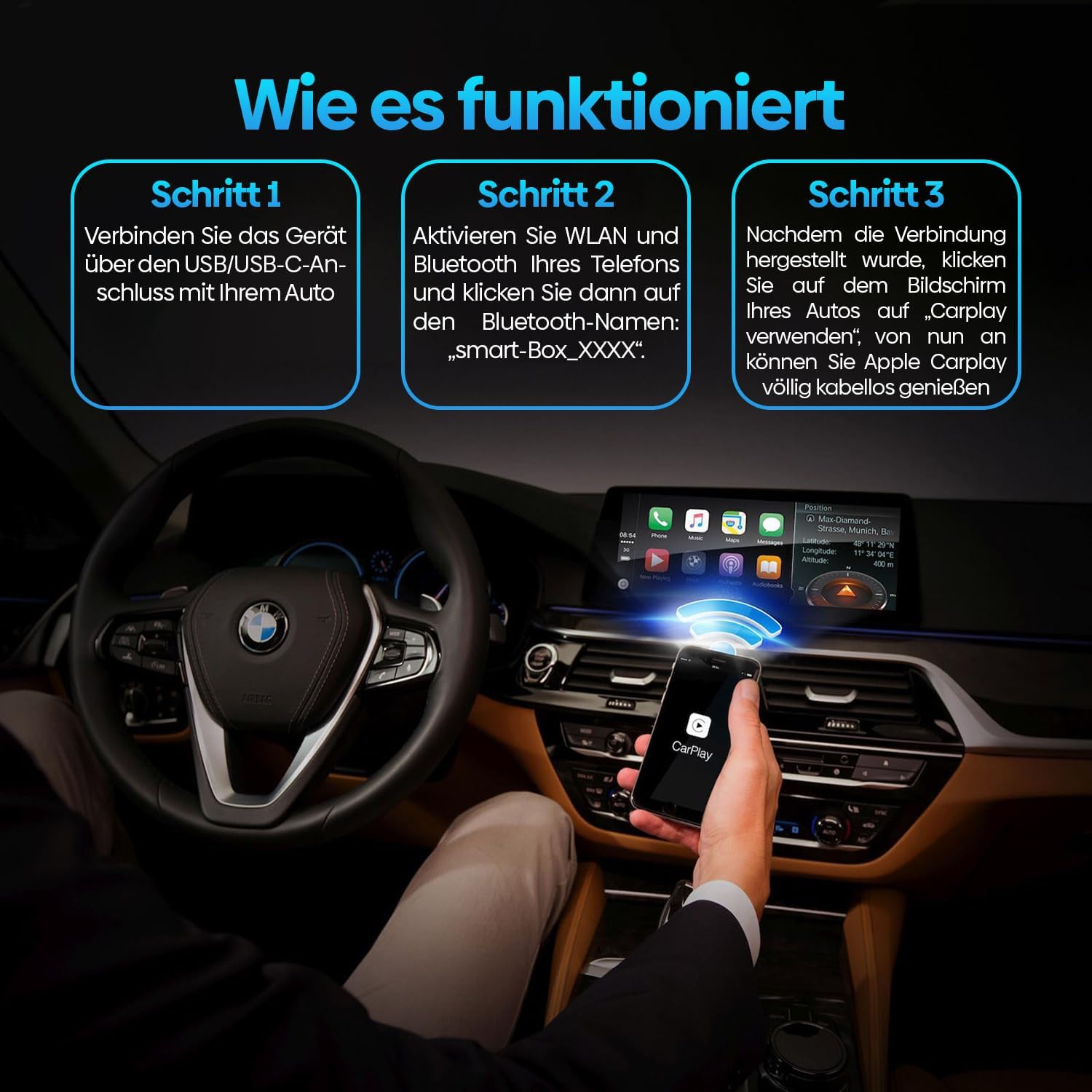
Figure 4: An illustration of the car's infotainment screen adapting to different lighting conditions, showing both day mode and night mode for enhanced visibility.
5. Kompatibilitet
The Olvy Wireless Dongle is designed for broad compatibility with vehicles that have factory-integrated Apple CarPlay or Android Auto.
- Køretøjskompatibilitet: Compatible with approximately 99% of vehicles equipped with factory-integrated Apple CarPlay or Android Auto.
- Model år: Generally compatible with vehicles manufactured between 2016 og 2024.
- Vigtig bemærkning: This dongle is NOT compatible with BMW køretøjer.
Kompatible bilmærker:

Figure 5: A visual guide to car brands compatible with the Olvy dongle, indicating support for a wide range of manufacturers.

Figure 6: A clear statement on compatibility, highlighting that the dongle works with 99% of vehicles with integrated CarPlay/Android Auto, but explicitly excludes BMW.
6. Fejlfinding
If you encounter issues with your Olvy Wireless Dongle, please refer to the following common problems and solutions:
Problem: Device Not Recognized or Connection Fails
- Solution 1: Check USB Connection. Ensure the dongle is securely plugged into a functional USB port in your car. Try a different USB port if available.
- Solution 2: Restart Car and Dongle. Turn off your car's ignition, wait a few moments, then restart the car. Unplug the dongle, wait 10 seconds, and plug it back in.
- Solution 3: Verify Phone Settings. Ensure both Bluetooth and Wi-Fi are enabled on your smartphone. Forget any previous Bluetooth connections to the dongle and re-pair.
- Solution 4: Check Car's Infotainment System. Ensure your car's infotainment system is updated to the latest firmware. Some car systems may require specific settings to be enabled for CarPlay/Android Auto.
Problem: Connection Drops Frequently or is Unstable
- Solution 1: Minimize Interference. Keep your phone close to the dongle and away from other electronic devices that might cause interference.
- Solution 2: Check Phone's Wi-Fi/Bluetooth. Ensure your phone's Wi-Fi and Bluetooth are stable and not being used by other demanding applications.
- Solution 3: Software Updates. Check the Olvy website (if available) for any firmware updates for the dongle.
Problem: Cannot Stream Video Apps (e.g., Netflix, YouTube)
- Forklaring: Apple CarPlay and Android Auto are designed primarily for navigation, communication, and audio streaming while driving. They generally do not support video streaming applications like Netflix or YouTube directly on the car's display for safety reasons. The Olvy dongle enables wireless CarPlay/Android Auto functionality, but it does not bypass these inherent system limitations.
7. Specifikationer

Figure 7: The compact dimensions of the Olvy dongle, measuring 60mm x 60mm x 15mm, highlighting its space-saving design.
| Feature | Detalje |
|---|---|
| Mærke | Olvy |
| Modelnummer | 1cd5112e-708f-4991-b9d5-fa7bca33c302 |
| Produkttype | Trådløs dongle |
| Farve | Sort |
| Forbindelsesteknologi | Bluetooth, Wi-Fi (5.8 GHz) |
| Connector Type | USB Type A, USB Type C |
| Kompatible enheder | Smartphones (iPhone, Android) |
| Opløsning | 1080p |
| Controller type | App Control (via CarPlay/Android Auto interface) |
| Formfaktor | Dongle |
| Video Codec Support | H.264, H.265/HEVC |
| Dimensioner (ca.) | 60 mm x 60 mm x 15 mm |
| Dato først tilgængelig | 21. maj 2024 |
8. Vedligeholdelse
To ensure the longevity and optimal performance of your Olvy Wireless Dongle, follow these simple maintenance guidelines:
- Rensning: Use a soft, dry cloth to gently wipe the surface of the dongle. Avoid using liquid cleaners, solvents, or abrasive materials, as they may damage the device.
- Opbevaring: When not in use for extended periods, store the dongle in a cool, dry place, away from direct sunlight and extreme temperatures.
- Håndtering: Handle the dongle with care. Avoid dropping it or subjecting it to strong impacts, which could damage internal components.
- Forbindelse: Ensure the USB ports in your vehicle are clean and free of debris to maintain a reliable connection.
9. Garanti og support
For detailed information regarding the product warranty, please refer to the documentation included with your purchase or visit the official Olvy website. Olvy is committed to providing high-quality products and excellent customer satisfaction.
If you require technical assistance or have questions not covered in this manual, please contact Olvy customer support through the contact information provided on their official webwebstedet eller gennem dit købssted.


