1. Introduktion
Tak for købetasing the Pisichen 8-inch Touch Panel Mobile HD Mini Monitor. This compact and versatile display is designed to enhance your productivity and entertainment experience across various devices. Featuring a responsive 5-point capacitive touch screen and multiple connectivity options, it offers a seamless and immersive visual interface.

Figure 1.1: Pisichen 8-inch Touch Panel Mobile HD Mini Monitor
This monitor is equipped with:
- 5-Point Capacitive Touch: For intuitive and precise interaction.
- HD 800x480 Resolution: Delivering clear and vivid visuals.
- Diverse tilslutningsmuligheder: Two HDMI ports and one USB-C port for broad compatibility.
- Flere visningstilstande: Supports duplicate, extended, and second screen modes.
- HDR Mode & Built-in Speakers: Enhances visual depth and provides integrated audio.
2. Pakkens indhold
Tjek venligst pakken for følgende varer:
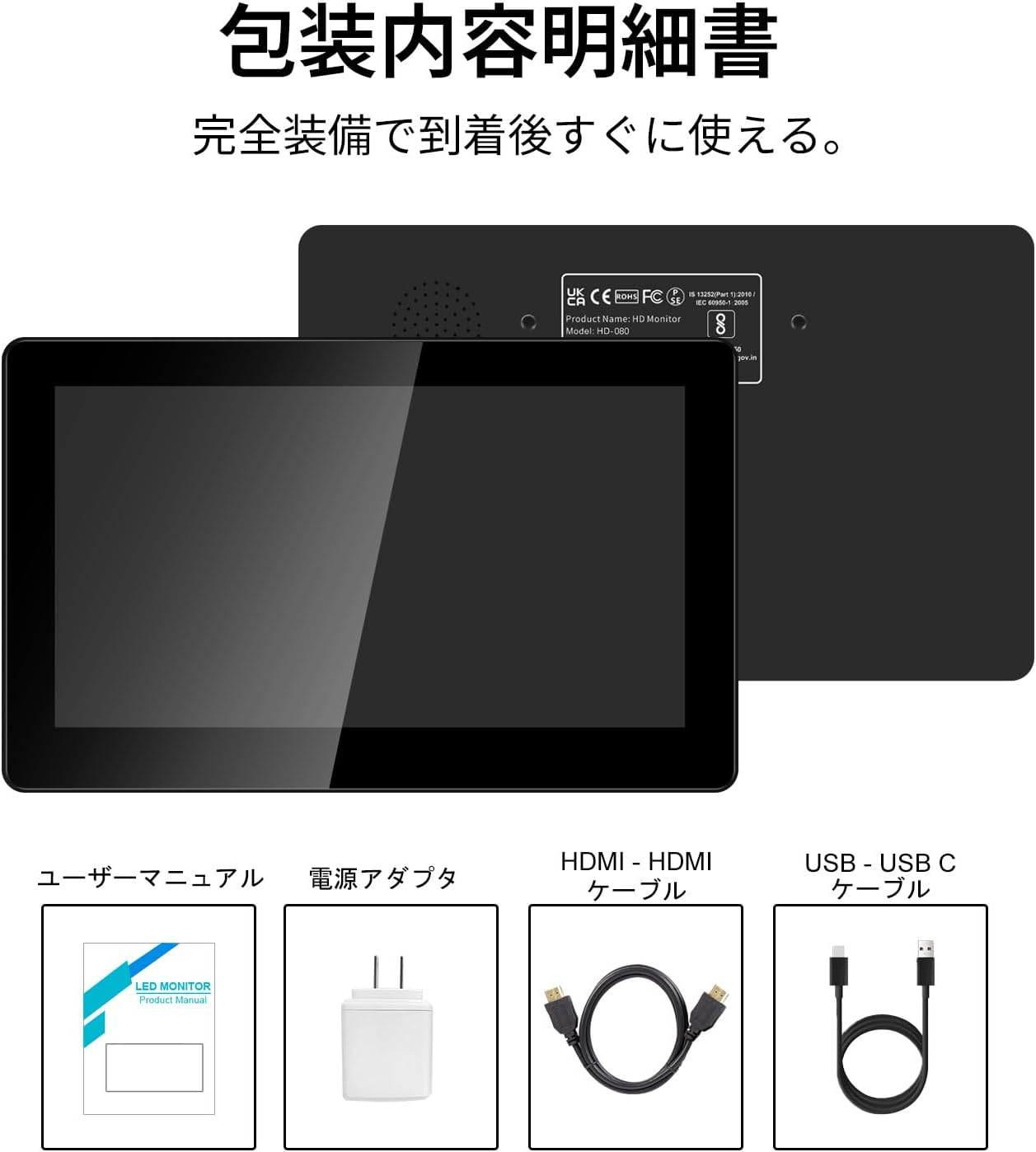
Figur 2.1: Pakkens indhold
- Pisichen 8-inch Touch Panel Mobile HD Mini Monitor
- Brugermanual
- Strømadapter
- HDMI til HDMI kabel
- USB-A to USB-C Cable (for power and touch functionality)
3. Opsætningsvejledning
Follow these steps to set up your Pisichen mini monitor:
3.1 Tilslutning af skærmen
- Strømtilslutning: Connect the provided power adapter to the monitor's power port and plug it into a power outlet. Alternatively, use the USB-C port for power by connecting it to a compatible USB power source.
- Videoindgang:
- For HDMI devices (PC, laptop, game console): Use the HDMI to HDMI cable to connect your device's HDMI output to one of the monitor's HDMI ports (HDMI 1 or HDMI 2).
- For USB-C devices (with DisplayPort Alternate Mode support): Connect a USB-C to USB-C cable (not included) from your device to the monitor's USB-C port. This single cable can provide both video and power/touch.
- Touch Functionality (for HDMI connections): If using an HDMI connection and requiring touch functionality, connect the provided USB-A to USB-C cable from your source device's USB-A port to the monitor's USB-C port. This enables touch input.
- Lydudgang: If you prefer external audio, connect headphones or external speakers to the 3.5mm audio jack on the monitor.

Figure 3.1: Monitor Ports and Connections
3.2 Indledende tænding
Once connected, press the ON/OFF button on the side of the monitor to power it on. The monitor should automatically detect the input signal. If not, use the menu buttons to select the correct input source.
4. Betjeningsvejledning
4.1 Grundlæggende kontroller
The monitor features several buttons on its side for control:
- ON/OFF knap: Powers the monitor on or off.
- Volume Down / Brightness Up: Adjusts volume or increases brightness.
- Volume Up / Brightness Down: Adjusts volume or decreases brightness.
- Signal Switch / Return: Switches between input signals or acts as a 'back' button in menus.
- Menu / OK: Opens the OSD (On-Screen Display) menu or confirms a selection.
4.2 Betjening af berøringspanelet
The 5-point capacitive touch panel allows for intuitive interaction:
- Tryk på: Vælg elementer eller aktiver funktioner.
- Stryg: Scroll through content or navigate interfaces.
- Knib-for-at-zoome: Enlarge or reduce content (e.g., images, maps).
- Flerfingerbevægelser: Supported for specific operating systems and applications.

Figure 4.1: 5-Point Touch Panel Gestures
Note: Touch functionality may require specific driver installation on some operating systems or devices. Ensure your device supports touch input over the chosen connection method.
4.3 Skærmtilstande
Skærmen understøtter forskellige visningstilstande, når den er tilsluttet en computer:
- Duplikattilstand: Displays the same content on both your primary screen and the mini monitor.
- Udvidet tilstand: Udvider dit skrivebord på tværs af begge skærme, hvilket giver mere arbejdsplads.
- Anden skærmtilstand: Uses only the mini monitor as the display.
- Portrættilstand: The monitor can be rotated for vertical display, useful for specific applications.
Disse tilstande kan typisk konfigureres via dit operativsystems skærmindstillinger.

Figur 4.2: Flere visningstilstande
4.4 HDR Mode
The monitor supports HDR (High Dynamic Range) mode, which can be enabled via the OSD menu or your connected device's display settings. HDR provides a wider range of colors and contrasts, resulting in a more vibrant and realistic image.
5. Vedligeholdelse
To ensure the longevity and optimal performance of your Pisichen mini monitor, follow these maintenance guidelines:
- Rengøring af skærmen: Brug en blød, fnugfri klud lidt damprengøres med vand eller en skærmrengøringsopløsning. Undgå skrappe kemikalier, slibende materialer eller for meget fugt.
- Rengøring af Casing: Tør skærmens c afasinmed en blød, tør klud.
- Opbevaring: Når skærmen ikke er i brug i længere perioder, skal den opbevares køligt og tørt, væk fra direkte sollys og ekstreme temperaturer.
- Håndtering: Undgå at tabe skærmen eller udsætte den for hårde stød. Placer ikke tunge genstande oven på den.
- Ventilation: Sørg for, at skærmens ventilationsåbninger ikke er blokerede for at forhindre overophedning.
6. Fejlfinding
Hvis du støder på problemer med din skærm, kan du se følgende almindelige problemer og løsninger:
- Ingen skærm / Sort skærm:
- Sørg for, at strømadapteren er korrekt tilsluttet, og at skærmen er tændt.
- Verify that the video cable (HDMI or USB-C) is properly connected to both the monitor and the source device.
- Check if the correct input source is selected using the monitor's menu buttons.
- Test med et andet videokabel eller en anden kildeenhed, hvis det er muligt.
- Ingen berøringsfunktionalitet:
- If using HDMI, ensure the USB-A to USB-C cable is connected from your source device to the monitor's USB-C port.
- For USB-C connections, ensure your device supports touch input over USB-C.
- Check your operating system's settings for touch screen calibration or driver status.
- Ingen lyd:
- Increase the monitor's volume using the side buttons.
- Check your source device's audio output settings to ensure audio is being sent to the monitor.
- If using external speakers/headphones, ensure they are properly connected to the 3.5mm audio jack.
- Image Quality Issues (e.g., lines on screen, distorted colors):
- Kontroller videokablet for skader eller løse forbindelser.
- Adjust the monitor's display settings (brightness, contrast, color temperature) via the OSD menu.
- Ensure your source device's display resolution and refresh rate are compatible with the monitor's specifications.
- If persistent, try connecting to a different source device or using a different cable.
7. Specifikationer
| Mærke | Pisichen |
| Modelnummer | HD-8TS-800P |
| Skærmstørrelse | 8 tommer |
| Opløsning | 800 x 480 pixels |
| Aspektforhold | 16:9 |
| Berøringspanel | 5-punkts kapacitiv berøring |
| Forbindelse | 2x HDMI, 1x USB-C (Power/Touch), 1x 3.5mm Audio Jack |
| Farve | Sort |
| Produktmål (B x H x D) | 206 x 130 x 20 mm (ca.) |
| Produktets vægt | 910 g |
| Funktioner | HDR Mode, Built-in Dual Stereo Speakers |
8. Garanti og support
Pisichen is committed to providing reliable and high-quality products. While specific warranty details are not provided in this manual, please retain your proof of purchase for any warranty claims. For technical support, troubleshooting assistance, or inquiries regarding your product, please contact Pisichen customer service through the retailer where you purchased the product or visit the official Pisichen brand store online.
We strive for continuous innovation, product content updates, and ongoing improvement in product quality. Our goal is to be a company loved and trusted by our customers.


