1. Introduktion
This manual provides detailed instructions for the assembly, installation, and maintenance of your Mars Gaming MCELITE High Performance Metal Micro-ATX PC Case. Please read this manual thoroughly before beginning installation to ensure proper setup and optimal performance of your system.

Billede 1.1: Forside view of the Mars Gaming MCELITE PC Case, showcasing its compact design and front panel connectivity.
2. Produktfunktioner
- Aluminum Handles and Feet: The MCELITE PC case features sturdy polished aluminum handles and feet, providing both ergonomic grip for transport and enhanced stability.
- Mesh Technology and FDB Fans: Equipped with mesh panels on the side and top for optimized airflow and aesthetics. It includes 3 pre-installed FDB (Fluid Dynamic Bearing) fans for efficient and quiet cooling.
- Dual PSU Support: This compact mini-tower case supports both SFX and ATX power supplies, offering flexibility for various hardware configurations.
- Kompakt design: Optimized structure for Micro-ATX and Mini-ITX motherboards, allowing seamless integration into smaller spaces while maintaining performance.
- Avanceret forbindelse: The front panel includes one USB-C port, two USB 3.0 ports for high-speed data transfer, and one USB 2.0 port.

Image 2.1: Detail of the front panel, highlighting the USB ports and power button, along with the aluminum feet.

Billede 2.2: View of the case demonstrating the side and top mesh design for improved ventilation.

Billede 2.3: Intern view of the case, illustrating the placement of the three pre-installed FDB fans.
3. Specifikationer
| Feature | Specifikation |
|---|---|
| Mærke | Mars Gaming |
| Model | MCELITE |
| Produktdimensioner | 34 x 21 x 41 cm |
| Vægt | 3 kg |
| Farve | Sort |
| Bundkort kompatibilitet | Micro-ATX, Mini-ITX |
| Sagstype | Mini-tower |
| Materiale | Aluminium |
| Strømforsyning Montering | SFX or ATX |
| Afkølingsmetode | Luft |
| Forudinstallerede ventilatorer | 3x FDB Fans |
| Front I / O-porte | 1x USB-C, 2x USB 3.0, 1x USB 2.0 |
4. Pakkens indhold
Kontroller venligst, at alle varer er til stede i pakken:
- Mars Gaming MCELITE PC Case
- 3x Pre-installed FDB Fans
- Tilbehørsæske (indeholder skruer, kabelbindere og andre små dele)
- Instruktionsmanual (dette dokument)
5. Installationsvejledning
Follow these steps for proper component installation. Refer to the clearance diagram for maximum component sizes.

Image 5.1: Component clearance diagram, detailing CPU cooler height, GPU length/width, and fan/radiator mounting points.
5.1. Forberedelse af sagen
- Placer etuiet på en stabil, flad overflade.
- Remove the side panels by unscrewing the thumb screws at the rear of the case and sliding the panels off.
5.2. Installation af bundkort
- Installer I/O-skjoldet (hvis det ikke er forudmonteret på dit bundkort) i den bageste åbning af kabinettet.
- Juster dit Micro-ATX- eller Mini-ITX-bundkort med afstandsstykkerne inde i kabinettet.
- Fastgør bundkortet med de medfølgende skruer. Spænd ikke for hårdt.
5.3. Installation af strømforsyningsenhed (PSU)
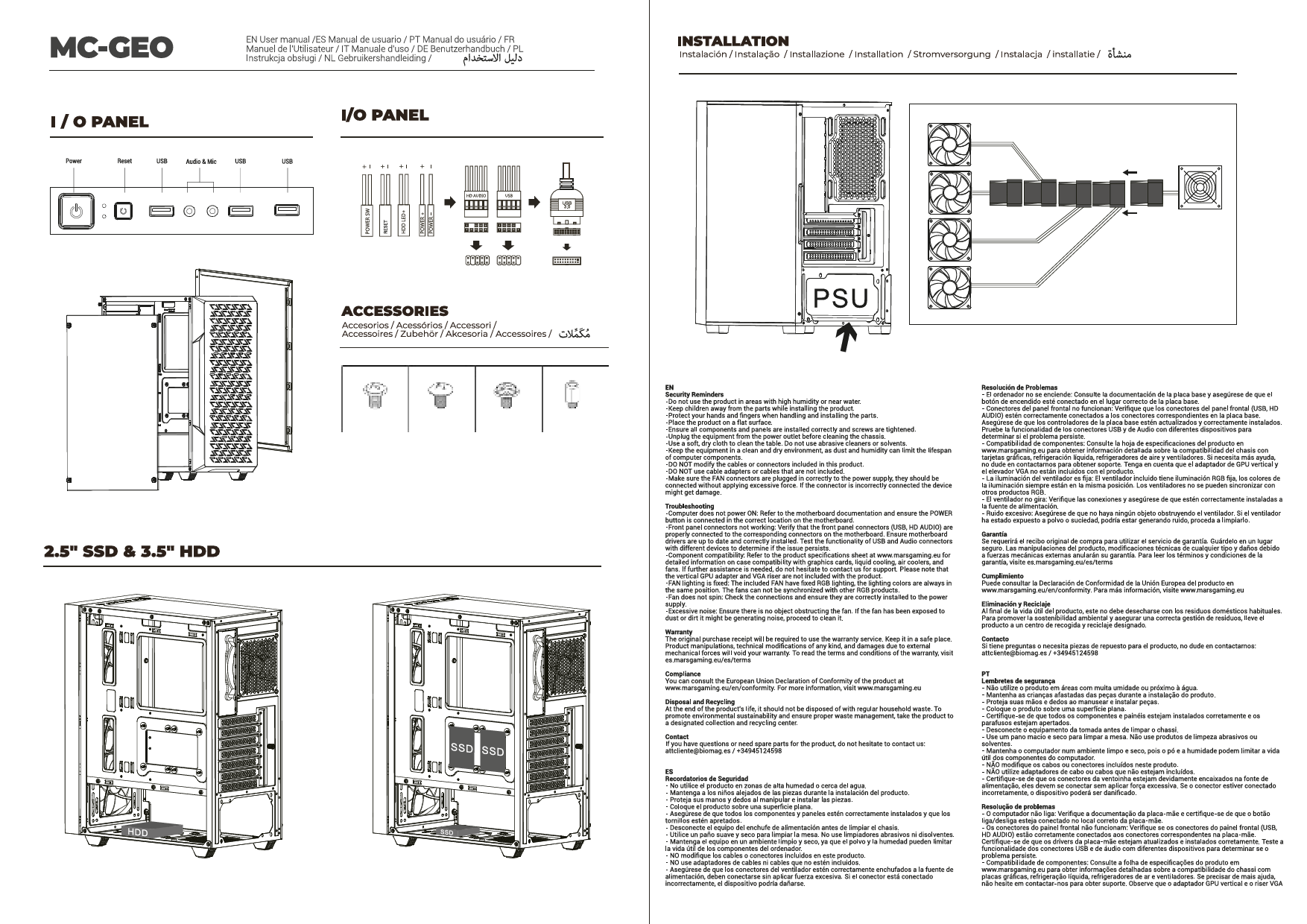
The MCELITE supports both ATX and SFX power supplies.

Image 5.2: Illustrates the installation of both ATX and SFX power supplies, showing how they fit within the case structure.
- Determine the appropriate mounting bracket for your PSU type (ATX or SFX).
- Attach the PSU to the bracket, then slide the assembly into the designated PSU bay.
- Secure the PSU with the screws provided in the accessory box.
5.4. Installation af lagerdrev
Refer to your motherboard manual for specific drive mounting locations and methods. The case typically supports 2.5" SSDs and 3.5" HDDs in designated bays or mounting points.
- Locate the drive bays or mounting points within the case.
- Secure your SSDs or HDDs using the appropriate screws.
5.5. Installation af grafikkort (GPU)
- Fjern de nødvendige PCIe-slotdæksler fra bagsiden af kabinettet.
- Insert your graphics card into the primary PCIe slot on your motherboard until it clicks into place.
- Fastgør grafikkortet til kabinettet med skruer.
5.6. Installation af ventilator og radiator
The case comes with 3 pre-installed FDB fans. Additional fans or radiators can be installed based on the clearance diagram (Image 5.1).
- Identify available mounting points for additional fans (e.g., side, top, rear).
- Mount fans or radiators using the appropriate screws. Ensure correct airflow direction.
5.7. Kabelforvaltning
Brug kabelføringsudskæringerne og fastgørelsespunkterne bag bundkortbakken til at håndtere kabler. Dette forbedrer luftgennemstrømningen og æstetikken.
- Connect all necessary power cables from the PSU to your components (motherboard, GPU, drives).
- Connect front panel cables (USB, audio, power/reset switches) to the motherboard headers.
- Route cables neatly using cable ties to prevent obstruction of airflow.
6. Forbindelse
The front I/O panel provides convenient access to essential ports:
- Power knap: Til at tænde/slukke dit system.
- USB-C-port: For modern devices requiring USB-C connectivity.
- USB 3.0-porte (x2): Til højhastigheds dataoverførsel med kompatible enheder.
- USB 2.0-port (x1): Til standard USB-enheder.
- Lydstik: Til hovedtelefoner og mikrofon.
7. Betjeningsvejledning
- Once all components are installed and cables are connected, replace the side panels.
- Connect your monitor, keyboard, mouse, and power cable to the rear of your PC.
- Press the power button on the front panel to start your system.
- The pre-installed FDB fans will operate automatically to maintain optimal cooling.
8. Vedligeholdelse
Regular maintenance helps ensure the longevity and performance of your PC components.
- Støvrensning: Rengør støvfiltre og interne komponenter regelmæssigt med trykluft. Sørg for, at systemet er slukket og taget ud af stikket, før rengøring.
- Ventilator inspektion: Check fans for dust buildup and ensure they are spinning freely.
- Kabelstyring: Re-evaluate cable routing if you notice any airflow issues or component overheating.
9. Fejlfinding
Hvis du støder på problemer under eller efter montering, kan du overveje følgende almindelige fejlfindingstrin:
- Ingen strøm: Ensure the PSU is switched on, the power cable is securely connected, and all internal power cables (24-pin ATX, 8-pin CPU, GPU power) are properly seated.
- Ingen visning: Verify that the monitor cable is connected to the graphics card (not the motherboard I/O, unless using integrated graphics) and that the graphics card is fully seated in its PCIe slot.
- Ventilatorer der ikke drejer: Check fan connections to the motherboard or fan controller. Ensure the PSU is providing power.
- Systemustabilitet: Double-check all component installations, especially RAM and CPU. Ensure adequate cooling.
10. Garanti og support
For warranty information or technical support, please refer to the official Mars Gaming webwebstedet eller kontakt din forhandler. Gem din købsbevis til garantikrav.