Produkt overview
The SwitchBot Hub 2 (2nd Gen) combined with the Multi-Use Smart Universal Remote Control offers a comprehensive solution for smart home automation. This system allows you to control a wide range of infrared (IR) and Bluetooth devices, consolidate multiple remotes, and integrate with smart home ecosystems like Apple Home via Matter.

Image: The SwitchBot Hub 2 and its Universal Remote Control, displayed with their product packaging. The Hub 2 is a 4-in-1 device, functioning as a smart home hub, built-in meter, smart IR remote, and featuring scene launch buttons.
The Hub 2 acts as a central bridge, enabling communication between your smart devices and the SwitchBot ecosystem. It also features a built-in thermo-hygrometer for environmental monitoring. The Universal Remote is designed for ease of use, featuring a touch wheel and a clear LCD screen to manage various appliances.

Image: A diagram illustrating the four primary functions of the SwitchBot Hub 2: Smart Home Hub, Wi-Fi Thermo-Hygrometer, IR Controller, and Smart Buttons for scene activation.
Opsætningsvejledning
1. Udpakning og første placering
Carefully remove the SwitchBot Hub 2 and Universal Remote Control from their packaging. Place the Hub 2 in a central location within your home, ensuring it has a clear line of sight to the IR appliances you intend to control. The Hub 2 requires a power source via its USB cable.
2. Appinstallation og kontooprettelse
Download the official SwitchBot app from your device's app store (iOS or Android). Open the app and create a new account or log in if you already have one. Ensure your smartphone is connected to a 2.4GHz Wi-Fi network for optimal setup.
3. Adding the Hub 2 to the App
- In the SwitchBot app, tap the "+" icon to add a new device.
- Select "Hub 2" from the list of available devices.
- Follow the on-screen instructions to connect the Hub 2 to your Wi-Fi network. This typically involves entering your Wi-Fi password.
- Once connected, the Hub 2 will appear in your device list.
4. Pairing the Universal Remote Control
The Universal Remote Control is designed to work seamlessly with the Hub 2. Ensure the remote has sufficient battery. The remote will automatically connect to the Hub 2 once both are powered on and within range. You can manage the remote's settings and assign functions through the SwitchBot app.
5. Tilføjelse af IR-apparater
The Universal Remote can control a vast database of IR appliances. To add an appliance:
- In the SwitchBot app, navigate to the Universal Remote settings.
- Select "Add Appliance" or "Add IR Device".
- Choose the type of appliance (e.g., TV, AC, Fan) and search for its brand.
- Test the suggested remote codes to find the one that works for your appliance.
- If your appliance is not in the database, you can use the learning function to teach the Universal Remote commands from your original remote.
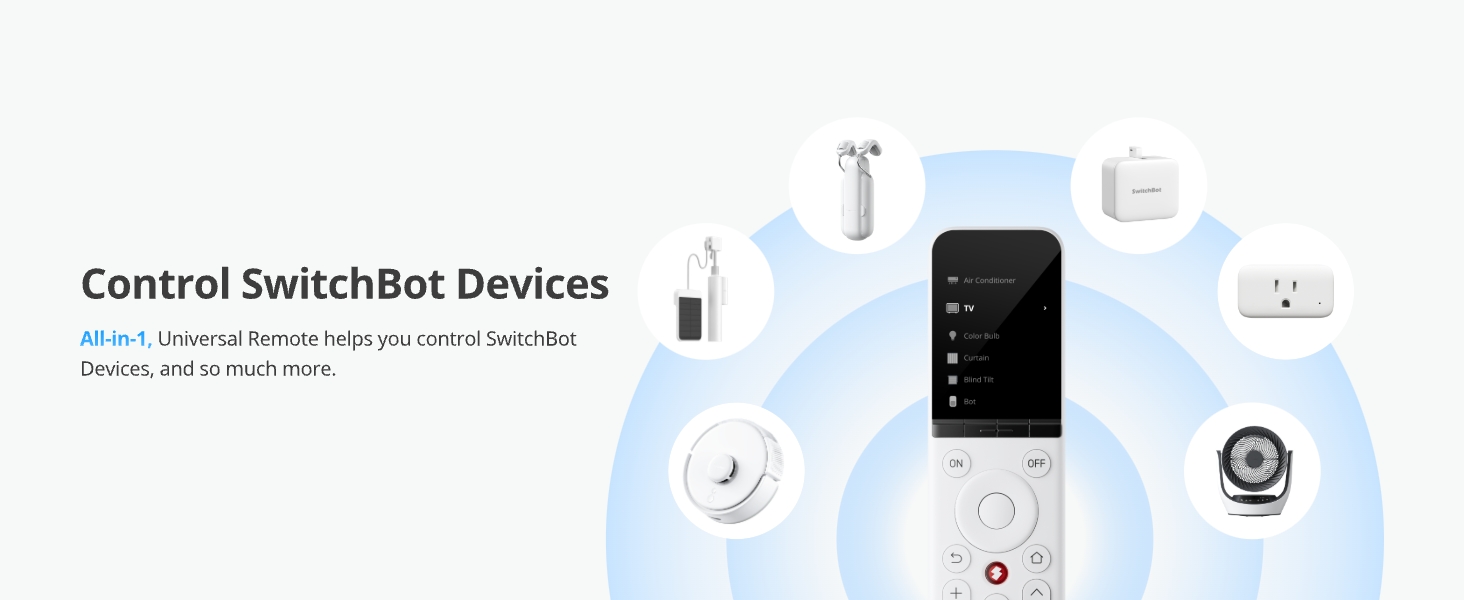
Image: A sequence of four mobile app screenshots demonstrating the process of easily adding home appliances to the SwitchBot Universal Remote by searching for brand models or using smart matching.
6. Adding Bluetooth Devices
The Universal Remote also supports controlling SwitchBot Bluetooth devices and other compatible Bluetooth devices like Fire TV and Apple TV.
- In the SwitchBot app, go to the Universal Remote settings.
- Select "Add Bluetooth Device".
- Follow the app's instructions to pair with your desired Bluetooth device.

Image: An illustration featuring the SwitchBot Universal Remote alongside an Apple TV box and a Fire TV stick, indicating its capability to control these Bluetooth devices.
Betjeningsvejledning
Brug af den universelle fjernbetjening
The Universal Remote Control features a 2.4-inch LCD screen, a touch wheel, and physical buttons for intuitive operation.
- LCD skærm: Displays device information and functions clearly.
- Touch Wheel: Swipe to select devices or adjust volume/channels.
- Fysiske knapper: Concise and spacious buttons for common functions like power, volume, and channel control.

Image: A detailed diagram highlighting the key features of the SwitchBot Universal Remote Control: the 2.4-inch LCD screen, the touch wheel for selection, and the large, easy-to-press buttons.
Styring af apparater
Once devices are added, you can control them directly from the Universal Remote or through the SwitchBot app. The remote can control up to 10 infrared devices and 15 Bluetooth devices.

Image: A living room scene depicting the SwitchBot Universal Remote controlling multiple smart devices, including an air conditioner, TV, and robot vacuum, demonstrating its central control capability.
Creating Smart Scenes
The Hub 2 allows you to create custom smart scenes to automate multiple devices with a single command or trigger. These scenes can be activated via the Universal Remote's smart buttons or through the app.
- Arrive Mode: Combine Universal Remote, Curtain, AC, and TV actions for a welcoming home.
- Væk fra hjemmet-tilstand: Activate robot vacuum and other devices when you leave.
- Festtilstand: Control blind tilt and speaker for entertainment.

Billede: Visuelt eksempelamples of smart scenes that can be created with SwitchBot devices, including "Arrive Mode," "Away From Home Mode," and "Party Mode," showing how multiple devices can be controlled simultaneously.
Matter for Apple Home Compatibility
The SwitchBot Hub 2 supports Matter, allowing seamless integration with Apple Home. You can customize up to 4 buttons on the Universal Remote to control devices and scenes within Apple Home.

Image: An illustration showing the SwitchBot Hub 2 and Universal Remote's compatibility with Apple Home via Matter, allowing users to customize remote buttons for Apple Home control.
Opretholdelse
Rensning
To clean the SwitchBot Hub 2 and Universal Remote Control, use a soft, dry cloth. Do not use abrasive cleaners, solvents, or spray directly onto the devices. Keep the IR emitter on the Hub 2 clear of obstructions.
Batterilevetid og opladning
The Universal Remote Control features a 2000mAh battery, providing up to 150 days of usage on a single charge. Recharge the remote using the provided USB cable when the battery indicator is low. The Hub 2 requires continuous power via its USB connection.

Image: A cutaway diagram of the SwitchBot Universal Remote, highlighting its internal battery and indicating a long battery life of up to 150 days.
Firmware opdateringer
Periodically check the SwitchBot app for firmware updates for both the Hub 2 and the Universal Remote Control. Keeping your devices updated ensures optimal performance, new features, and security enhancements.
Fejlfinding
- Device not responding to remote:
- Ensure the Universal Remote is charged.
- Verify the Hub 2 is powered on and connected to Wi-Fi.
- Check if the correct appliance profile is selected on the remote.
- Ensure there are no obstructions between the Hub 2 and the IR appliance.
- For Bluetooth devices, ensure they are within range and properly paired.
- Cannot find the Universal Remote:
- Use the "Find My Remote" function in the SwitchBot app. The remote will emit a sound to help you locate it.
- Hub 2 not connecting to Wi-Fi:
- Sørg for, at dit Wi-Fi-netværk er 2.4 GHz.
- Kontrollér, at din Wi-Fi-adgangskode er nøjagtig.
- Move the Hub 2 closer to your Wi-Fi router.
- Restart your router and the Hub 2.
- IR appliance not learning commands:
- Ensure the original remote's battery is not low.
- Point the original remote directly at the Hub 2's IR receiver during the learning process.
- Try learning the command multiple times.
Specifikationer
| Feature | Detalje |
|---|---|
| Modelnummer | SwitchBot Hub 2 (2nd Gen) |
| Forbindelsesteknologi | Bluetooth, Infrared (IR) |
| Max understøttede enheder | 25 (10 IR devices, 15 Bluetooth devices) |
| Kompatible enheder | Air conditioners, TVs, lights, fans, projectors, Fire TV, Apple TV, SwitchBot Bluetooth devices |
| Universal Remote Battery | 2000mAh Lithium-Ion (up to 150 days battery life) |
| Universal Remote Button Life | Up to 100,000 presses |
| Hub 2 Features | Smart Home Hub, Wi-Fi Thermo-Hygrometer, Smart IR Remote, Scene Launch Buttons |
| Hub 2 Temperature Accuracy | ±0.4°F |
| Hub 2 Humidity Accuracy | ± 2% RH |
| IR Code Database | Nearly 100,000 models, updated every 6 months |
Garantioplysninger
SwitchBot products typically come with a limited warranty. For specific warranty terms and conditions, please refer to the warranty card included with your product or visit the official SwitchBot webwebsted. Gem din købsbevis til garantikrav.
Kundesupport
For technical assistance, product inquiries, or troubleshooting beyond this manual, please contact SwitchBot customer support through the following channels:
- Officiel Webwebsted: Visit the SwitchBot official webwebsted med ofte stillede spørgsmål, supportartikler og kontaktformularer.
- Support i appen: Access support directly through the SwitchBot mobile application.
- E-mail support: Se produktemballagen eller den officielle webwebsted for kundesupportens e-mailadresse.
When contacting support, please have your product model number (SwitchBot Hub 2 (2nd Gen)) and purchase details ready.


