1. Introduktion
This manual provides comprehensive instructions for the ProtoArc XKM01 Foldable Wireless Keyboard and Mouse Combo. It covers setup, operation, maintenance, and troubleshooting to ensure optimal performance and user experience. Please read this manual thoroughly before using the product.

Image 1.1: The ProtoArc XKM01 Foldable Wireless Keyboard and Mouse Combo, including the protective case.
2. Pakkens indhold
Bekræft at alle varer er til stede i pakken:
- 1x ProtoArc XKM01 Foldable Bluetooth Keyboard
- 1x Wireless Bluetooth Mouse
- 1x Type-C ladekabel
- 1x Foldable Phone Stand
- 1x opbevaringspose
- 1x brugermanual

Image 2.1: All components included in the ProtoArc XKM01 package.
3. Produktet er slutview
3.1 Tastaturfunktioner
The XKM01 keyboard features a full-size 105-key AZERTY layout with a foldable design for portability. It includes a numeric keypad and 12 multimedia shortcut keys for enhanced productivity.

Image 3.1: The foldable design of the ProtoArc XKM01 keyboard, illustrating its compact form factor.
3.2 Musens funktioner
The accompanying wireless mouse is designed for quiet operation and offers three adjustable DPI levels (1000-1600-2400) for precise control. It is ambidextrous and connects via 2.4G USB receiver or Bluetooth.

Image 3.2: Detailed diagram of the ProtoArc wireless mouse, highlighting its buttons and charging port.
4. Opsætning
4.1 Tænd/sluk
- Tastatur: Unfold the keyboard to power it on. Fold it to power off.
- Mus: Locate the power switch on the bottom of the mouse. Slide it to the 'ON' position to power on, and 'OFF' to power off.
4.2 Forbindelsestilstande
The XKM01 combo supports three connection modes: 2.4G wireless and two Bluetooth channels (BT1, BT2).
4.2.1 2.4G trådløs forbindelse
- Take out the 2.4G USB receiver from the mouse's battery compartment.
- Plug the USB receiver into an available USB port on your device (e.g., laptop, PC).
- For Keyboard: Press the '2.4G' button on the keyboard. The indicator light will flash, then remain solid when connected.
- For Mouse: Slide the mode switch on the bottom of the mouse to the '2.4G' position. The mouse will automatically connect.
4.2.2 Bluetooth-forbindelse (BT1 / BT2)
- For Keyboard: Press and hold either the 'BT1' or 'BT2' button for 3-5 seconds until the corresponding indicator light flashes rapidly. This indicates pairing mode.
- For Mouse: Slide the mode switch on the bottom of the mouse to either 'BT1' or 'BT2' position. Press and hold the pairing button (usually near the mode switch) until the indicator light flashes rapidly.
- On your device (smartphone, tablet, PC), go to Bluetooth settings and search for new devices.
- Select "ProtoArc XKM01 Keyboard" and "ProtoArc XKM01 Mouse" from the list to pair. Follow any on-screen prompts.
- Once paired, the indicator light will stop flashing and remain solid for a few seconds before turning off.
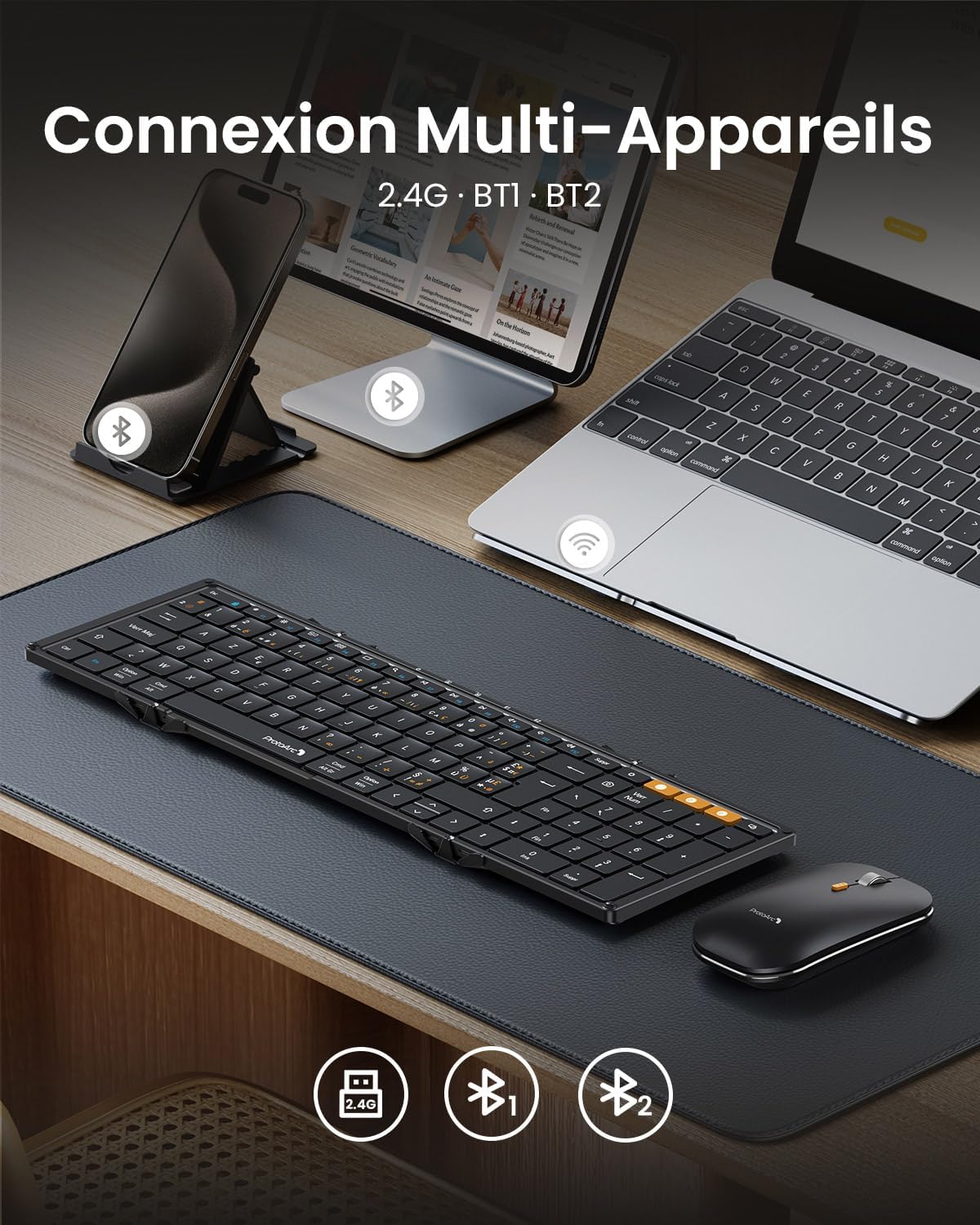
Image 4.1: The ProtoArc XKM01 keyboard and mouse connected to multiple devices via 2.4G and Bluetooth.
4.3 Android AZERTY Layout Setup
For Android users, it is necessary to configure the keyboard layout to AZERTY on your device for correct character input. Follow these steps:
- Go to your Android device's Indstillinger.
- Naviger til Flere indstillinger (or System > Languages & input).
- Vælge Sprog og input.
- Finde Fysisk tastatur.
- Vælge ProtoArc XKM01.
- Vælge Konfigurer tastaturlayout.
- Vælge Fransk (AZERTY).
5. Betjeningsvejledning
5.1 Skift mellem enheder
To switch between connected devices, simply press the corresponding connection button on the keyboard (2.4G, BT1, or BT2). For the mouse, slide the mode switch on the bottom to the desired channel.
5.2 Multimediegenvejstaster
The keyboard features 12 multimedia shortcut keys. By default, these keys perform their multimedia functions. To use them as standard F1-F12 keys, press Fn + ESC to toggle the function lock. Press Fn + ESC again to revert to multimedia functions.

Image 5.1: Diagram illustrating the multimedia function keys and their corresponding actions on the ProtoArc XKM01 keyboard.
5.3 Mouse DPI Adjustment
The mouse offers three adjustable DPI levels: 1000, 1600, and 2400. Press the DPI button located on the top of the mouse (behind the scroll wheel) to cycle through these settings. The indicator light will briefly flash to confirm the change.
5.4 Stille drift
Both the keyboard and mouse are designed for quiet operation, utilizing silent scissor-switch keys and low-noise mouse clicks to minimize disturbance in shared environments.

Image 5.2: Illustration of the quiet operation of the ProtoArc XKM01 keyboard and mouse combo in a workspace.
6. Vedligeholdelse
6.1 Opladning
The keyboard and mouse are equipped with rechargeable batteries. Use the included Type-C cable to charge them. Connect the cable to the charging port on each device and a USB power source. A full charge typically takes 2-3 hours.

Image 6.1: The ProtoArc XKM01 mouse and keyboard being charged via Type-C cable.
6.2 Batterilevetid
The devices feature an automatic sleep function to conserve battery when not in use. The keyboard offers up to 150 days of standby time, and the mouse up to 200 days.
6.3 Rengøring og opbevaring
To clean, gently wipe the surfaces with a soft, dry cloth. Avoid using harsh chemicals or abrasive materials. When not in use, store the keyboard and mouse in the provided storage bag to protect them from dust and damage.
7. Fejlfinding
- Enheden opretter ikke forbindelse: Ensure both the keyboard and mouse are powered on and in the correct connection mode (2.4G, BT1, or BT2). Re-initiate pairing mode if using Bluetooth. Check if the 2.4G USB receiver is securely plugged in.
- Taster reagerer ikke: Check battery level. Ensure the keyboard is unfolded and powered on. If specific keys are not working, try reconnecting the keyboard.
- Mouse tracking issues: Ensure the mouse is powered on and connected. Check battery level. Try adjusting the DPI setting. Ensure the mouse is used on a suitable surface.
- Incorrect character input (Android): Verify that the Android AZERTY layout setup (Section 4.3) has been correctly applied.
- Interferens: If experiencing intermittent connection, move closer to your device or away from other wireless devices that might cause interference.
8. Specifikationer
| Feature | Specifikation |
|---|---|
| Mærke | ProtoArc |
| Model | XKM01 |
| Farve | Sort |
| Tastaturlayout | AZERTY (FR-Layout), Full-size, 105 keys |
| Forbindelse | 2.4G Wireless + Dual Bluetooth (BT1, BT2) |
| Strømkilde | Rechargeable Battery (Type-C charging) |
| Musens DPI-niveauer | 1000/1600/2400 |
| Kompatibilitet | Windows, macOS, Chrome OS, iPadOS, Android, Smart TV |
| Særlige funktioner | Foldable, Portable, Ergonomic, Quiet Operation |
| Standbytid for tastatur | Op til 150 dage |
| Musens standbytid | Op til 200 dage |
| Materiale | Acrylonitril Butadien Styren, Aluminium |

Image 8.1: Dimensions of the ProtoArc XKM01 keyboard, mouse, and travel case.
9. Garanti og support
9.1 Garantioplysninger
The ProtoArc XKM01 Foldable Wireless Keyboard and Mouse Combo comes with a 12 måneders producentgaranti from the date of purchase. This warranty covers manufacturing defects and material faults under normal use. It does not cover damage caused by misuse, accidents, unauthorized modifications, or normal wear and tear.
9.2 Kundesupport
For technical assistance, warranty claims, or any questions regarding your ProtoArc XKM01 product, please contact ProtoArc customer support. Refer to the contact information provided on the ProtoArc official webwebstedet eller din købsdokumentation.


