Indledning
Thank you for choosing the iClever KP08 Bluetooth Number Pad. This ultra-slim and lightweight numeric keypad is designed to enhance your productivity across various devices. This manual will guide you through the setup, operation, and maintenance of your new device.
Hvad er der i æsken
- iClever KP08 Number Pad
- USB-kabel (til opladning)
- Keyboard Stickers
- Brugervejledning (dette dokument)
Produkt overview
The iClever KP08 features a 22-key layout with dedicated function keys for enhanced data entry. Its compact design and durable construction make it suitable for various environments.
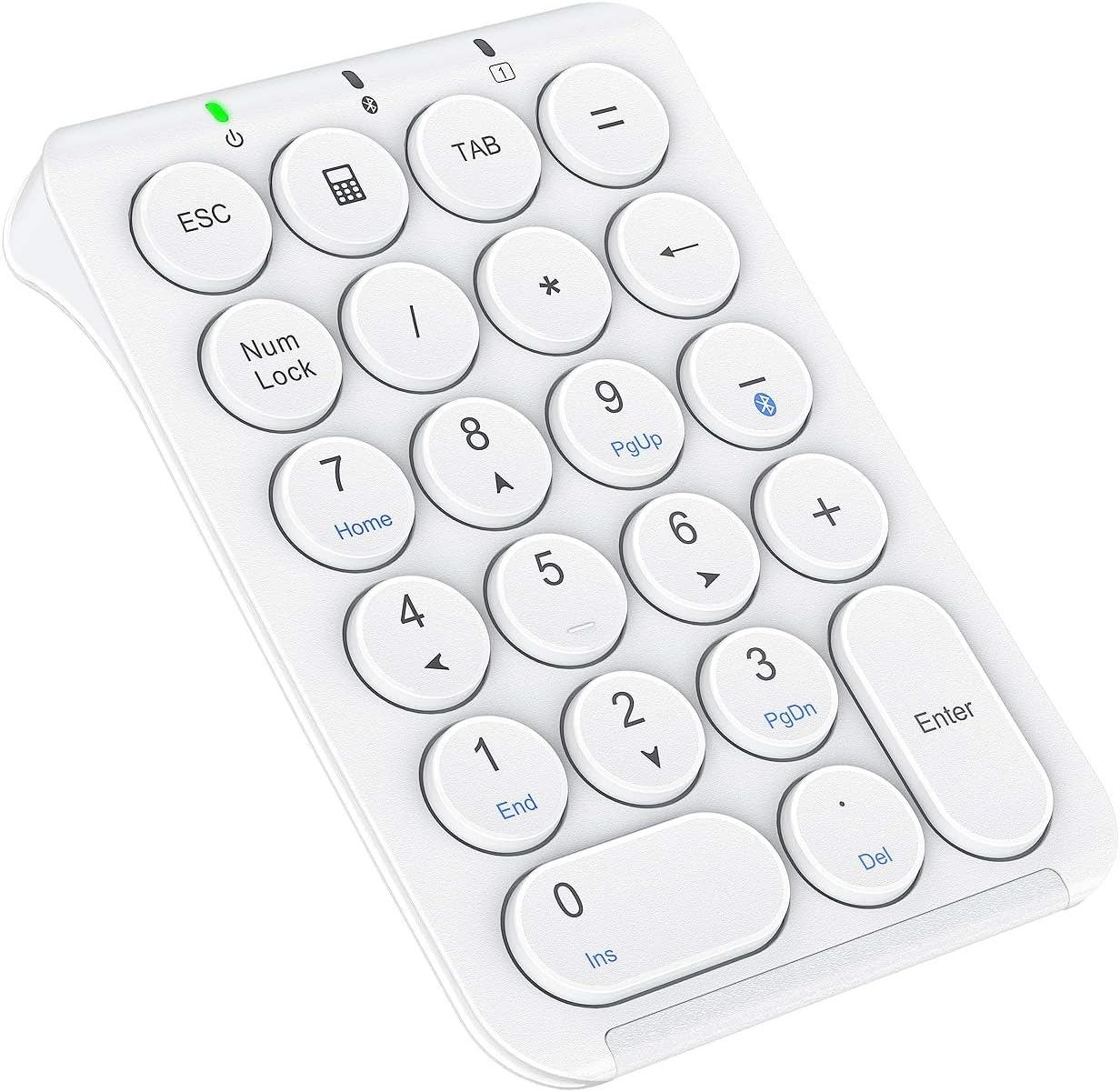
Figur 1: iClever KP08 Bluetooth Number Pad, white, showing the 22 keys including Esc, Tab, Num Lock, and calculator function.
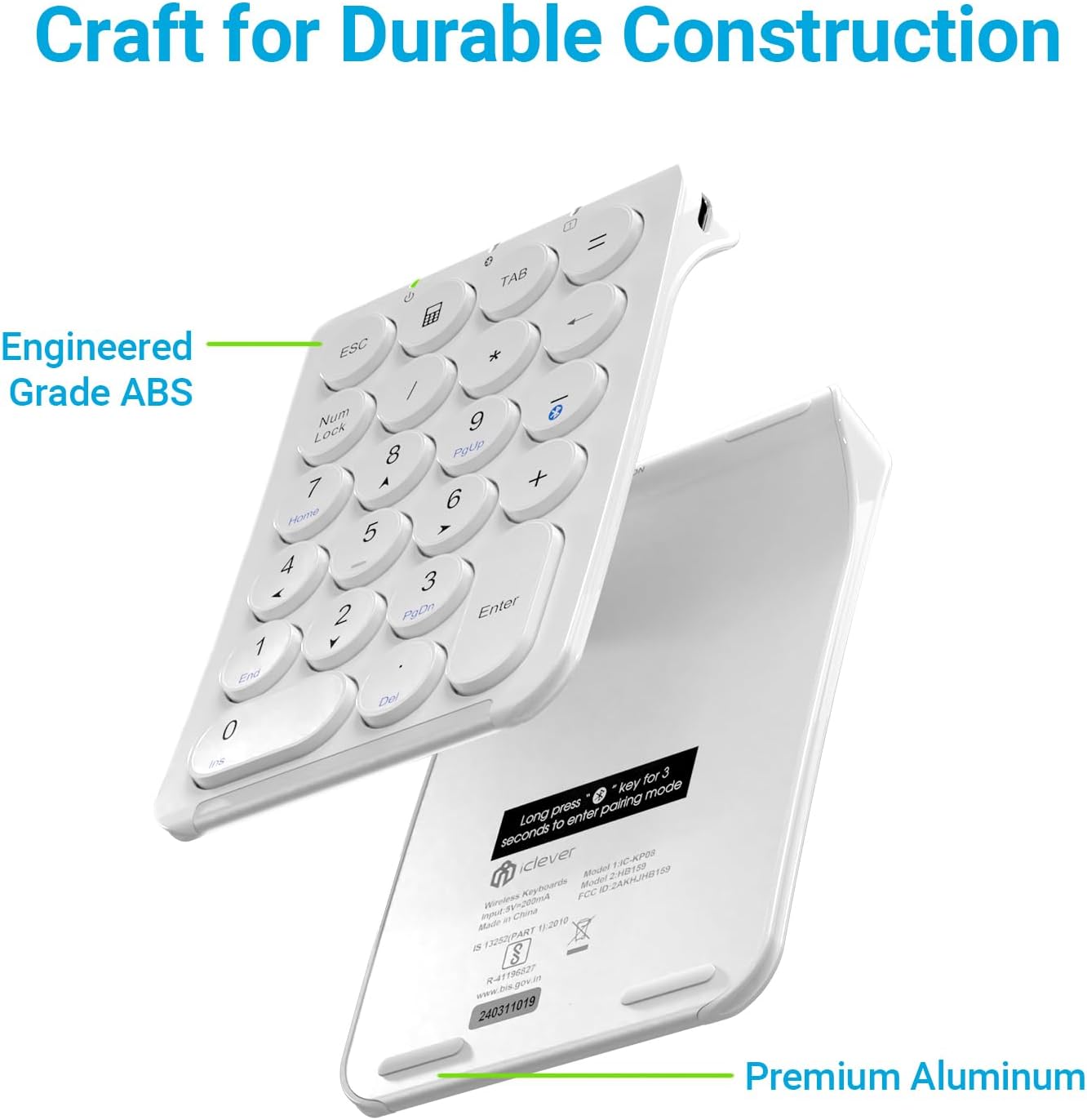
Figur 2: eksploderede view of the iClever KP08 Number Pad, illustrating its engineered grade ABS top and premium aluminum bottom for durable construction.
Opsætning
1. Charging the Number Pad
Before first use, fully charge the number pad.
- Connect the provided USB-C cable to the charging port on the number pad.
- Tilslut den anden ende af USB-C-kablet til en USB-strømkilde (f.eks. en computers USB-port eller en USB-vægadapter).
- The charging indicator light will illuminate. A full charge typically takes about 1 hour and provides up to 30 days of working time.
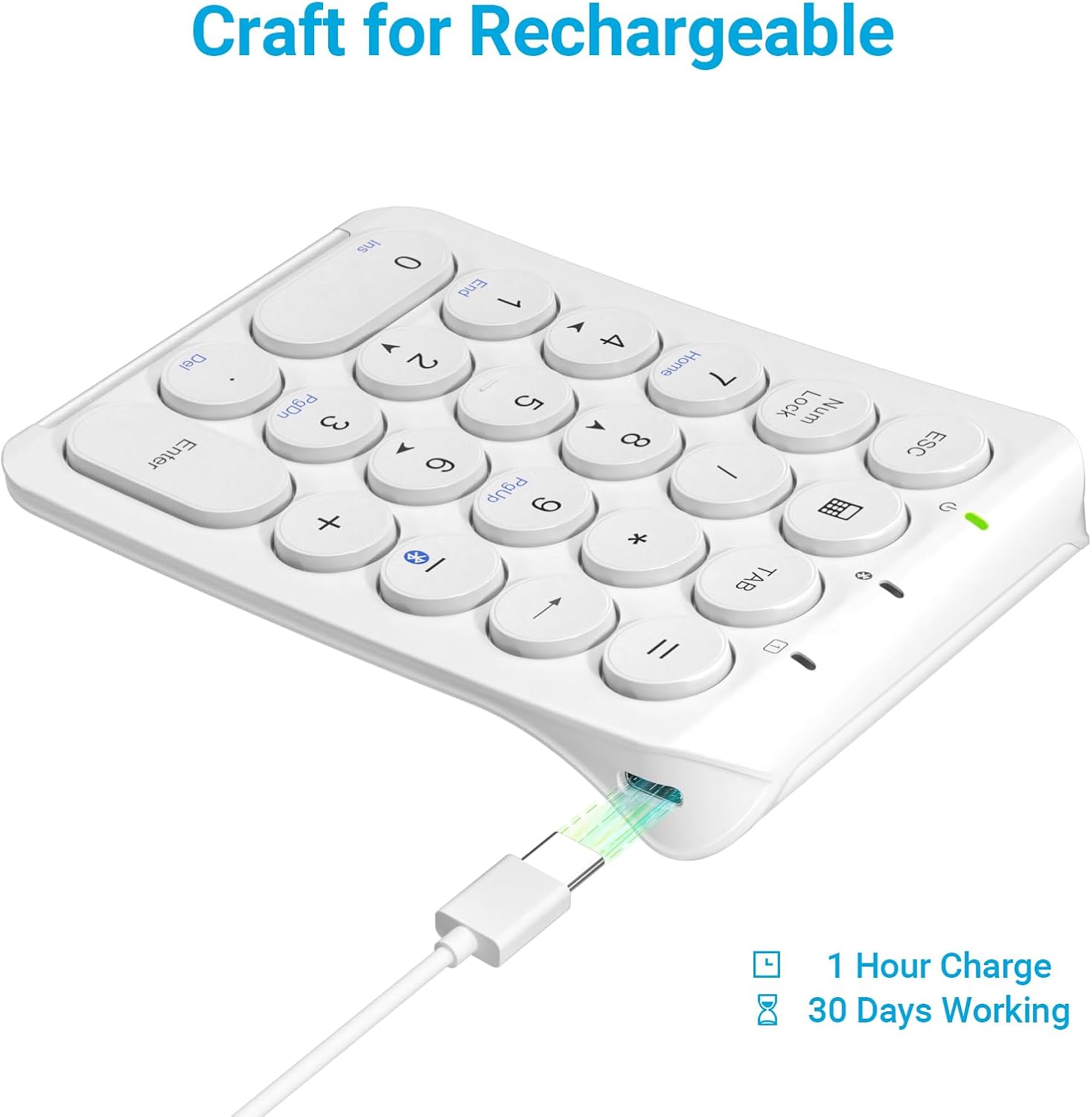
Figur 3: iClever KP08 Number Pad connected via USB-C cable for charging, illustrating the charging port and cable.
2. Bluetooth-parring
The iClever KP08 uses Bluetooth for wireless connection.
- Tænd: Slide the power switch on the number pad to the "ON" position. The power indicator light will turn on.
- Gå ind i parringstilstand: Tryk og hold på Bluetooth-parringsnøgle (often indicated by a Bluetooth symbol, typically on the 'minus' key or a dedicated key) for approximately 3-5 seconds until the Bluetooth indicator light starts flashing. This indicates the number pad is in pairing mode.
- Aktivér Bluetooth på din enhed:
- Til Windows: Go to Settings > Devices > Bluetooth & other devices. Ensure Bluetooth is On. Click "Add Bluetooth or other device" and select "Bluetooth".
- Til macOS: Go to System Preferences > Bluetooth. Ensure Bluetooth is On.
- For iOS (iPad/iPhone): Go to Settings > Bluetooth. Ensure Bluetooth is On.
- Til Android: Go to Settings > Connected devices > Bluetooth. Ensure Bluetooth is On.
- Vælg enheden: On your device's Bluetooth list, locate and select "iClever KP08" (or similar name).
- Bekræft parring: Follow any on-screen prompts to complete the pairing process. Once successfully paired, the Bluetooth indicator light on the number pad will stop flashing and remain solid or turn off, depending on the model.

Figur 4: iClever KP08 Number Pad connected wirelessly to various devices such as a laptop, iPad, iMac, and smartphone, demonstrating its broad compatibility across Windows, iOS, Android, and Mac operating systems.
Betjeningsvejledning
Grundlæggende brug
- Ensure the number pad is powered on and successfully paired with your device.
- Simply press the desired number or function keys to input data.
Specialnøgler
- Num Lock: Toggles the numeric keypad between number input and navigation (Home, End, PgUp, PgDn, arrow keys). The Num Lock indicator light will show its status.
- ESC: Functions as the Escape key.
- TABLE: Functions as the Tab key.
- Lommeregnernøgle: Opens the calculator application on compatible operating systems.
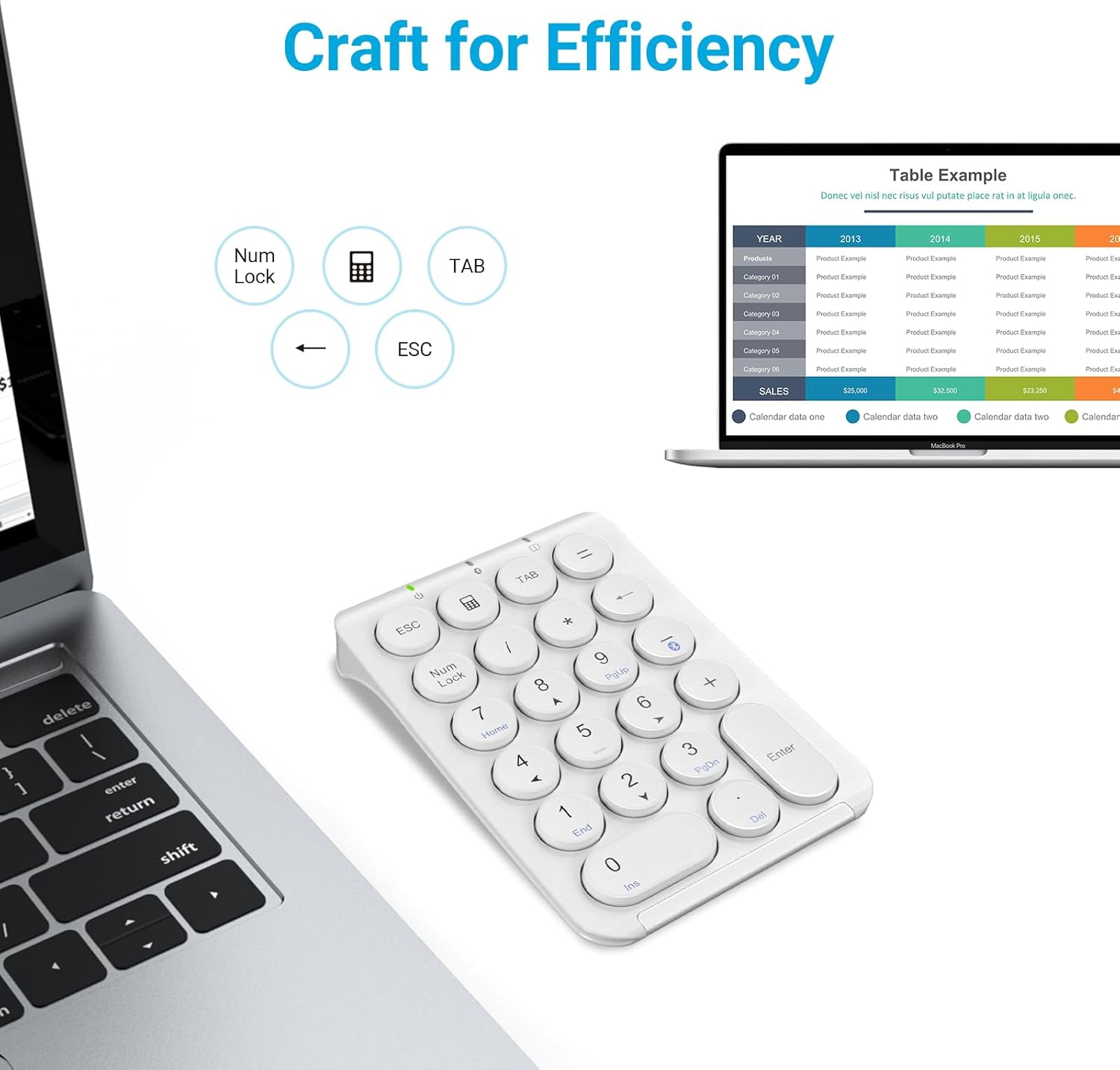
Figur 5: iClever KP08 Number Pad next to a laptop displaying a spreadsheet, highlighting the dedicated ESC, Num Lock, and TAB keys for efficient data entry.
Strømstyring
To conserve battery life, the number pad will enter a sleep mode after a period of inactivity.
- Auto-søvn: The number pad will automatically enter sleep mode after approximately 10 minutes of no activity.
- Waking Up: To wake the number pad, press any key. It may take a few seconds for the connection to re-establish with your device.

Figur 6: Illustration of the iClever KP08 Number Pad's auto-sleep feature, indicating it enters sleep mode after 30 minutes of inactivity to conserve battery.
Opretholdelse
- Rensning: Use a soft, dry cloth to clean the surface of the number pad. For stubborn dirt, a slightly damp en klud med mild sæbe kan bruges, så det sikres, at der ikke kommer væske ind i enheden.
- Opbevaring: When not in use for extended periods, turn off the number pad to conserve battery. Store it in a cool, dry place away from direct sunlight and extreme temperatures.
- Batteripleje: Avoid fully discharging the battery frequently. Charge it regularly to maintain optimal battery health.
Fejlfinding
| Problem | Løsning |
|---|---|
| Number pad does not power on. | Ensure the power switch is in the "ON" position. Charge the number pad using the provided USB-C cable. |
| Kan ikke parres via Bluetooth. |
|
| Keys are not responding or input is delayed. |
|
| Keys are repeating characters excessively. |
|
| Num Lock key does not work as expected. | Ensure the Num Lock indicator light is on for number input. If it's off, the keys will function as navigation keys (Home, End, etc.). Press the Num Lock key to toggle its state. |
For yderligere assistance henvises til Fejlfindingsvejledning (PDF) or contact iClever customer support.
Specifikationer
| Feature | Detalje |
|---|---|
| Model | KP08 |
| Forbindelsesteknologi | Bluetooth |
| Antal nøgler | 22 |
| Nøgletype | Scissor Switch, Round Keys |
| Opladningsport | USB-C |
| Batterilevetid | Up to 30 days (after 1 hour charge) |
| Produktdimensioner | 13.18 x 8.89 x 0.61 cm (L x B x H) |
| Varens vægt | 5.9 ounce (167 gram) |
| Materiale | ABS Top and Aluminum Bottom |
| Kompatible enheder | Laptop, iPad, MacBook, iMac, Tablet, PC, Smartphone |
| Operativsystemer | Windows, iOS, Android, Mac, Chrome OS, Clip Studio |
Garanti og support
iClever products come with a standard warranty. For specific warranty details, registration, or technical support, please visit the official iClever webwebsted eller kontakt deres kundeservice.
Du kan også finde flere oplysninger og supportressourcer på iClever Brand Store on Amazon.


