Indledning
This manual provides essential information for setting up, operating, and maintaining your ASUS VA329HE 32-inch Full HD LED Backlit LCD Monitor. The ASUS VA series is designed to enhance productivity with vivid visuals and eye care features. This bundle includes a dual monitor stand for an optimized workspace.
Opsætning
1. Udpakning og komponenttjek
Fjern forsigtigt alle komponenter fra emballagen. Sørg for, at følgende dele er til stede:
- ASUS VA329HE Monitor
- Strømadapter og kabel
- HDMI kabel
- VGA-kabel
- Bordstativ til dobbelt skærm (med kraftig bordplade)amp and detachable VESA bracket plates)
- Brugervejledning (dette dokument)
2. Samling af skærm
The monitor can be used with its included desk mount stand or mounted using its VESA compatibility.

Figure 1: Components of the Dual Monitor Desk Mount Stand. This image shows the various parts of the desk mount, including the main pole, adjustable arms, and VESA plates, ready for assembly.
For Desk Mount Stand:
- Attach the VESA bracket plates to the back of each monitor using the provided screws.
- Assemble the desk mount stand according to its specific instructions, securing the heavy-duty desk clamp til dit skrivebord.
- Attach the monitors (with VESA plates) to the adjustable arms of the stand.
- Adjust the height, tilt, swivel, and rotation of the monitors for optimal viewkomfort.
For VESA Wall Mount (not included):
- The monitor is VESA compatible. Remove the pre-attached stand (if any) and follow the instructions provided with your VESA wall mount kit.

Figur 2: Bagside view of the ASUS VA329HE monitor, highlighting the VESA mounting holes for attaching to a compatible stand or wall mount.
3. Tilslutningskabler
Tilslut de nødvendige kabler til din skærm og computer.
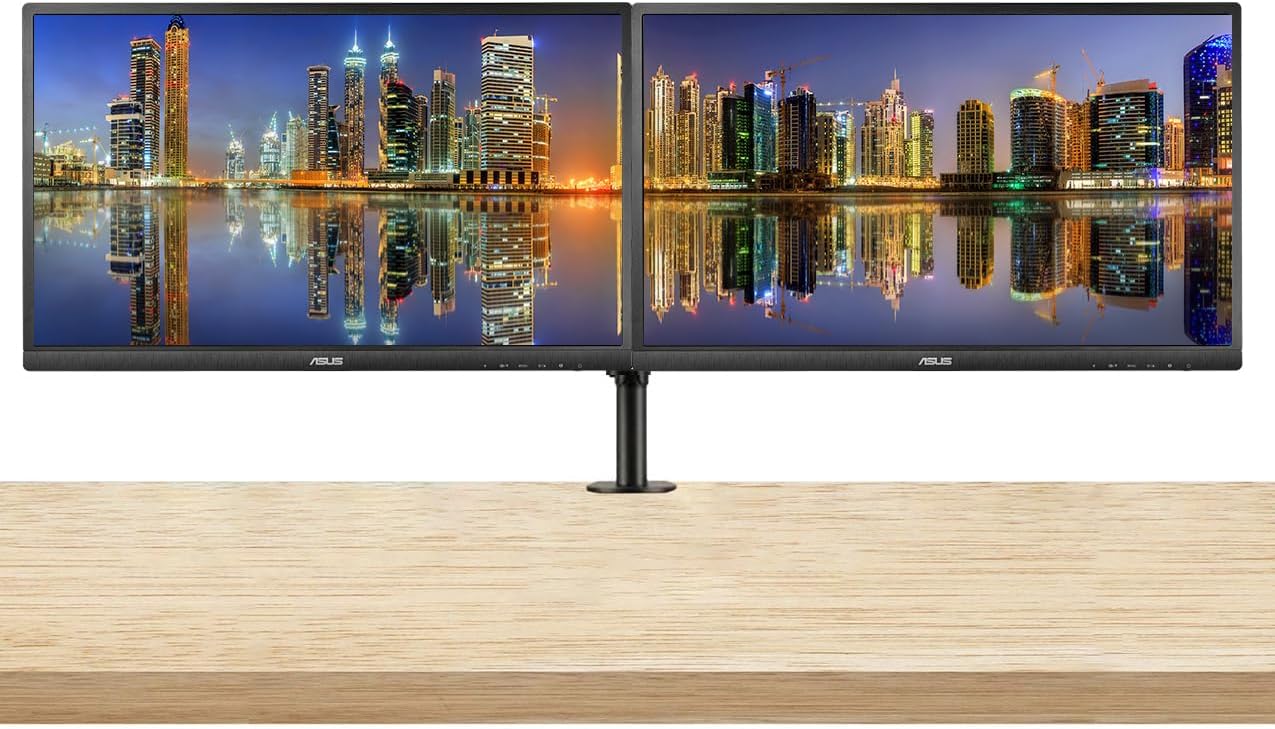
Figure 3: Two ASUS VA329HE monitors displayed on a dual monitor stand, showcasing a typical setup for enhanced productivity.
- Magt: Tilslut strømadapteren til skærmens strømindgang og derefter til en stikkontakt.
- Videoindgang: Connect either the HDMI cable or the VGA cable from your computer's video output to the corresponding port on the monitor.
- Lyd (valgfrit): If you wish to use external speakers or headphones, connect them to the monitor's audio output jack.
Video 1: This video demonstrates the unboxing and initial setup of an ASUS 31.5-inch 1080P monitor, including connecting cables and powering it on. It provides a visual guide to the physical setup process.
Betjeningsvejledning
1. Tænd/sluk
Press the power button located on the bottom right side of the monitor to turn it on or off. The power indicator light will illuminate when the monitor is active.
2. On-Screen Display (OSD) menu
The OSD menu allows you to adjust various monitor settings. Use the control buttons located on the bottom right bezel of the monitor to navigate the menu.
- Tryk på Menu button to open the OSD menu.
- Brug Navigation buttons (up/down/left/right arrows) to move through options.
- Tryk på Vælge button (often the center button) to confirm a selection.
- Tryk på Udgang button to close the OSD menu or go back to the previous level.
3. Nøglefunktioner og indstillinger
- Valg af input: Use the OSD menu to switch between HDMI and VGA inputs.
- Lysstyrke/kontrast: Adjust these settings in the OSD menu to optimize visual clarity for your environment. The monitor features an ultra-high 3,000:1 contrast ratio and 300cd/m² brightness.
- ASUS Smart Contrast Technology: This feature, with an 80,000,000:1 contrast ratio, optimizes color brightness, contrast, and sharpness. Access various modes like Reading and Darkroom via the OSD.
- Øjenplejeteknologi: The VA Series includes a certified Blue Light Filter to reduce harmful blue light emissions. Select from four different filter settings in the OSD menu to minimize eye strain during extended use.
- AMD FreeSync: This technology helps eliminate screen tearing and choppy frame rates for smoother visuals, especially during dynamic content. Ensure your graphics card supports AMD FreeSync for optimal performance.
Opretholdelse
1. Rengøring af skærmen
- Sluk altid skærmen og tag netledningen ud, inden rengøring.
- Brug let en blød, fnugfri klud damprengøres med vand eller et mildt, ikke-slibende skærmrensemiddel.
- Wipe the screen gently. Avoid applying direct pressure to the screen.
- Brug ikke alkohol, ammoniak eller slibende rengøringsmidler, da disse kan beskadige skærmens overflade.
2. Almen pleje
- Undgå at placere tunge genstande på skærmen eller dens kabler.
- Hold skærmen væk fra direkte sollys, varmekilder og overdreven fugtighed.
- Sørg for tilstrækkelig ventilation omkring skærmen for at forhindre overophedning.
Fejlfinding
Hvis du støder på problemer med din skærm, kan du bruge følgende almindelige løsninger:
| Problem | Mulig løsning |
|---|---|
| Intet billede på skærmen |
|
| Billedet er sløret eller forvrænget |
|
| Ingen lyd fra højttalere/hovedtelefoner |
|
| Skærmen flimrer |
|
Specifikationer
| Feature | Detalje |
|---|---|
| Modelnummer | VA329HE |
| Skærmstørrelse | 32 tommer |
| Opløsning | 1920 x 1080 pixels (FHD 1080p) |
| Aspektforhold | 16:9 |
| Opdateringshastighed | 75 Hz |
| Billedlysstyrke | 300 cd/m² |
| Kontrastforhold | 3,000:1 (Typical), 80,000,000:1 (ASUS Smart Contrast Ratio) |
| Viewi vinkel | 178° bred-View |
| Skærmoverflade | Blank |
| Forbindelse | VGA, HDMI |
| Produktdimensioner | 9 x 24 x 28 tommer |
| Varens vægt | 30 pund |

Figure 4: The ASUS VA329HE monitor with its physical dimensions (height, width, depth) clearly indicated for reference.
Garanti og support
For garantioplysninger og teknisk support henvises til den officielle ASUS-websted. website or contact ASUS customer service directly. Keep your purchase receipt for warranty claims.


