1. Introduktion
Thank you for choosing the A4TECH F.STYLER FBK11 Wireless Bluetooth Keyboard. This versatile keyboard offers dual connectivity modes (Bluetooth and 2.4 GHz wireless) and supports pairing with up to four devices simultaneously. It is designed for seamless use across various operating systems, including Windows, macOS, Android, and iOS. This manual provides detailed instructions to help you set up, operate, and maintain your new keyboard.

Figur 1: Forside view of the A4TECH F.STYLER FBK11 Wireless Bluetooth Keyboard, showcasing dens kompakte design og tastelayout.
2. Produktfunktioner
- Dobbelt tilslutning: Supports both Bluetooth and 2.4 GHz wireless modes for flexible connection options.
- Parring af flere enheder: Connect and switch between up to 4 devices (3 via Bluetooth, 1 via 2.4G wireless) seamlessly.
- Multimedie-genvejstaster: Dedicated shortcut keys for quick access to media controls and other functions.
- Operativsystemkompatibilitet: Compatible with Windows, macOS, Chrome OS, Android, and iOS devices.
- Kompakt og bærbart design: Lightweight and easy to carry for on-the-go productivity.
- Arabic/English Layout: Features a dual-language key layout for broader usability.
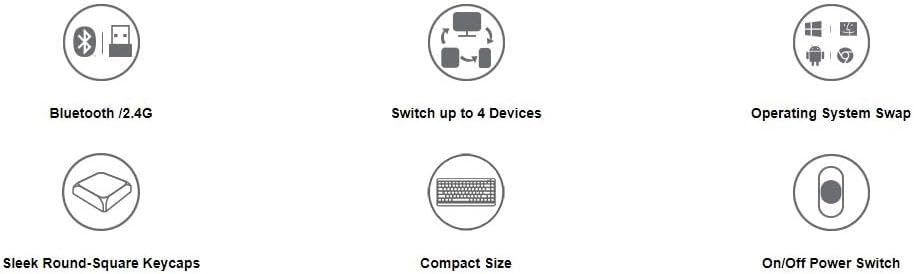
Figure 2: Visual representation of key features including Bluetooth/2.4G connectivity, multi-device switching, OS swap, sleek keycaps, compact size, and on/off power switch.
3. Pakkens indhold
Tjek venligst pakken for følgende varer:
- A4TECH F.STYLER FBK11 Wireless Bluetooth Keyboard
- 2.4 GHz USB Nano-modtager
- 2 x AAA alkaliske batterier
- Brugervejledning (dette dokument)

Figure 3: The keyboard shown with its included accessories: the USB receiver and two AAA batteries.
4. Opsætning
4.1. Batteriinstallation
- Find batterirummet på undersiden af tastaturet.
- Åbn batterirummets dæksel.
- Insert the two AAA alkaline batteries, ensuring correct polarity (+/-).
- Luk batterirummets dæksel forsvarligt.
4.2. Tænd/sluk
Slide the power switch, located on the top right edge of the keyboard, to the 'ON' position to power on the keyboard. Slide it to 'OFF' when not in use to conserve battery life.
5. Betjeningsvejledning
5.1. Forbindelsestilstande
The FBK11 keyboard supports two connectivity modes: Bluetooth and 2.4 GHz wireless.
5.1.1. 2.4 GHz trådløs forbindelse
- Insert the 2.4 GHz USB Nano Receiver into an available USB port on your computer or device.
- Tænd for tastaturet.
- The keyboard should automatically connect to the receiver. The 2.4G indicator light on the keyboard will illuminate briefly.
5.1.2. Bluetooth-forbindelse
Tastaturet kan oprette forbindelse til op til tre Bluetooth-enheder (BT1, BT2, BT3).
- Tænd for tastaturet.
- Tryk og hold på Fn key and then press one of the Bluetooth keys (BT1, BT2, eller BT3) for 3-5 seconds until the corresponding Bluetooth indicator light starts blinking rapidly. This indicates the keyboard is in pairing mode.
- Gå til Bluetooth-indstillingerne på din enhed (computer, tablet, smartphone) og søg efter nye enheder.
- Select "A4TECH FBK11" or a similar name from the list of available devices.
- Follow any on-screen prompts to complete the pairing process. The indicator light will stop blinking and remain solid for a few seconds once connected.
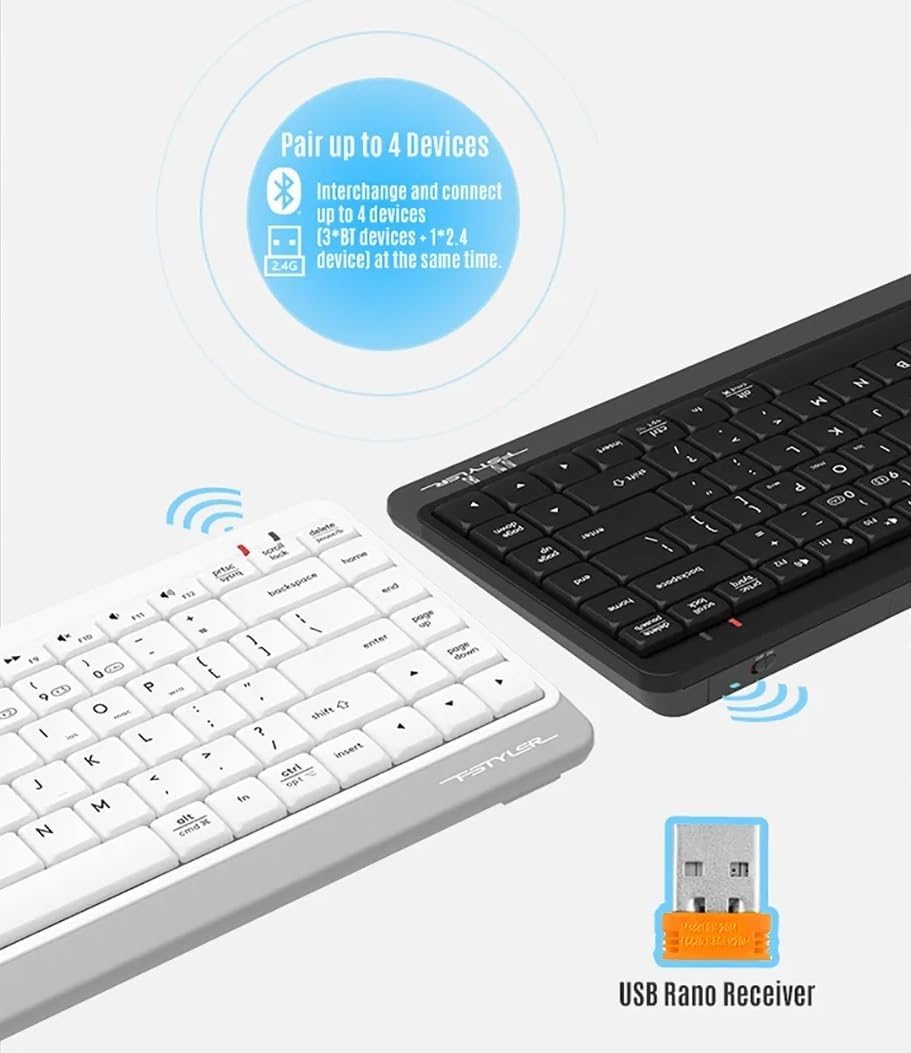
Figure 4: The keyboard demonstrating its dual connectivity options, including the USB Nano Receiver for 2.4G wireless and Bluetooth pairing capabilities.
5.2. Skift mellem flere enheder
Sådan skifter du mellem tilsluttede enheder:
- Trykke Fn + 2.4G to switch to the device connected via the 2.4 GHz USB receiver.
- Trykke Fn + BT1 to switch to the first Bluetooth-paired device.
- Trykke Fn + BT2 to switch to the second Bluetooth-paired device.
- Trykke Fn + BT3 to switch to the third Bluetooth-paired device.

Figure 5: Diagram illustrating how the keyboard can be paired with up to four different devices simultaneously, including a smartphone, tablet, laptop, and desktop computer.
5.3. Operating System Switching
The keyboard features dedicated keys to optimize its layout for different operating systems:
- Trykke Fn + Q for Android/iOS mode.
- Trykke Fn + W til Windows-tilstand.
- Trykke Fn + E for macOS mode.
5.4. Multimedia Hotkeys and FN Lock Mode
The keyboard includes 12 multimedia and internet hotkeys (F1-F12) that can be accessed directly or by using the Fn key.

Figur 6: Overview of the keyboard's main functions, highlighting FN Locking Mode, Multimedia & Internet Hotkeys, Multi-Device Switch, Operating System Swap, and PC/MAC Dual-Function Keys.
5.4.1. FN Lock Mode
By default, after pairing, the FN shortcut is locked in FN mode. This means you can use the multimedia functions (F1-F12) directly without pressing the Fn key.
- Lås Fn-tilstand: No need to press the Fn key for multimedia functions.
- Lås Fn-tilstand op: Trykke Fn + ESC to switch back to standard F1-F12 key functions, requiring the Fn key to access multimedia shortcuts.
The locking FN mode is memorized when switching devices and shutting down.

Figure 7: Detailed explanation of how to lock and unlock the FN mode, allowing direct access to multimedia functions.
6. Fejlfinding
| Problem | Mulig årsag | Løsning |
|---|---|---|
| Tastaturet reagerer ikke | Low battery; Keyboard is off; Incorrect connection mode; Device Bluetooth is off. | Replace batteries; Turn on keyboard; Switch to correct connection mode (2.4G/BT1/BT2/BT3); Enable Bluetooth on your device. |
| Kan ikke parres via Bluetooth | Keyboard not in pairing mode; Device is too far; Interference. | Ensure keyboard is in pairing mode (blinking light); Move keyboard closer to device; Remove potential sources of interference. |
| 2.4G connection issues | USB receiver not properly inserted; Interference. | Re-insert USB receiver; Try a different USB port; Move keyboard closer to receiver; Remove potential sources of interference. |
| Multimedietasterne virker ikke | FN Lock mode is off. | Trykke Fn + ESC to toggle FN Lock mode. |
7. Specifikationer
- Model: FBK11
- Forbindelse: Bluetooth 5.0, 2.4 GHz trådløs
- Driftsområde: Op til 10 meter (33 fod)
- Batteritype: 2 x AAA alkaliske batterier
- Materiale: Plast
- Farve: Sort
- Dimensioner: Cirka 36.1 x 15.3 x 4.4 cm
- Vægt: Cirka 363 gram
- Kompatibel OS: Windows, macOS, Chrome OS, Android, iOS
- Særlige funktioner: Lightweight, Portable, Multi-functional, Multi-device support
8. Vedligeholdelse
- Rensning: Brug en blød, tør klud til at rengøre tastaturet. Ved genstridigt snavs, rens letamp En klud kan bruges, men sørg for, at der ikke kommer fugt ind i tastaturet.
- Opbevaring: Opbevar tastaturet et køligt, tørt sted væk fra direkte sollys og ekstreme temperaturer.
- Batteripleje: Remove batteries if the keyboard will not be used for an extended period to prevent leakage.
- Undgå væsker: Udsæt ikke tastaturet for vand eller andre væsker.
- Håndteres med forsigtighed: Undgå at tabe tastaturet eller udsætte det for hårde stød.
9. Garanti og support
This product comes with a standard manufacturer's warranty. For detailed warranty terms and conditions, please refer to the warranty card included with your purchase or contact your local A4TECH distributor or retailer.
For technical support, troubleshooting assistance, or inquiries about your A4TECH F.STYLER FBK11 keyboard, please visit the official A4TECH website or contact their customer service department. Contact information can typically be found on the product packaging or the A4TECH webwebsted.


