1. Introduktion
This manual provides detailed instructions for the setup, operation, maintenance, and troubleshooting of your Keychron K13 Max Low-Profile Wireless Mechanical Keyboard. Please read this manual thoroughly before using the product to ensure proper functionality and longevity.
The Keychron K13 Max is a versatile low-profile mechanical keyboard featuring an 80% layout with a dedicated numpad. It supports multiple connectivity options including 2.4 GHz wireless, Bluetooth 5.1, and wired USB-C. It is designed for compatibility with macOS, Windows, and Linux operating systems.
2. Pakkens indhold
Bekræft at alle varer er til stede i pakken:
- 1x Fuldt samlet Keychron K13 Max-tastatur
- 1x Type-C kabel
- 1x Type-A til Type-C adapter
- 1x Type-A 2.4GHz modtager
- 1x Keycap aftrækker
- Additional set of customized keycaps (for Windows/macOS system toggle)
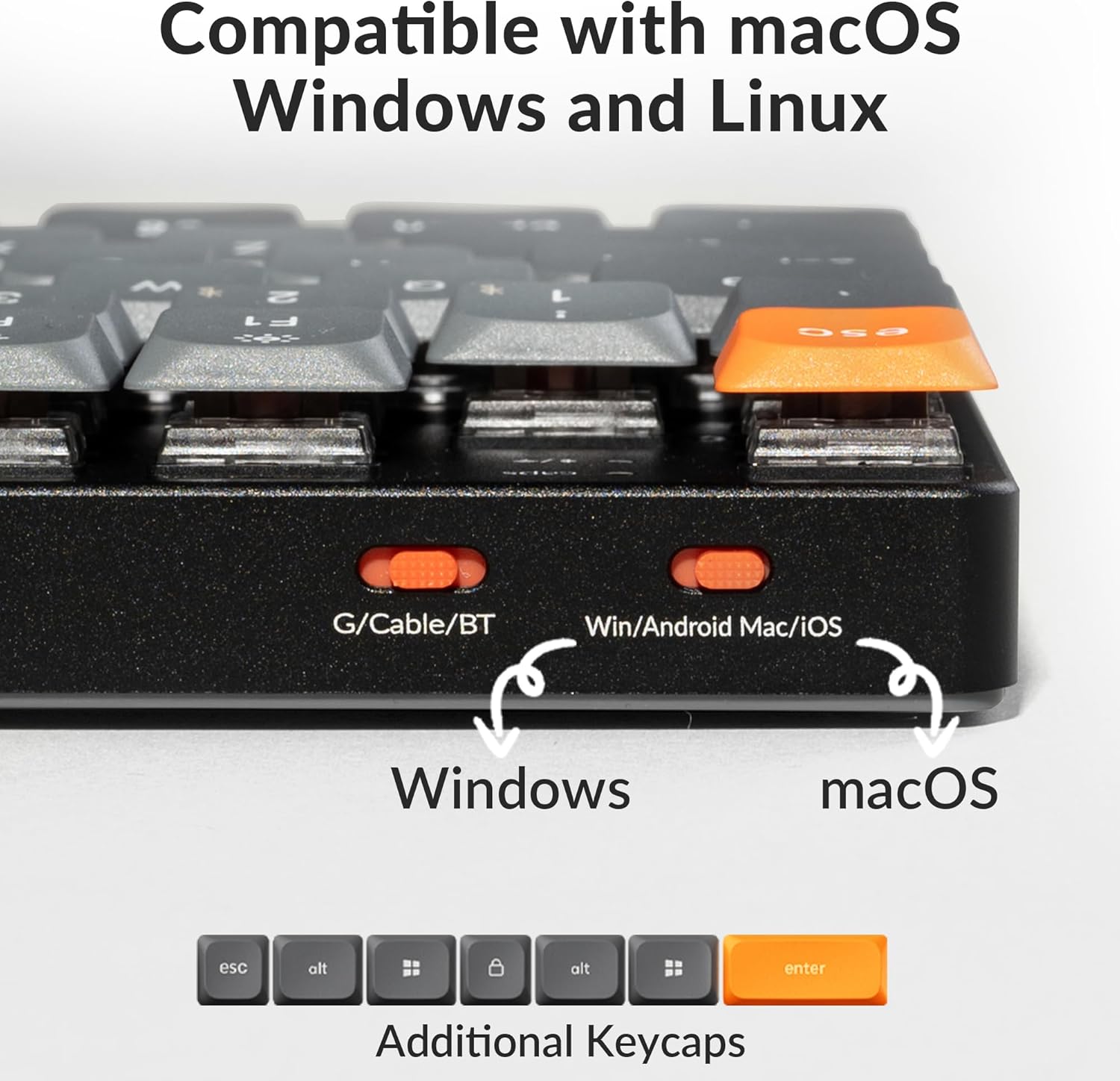
Image: Contents of the Keychron K13 Max package, showing the keyboard, USB-C cable, 2.4 GHz receiver, and keycap puller.
3. Opsætning og tilslutning
3.1 Opladning af tastaturet
Before first use, fully charge the keyboard using the provided USB-C cable. Connect the USB-C end to the keyboard and the USB-A end to a power source (e.g., computer USB port or USB wall adapter). The charging indicator light will show the charging status.
The keyboard is equipped with a Lithium Polymer battery. A full charge can provide up to 80 hours of usage depending on backlight settings and connection mode.

Image: Battery life indicator showing up to 80 hours of usage.
3.2 Systemkompatibilitetsknap
Locate the system toggle switch on the side of the keyboard. Switch it to the appropriate operating system (macOS or Windows/Android) for optimal key mapping.

Image: Close-up of the Keychron K13 Max showing the G/Cable/BT switch and the Win/Android Mac/iOS system toggle switch. Additional keycaps for different operating systems are also shown.
3.3 Forbindelsestilstande
The Keychron K13 Max supports three connection modes: 2.4 GHz wireless, Bluetooth 5.1, and wired USB-C.

Image: Diagram illustrating the tri-mode connection options: Bluetooth 5.1, 2.4 GHz wireless via USB dongle, and wired USB-C.
3.3.1 2.4 GHz trådløs forbindelse
- Ensure the keyboard's mode switch is set to "G" (2.4 GHz).
- Plug the provided 2.4 GHz USB receiver into an available USB port on your computer.
- The keyboard should automatically connect. The polling rate for this connection is 1000 Hz.
3.3.2 Bluetooth 5.1-forbindelse
- Ensure the keyboard's mode switch is set to "BT" (Bluetooth).
- Aktiver Bluetooth på din enhed (computer, tablet, smartphone) og søg efter nye enheder.
- Select "Keychron K13 Max" from the list of available devices.
- Hvis du bliver bedt om det, skal du indtaste den parringskode, der vises på skærmen.
- The keyboard can connect to up to 3 devices via Bluetooth. Use Fn + 1/2/3 to switch between paired devices.
3.3.3 Kablet USB-C-forbindelse
- Sørg for, at tastaturets tilstandsknap er indstillet til "Kabel".
- Tilslut USB-C-kablet fra tastaturet til computerens USB-port.
- Tastaturet fungerer som en kablet enhed og oplades samtidig.
4. Betjeningsvejledning
4.1 Nøglefunktioner og layout
The Keychron K13 Max features a unique 80% layout with a numpad. Familiarize yourself with the key layout and special function keys.

Billede: Overview of the Keychron K13 Max keyboard layout, highlighting the low-profile design and the Gateron Brown switch.
4.2 Backlight Control
The keyboard features a white backlight. Use the dedicated backlight control keys to adjust brightness and effects.
- Fn + F5: Reducer baggrundsbelysningens lysstyrke.
- Fn + F6: Øg baggrundsbelysningens lysstyrke.
- Fn + F1: Skift mellem baggrundslyseffekter.

Billede: Nærbillede view of the keyboard demonstrating the white backlight feature.
4.3 QMK/VIA-tilpasning
The Keychron K13 Max supports QMK/VIA for advanced key remapping and macro programming. This allows for extensive customization of the keyboard's layout and functions across different layers.
- Download the Keychron Launcher software from the official Keychron webwebsted.
- Connect the keyboard to your device via USB-C cable.
- Open Keychron Launcher and select your K13 Max keyboard.
- Use the graphical interface to drag and drop keys or macro commands to remap any key.
- Changes are saved directly to the keyboard's firmware.

Image: Screenshot of the QMK/VIA software interface, demonstrating the ability to remap keys and create macro commands.
5. Vedligeholdelse og pleje
Proper maintenance ensures the longevity and performance of your Keychron K13 Max keyboard.
- Rengøring af taster: Brug en blød, damp cloth to wipe the keycaps. For deeper cleaning, use the provided keycap puller to remove keycaps and clean them with mild soap and water. Ensure they are completely dry before reattaching.
- Rengøring af tastaturhuset: Use a dry, lint-free cloth to wipe the aluminum body. Avoid abrasive cleaners or solvents.
- Vedligeholdelse af kontakt: Den lavproffefile Gateron switches are designed for durability. Avoid spilling liquids on the keyboard. If a switch feels inconsistent, it may be due to dust or debris. Use compressed air to clean around the switch stem.
- Opbevaring: Når tastaturet ikke er i brug i længere perioder, skal det opbevares køligt og tørt, væk fra direkte sollys og ekstreme temperaturer.
Image: The included keycap puller is essential for cleaning and maintaining your keycaps.
6. Fejlfinding
If you encounter issues with your Keychron K13 Max, refer to the following common troubleshooting steps:
| Problem | Mulig årsag | Løsning |
|---|---|---|
| Tastaturet svarer ikke (kablet) | Loose cable connection, incorrect mode switch setting. | Ensure USB-C cable is securely connected. Verify the mode switch is set to "Cable". Try a different USB port or cable. |
| Keyboard not responding (2.4 GHz) | Modtageren er ikke tilsluttet, forkert tilstand, interferens. | Ensure 2.4 GHz receiver is plugged in. Verify the mode switch is set to "G". Move closer to the receiver or try a different USB port. |
| Tastaturet svarer ikke (Bluetooth) | Not paired, out of range, incorrect mode, device limit reached. | Ensure Bluetooth is enabled on your device. Verify the mode switch is set to "BT". Re-pair the keyboard. Ensure you are within Bluetooth range. Check if you have exceeded the 3-device limit. |
| Taster dobbelttastning eller manglende registrering | Dust/debris in switch, faulty switch, software issue. | Clean around the affected switch with compressed air. Update keyboard firmware via Keychron Launcher. If issue persists, contact Keychron support. |
| Baggrundslys virker ikke | Backlight turned off, brightness set to minimum, low battery. | Press Fn + F6 to increase brightness. Ensure keyboard is charged. |
| QMK/VIA software not recognizing keyboard | Keyboard not in wired mode, software not updated. | Ensure keyboard is connected via USB-C cable and the mode switch is set to "Cable". Update Keychron Launcher to the latest version. |
7. Specifikationer
| Modelnummer | K13M-A3 |
| Forbindelse | Bluetooth 5.1, 2.4 GHz trådløs, USB-C kablet |
| Polling Rate (2.4 GHz/Wired) | 1000 Hz |
| Nøglekontakter | Lav-Profile Gateron Brown Switch (as per product variant) |
| tasterne | Lav-Profile Dobbelt-shot PBT-taster |
| Baggrundsbelysning | Hvid baggrundsbelysning |
| Antal nøgler | 90 |
| Batteri | 1 Lithium Polymer batteri (medfølger) |
| Batterilevetid | Op til 80 timer (afhængig af brug) |
| Materiale | ABS + Aluminum frame |
| Dimensioner | 14.53 x 6.26 x 1.54 tommer (pakkemål) |
| Varens vægt | 2.01 pund |
| Operativsystemkompatibilitet | macOS, Windows, Linux |
8. Garanti og support
Keychron products typically come with a limited warranty. For specific warranty terms and conditions, please refer to the official Keychron webwebstedet eller garantikortet, der følger med dit produkt.
For technical support, firmware updates, or further assistance, please visit the official Keychron support page:
You can also refer to the official user guide PDF provided by Keychron for more detailed information:


