1. Introduktion og overview
This manual provides comprehensive instructions for the setup, operation, and maintenance of your Maxview Alphatronics SL Line+ Smart TV. Designed for mobile use, this versatile television operates on both 12v and 240v power, making it ideal for motorhomes, caravans, trucks, and boats. It features a Full HD LED display, integrated DVD player, Wi-Fi, Bluetooth, and access to popular streaming services via WebOS.

Billede: Forside view of the Maxview Alphatronics SL Line+ Smart TV, highlighting its smart features and integrated DVD player.
Nøglefunktioner omfatter:
- Full HD LED Smart TV with Freeview.
- WebOS for access to Netflix, Amazon Prime, Disney+, iPlayer, ITVX, Sky Store, YouTube, and more.
- Dual power compatibility (12v or 240v).
- Built-in DVD Player, Bluetooth, Wi-Fi, and Ethernet.
- Multiple connectivity options: 2 HDMI ports, USB Port, and AV connections.
2. Hvad er der i æsken
Kontroller venligst indholdet af din pakke i forhold til listen nedenfor:
- Alphatronics TV (TVSL/22)
- Fjernbetjening
- 240v Mains Lead
- 12v strømadapter
- Brugervejledning (dette dokument)

Image: The included remote control for the Maxview Alphatronics Smart TV.
3. Opsætning
3.1. Placering og montering
Choose a stable and flat surface for your TV. Ensure adequate ventilation around the unit. If mounting, refer to your specific wall mount instructions and ensure the mount is compatible with VESA standards for your TV size.

Billede: Eksample of the TV installed within a caravan interior.
3.2. Strømtilslutning
The TV can be powered by either 12v DC or 240v AC.
- For 240v AC: Connect the supplied 240v Mains Lead to the TV's AC input and then to a standard wall socket.
- For 12v DC: Connect the supplied 12v Power Adapter to the TV's DC input and then to a 12v power source (e.g., vehicle's 12v socket).
Ensure the correct power source is used to prevent damage.
3.3. Tilslutning af eksterne enheder
TV'et har forskellige porte til tilslutning af eksterne enheder:
- HDMI-porte (x2): For high-definition audio and video devices like satellite receivers, game consoles, or laptops.
- USB-port: Til tilslutning af USB-lagerenheder for at afspille medier files.
- AV Connections: For ældre enheder, der bruger kompositvideo og stereolyd.
- Antenne-/satellitindgang: Connect your terrestrial antenna or satellite dish cable for Freeview or satellite TV reception.

Image: Rear panel of the TV displaying available connection ports.
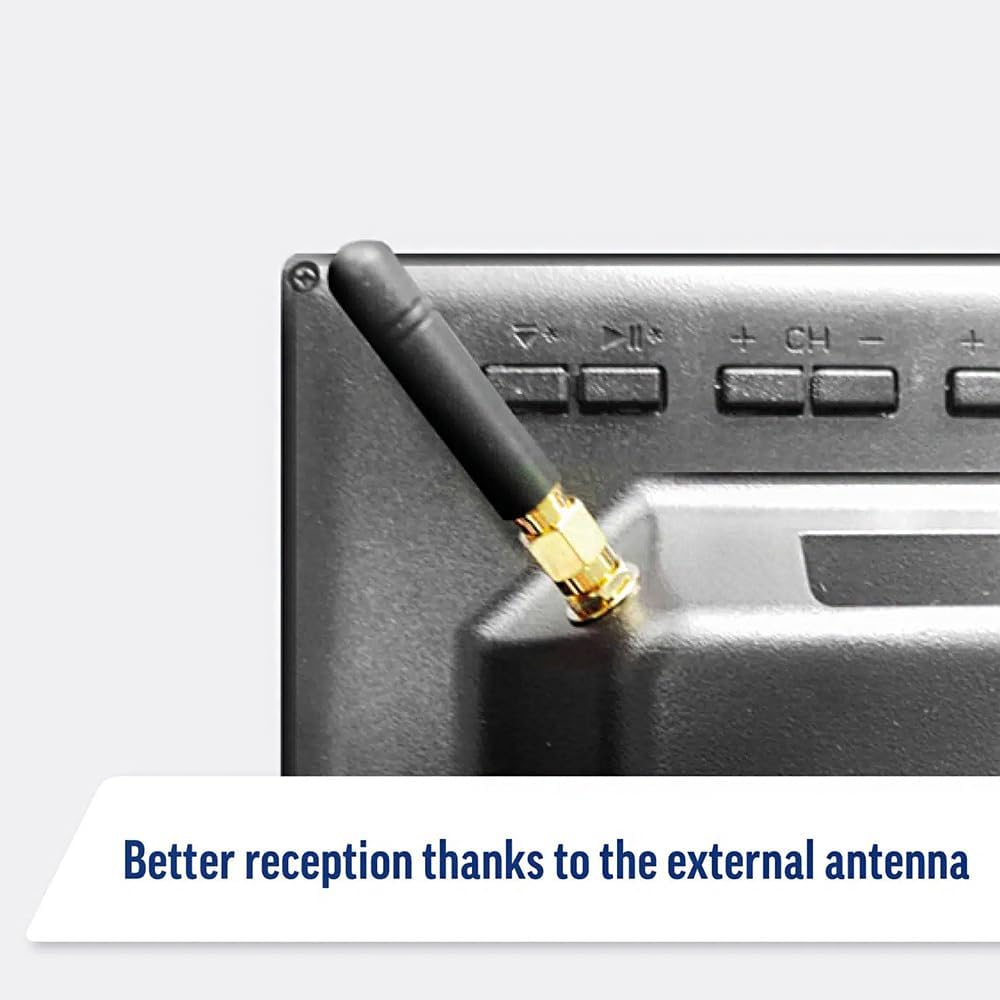
Image: Detail of the external antenna connection for improved signal reception.
3.4. Initial Setup Wizard
Når du tænder for tv'et første gang, vil du blive guidet gennem en indledende opsætningsguide. Dette inkluderer:
- Sprogvalg: Vælg dit foretrukne sprog.
- Netværks forbindelse: Connect to your Wi-Fi network or via Ethernet for internet access. This is crucial for Smart TV features.
- Kanalscanning: Scan for available Freeview or satellite channels.
- Time and Date Settings: Indstil den korrekte tidszone og dato.
4. Betjening af tv'et
4.1. Grundlæggende kontroller
Use the supplied remote control to navigate the TV. Common functions include:
- Power knap: Tænder/slukker tv'et eller sætter det i standby.
- Lydstyrke op/ned: Justerer lydniveauet.
- Kanal op/ned: Skifter tv-kanaler.
- Kilde/Indgang: Selects the input source (HDMI, AV, TV, DVD).
- Navigationsknapper (piletaster, OK): Naviger i menuer og vælg muligheder.
- Hjemknappen: Får adgang til WebOS Smart TV-startskærm.
- Hurtig adgangsknapper: Dedicated buttons for Netflix and Amazon Prime Video for direct access.
4.2. Smart TV-funktioner (WebOS)
Your Maxview Alphatronics TV runs on WebOS, providing a user-friendly interface for accessing a wide range of applications and content.
- Home Dashboard: Tryk på Hjem button to access the main dashboard, where you can find installed apps, input sources, and settings.
- App Store: Download og installer yderligere apps fra den integrerede appbutik.
- Streamingtjenester: Easily access popular services like Netflix, Amazon Prime Video, Disney+, BBC iPlayer, ITVX, and YouTube.
- Skærmdeling: Share content from your smartphone or tablet to the TV screen.
Image: Using a smartphone as a remote control for the TV.
4.3. DVD Player Operation
The integrated DVD player allows you to enjoy your movie collection on the go.
- Insert a DVD disc into the slot on the side of the TV.
- The TV should automatically switch to the DVD input. If not, press the Kilde/Input button on your remote and select "DVD".
- Use the remote control's playback buttons (Play, Pause, Stop, Fast Forward, Rewind) to control the DVD.
- To eject the disc, press the Eject button on the remote or the TV.
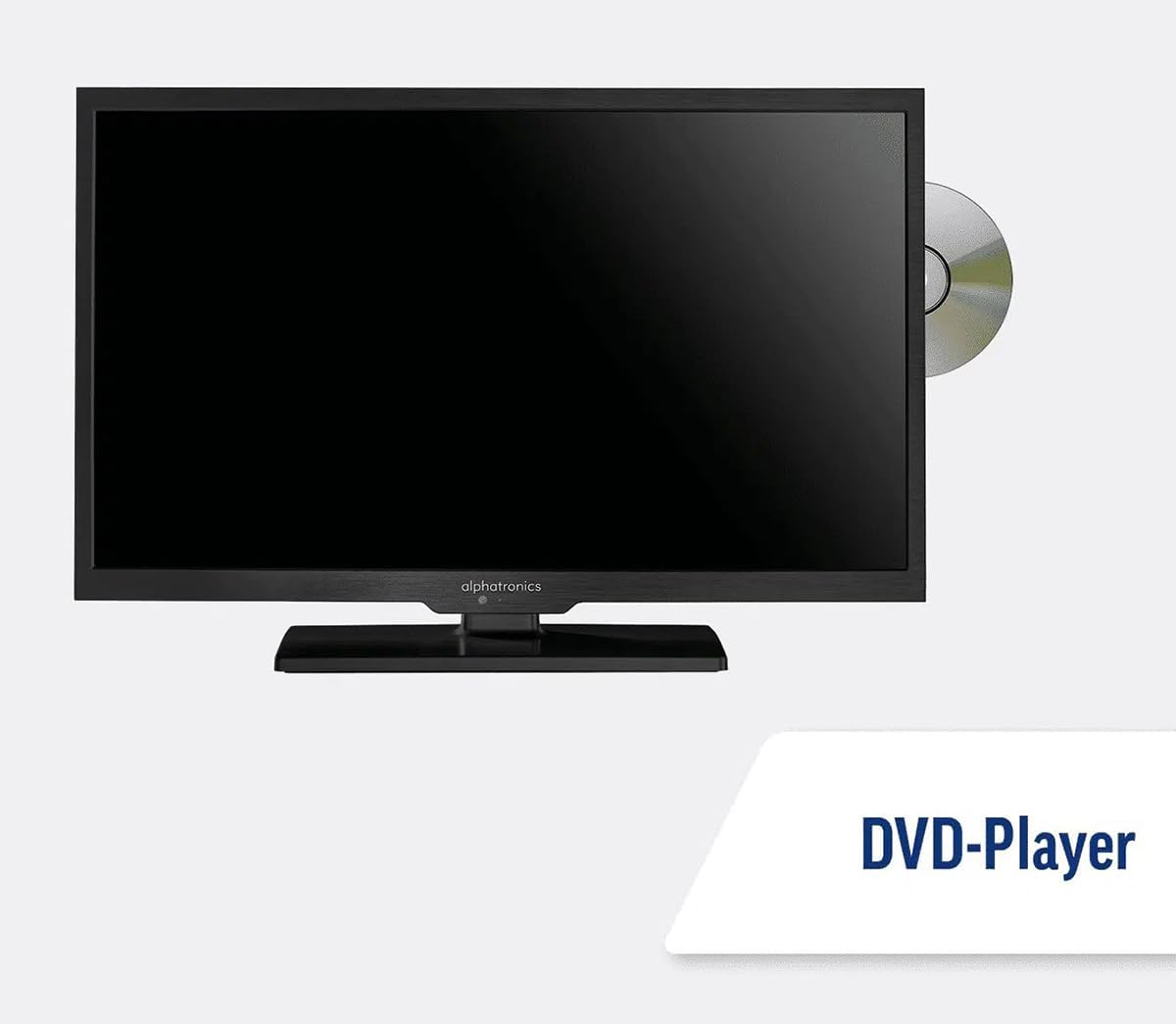
Image: The TV with a DVD disc being inserted into its built-in player.
5. Vedligeholdelse
5.1. Rensning
To clean the TV screen, gently wipe it with a soft, lint-free cloth. For stubborn marks, dampen the cloth slightly with water or a screen-cleaning solution. Do not spray liquid directly onto the screen. Clean the TV casing with a dry, soft cloth.
Forsigtighed: Always unplug the TV from the power source before cleaning.
5.2. Softwareopdateringer
Your Maxview Alphatronics Smart TV supports automatic software updates via the internet. Ensure your TV is connected to a stable Wi-Fi or Ethernet network to receive the latest firmware and feature enhancements.
- To check for updates manually, navigate to the Indstillinger menu on your TV, then look for Softwareopdatering or Systemoplysninger.
- Follow the on-screen prompts to download and install any available updates. Do not power off the TV during an update process.

Image: The TV screen indicating a software update in progress.
6. Fejlfinding
Hvis du støder på problemer med dit tv, bedes du læse følgende almindelige problemer og løsninger, før du kontakter support.
| Problem | Mulig årsag | Løsning |
|---|---|---|
| Ingen strøm | Power cable disconnected; no power from outlet/source. | Check power connections. Ensure outlet/source is active. Try a different outlet. |
| Intet signal | Incorrect input selected; antenna/cable disconnected or faulty. | Trykke Kilde/Input to select correct input. Check antenna/cable connections. Perform a channel scan. |
| Ingen internetforbindelse | Wi-Fi password incorrect; router issue; TV too far from router. | Re-enter Wi-Fi password. Restart your router. Move TV closer to router or use Ethernet. |
| DVD'en afspiller ikke | Disc dirty or scratched; incorrect input selected; region code mismatch. | Clean the disc. Ensure "DVD" input is selected. Check disc region compatibility. |
| Fjernbetjeningen virker ikke | Batteries low/dead; obstruction between remote and TV; remote not paired (if Bluetooth). | Udskift batterierne. Fjern forhindringer. Genpar fjernbetjeningen om nødvendigt (se TV-indstillinger). |
If the problem persists after trying these solutions, please contact Maxview kundesupport.
7. Specifikationer
| Feature | Detalje |
|---|---|
| Modelnummer | TVSL/22 |
| Skærmstørrelse | 22 tommer (56 cm synlig diagonal) |
| Displayteknologi | LED |
| Opløsning | 1080p (Full HD) |
| Produktmål (D x B x H) | 12D x 58W x 38H centimeter |
| Strømindgang | 12v DC / 240v AC |
| Forbindelse | Wi-Fi, Bluetooth, Ethernet |
| Havne | 2x HDMI, 1x USB, AV connections, Antenna/Satellite input |
| Særlige funktioner | Smart TV (WebOS), Built-in DVD Player |
| Aspektforhold | 16:9 |
| Fabrikant | Alphatronics |
8. Garanti og support
Your Maxview Alphatronics SL Line+ Smart TV comes with a 3-års garanti, providing peace of mind regarding your purchase. This warranty covers manufacturing defects and ensures reliable operation.
For warranty claims, technical support, or further assistance, please contact Maxview customer service. You can typically find contact information on the official Maxview webwebstedet eller på emballagematerialerne.
Please have your model number (TVSL/22) and proof of purchase ready when contacting support.
Bemærk: Der blev ikke fundet nogen officielle produktvideoer fra sælgeren i de angivne data, som kan integreres i denne manual.


