1. Introduktion
This manual provides detailed instructions for the installation, operation, and maintenance of your Kolink Unity Solar ARGB Mesh Midi Tower Case. Please read this manual thoroughly before beginning installation to ensure proper setup and safe usage. This case is designed to house standard PC components, offering efficient cooling and customizable ARGB lighting.
2. Sikkerhedsoplysninger
- Afbryd altid strømforsyningen fra stikkontakten, før du installerer eller fjerner komponenter.
- Håndter alle komponenter forsigtigt for at forhindre skader fra elektrostatisk udladning (ESD). Overvej at bruge en antistatisk håndledsrem.
- Avoid placing the case in direct sunlight, near heat sources, or in environments with excessive dust or humidity.
- Do not attempt to modify the case or its components. Unauthorized modifications may void your warranty and pose safety risks.
- Keep small parts, such as screws, away from children.
3. Pakkens indhold
Bekræft at alle varer er til stede i pakken:
- Kolink Unity Solar ARGB Mesh Midi Tower Case
- Accessory Box (containing screws, cable ties, and standoffs)
- Brugervejledning (dette dokument)
4. Produktet er slutview
The Kolink Unity Solar ARGB Mesh Midi Tower Case features a mesh front panel for optimal airflow, pre-installed ARGB fans, and a tempered glass side panel to showcase your build.
4.1 Ekstern Views

Figur 4.1.1: Forsiden view of the Kolink Unity Solar ARGB Mesh Midi Tower Case, highlighting the mesh front panel and three illuminated ARGB fans.
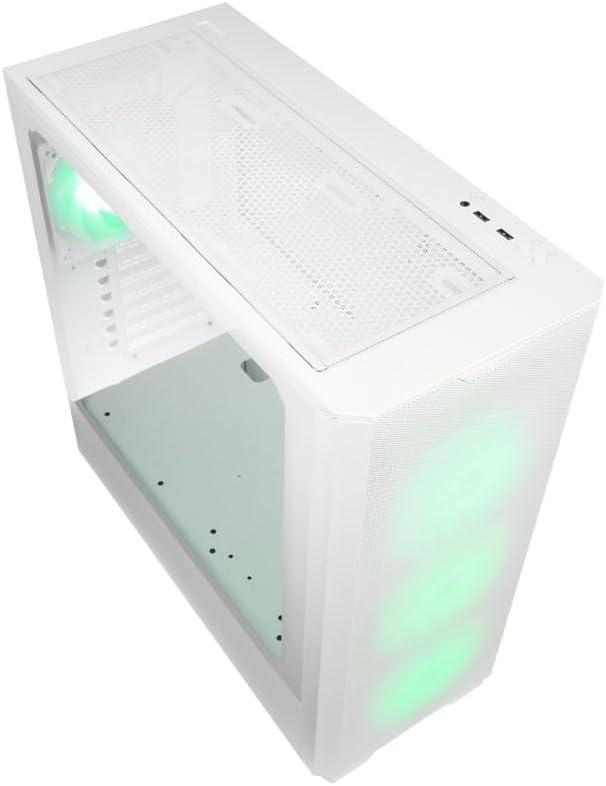
Figur 4.1.2: Top view of the case, showing the top mesh panel and front I/O ports.
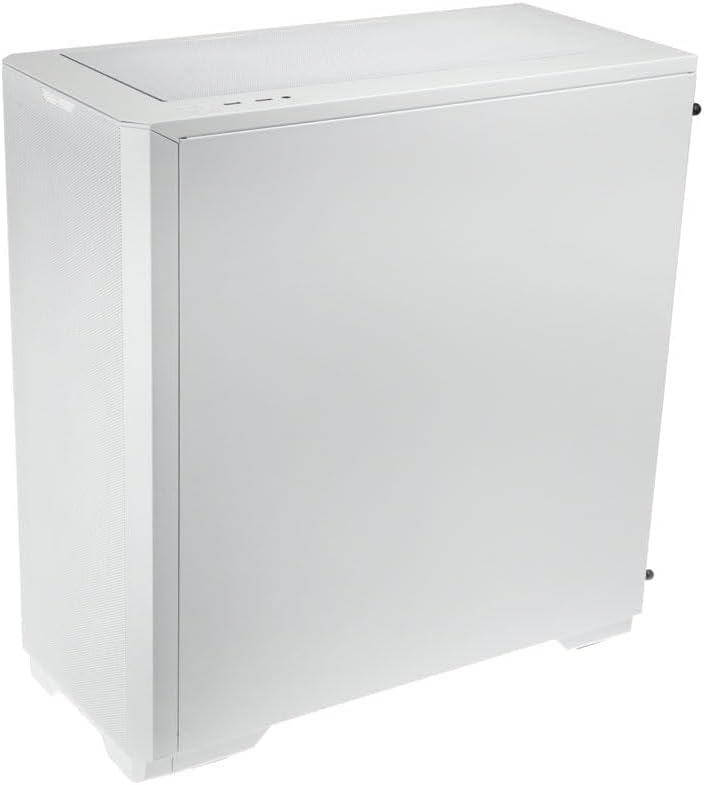
Figur 4.1.3: Bagside view of the case, illustrating the solid right side panel.

Figur 4.1.4: Composite image showing the front, rear, and tempered glass side panel of the case.
4.2 Forreste I/O-porte

Figur 4.2.1: Close-up of the top-mounted front I/O panel, featuring audio jacks, USB ports, and control buttons.
The front I/O panel typically includes:
- Power knap
- Nulstil knap
- USB 3.0-porte (x1)
- USB 2.0-porte (x2)
- HD Audio Jacks (Headphone/Microphone)
- ARGB Control Button (for pre-installed fans)
4.3 Internal Layout

Figur 4.3.1: Indre view of the case, showing the motherboard tray, front fan mounts, and PSU shroud.

Figur 4.3.2: Endnu et interiør view, highlighting the rear fan mount and the spacious main chamber.

Figur 4.3.3: Close-up of the pre-installed ARGB fans at the front of the case.

Figur 4.3.4: View behind the motherboard tray, showing space for cable management and drive mounts.
5. Opsætnings- og installationsvejledning
Follow these steps to install your PC components into the Kolink Unity Solar case.
5.1 Forberedelse af sagen
- Placer etuiet på en flad, stabil overflade.
- Remove the tempered glass side panel by unscrewing the thumbscrews at the rear and carefully pulling it away. Set it aside on a soft, non-abrasive surface.
- Remove the solid right side panel by unscrewing its thumbscrews and sliding it off.
5.2 Installation af bundkort
- Install the I/O shield (if applicable) into the rear opening of the case.
- Ensure the correct standoffs are installed for your motherboard form factor (ATX, Micro-ATX, Mini-ITX). Adjust or add standoffs as needed using the provided tools.
- Carefully align your motherboard with the standoffs and I/O shield.
- Fastgør bundkortet med de medfølgende skruer. Spænd ikke for hårdt.
5.3 Installation af strømforsyningsenhed (PSU).
- Locate the PSU mounting area at the bottom rear of the case.
- Slide your PSU into the designated bay from the rear of the case.
- Align the PSU with the screw holes and secure it with the provided screws.
5.4 Storage Drive Installation (HDDs/SSDs)
The case supports multiple storage drives. Refer to the accessory box for specific mounting hardware.
- 2.5" SSD'er: Mount directly onto the SSD trays located behind the motherboard tray or on the PSU shroud. Secure with screws.
- 3.5" harddiske: Install into the drive cage located under the PSU shroud. Slide the drive into the tray and secure it.
5.5 Installation af grafikkort (GPU) og udvidelseskort
- Fjern de nødvendige PCIe-slotdæksler fra bagsiden af kabinettet.
- Indsæt dit grafikkort eller andre udvidelseskort i de relevante PCIe-stik på dit bundkort.
- Secure the cards with the provided screws or retention clips.
5.6 Cable Management and Connections
- Connect all necessary power cables from the PSU to your motherboard, CPU, GPU, and storage drives.
- Connect the front I/O cables (USB, Audio, Power/Reset switches, ARGB control) to their respective headers on the motherboard. Refer to your motherboard manual for header locations.
- Route cables through the cutouts and tie-down points behind the motherboard tray to maintain a clean interior and optimize airflow. Use the included cable ties.
- Ensure the pre-installed ARGB fans are connected to the integrated ARGB controller or directly to an ARGB header on your motherboard (if supported).
6. Operating the ARGB Lighting
The Kolink Unity Solar case comes with pre-installed ARGB fans. You can control their lighting effects in two ways:
- Case ARGB Button: Use the dedicated ARGB control button on the front I/O panel to cycle through various lighting modes and colors.
- Bundkortsoftware: If your motherboard has a 3-pin 5V ARGB header and compatible software (e.g., ASUS Aura Sync, MSI Mystic Light, Gigabyte RGB Fusion), you can connect the case's ARGB controller to the motherboard and synchronize lighting effects with other components. Refer to your motherboard manual for instructions on ARGB header connection and software usage.
7. Vedligeholdelse
Regelmæssig vedligeholdelse er med til at sikre optimal ydeevne og levetid for dine pc-komponenter.
- Støvfiltre: The case features removable dust filters on the front, top, and bottom. Periodically remove and clean these filters with compressed air or by rinsing them with water (ensure they are completely dry before reinstallation).
- Indvendig rengøring: Use compressed air to remove dust from inside the case, especially from fan blades, heatsinks, and other components. Perform this cleaning in a well-ventilated area.
- Udvendig rengøring: Tør de udvendige overflader af med en blød, damp klud. Undgå skrappe kemikalier eller slibende rengøringsmidler.
8. Fejlfinding
Hvis du støder på problemer, kan du se følgende almindelige fejlfindingstrin:
- PC'en tænder ikke: Double-check all power connections from the PSU to the motherboard, CPU, and GPU. Ensure the front panel power switch cable is correctly connected to the motherboard header. Verify the PSU switch is in the 'ON' position.
- Fans not spinning/ARGB not lighting up: Check fan power connections and ARGB connections. Ensure ARGB cables are connected to the correct 3-pin 5V ARGB headers (not 4-pin 12V RGB headers). If using the case controller, ensure it is powered.
- Ingen displayudgang: Ensure your graphics card is properly seated in its PCIe slot and all necessary power cables are connected. Verify your monitor cable is connected to the graphics card, not the motherboard's integrated graphics port (unless you are using integrated graphics).
9. Specifikationer
Key specifications for the Kolink Unity Solar ARGB Mesh Midi Tower Case:
| Feature | Specifikation |
|---|---|
| Mærke | Koli |
| Modelnavn | Unity Solar |
| Varemodelnummer | UNITYSOLARWHT |
| Sagstype | Mid Tower |
| Farve | Hvid |
| Bundkort kompatibilitet | ATX, Micro ATX, Mini ITX |
| Afkølingsmetode | Luft |
| Strømforsyningsmonteringstype | Bundmontering |
| Antal USB 2.0-porte | 2 |
| Samlet USB-porte | 2 (Note: Product description indicates 1x USB 3.0, 2x USB 2.0. Please verify with product packaging.) |
| Total Internal Bays | 4 (Mixed 2.5"/3.5" support) |
| Varens vægt | 2.2 pund |
10. Garanti og support
For warranty information and technical support, please refer to the official KOLINK webwebstedet eller kontakt din forhandler. Gem din købsbevis til garantikrav.


