Indledning
This manual provides comprehensive instructions for setting up, operating, maintaining, and troubleshooting your ATTACK SHARK AKS068 Wired Mechanical Gaming Keyboard. Designed with an ergonomic Alice layout, hot-swappable switches, and customizable RGB backlighting, this keyboard offers a superior typing and gaming experience. Please read this manual carefully to ensure optimal performance and longevity of your device.
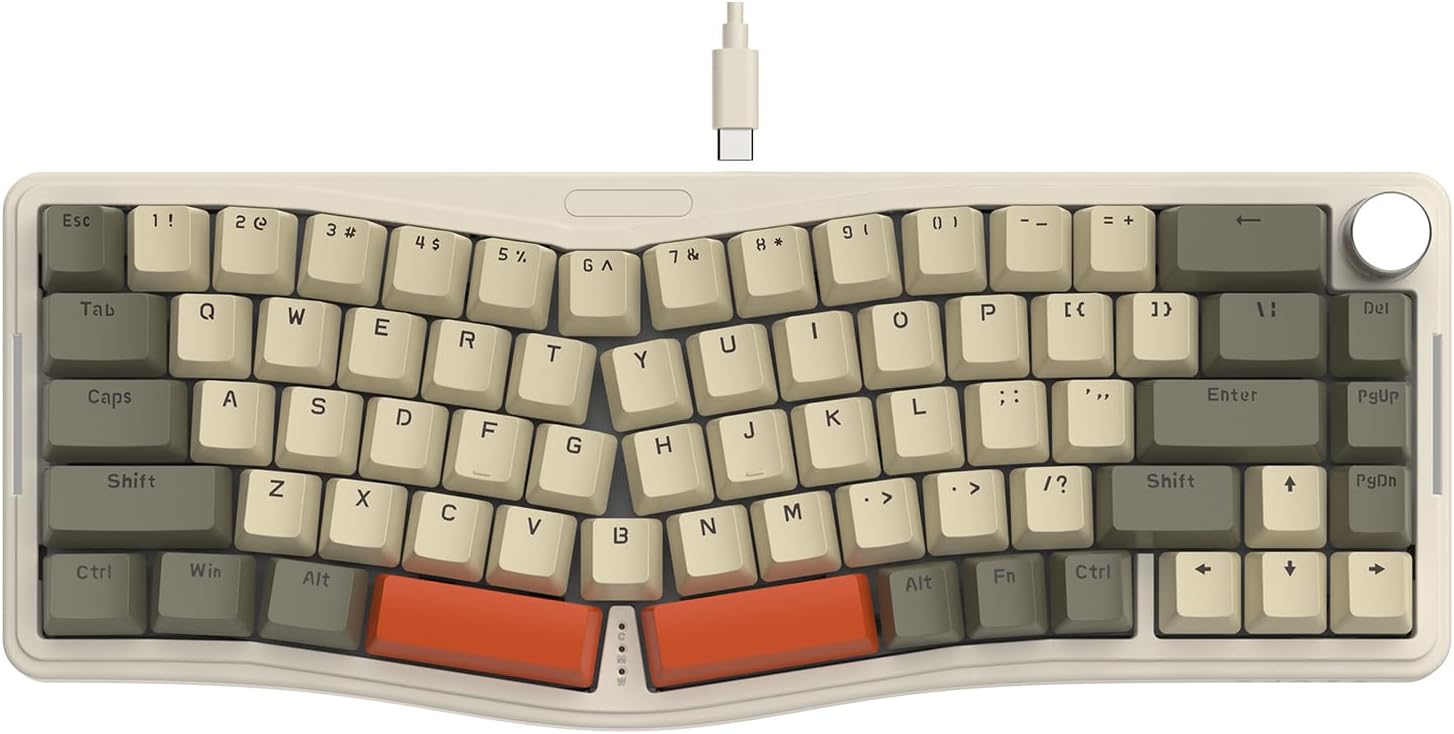
Figure 1: ATTACK SHARK AKS068 Wired Mechanical Gaming Keyboard (Gray/Red Switch variant)
1. Opsætning
1.1 Hvad er der i æsken
- Tastatursæt
- Switches (Pre-lubed AS Red Switch)
- Keycaps (Tri-color ABS OEM keycaps)
- Aftageligt Type-C USB-kabel
- Keycap aftrækker
- Aftrækker
- Ekstra kontakter
1.2 Fysisk samling
The AKS068 keyboard comes as a kit requiring simple assembly of switches and keycaps. Follow these steps:
- Place the keyboard kit on a stable surface.
- Carefully install the attached switches into the switch holes on the PCB. Ensure the two small copper contacts on each switch align with the holes in the socket. Apply firm, even pressure until the switch clicks into place.
- Install the attached keycaps onto the corresponding switch stems. Refer to the product images for the correct layout if needed.
- Connect the detachable Type-C USB cable to the keyboard's Type-C port and to your computer.
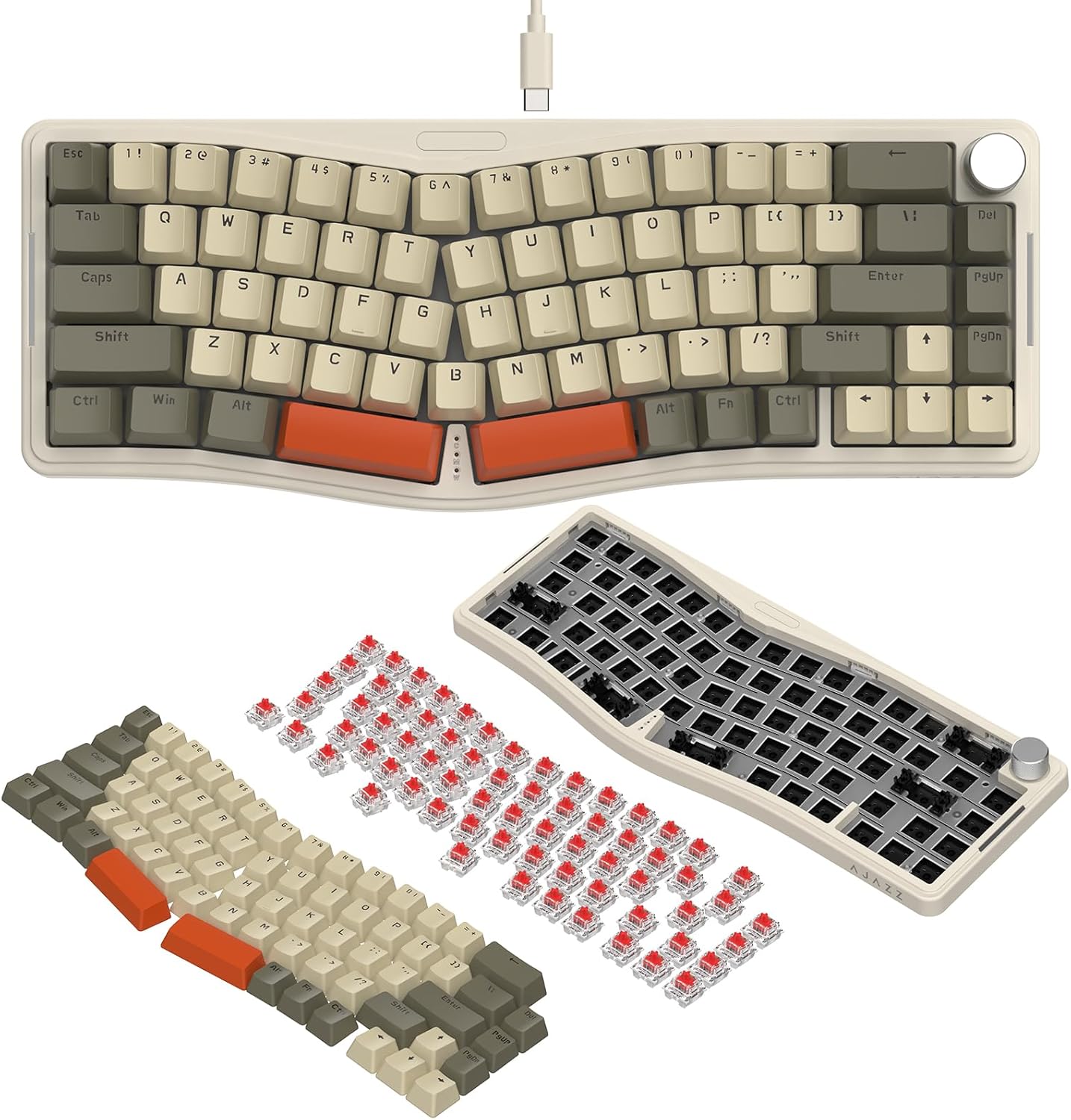
Figure 2: Step-by-step assembly of switches and keycaps onto the keyboard kit.
The keyboard features a double-layer adjustable stand on the underside, allowing you to set two levels of incline for ergonomic comfort. Simply flip out the desired stand level.

Figur 3: Underside view showing the double-layer adjustable stand and Type-C port.
1.3 Software Setup (VIA Programming)
The ATTACK SHARK AKS068 keyboard supports VIA software for advanced customization, including key remapping, lighting mode adjustments, and macro creation. To use VIA, you will need to download the software and the corresponding JSON file for the AKS068 model.
- Download the VIA software and JSON file from the official link: bit.ly/4amBzF8.
- Open the VIA software and load the downloaded JSON file.
- Ensure your keyboard is connected via the Type-C cable for VIA programming.
Video 1: This video demonstrates how to program the keyboard using VIA software, including loading JSON files and remapping keys.

Figure 4: Visual representation of the keyboard's compatibility with VIA software for customization.
2. Betjeningsvejledning
2.1 Grundlæggende tastaturbrug
The AKS068 features a 68-key TKL Alice layout, designed for ergonomic comfort. The split layout follows the natural resting position of your hands, reducing wrist tension.
- Fuld nøgle Anti-ghosting: All keys support anti-ghosting, ensuring every keystroke is registered accurately, even during rapid typing or complex gaming commands.
- Windows/Mac Compatibility: The keyboard is compatible with both Windows and Mac operating systems. Use the switch located on the top edge of the keyboard to toggle between Win and Mac modes. Note that FN combination key functions may differ between systems.
2.2 Knob Functionality
The anodized metal volume knob provides convenient control over your audio:
- Drej til venstre/højre: Justerer systemets lydstyrke.
- Trykke: Slår lyden fra eller til.

Figure 5: Illustration of the multi-functional metal knob and full key anti-ghosting feature.
2.3 RGB-baggrundsbelysning
The keyboard features full RGB backlighting with south-facing LEDs, offering vibrant illumination on both the top and sides of the keyboard.
- 18 Backlight Modes (Top): Justér ved at trykke på FN + \.
- 5 Backlight Modes (Sides): Justér ved at trykke på FN + DEL.
- Adjust Light Color/Brightness: Bruge FN + ← / →.
- Turn On/Off Top/Side Backlight: Bruge FN + Z / X.
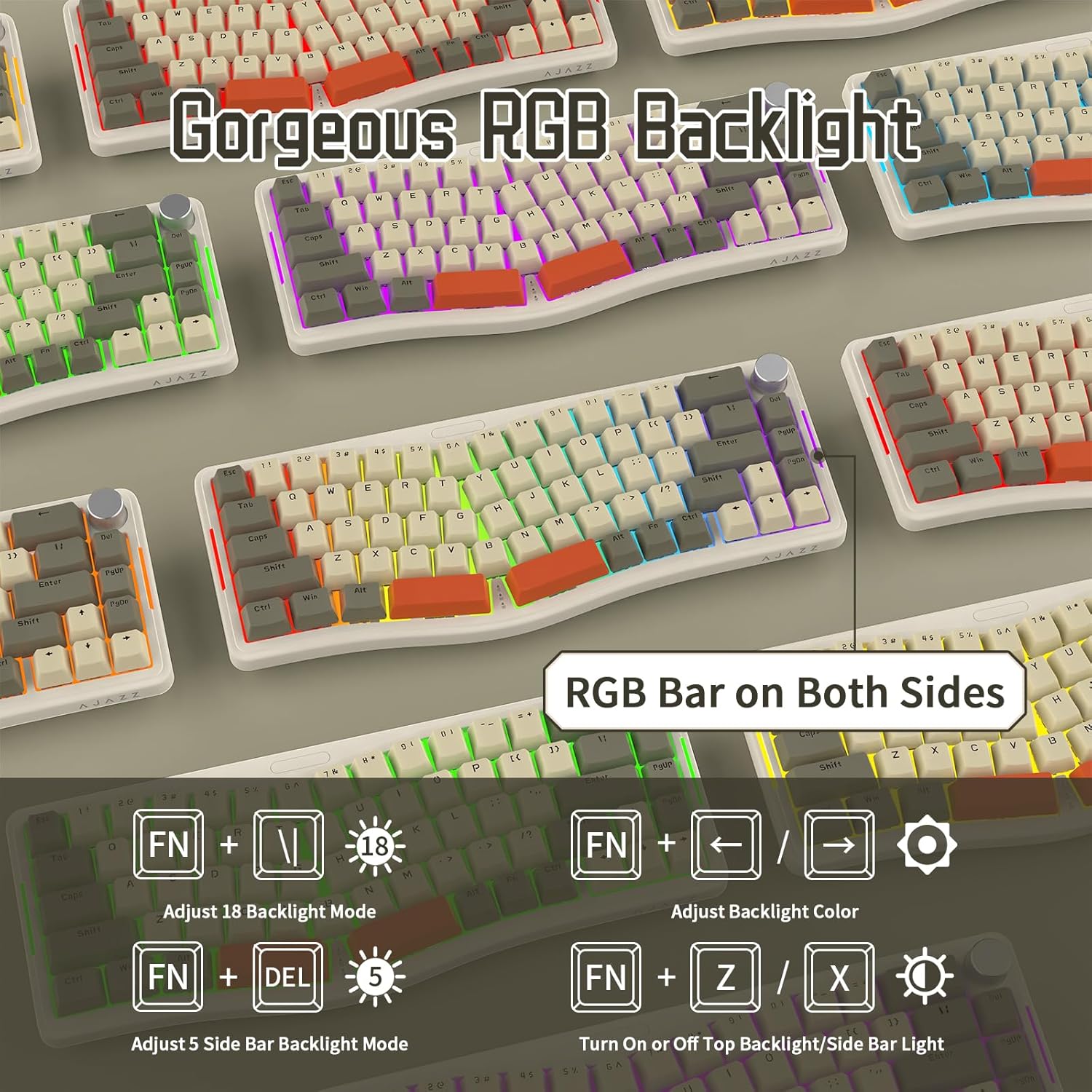
Figur 6: Overview of the RGB backlighting features and control shortcuts.
3. Vedligeholdelse
3.1 Rengøring af dit tastatur
Regular cleaning helps maintain the keyboard's appearance and functionality:
- Use a soft, dry cloth to wipe down the keycaps and keyboard body.
- For deeper cleaning, you can remove keycaps using the provided keycap puller and use compressed air to clear debris from underneath.
- Undgå at bruge skrappe kemikalier eller slibende materialer, da disse kan beskadige tastaturerne eller finishen.
3.2 Hot-swap-kontakter
The AKS068 features a hot-swappable PCB, allowing you to easily change switches without soldering. This supports most 3-pin/5-pin mechanical switches (e.g., Cherry MX, Kailh Box, Gateron, Outemu, Glorious, Epomaker, AKKO).
- To remove a switch, use the provided switch puller to gently grip the top and bottom of the switch and pull upwards.
- To install a new switch, align its pins with the holes on the PCB and press down firmly until it clicks into place. Ensure pins are not bent.
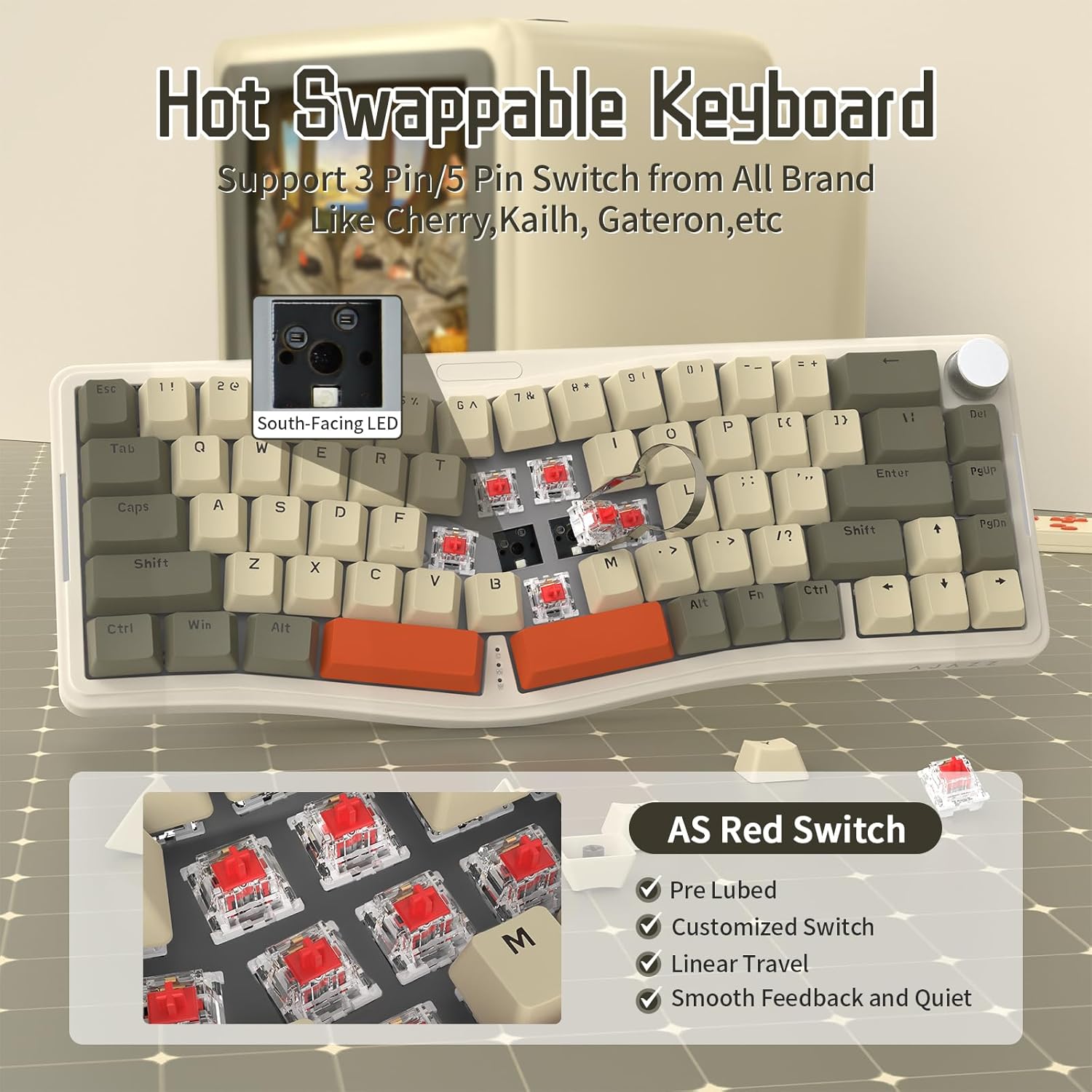
Figure 7: The hot-swappable design allows for easy replacement of mechanical switches.
The keyboard utilizes a gasket mount structure and includes 4 layers of sound absorption material to minimize sound resonance and provide a comfortable typing experience.
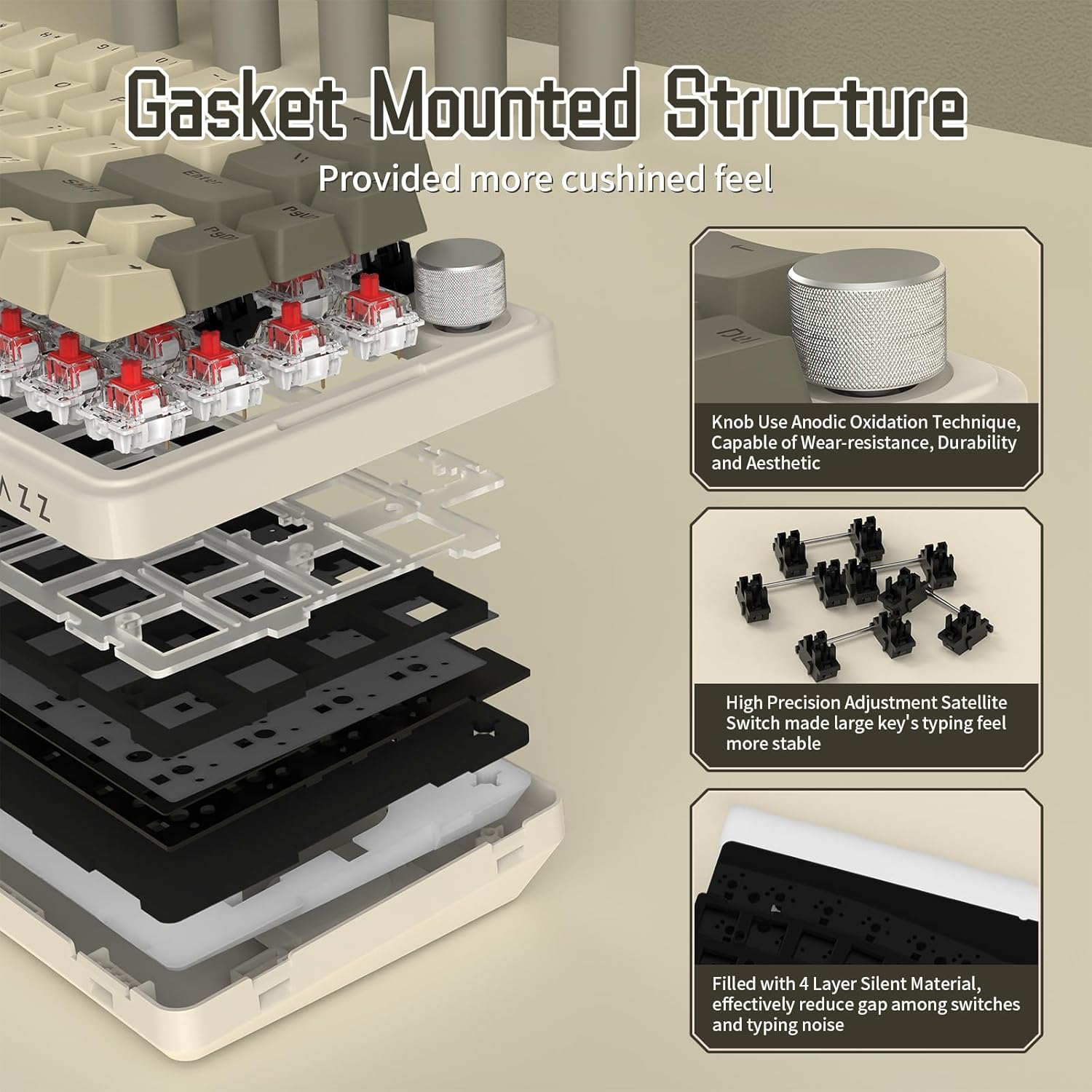
Figure 8: Diagram illustrating the gasket mount and sound absorption layers for enhanced typing feel.
4. Fejlfinding
Fælles problemer og løsninger
- Tastaturet reagerer ikke:
- Sørg for, at Type-C-kablet er korrekt tilsluttet til både tastaturet og din computer.
- Prøv at tilslutte tastaturet til en anden USB-port på din computer.
- Genstart din computer.
- Taster registreres ikke / Dobbeltindtastning:
- Ensure switches are fully seated in their sockets. Gently press down on any loose switches.
- If a specific switch is faulty, replace it with one of the extra switches provided or a compatible replacement.
- RGB Backlight Not Working / Incorrect Colors:
- Check the backlight control shortcuts (FN + \, FN + DEL, FN + Z / X) to ensure the backlight is enabled and set to the desired mode/brightness.
- If using VIA software, verify lighting settings within the application.
- VIA Software Not Recognizing Keyboard:
- Ensure the keyboard is connected via the Type-C cable. VIA typically requires a wired connection.
- Verify that you have loaded the correct JSON definition file for the AKS068 model in VIA.
- Ensure "Use V2 definitions (deprecated)" is enabled in VIA settings if prompted.
5. Specifikationer
| Feature | Detalje |
|---|---|
| Mærke | ANGREDE HAJ |
| Modelnummer | AKS068 |
| Layout | 65% Alice Layout (68 Keys) |
| Forbindelse | Type-C kablet |
| Switch Type | AS Pre-lubed Linear Red Switch (Hot-Swappable) |
| Keycap materiale | ABS OEM Keycaps |
| Monteringsstil | Pakningsmontering |
| Baggrundsbelysning | Full RGB (South-facing LEDs, 18 top modes, 5 side modes) |
| Programmerbarhed | VIA Programmable |
| Særlige funktioner | Volume Roller Knob, NKRO (N-Key Rollover), Double Layer Adjustable Stand, Sound Absorption Cotton |
| Kompatible enheder | Laptop, PC, Mac |
| Varens vægt | 1.96 pund |
| Pakkedimensioner | 16.02 x 7.28 x 2.32 tommer |
6. Garanti og support
For warranty information and technical support, please refer to the official ATTACK SHARK brand store or contact their customer service directly. Details regarding product warranty and support channels are typically provided with your purchase or can be found on the manufacturer's official webwebsted.
Visit the official ATTACK SHARK Store: ATTACK SHARK Butik


