Indledning
This manual provides comprehensive instructions for the setup, operation, maintenance, and troubleshooting of your A4TECH FG20 2.4G Wireless Mouse. Please read this manual carefully before using the product to ensure optimal performance and longevity.
Pakkens indhold
- A4TECH FG20 2.4G Wireless Mouse
- USB Nano-modtager
- AA Battery (may be pre-installed or included separately)
- Brugervejledning (dette dokument)
Opsætningsvejledning
Follow these steps to set up your A4TECH FG20 Wireless Mouse:
- Installer batteriet: Locate the battery compartment on the underside of the mouse. Open the cover and insert the AA battery, ensuring the polarity (+/-) matches the diagram inside the compartment. Close the battery cover securely.
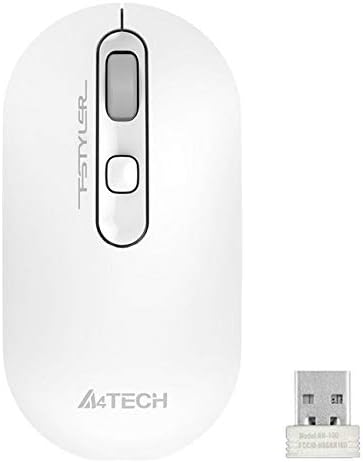
Image: A4TECH FG20 Wireless Mouse shown alongside its USB Nano Receiver. This illustrates the two main components required for operation.
- Tilslut USB Nano-modtageren: Remove the USB Nano Receiver from its storage slot, usually located within the battery compartment or near it. Plug the receiver into an available USB port on your computer.

Image: A schematic diagram depicting the wireless connection between the mouse and a computer via the USB receiver. This visual aid helps understand the connection process.
- Tænd musen: If your mouse has an On/Off switch, slide it to the "On" position. The mouse should automatically connect to the receiver.
- Driver installation: Your computer's operating system (Windows, Linux) should automatically detect and install the necessary drivers. No manual driver installation is typically required.
Betjeningsvejledning
The A4TECH FG20 Wireless Mouse is designed for intuitive use. Here are its primary functions:
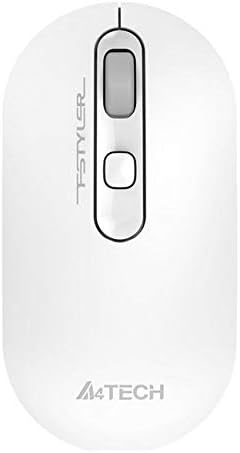
Billede: Top-down view of the A4TECH FG20 Wireless Mouse, highlighting its ergonomic shape and button layout.
- Venstre klik: Bruges til at vælge elementer, åbne files, og aktivering af funktioner.
- Højreklik: Åbner kontekstmenuer, der giver yderligere muligheder for valgte elementer.
- Scrollhjul: Rul op eller ned gennem dokumenter og web sider. Scrollhjulet kan også fungere som en midterste klikknap.
- DPI-justeringsknap: (If applicable, typically located near the scroll wheel) This button allows you to cycle through different cursor speeds (DPI settings) to suit your preference and task.
- Ergonomisk design: The mouse features an ergonomic design for comfortable use during extended periods.
Opretholdelse
Proper maintenance ensures the longevity and performance of your mouse:
- Rensning: Use a soft, dry cloth to clean the surface of the mouse. For stubborn dirt, slightly dampRengør kluden med vand eller en mild rengøringsopløsning. Undgå skrappe kemikalier eller slibende materialer.
- Sensorrensning: Occasionally, clean the optical sensor on the underside of the mouse with a cotton swab to ensure accurate tracking.
- Udskiftning af batteri: When the mouse performance degrades or it stops responding, replace the AA battery with a fresh one.
- Opbevaring: When not in use for extended periods, turn off the mouse to conserve battery life. Store the USB Nano Receiver in its designated slot to prevent loss.
Fejlfinding
If you encounter issues with your A4TECH FG20 Wireless Mouse, refer to the following common solutions:
- Musen reagerer ikke:
- Sørg for, at musen er tændt.
- Kontroller, om batteriet er korrekt installeret og har tilstrækkelig opladning. Udskift om nødvendigt.
- Verify the USB Nano Receiver is securely plugged into a working USB port on your computer. Try a different USB port.
- Genstart din computer.
- Lagging or Erratic Cursor Movement:
- Rengør den optiske sensor på undersiden af musen.
- Sørg for at bruge musen på en passende overflade (ikke-reflekterende, uigennemsigtig).
- Move the mouse closer to the USB Nano Receiver to reduce interference.
- Tjek for andre trådløse enheder, der muligvis forårsager interferens.
- Forbindelsesproblemer:
- If the mouse loses connection frequently, try re-pairing it (if a pairing button is available, otherwise, simply unplug and replug the receiver).
- Ensure no large metal objects are between the mouse and the receiver.
Specifikationer

Billede: Side profile view of the A4TECH FG20 Wireless Mouse, illustrating its slim and ergonomic contour.
| Feature | Detalje |
|---|---|
| Model | FG20 |
| Forbindelsesteknologi | 2.4G Wireless (Infrared) |
| Bevægelsesdetektion | Laser |
| Knap Antal | 3 |
| Håndorientering | Ambidekstrøs |
| Særlige funktioner | Ergonomisk design |
| Farve | Hvid |
| Kompatible enheder | Personlig computer |
| Operativsystemkompatibilitet | Linux, Windows 7, Windows XP |
| Fabrikant | A4TECH |
| Oprindelsesland | Kina |
Garanti og support
The A4TECH FG20 Wireless Mouse is manufactured to high-quality standards. For information regarding the manufacturer's warranty, please refer to the documentation provided with your purchase or visit the official A4TECH webwebsted.
Extended warranty options may be available from third-party providers, such as the 1-Year or 2-Year Extended Warranty by Salama Care. These are separate from the manufacturer's warranty.
For technical support or further assistance, please contact the retailer where you purchased the product or visit the official A4TECH support channels.


