1. Introduktion
This manual provides comprehensive instructions for the Keychron M6 Wireless Optical Mouse. It covers setup, operation, maintenance, and troubleshooting to ensure optimal performance and longevity of your device. The Keychron M6 is a high-performance wireless mouse designed for productivity and gaming, featuring multiple connectivity options, a precise sensor, and customizable buttons.

Figure 1: Keychron M6 Wireless Optical Mouse (Black)
This image shows the Keychron M6 wireless optical mouse in black, highlighting its ergonomic design and sleek appearance. A separate component, likely a wireless receiver, is also visible to the right.
2. Nøglefunktioner
- Alsidig tilslutning: Supports 2.4 GHz wireless, Bluetooth 5.1, and wired USB connections.
- Høj meningsmålingsrate: Up to 4000 Hz polling rate for ultra-low latency response.
- Precise Sensor: Equipped with PixArt 3395 sensor, offering up to 26,000 DPI and 650 IPS.
- Letvægtsdesign: Vejer cirka 78 g for komfortabel længere tids brug.
- Programmerbare knapper: Over ten customizable buttons and an infinite scroll wheel.
- Softwaretilpasning: Keychron Engine software for macOS/Windows allows personalization of keys, shortcuts, macros, LOD, polling rate, and DPI settings.

Figure 2: Key Features of Keychron M6 Mouse
This image visually highlights the key features of the Keychron M6 mouse, including its infinite scroll wheel, 4000 Hz polling rate, up to 26000 DPI, and 78g lightweight design.
3. Pakkens indhold
Bekræft at alle varer er til stede i pakken:
- 1x Keychron M6 Wireless Optical Mouse
- 1x Type-C til Type-C kabel
- 1x Type-A til Type-C adapter
- 1x 4K trådløs modtager

Figure 3: Standard Version (4K) Package Contents
This image illustrates the contents included with the Keychron M6 mouse, showing the mouse itself, a USB-C cable, a USB-A to USB-C adapter, and the 4K wireless receiver.
4. Opsætningsvejledning
4.1 Opladning af musen
The Keychron M6 mouse comes with a built-in 800 mAh battery. Before first use, it is recommended to fully charge the mouse.
- Connect the provided Type-C cable to the mouse's charging port.
- Tilslut den anden ende af kablet til en USB-strømkilde (f.eks. en computers USB-port eller en USB-vægadapter).
- The charging indicator light will show the charging status. A full charge can provide up to 80 hours of use.

Figure 4: Mouse Dimensions and Battery Life
This image provides the physical dimensions of the Keychron M6 mouse and highlights its 800 mAh battery, which offers up to 80 hours of usage. It also shows the Huano 80M Micro Switch and DPI/Report Rate adjustment buttons.
4.2 Tilslutning af musen
The Keychron M6 supports three connection modes: 2.4 GHz wireless, Bluetooth 5.1, and wired USB.
4.2.1 2.4 GHz trådløs forbindelse
- Locate the 4K wireless receiver included in the package.
- Slut den trådløse 4K-modtager til en ledig USB-port på din computer.
- On the bottom of the mouse, slide the switch to the "2.4G" position.
- Musen skal automatisk oprette forbindelse til modtageren.

Figur 5: Forbindelsesmuligheder
This image illustrates the stable and ultra-low latency response of the Keychron M6 mouse, showcasing its 2.4GHz, Bluetooth 5.1, and USB Wired connectivity options.
4.2.2 Bluetooth 5.1-forbindelse
- On the bottom of the mouse, slide the switch to the "B" (Bluetooth) position.
- The mouse will enter pairing mode (indicator light may flash).
- Åbn Bluetooth-indstillingerne på din computer eller enhed, og søg efter nye enheder.
- Select "Keychron M6" from the list of available devices to pair.
4.2.3 Kablet USB-forbindelse
- Connect the provided Type-C cable to the mouse's port.
- Connect the other end of the cable (using the Type-A adapter if necessary) to a USB port on your computer.
- The mouse will function immediately in wired mode.
5. Betjeningsvejledning
5.1 DPI-justering
The Keychron M6 mouse allows for on-the-fly DPI adjustment without software.
- Find DPI-knappen i bunden af musen.
- Press the DPI button to cycle through different DPI levels. The indicator light may change color to indicate the current DPI setting.
- Fine-tune DPI settings using the Keychron Engine software for more precise control.

Figure 6: DPI and Report Rate Adjustment Buttons
This close-up image shows the buttons on the underside of the Keychron M6 mouse, specifically highlighting the DPI adjustment button and the G/OFF/B switch for connectivity modes, along with the Report Rate button.
5.2 Justering af afstemningsfrekvens
The polling rate can be adjusted to optimize responsiveness for different uses.
- Locate the Report Rate button on the bottom of the mouse.
- Press the Report Rate button to cycle through available polling rates (e.g., 125 Hz, 500 Hz, 1000 Hz, 2000 Hz, 4000 Hz).
- Refer to the table below for indicator light meanings.

Figure 7: M6 (4000 Hz) Polling Rate and Indicator Guide
This image displays a table detailing the polling rates (Hz) and corresponding report rate light indicators (White, Blue, Red, Blue + Red, White + Red) for the Keychron M6 mouse, along with the available connection modes for each rate.
5.3 Customizing Buttons and Macros (Keychron Engine Software)
For advanced customization, download and install the Keychron Engine software from the official Keychron webwebsted.
- The software allows you to remap buttons, create custom shortcuts, and set up complex macros.
- Adjust Lift-Off Distance (LOD) and other sensor parameters.
- Administrer flere profiles til forskellige applikationer eller spil.
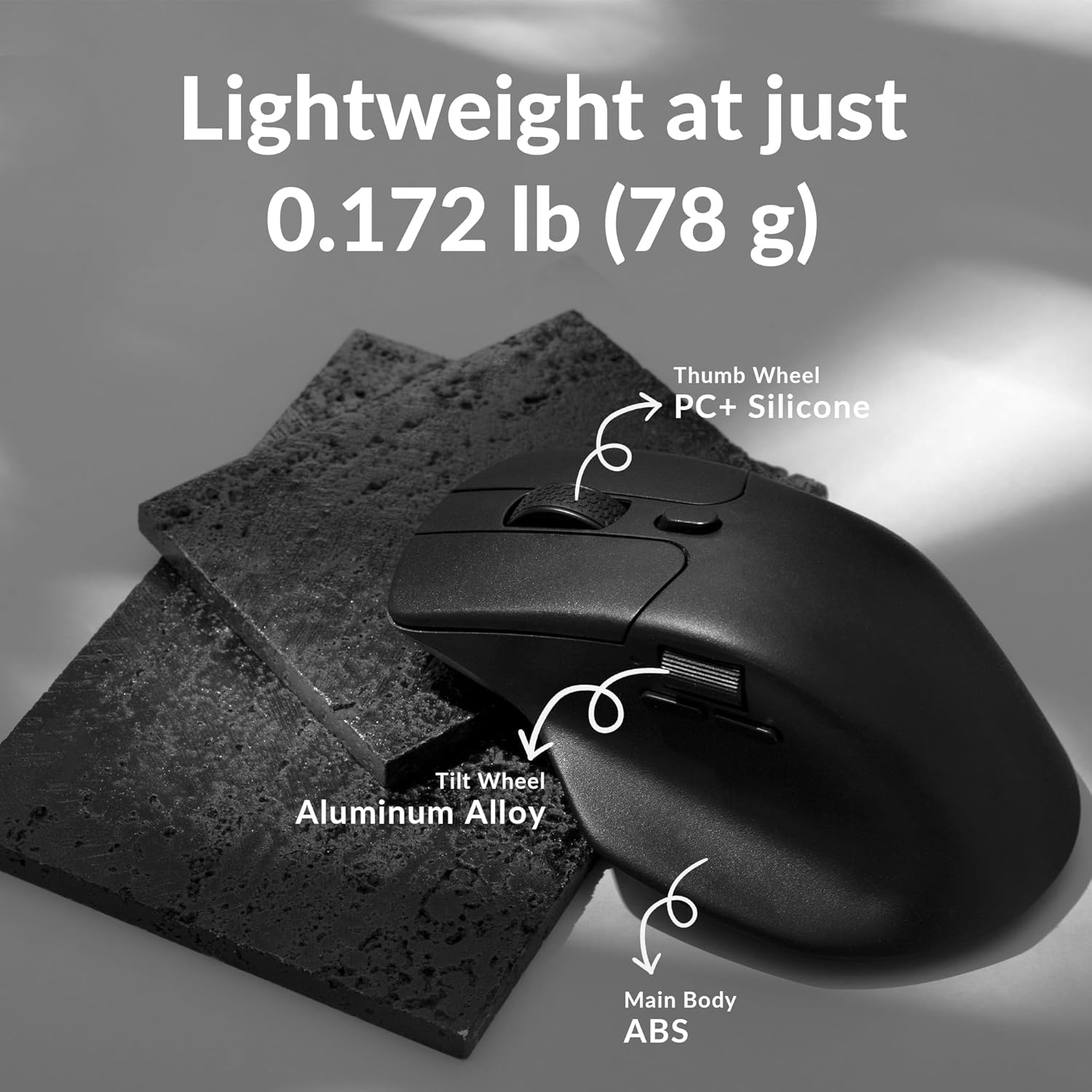
Figure 8: Keychron Engine Software for Customization
This image shows the user interface of the Keychron Engine software, demonstrating how users can customize buttons and settings for the Keychron M6 mouse on macOS and Windows operating systems.
6. Vedligeholdelse
Proper maintenance ensures the longevity and optimal performance of your Keychron M6 mouse.
- Rensning: Brug en blød, tør klud til at tørre musens overflade af. Ved genstridigt snavs, tør letampRengør kluden med vand eller en mild rengøringsopløsning. Undgå skrappe kemikalier.
- Sensorpleje: Hold den optiske sensor i bunden af musen ren og fri for støv og snavs. Brug en vatpind eller trykluft om nødvendigt.
- Opbevaring: Når musen ikke er i brug i længere perioder, skal den opbevares køligt og tørt, væk fra direkte sollys og ekstreme temperaturer.
- Batterilevetid: To preserve battery health, avoid fully discharging the battery frequently. Charge the mouse when the battery indicator is low.
7. Fejlfinding
| Problem | Mulig årsag | Løsning |
|---|---|---|
| Musen svarer ikke (trådløs) | Low battery; Receiver not plugged in; Incorrect mode selected; Interference. | Charge the mouse; Ensure 4K receiver is securely plugged in; Switch to 2.4G or Bluetooth mode; Move closer to receiver or reduce interference sources. |
| Musen svarer ikke (kablet) | Kablet er ikke tilsluttet korrekt; Defekt USB-port. | Ensure USB-C cable is securely connected to both mouse and computer; Try a different USB port. |
| Forsinkelse eller uregelmæssig bevægelse | Dirty sensor; Surface issues; Low battery; Wireless interference. | Clean the optical sensor; Use on a clean, non-reflective mouse pad; Charge the mouse; Minimize other wireless devices nearby. |
| Knapperne virker ikke som forventet | Software settings; Driver issues. | Check Keychron Engine software settings for button assignments; Reinstall mouse drivers if necessary. |
| Kan ikke oprette forbindelse via Bluetooth | Mouse not in pairing mode; Bluetooth on device is off; Already paired to another device. | Ensure mouse is in Bluetooth pairing mode; Enable Bluetooth on your device; Unpair from other devices or reset Bluetooth connection. |
8. Specifikationer
| Feature | Detalje |
|---|---|
| Modelnummer | M6-A1 |
| Forbindelse | 2.4 GHz Wireless, Bluetooth 5.1, USB Wired |
| Sensor | PixArt 3395 optisk sensor |
| DPI rækkevidde | Op til 26,000 DPI |
| IPS | 650 IPS |
| Afstemningsfrekvens | Op til 4000 Hz |
| Vægt | Ca. 78 g (2.75 ounces) |
| Batteri | 800 mAh (Up to 80 hours) |
| Dimensioner | 4.82 x 2.97 x 1.97 tommer (122.5 x 75.4 x 50 mm) |
| Operativsystemkompatibilitet | Windows, macOS, Linux |
9. Garanti og support
Keychron products typically come with a limited warranty. Please refer to the official Keychron webwebstedet eller din købsdokumentation for specifikke garantivilkår og -betingelser.
For technical support, driver downloads, or further assistance, please visit the official Keychron support page:
You can also find the official user guide PDF here: Keychron M6 User Guide (PDF)


