Indledning
The Contour RollerMouse Pro, Slim is an ergonomic mouse designed to provide comfort and reduce strain during extended computer use. Its unique central rollerbar design promotes a neutral arm and hand posture, aiming to alleviate discomfort often associated with traditional mouse usage. This manual provides detailed instructions on setting up, operating, maintaining, and troubleshooting your RollerMouse Pro.

Image: The Contour RollerMouse Pro, Slim, showcasing its central rollerbar and integrated wrist rest.
Opsætning
The RollerMouse Pro, Slim is designed for quick and easy setup. This wired version connects directly to your computer via a USB cable.
Connecting Your RollerMouse Pro
- Placering: Place the RollerMouse Pro directly in front of your keyboard. Ensure it is centered for optimal ergonomic posture.
- Tilslut USB-kabel: Plug the USB cable from the RollerMouse Pro into an available USB port on your computer.
- Systemgenkendelse: Your computer should automatically detect and install the necessary drivers. This process typically takes a few moments.
- Kompatibilitet: The RollerMouse Pro is fully compatible with both Windows and macOS operating systems.

Image: The RollerMouse Pro positioned centrally in front of a keyboard, demonstrating its intended ergonomic setup.
Betjeningsvejledning
The RollerMouse Pro offers intuitive cursor control and customizable buttons to enhance your workflow and comfort.
Rollerbar Control
The central rollerbar is the primary method for cursor movement. It allows for precise control with minimal hand and arm movement.
- Vertical Movement: Roll the bar up or down with your fingertips to move the cursor vertically on the screen.
- Horisontal bevægelse: Slide the bar left or right with your fingertips to move the cursor horizontally across the screen.
- Klik: Press down on the rollerbar to perform a left-click action.

Image: Visual guide illustrating the rolling motion for vertical cursor movement and sliding motion for horizontal cursor movement using the rollerbar.
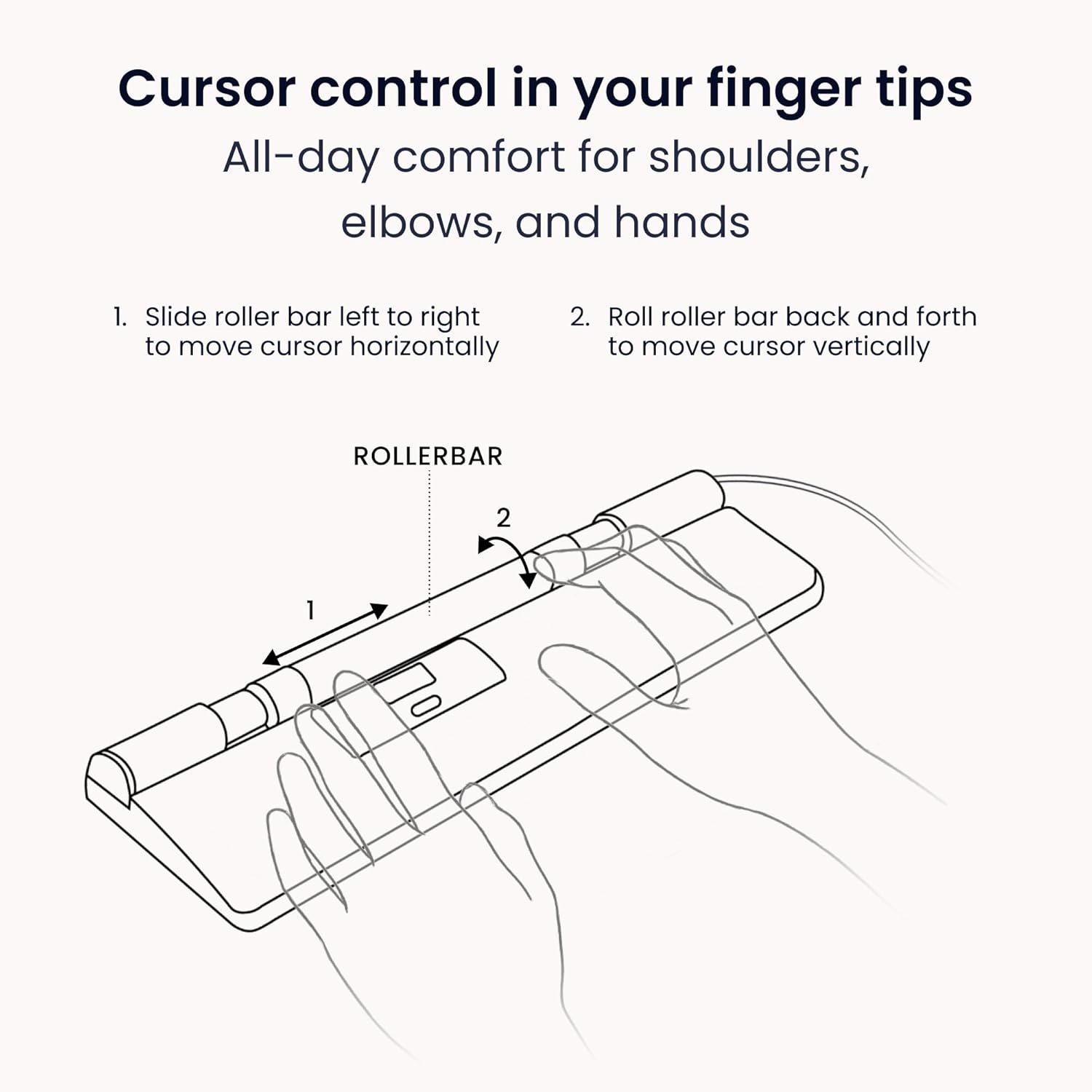
Image: A detailed diagram showing the two primary movements of the rollerbar for comprehensive cursor control.
Ergonomic Benefits and Workflow Optimization
The RollerMouse Pro is designed to reduce muscle strain and optimize your daily work.
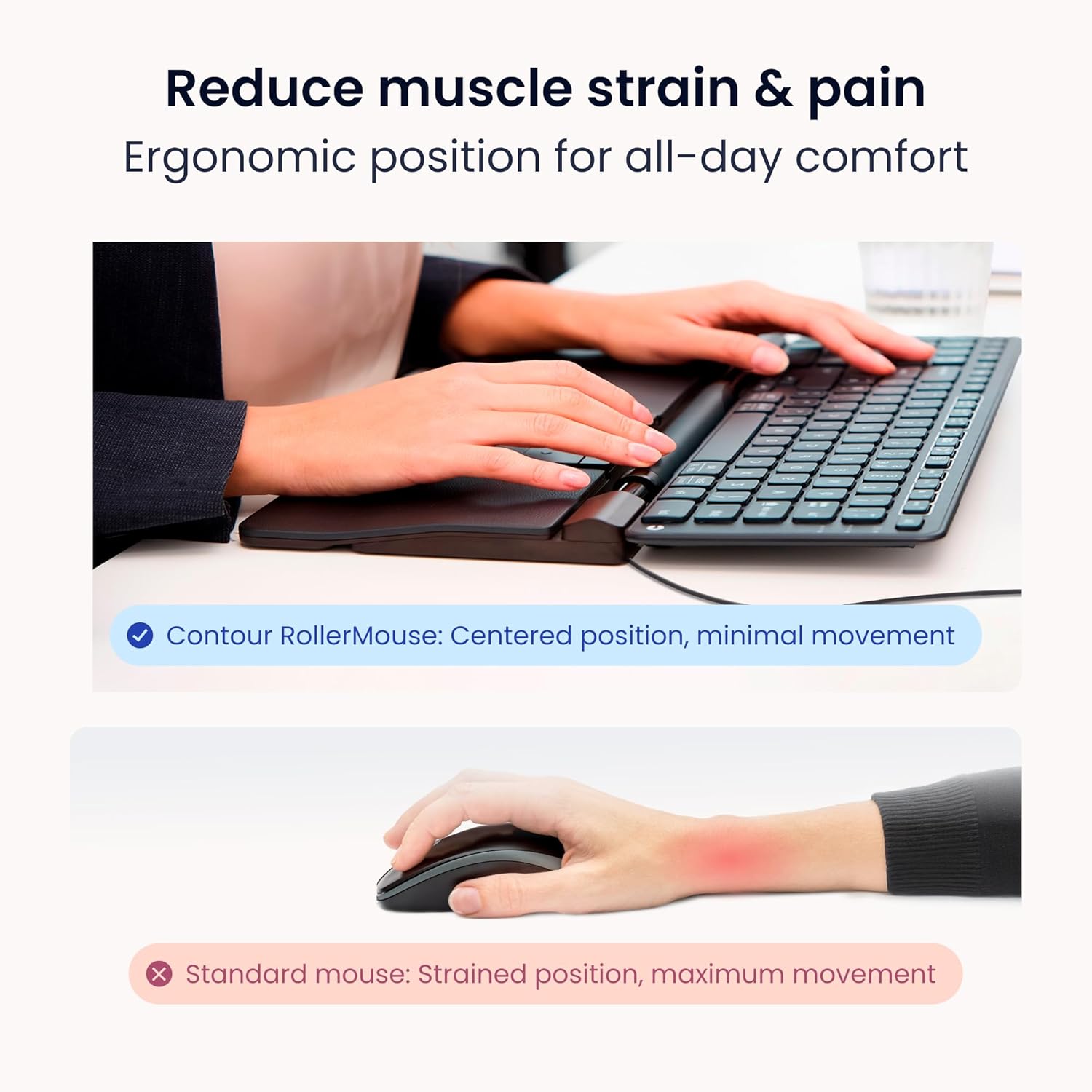
Image: A visual comparison highlighting the reduced muscle strain achieved with the RollerMouse Pro's centered ergonomic position compared to a standard mouse.
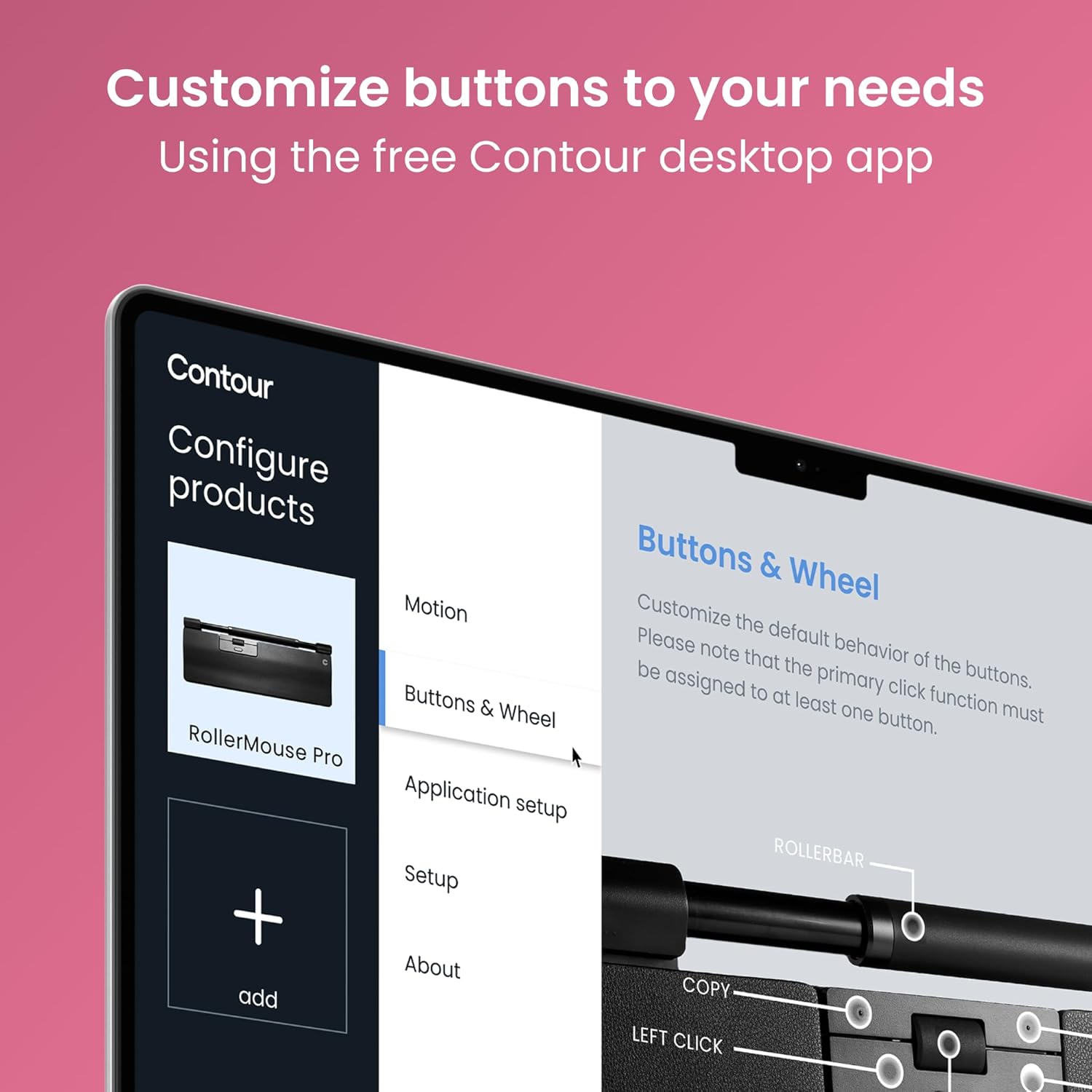
Image: A user demonstrating the comfortable and centered use of the RollerMouse Pro during a typical workday, promoting improved posture and all-day hand comfort.
Programmable Buttons and DPI Settings
The RollerMouse Pro features six programmable buttons and adjustable DPI settings to customize your experience.
- Standardfunktioner: The buttons are pre-programmed for common functions such as Copy, Paste, Left Click, Right Click, Double Click, and a Scroll Button.
- Tilpasning: You can reassign these buttons using the Contour desktop application. This allows you to tailor the mouse to your specific workflow and frequently used commands.
- DPI-justering: The DPI (Dots Per Inch) can be set between 600 and 2800. Higher DPI settings result in faster cursor movement, ideal for large monitors or precise design work. Adjust the DPI to match your preference and task requirements.

Billede: Et overheadbillede view of the RollerMouse Pro's control panel, labeling the default functions of its six programmable buttons and the scroll button.

Image: A screenshot of the Contour desktop application interface, demonstrating how users can customize the buttons and wheel settings for their RollerMouse Pro.
Opretholdelse
Proper care and maintenance will ensure the longevity and optimal performance of your Contour RollerMouse Pro, Slim.
- Cleaning the Rollerbar: Periodically clean the rollerbar to prevent dust and debris buildup, which can affect tracking. Use a soft, dry, lint-free cloth. For stubborn dirt, a slightly damp cloth (water only) can be used, ensuring no liquid enters the device.
- Rengøring af håndledsstøtten: The vegan leather wrist rest can be wiped clean with a damp cloth and mild soap if necessary. Allow it to air dry completely before use.
- Generel rengøring: Wipe the body of the mouse with a soft, dry cloth. Avoid abrasive cleaners or solvents.
- Opbevaring: When not in use for extended periods, store the RollerMouse Pro in a clean, dry environment away from extreme temperatures.
Fejlfinding
If you encounter issues with your RollerMouse Pro, try the following troubleshooting steps:
| Problem | Mulig årsag | Løsning |
|---|---|---|
| Cursor not moving or erratic movement. | Loose USB connection, debris on rollerbar, software issue. |
|
| Knapperne reagerer ikke. | Software conflict, incorrect button assignment. |
|
| Enheden genkendes ikke af computeren. | USB port issue, driver issue. |
|
Hvis disse trin ikke løser problemet, henvises der til afsnittet Garanti og support for yderligere assistance.
Specifikationer
Key technical specifications for the Contour RollerMouse Pro, Slim:
- Modelnummer: CDRMPRO20110
- Produktdimensioner: 15 x 4.3 x 0.9 tommer
- Varens vægt: 1.38 pund
- Forbindelse teknologi: USB (kablet)
- DPI-område: 600-2800 DPI (justerbar)
- Speciel funktion: Ergonomic Design, Central Rollerbar, Programmable Buttons, Vegan Leather Wrist Rest
- Farve: Vegan Leather (Black)
- Kompatibilitet: Windows, macOS
- Fabrikant: Contour Design

Image: The RollerMouse Pro with various wrist support options (Slim, Regular, Extended), illustrating the adaptability of the design.
Garanti og support
Contour Design stands behind the quality of the RollerMouse Pro, Slim.
- Garanti: The RollerMouse Pro comes with a 2-year limited warranty. This warranty covers defects in materials and workmanship under normal use. Please retain your proof of purchase for warranty claims.
- Ekspertsupport: For technical assistance, troubleshooting beyond this manual, or warranty inquiries, please contact Contour Design's dedicated support team. Visit the official Contour Design webwebsted for kontaktoplysninger og yderligere ressourcer.
- Online ressourcer: Further information, FAQs, and software downloads may be available on the Contour Design webwebsted.
For mere information, besøg Contour Design Store on Amazon.


