1. Introduktion
This manual provides detailed instructions for the MOKiN X3139 USB C to Dual HDMI Docking Station. Please read this manual thoroughly before using the product to ensure proper operation and to maximize its features.
2. Produktfunktioner
The MOKiN X3139 is a 9-in-1 USB C hub designed to expand the connectivity of your USB C-enabled laptop. Key features include:
- 9-i-1-tilslutning: Includes USB C PD port (charging only), Gigabit RJ45 port, two 4K HDMI ports, SD/TF card slot, two USB 3.0 Ports, and one USB 2.0 Port.
- Triple Display Functionality: Supports single and dual HDMI displays up to 3840x2160@60Hz, or triple displays up to 1920x1080@60Hz.
- gigabit ethernet: Provides a stable wired network connection up to 1000Mbps.
- Fast Power Charging: USB C Power Delivery port supports up to 100W power input, with 87W power output for charging connected laptops.
- Reliable Data Transfer: Two USB 3.0 ports offer speeds up to 5 Gbps, and one USB 2.0 port for additional data devices. Built-in SD and TF slots support simultaneous reading of two cards.

Billede: Overview of the MOKiN X3139 9-in-1 USB C Hub, highlighting its various ports and their functions.
3. Pakkens indhold
- MOKiN X3139 USB C to Dual HDMI Docking Station
- Brugervejledning (dette dokument)
Note: Wall charger and USB-C cable for power delivery are not included and must be purchased separately.
4. Opsætningsvejledning
- Bekræft kompatibilitet med bærbare computere: Ensure your laptop's USB-C port supports data transfer, display output (Display Alt Mode), and charging. Look for a Thunderbolt symbol or a USB-C symbol with a 'DP' or 'SS' icon. Ports that only support data transfer or charging are not compatible for full docking station functionality.
- Tilslut til bærbar computer: Plug the integrated USB-C cable of the MOKiN X3139 docking station into a compatible USB-C port on your laptop.
- Tilslut strømadapter (valgfrit, men anbefalet): For stable operation and to charge your laptop, connect a USB-C power adapter (65W or higher recommended, up to 100W supported) to the PD 3.0 port on the docking station.
- Tilslut eksterne skærme: Connect your HDMI monitors to the HDMI 1 (4K@60Hz) and HDMI 2 (4K@30Hz) ports on the docking station using HDMI cables.
- Tilslut netværkskabel: For a stable internet connection, plug an Ethernet cable into the RJ45 Gigabit Ethernet port.
- Tilslut USB-enheder: Plug your USB peripherals (e.g., mouse, keyboard, external hard drive) into the USB 3.0 (5Gbps) and USB 2.0 (480Mbps) ports.
- Indsæt SD/TF-kort: If needed, insert your SD or Micro SD cards into the dedicated slots for data access.
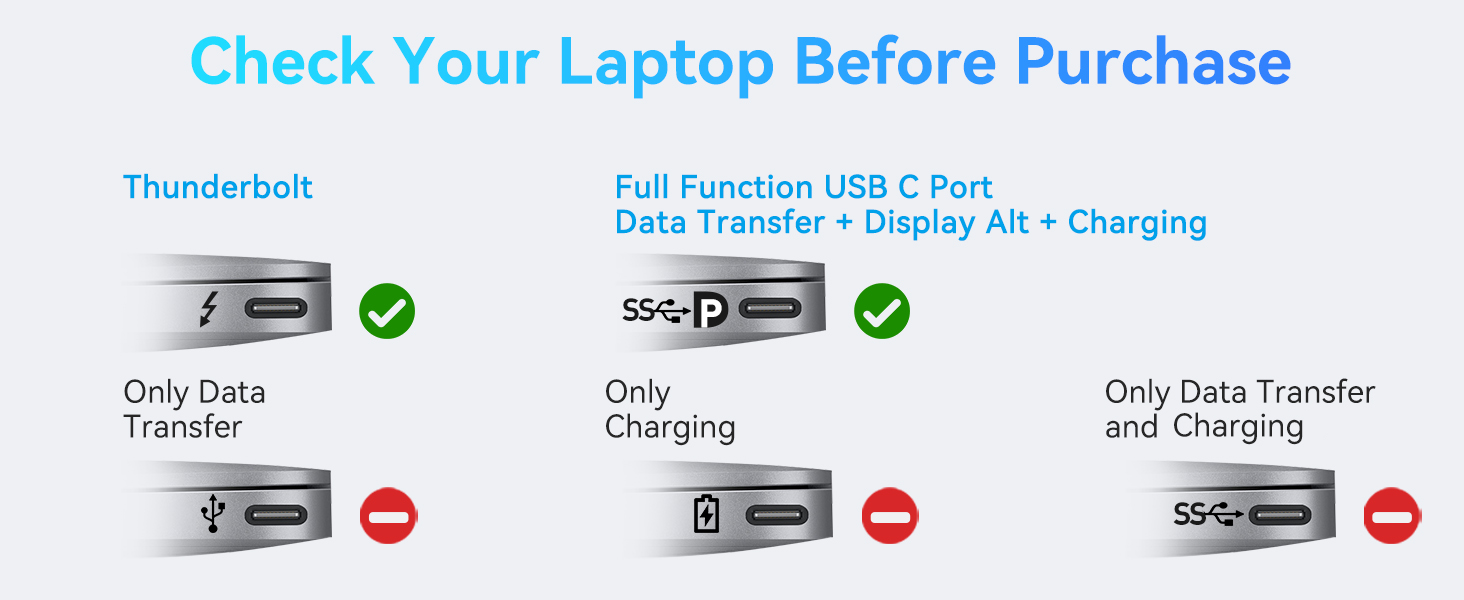
Image: Guide to identifying compatible USB-C ports on your laptop.

Image: Connecting the docking station to a power source for laptop charging.

Image: Connecting an Ethernet cable to the docking station.

Image: Connecting USB devices and memory cards for data transfer.
5. Betjeningsvejledning
5.1. Windows Display Settings
For Windows laptops with DP1.4, the docking station supports various display modes:
- Spejltilstand (A-AA): Alle tilsluttede skærme viser det samme indhold som din bærbare computers skærm.
- Udvidet tilstand (A-BB): Your laptop screen and one external monitor show different content, while the second external monitor mirrors the first.
- Extend Mode (A-BC): Your laptop screen and both external monitors display different content, creating a triple extended display setup.
Sådan konfigurerer du skærmindstillinger i Windows:
- Right-click on your desktop and select "Display settings" or go to "Settings" > "System" > "Display".
- Under "Multiple displays", you can arrange your displays and choose between "Duplicate these displays" (Mirror Mode) or "Extend these displays" (Extend Mode).
- Adjust resolution and orientation for each display as needed.
- For advanced settings like refresh rate, click "Advanced display settings".

Image: Windows display configuration options for the MOKiN X3139.
Video: A tutorial demonstrating PC connection and display settings for the docking station.
5.2. macOS Display Settings
For macOS laptops with DP1.4, the docking station supports:
- Spejltilstand (A-AA): Alle tilsluttede skærme viser det samme indhold som din MacBook-skærm.
- Udvidet tilstand (A-BB): Your MacBook screen and one external monitor show different content, while the second external monitor mirrors the first.
Vigtig bemærkning til macOS:
- Due to macOS limitations, all external monitors will display the same content (Mirror Mode or A-BB Extend Mode). macOS does not support MST (Multi-Stream Transport) for truly independent extended displays across multiple external monitors.
- Triple extended displays (A-BC) are not supported on macOS.
Sådan konfigurerer du skærmindstillinger i macOS:
- Gå til "Systemindstillinger" (eller "Systempræferencer") > "Skærm".
- Here you can arrange your displays and select whether to use them as an "Extended display" or "Mirror for Built-in Display".
- Adjust resolution and refresh rate as needed.

Image: macOS display configuration options and limitations for the MOKiN X3139.
6. Kompatibilitet
6.1. Kompatible enheder (delvis liste)
This docking station is compatible with laptops featuring a full-function USB-C port (supporting data, display, and charging) or a Thunderbolt 3/4 port. Examples inkluderer:
- Dell: Inspiron 7400/ XPS 13-9305, Inspiron 13 5330, Latitude (5310/ 5400/ 5480/ 5490), Inspiron (14 or 15 7000 series 2-in-1), XPS (9380/13-9300/13-9365), Precision (7520/ 7730/7750)
- Lenovo: Yoga 13sITL 2021/ ThinkPad T14 Gen1/ Legion Y9000X(2020/IAH7), Yoga (900/910/920/930/940/C740/C930), IdeaPad Chromebook Flex 5, ThinkPad (P72/E590/T470/T470s/T480s/T490s)
- HP: EliteBook 835 G9, Spectre (X369/13T-AK000CTO/13T-AF001TU), Elitebook (800 G4/ 840 G5 series/ 850 G5/745/830 G6/X2), Zbook/ Probook
- Æble: MacBook Pro (2017-2022), MacBook Air/Mac mini (2018-2020), iMac (2020) /iMac Pro (2017-2019), iPad Pro (2018-Newest)
- Microsoft: Surface Pro 7/ Microsoft Surface Laptop Studio/ Redmi Book Pro 14 2022
- ASUS: C423N, Zenbook (Flip Q529ZA/UX435/UX434F/UX433FA/UX425EA/3-UX390), Rog GX501
- Samsung: Note (20/ 10/ 9/ 8+), Galaxy (S20 ultra/ S10+/ S10/ S9/ S8+/ Tablet S5e/ Tablet New S7/ Chromebook/ Flex Alpha 2-in-1)
- Huawei: MateBook (X Pro/ E/ X/ Mate 10/ Mate 10Pro/ Mate 20/ Mate 20 Pro/ Mate 30/ Mate 30 Pro/ P20/ P20 Pro/ P30 Pro)
- Acer: Aspire 5/ Aspire C24-865/ Swift 1/ Swift 3/ Swift 7/ Swift X/ SPIN 5/ SPIN 7/ Predator Helios 300
- Google Chromebook: Pixel 2016/ Pixel 2017/ C340-15

Image: Partial list of compatible devices.
6.2. Incompatibility (Partial List)
The following devices or types of ports are generally not compatible or may have limited functionality:
- MacBook Air (before 2018) / MacBook Pro 2015 / Mac 2021
- ASUS: Vivobook series / Q547 / Q503U / Q503UA / Q26F / L203MA / TUF 17.3 Gaming Laptop, Zenbook UX333FN / Zenbook UX330UA-AH55 / Zenbook Flip 14 UX461FN-DH74T / Zenbook Q407I
- Acer: Aspire E5-575 / Aspire R5-571T / Aspire E5-576G / Aspire R15 / Aspire G3-571 / Predator Helios 300 / Swift X 14
- MSI: Gl65 / GF63 / MSI GF65 THIN 9SD-252 / MSI GEVR 7RF Apache Pro / MSI GS73VR 7RG Stealth Pro / MSI GE73 Raider 8RF
- Microsoft Surface: Pro 3 / Pro 4 / Pro 6 / Book 3
- HP: Spectre X360 13 / Spectre X360 14 / Spectre X360 15T, ProBook 600 / ProBook 640 / ProBook 650 G2 / ProBook Folio 1020 B&O, Earlier HP Pavilion series / HP 340S C7 / HP Envy 15 / EVGA SC15 / HP 7265NGW
- Dell: Inspiron 17-5000 series / Inspiron 15-5000 series / Inspiron 14-5410 / Inspiron 15-3000 / Inspiron 15-3583 / Inspiron 17-3793 Business, Latitude E7270 / Latitude E7470 / Latitude E7440 / Latitude E7450 / Latitude 3520
- Lenovo: V330 / ThinkPad T570 / IdeaPad Y520 / Yoga 520 / Yoga 710, ThinkPad X1 Carbon (1490) / ThinkPad E580, IdeaPad 3 / IdeaPad 5 / IdeaPad 330 / IdeaPad L340 / IdeaPad S340 / IdeaPad 130S / IdeaPad Flex-15WL / IdeaPad Flex-14 / IdeaPad Flex-6 14KB
- High-power equipment / USB Super Drive / CD/DVD player

Image: Partial list of incompatible devices.
7. Fejlfinding
- Ingen skærmoutput:
- Ensure your laptop's USB-C port supports Display Alt Mode.
- Check all cable connections (USB-C from laptop to dock, HDMI from dock to monitor).
- Verify display settings on your operating system (Windows/macOS) are configured correctly for extended or mirrored displays.
- Try connecting only one monitor first to isolate the issue.
- Opladningsproblemer:
- Ensure a power adapter (65W or higher) is connected to the PD port of the docking station.
- Bekræft, at din bærbare computer understøtter opladning via dens USB-C-port.
- Unstable Connections/Performance:
- Connect a 100W power supply to the docking station to ensure sufficient power, especially when multiple high-power devices are connected.
- Avoid using other converters with the USB hub, as compatibility cannot be guaranteed.
- Ensure all drivers for your laptop's USB-C port and graphics card are up to date.
- Ethernet virker ikke:
- Kontroller Ethernet-kabelforbindelsen til både routeren/modemmet og dockingstationen.
- Bekræft netværksindstillingerne på din computer.

Image: Important suggestions for optimal performance and troubleshooting.
8. Specifikationer
| Feature | Detalje |
|---|---|
| Model | X3139 |
| Produktdimensioner | 5.9 x 0.6 x 2.7 tommer |
| Varens vægt | 3.84 ounce |
| Hardware-interface | Ethernet, HDMI, MicroSD, USB 2.0 Type A, USB 3.0 Type A, USB 3.0 Type C (PD) |
| HDMI 1 udgang | Op til 4K@60Hz |
| HDMI 2 udgang | Op til 4K@30Hz |
| USB 3.0 porte | 2 ports, up to 5 Gbps data transfer |
| USB 2.0 porte | 1 port, up to 480 Mbps data transfer |
| Ethernet-port | Gigabit RJ45, 10/100/1000Mbps auto-sensing |
| SD/TF-kortpladser | Supports simultaneous reading, up to 104MB/s |
| USB C PD Port | 100W Power Input (87W output to laptop) |
| Kompatible enheder | Laptops with full-function USB-C or Thunderbolt 3/4 ports |
9. Sikkerhedsoplysninger
- Keep the device away from water, fire, high humidity, or hot environments.
- Forsøg ikke at adskille, reparere eller modificere produktet.
- Undgå at tabe eller udsætte enheden for kraftige stød.
- Brug kun kompatible strømadaptere og kabler.
10. Garanti og support
MOKiN products come with a standard manufacturer's warranty. For specific warranty details, please refer to the warranty card included with your purchase or visit the official MOKiN webwebsted.
If you encounter any issues or have questions regarding your MOKiN X3139 docking station, please contact MOKiN customer support through the retailer where you purchased the product or via the contact information provided on the official MOKiN webwebsted.
Video: En overview of the MOKiN USB C to Dual HDMI Docking Station, showcasindens funktioner og tilslutningsmuligheder.


