Indledning
This manual provides detailed instructions for the assembly, operation, and maintenance of your Vetroo AL800 Mid Tower ATX PC Computer Case. Please read this manual thoroughly before beginning installation to ensure proper setup and optimal performance.

Figure 1: Vetroo AL800 Mid Tower ATX PC Computer Case (Black)
Sikkerhedsoplysninger
- Afbryd altid strømforsyningen fra stikkontakten, før du installerer eller fjerner komponenter.
- Handle components with care to avoid damage from electrostatic discharge. Consider using an anti-static wrist strap.
- Keep the case and components away from liquids and excessive humidity.
- Sørg for korrekt ventilation for at forhindre overophedning.
- Forsøg ikke at ændre kabinettet eller dets komponenter, da dette kan ugyldiggøre garantien og udgøre en sikkerhedsrisiko.
Pakkens indhold
Bekræft at alle varer er til stede i pakken:
- Vetroo AL800 Mid Tower ATX PC Computer Case
- Accessory Box (screws, standoffs, cable ties)
- Pre-installed 1x 120mm PWM/ARGB Fan (rear)
- Brugervejledning (dette dokument)
Nøglefunktioner
- ARGB LED Strip: Integrated LED lighting and ARGB case fans can be synchronized with compatible motherboards via a 5V 3-pin interface.
- Door Opening Design: Features a 4mm thick tempered glass side panel with a convenient door-opening mechanism for easy access to internal components.
- High Performance Airflow: A mesh front panel and strategically placed dust filters ensure optimal airflow and system cooling.
- Bred kompatibilitet: Supports ATX, M-ATX, and ITX motherboards. Accommodates GPUs up to 340mm in length and CPU coolers up to 165mm in height.
- Støtte til væskekøling: Front panel supports up to a 360mm liquid cooling radiator.
- Fan Support: Understøtter op til 8 x 120 mm blæsere.
- Enkel kabelstyring: Includes two soft silicone cord grommets for organized cable routing.
- Powerful I/O Panel: Features 1x USB 3.2 Type-C port, 2x USB 3.0 ports, and a combined microphone/headphone jack.
Opsætning og installation
1. Generel forberedelse
- Placer etuiet på en flad, stabil overflade.
- Open the tempered glass side panel by gently pulling it open. It is hinged for easy access.
- Remove the tempered glass panel if necessary for easier installation by lifting it off its hinges once open.

Figure 2: Tempered Glass Door Opening Design
2. Installation af bundkort
- Installer I/O-skjoldet (hvis relevant) i den bageste åbning af kabinettet.
- Align your ATX, M-ATX, or ITX motherboard with the pre-installed standoffs.
- Secure the motherboard using the provided screws from the accessory box.
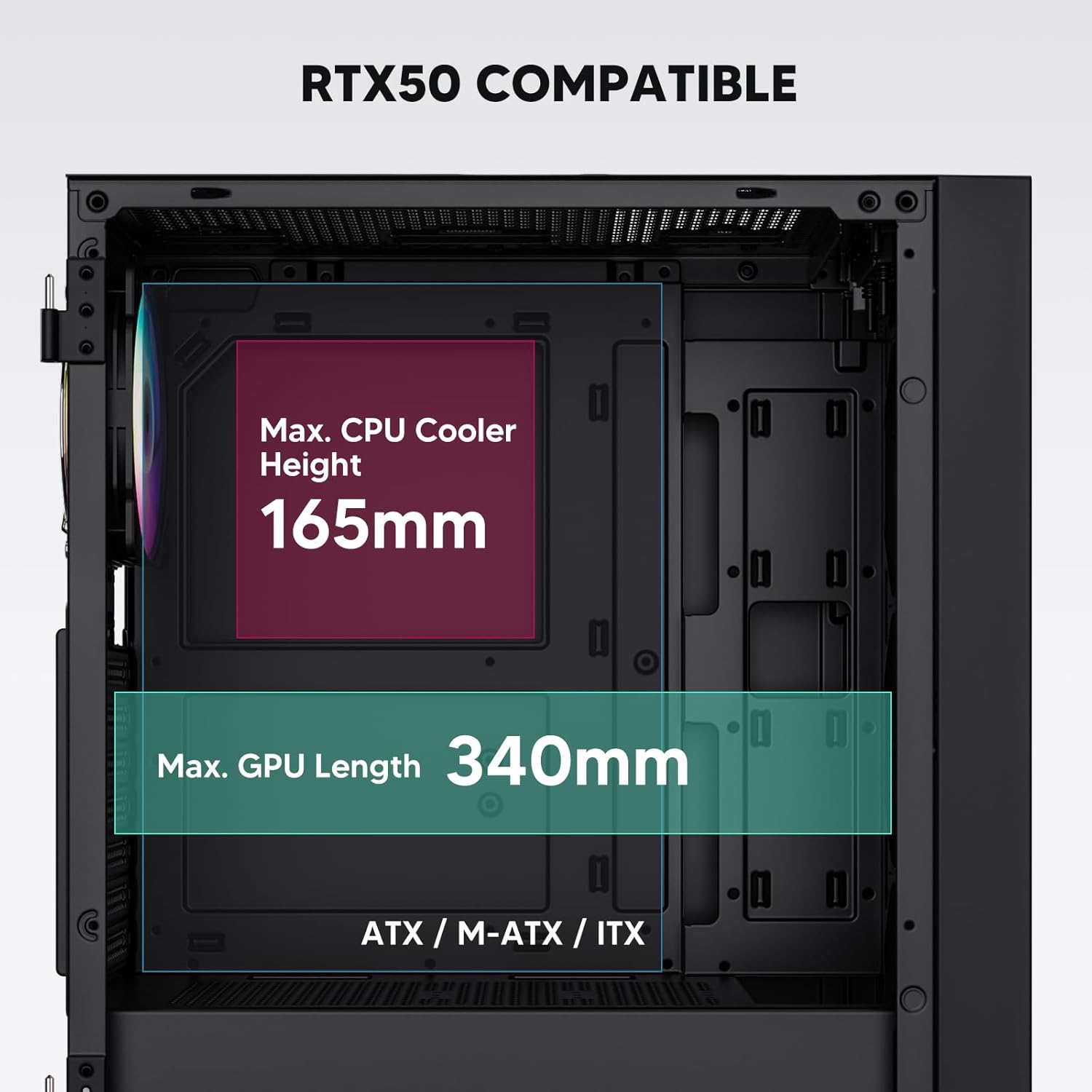
Figure 3: Motherboard and Component Clearance (Max CPU Cooler Height 165mm, Max GPU Length 340mm)
3. Storage Device Installation (HDD/SSD)
- Locate the dedicated mounting points for SSDs and HDDs.
- Install 2.5" SSDs onto the SSD trays or mounting brackets.
- Installer 3.5" harddiske i drevkabinettet, der er placeret i bunden af kabinettet.
- Fastgør alle drev med de passende skruer.

Figure 4: Internal Layout with Drive Bay Locations (SSD, HDD, Power Supply)
4. Installation af strømforsyning
- Mount your power supply unit (PSU) in the dedicated compartment at the bottom rear of the case.
- Ensure the PSU fan faces downwards (if the case has a bottom vent) or upwards, depending on your cooling preference.
- Secure the PSU with screws from the rear of the case. The case supports PSUs up to 200mm in length.
5. Installation af udvidelseskort (GPU)
- Fjern de nødvendige PCI-E-slotdæksler fra bagsiden af kabinettet.
- Insert your graphics card or other expansion cards into the motherboard's PCI-E slots.
- Secure the cards with screws. The case supports GPUs up to 340mm in length.
6. Cooling System Installation (Fans/Radiators)
- The case comes with one pre-installed 120mm PWM/ARGB fan at the rear.
- Additional fans (120mm or 140mm) can be installed at the front, top, and bottom.
- Liquid cooling radiators up to 360mm can be installed at the front, and up to 240mm at the top.
- Refer to the diagram for supported fan and radiator configurations.

Figure 5: Fan and Liquid Radiator Support Diagram
7. Tilslutninger på frontpanelet
- Connect the front panel cables (Power, Reset, USB 3.0, USB Type-C, HD Audio) to the corresponding headers on your motherboard.
- Consult your motherboard manual for the exact pin layout of these headers.
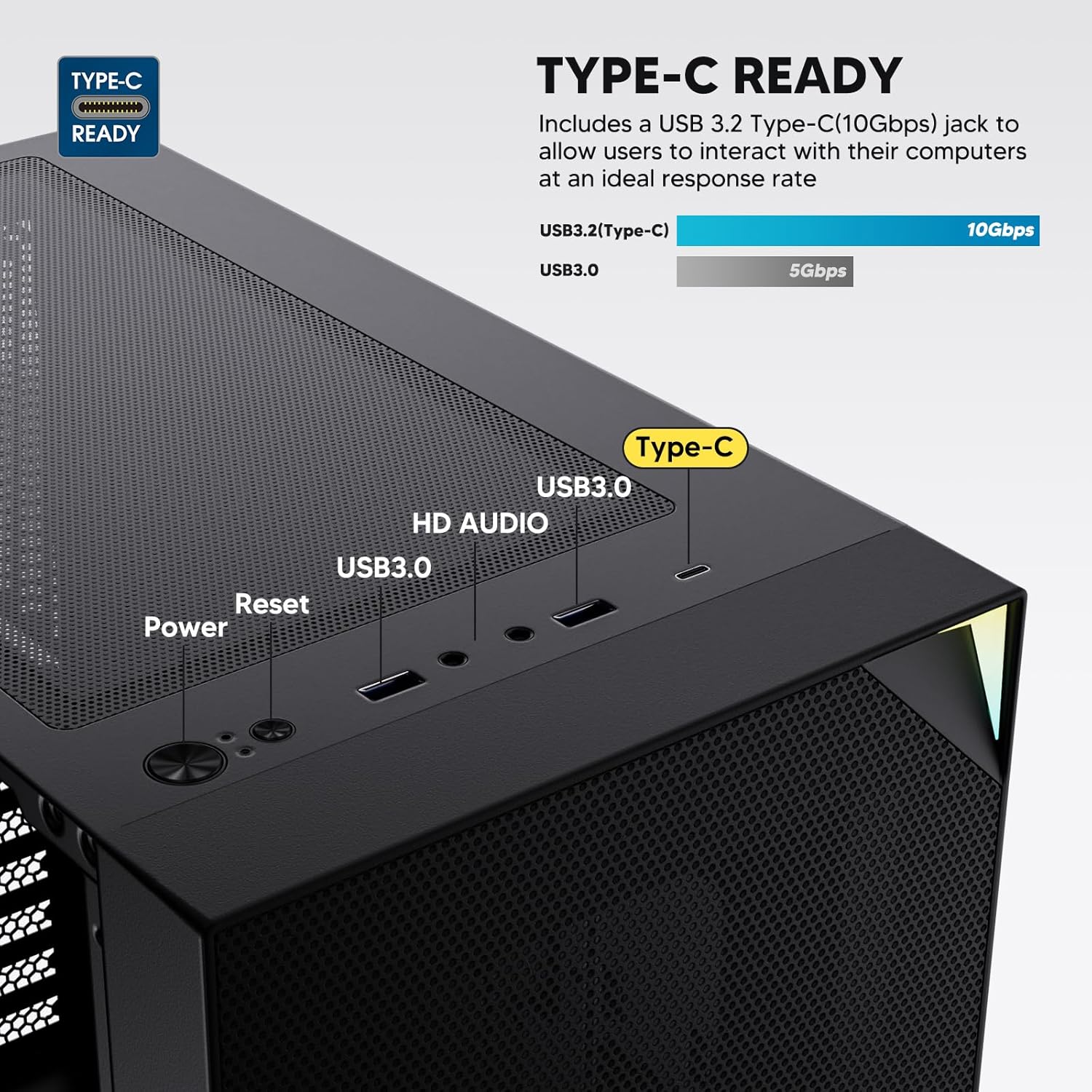
Figure 6: Top I/O Panel Connections
8. ARGB and PWM Connections
- The pre-installed fan and ARGB LED strip require connection to your motherboard.
- Connect the 4-pin PWM connector from the fan to a compatible fan header on your motherboard for speed control.
- Connect the 3-pin ARGB connector from the fan and LED strip to a 5V 3-pin ARGB header on your motherboard for lighting synchronization. Tilslut ikke til en 12V RGB-header, da dette vil beskadige LED'erne.
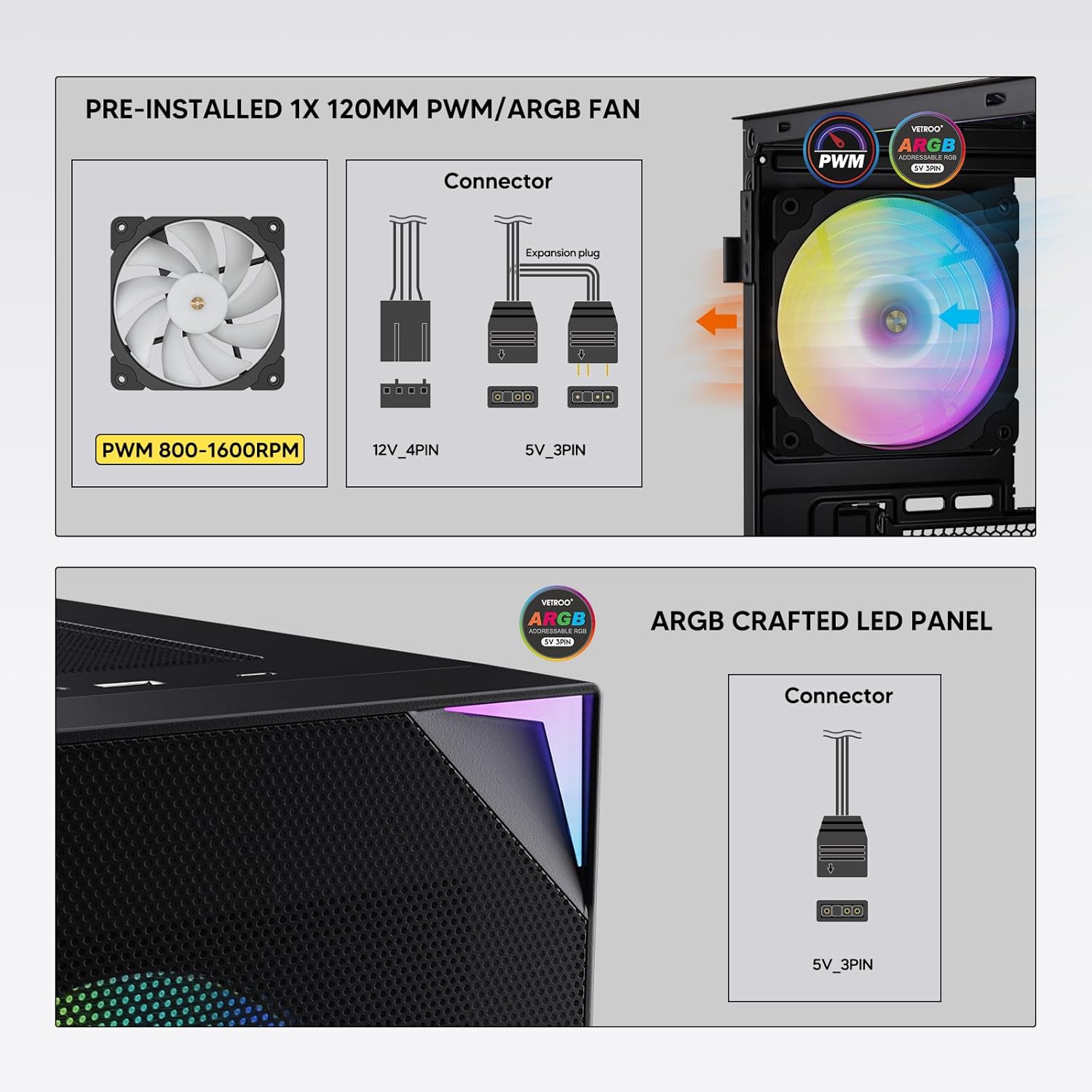
Figure 7: PWM and ARGB Connector Details
9. Kabelforvaltning
- Utilize the cable routing cutouts and tie-down points behind the motherboard tray to organize cables.
- The soft silicone grommets help protect cables and provide a clean look.
- Proper cable management improves airflow and aesthetics.
Operation
1. Første opstart
- After all components are securely installed and cables connected, close the tempered glass side panel.
- Tilslut din skærm, tastatur, mus og strømkabel til pc'en.
- Flip the power switch on your PSU to the 'ON' position.
- Press the power button on the top I/O panel of the case to start your system.
2. ARGB-lysstyring
- If connected to a compatible motherboard's 5V 3-pin ARGB header, the lighting of the pre-installed fan and LED strip can be controlled via your motherboard's RGB software (e.g., ASUS Aura Sync, MSI Mystic Light Sync, Gigabyte RGB Fusion, ASRock Polychrome Sync).
- Refer to your motherboard's manual for specific instructions on using its ARGB control software.
3. Luftstrømsstyring
- The mesh front panel is designed for optimal air intake.
- Ensure that intake fans (typically front and bottom) and exhaust fans (typically rear and top) are configured to create positive or neutral air pressure for efficient cooling and dust prevention.

Figure 8: Airflow Diagram with Dust Filters
Opretholdelse
1. Rengøring af støvfilter
- The case is equipped with dust filters on the top and bottom panels.
- Regularly check and clean these filters to maintain optimal airflow and prevent dust buildup inside the system.
- Gently remove the magnetic dust filters and clean them with compressed air or by rinsing with water (ensure they are completely dry before re-installation).
2. Tempered Glass Panel Care
- Clean the tempered glass panel with a soft, lint-free cloth and a non-abrasive glass cleaner.
- Undgå skrappe kemikalier eller slibende materialer, der kan ridse eller beskadige glasset.
Fejlfinding
- Systemet tænder ikke:
- Sørg for, at strømkablet er korrekt tilsluttet til både strømforsyningen og stikkontakten.
- Kontroller, at strømforsyningskontakten er i 'ON'-positionen.
- Kontroller, at kablet til tænd/sluk-knappen på frontpanelet er korrekt tilsluttet bundkortets header.
- Confirm all power cables (24-pin ATX, CPU, GPU) are properly seated in the motherboard and components.
- Ventilatorer drejer ikke / ARGB lyser ikke:
- Check that the fan's PWM connector is securely plugged into a motherboard fan header.
- Verify the ARGB 3-pin connector is correctly attached to a 5V 3-pin ARGB header on the motherboard (not 12V RGB).
- Sørg for, at ARGB-softwaren på dit bundkort er installeret og konfigureret korrekt.
- USB-porte fungerer ikke:
- Confirm the USB 3.0 and USB Type-C front panel cables are correctly connected to their respective motherboard headers.
- Tjek din bundkortmanual for korrekt placering af headere.
- For other component-specific issues, refer to the instruction manuals for your motherboard, CPU, GPU, and other installed hardware.
Specifikationer
| Mærke | Vetroo |
| Modelnavn | AL800 |
| Varemodelnummer | VT-CASE-AL800-BK (FBA) |
| Sagstype | Mid Tower |
| Bundkort kompatibilitet | ATX, M-ATX, ITX |
| Farve | Sort |
| Materiale | Metal, hærdet glas |
| Varens vægt | 12.37 pund (ca. 5.61 kg) |
| Produktmål (LxBxH) | 18.4 x 8.6 x 17.9 tommer (ca. 46.7 x 21.8 x 45.5 cm) |
| Max GPU-længde | 340 mm |
| Max CPU kølerhøjde | 165 mm |
| Max PSU-længde | 200 mm |
| Front I / O-porte | 1x USB 3.2 Type-C, 2x USB 3.0, HD Audio (Mic/Headphone), Power, Reset |
| Fan Support | Front: 3x 120mm or 2x 140mm; Top: 2x 120mm or 2x 140mm; Rear: 1x 120mm; Bottom: 2x 120mm |
| Radiatorstøtte | Front: 120/140/240/280/360mm; Top: 120/140/240mm; Rear: 120mm |
| Forudinstallerede ventilatorer | 1x 120mm PWM/ARGB (Rear) |
Garanti og support
For warranty information, technical support, or to inquire about replacement parts, please visit the official Vetroo webwebstedet eller kontakt deres kundeservice direkte. Gem din købsbevis til garantikrav.
Official Vetroo Store: Vetroo Amazon Store
Relaterede dokumenter - AL800
 |
Vetroo AL800 PC-kabinet brugermanual Brugermanual til Vetroo AL800 PC-kabinettet, der beskriver installationstrinnene for komponenter som bundkort, strømforsyning, blæsere, væskeradiatorer, harddiske, SSD'er og grafikkort. Indeholder tilslutningsvejledning til I/O-panel og tilbehørsliste. |
 |
Vetroo AL800 Full Tower Gaming-kabinet Brugsanvisning Omfattende instruktionsmanual til Vetroo AL800 Full Tower Gaming PC-kabinettet. Lær, hvordan du installerer strømforsyning, bundkort, lagringsdrev (SSD/HDD), grafikkort, og forstår mulighederne for ventilator- og radiatorsupport. Inkluderer tilbehørsliste og detaljeret trinvis vejledning. |
 |
Vetroo MESH-7C AL-SERIEN PC-kabinet Brugermanual Detaljeret brugermanual til Vetroo MESH-7C AL SERIES PC-kabinettet, der dækker specifikationer, dimensioner, tilbehør og hardwareinstallationstrin til opbygning af din computer. |
 |
Vetroo M05 M-ATX PC-kabinet Brugsanvisning Detaljeret instruktionsmanual til samling af Vetroo M05 M-ATX PC-kabinettet, der dækker installation af komponenter, brug af tilbehør og tilslutning af I/O-panel. |
 |
Vetroo AL900 ATX PC-kabinet brugermanual Brugermanual til Vetroo AL900 ATX PC Gaming-kabinettet, med detaljer om samling, installation af komponenter som strømforsyning og I/O-paneltilslutninger. |
 |
Vetroo U6 CPU-køler brugermanual og installationsvejledning Detaljeret brugermanual og installationsvejledning til Vetroo U6 CPU-køleren, der dækker kompatibilitet med Intel LGA 1700/1200/115X og AMD AM5/AM4/AM3(+)/AM2(+)/FM2(+)/FM1-sokler. Indeholder stykliste og trinvise monteringsanvisninger. |