1. Introduktion
This manual provides essential instructions for setting up, operating, maintaining, and troubleshooting your Brother MFC-L2800DW Monochrome Multifunction Laser Printer. Please read this manual thoroughly before using the device to ensure proper and safe operation.

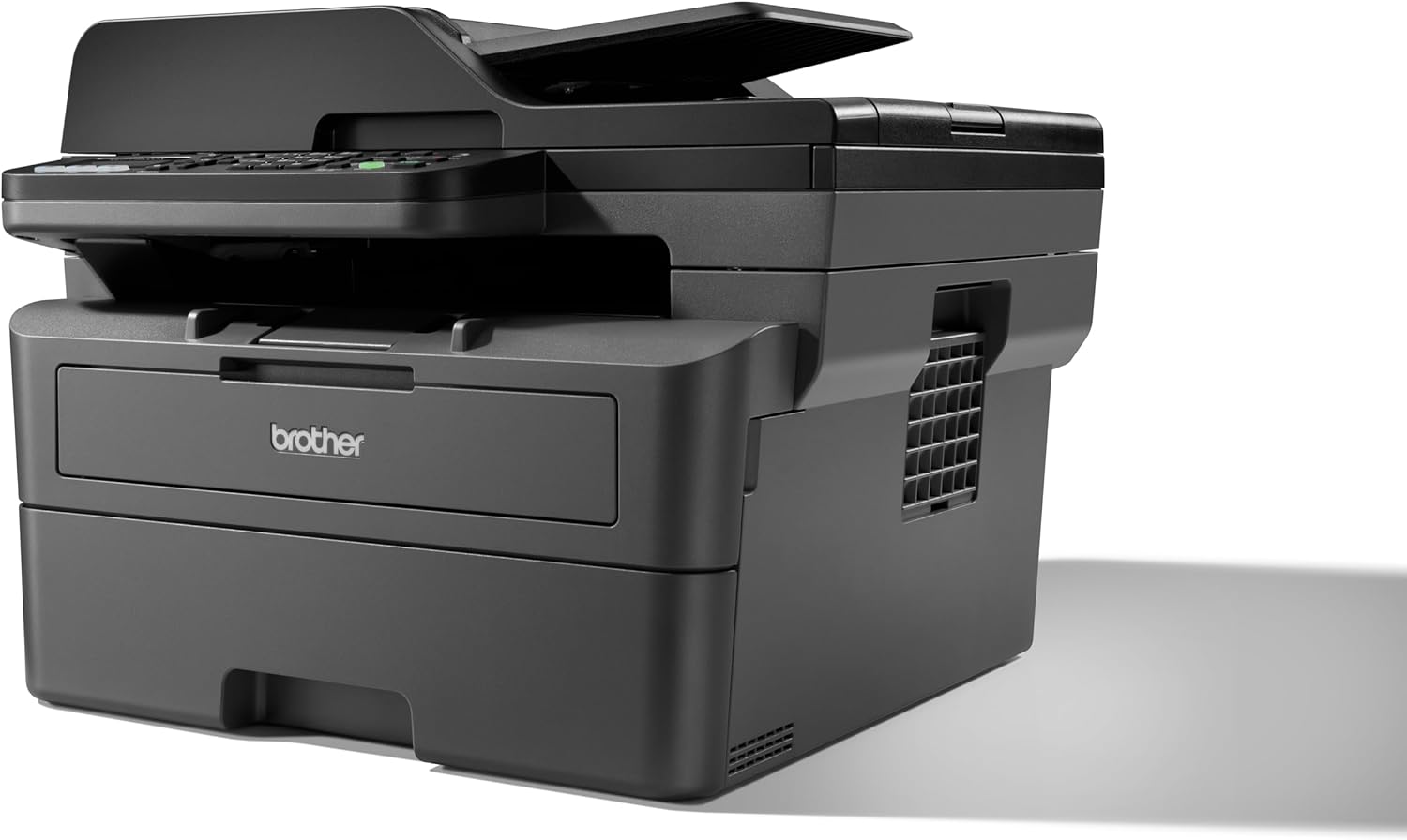
Billede 1.1: Forside view of the Brother MFC-L2800DW printer.
2. Opsætning
2.1 Udpakning og komponentkontrol
Tag forsigtigt printeren ud af emballagen. Kontroller, at alle medfølgende komponenter er til stede:
- Brother MFC-L2800DW Printer
- Tonerpatron (starter)
- Trommeenhed
- Strømledning
- Hurtig installationsvejledning
2.2 Installation af toner- og tromleenhed
- Åbn frontlågen på printeren.
- Remove the drum unit and toner cartridge assembly from its protective bag.
- Sæt tonerpatronen godt ind i tromleenheden, indtil den klikker på plads.
- Slide the combined drum unit and toner cartridge assembly into the printer until it stops.
- Luk frontdækslet.
2.3 Ilægning af papir
The printer features a 250-sheet paper input tray and a 50-sheet Automatic Document Feeder (ADF).
- Træk papirbakken helt ud.
- Adjust the paper guides to fit the paper size (e.g., A4).
- Læg papir i bakken, og sørg for, at det er fladt og under den maksimale påfyldningslinje.
- Skub forsigtigt papirbakken tilbage i printeren.

Billede 2.1: Top-down view of the printer with the paper tray open, ready for paper loading.
2.4 Power Connection and Initial Power On
- Tilslut netledningen til printeren og derefter til en stikkontakt.
- Tryk på tænd/sluk-knappen for at tænde printeren.
- Follow the on-screen instructions on the LCD display to select your language and region.
2.5 Netværksforbindelse
The MFC-L2800DW supports Ethernet, Wi-Fi (5 GHz), and USB connections.
- USB-forbindelse: Tilslut et USB-kabel fra printeren til din computer.
- Ethernet-forbindelse: Tilslut et Ethernet-kabel fra printeren til din netværksrouter eller -switch.
- Wi-Fi-forbindelse: Use the printer's control panel to navigate to the Network settings. Select WLAN, then follow the prompts to connect to your wireless network.
2.6 Installation af driver og software
Insert the installation CD (if provided) into your computer or download the latest drivers and software from the official Brother support webFølg instruktionerne på skærmen for at fuldføre installationen.
3. Betjening af printeren
3.1 Kontrolpanel overview
Billede 3.1: Nærbillede view of the printer's control panel with LCD display and buttons.
The control panel features a 2-tier LCD display for menu navigation and status updates, along with various buttons for functions like Copy, Scan, Fax, Wi-Fi, and Start.
3.2 Udskrivning af dokumenter
- Sørg for, at printeren er tændt og forbundet til din computer eller dit netværk.
- Åbn det dokument, du vil udskrive, på din computer eller mobilenhed.
- Vælg udskriftsindstillingen fra din applikation.
- Choose the Brother MFC-L2800DW from the list of available printers.
- Adjust print settings (e.g., number of copies, paper size, duplex printing) as needed.
- Klik på 'Udskriv'.

Image 3.2: The Brother MFC-L2800DW printer actively printing a document.
3.3 Kopiering af dokumenter
- Placer dokumentet med forsiden nedad på scannerglaspladen eller med forsiden opad i den automatiske dokumentføder (ADF).
- Tryk på Kopi knappen på kontrolpanelet.
- Use the arrow keys to select copy options (e.g., number of copies, reduction/enlargement, 2-sided copy).
- Trykke Starte.
3.4 Scanning af dokumenter
- Placer dokumentet på scannerglaspladen eller i den automatiske dokumentføder.
- Tryk på Scan knappen på kontrolpanelet.
- Select your desired scan destination (e.g., PC, Email, FTP).
- Adjust scan settings as prompted by the display.
- Trykke Starte.
3.5 Faxning af dokumenter
- Placer dokumentet med forsiden nedad på scannerglaspladen eller med forsiden opad i ADF'en.
- Tryk på Fax knappen på kontrolpanelet.
- Indtast modtagerens faxnummer ved hjælp af det numeriske tastatur.
- Trykke Starte.
4. Vedligeholdelse
4.1 Udskiftning af tonerpatronen
When the 'Toner Low' or 'Replace Toner' message appears on the LCD, it is time to replace the toner cartridge.
- Åbn frontdækslet.
- Fjern tromleenheden og tonerpatronenheden fra printeren.
- Press the green lock lever and remove the old toner cartridge from the drum unit.
- Unpack the new toner cartridge and gently shake it horizontally several times.
- Insert the new toner cartridge firmly into the drum unit until it locks.
- Slide the assembly back into the printer and close the front cover.
4.2 Replacing the Drum Unit
The drum unit is a consumable item that needs replacement after a certain number of pages. The LCD will indicate when replacement is necessary.
- Follow steps 1-3 for toner replacement to remove the old toner and drum assembly.
- Remove the old toner cartridge from the old drum unit.
- Pak den nye tromleenhed ud.
- Insert the existing toner cartridge into the new drum unit until it locks.
- Slide the new drum unit and toner cartridge assembly back into the printer and close the front cover.
- Reset the drum counter through the printer's menu.
4.3 Rengøring af printeren
- Ydre: Tør ydersiden af med en blød, fnugfri klud.
- Scannerglas: Rengør scannerglasset med en blød, tør klud. Brug en lille mængde glasrens på kluden (ikke direkte på glasset) til genstridige mærker.
- Corona-tråd: Periodically clean the corona wire inside the drum unit by gently sliding the green tab from left to right several times. Return the tab to its home position.
5. Fejlfinding
This section addresses common issues you might encounter. For more detailed troubleshooting, refer to the official Brother support webwebsted.
5.1 Papirstop
Hvis der opstår papirstop, viser LCD-skærmen en fejlmeddelelse. Følg disse generelle trin:
- Sluk printeren, og tag netledningen ud.
- Open the front cover and carefully remove the drum unit and toner cartridge assembly.
- Gently pull out any jammed paper. Check all paper paths, including the back cover and duplex tray.
- Reinstall the drum unit and toner cartridge assembly, close the cover, and reconnect the power cord.
- Tænd for printeren.
5.2 Problemer med udskriftskvaliteten
- Faded Print: Toner may be low. Replace the toner cartridge.
- Streaks or Spots: Clean the corona wire in the drum unit. If the issue persists, the drum unit may need replacement.
- Uneven Density: Ensure the paper type setting matches the paper loaded.
5.3 Forbindelsesproblemer
- Ingen forbindelse: Verify all cables are securely connected (USB/Ethernet). For Wi-Fi, ensure the printer is connected to the correct network and the signal is strong.
- Printer offline: Check printer status on your computer. Restart both the printer and your computer.
6. Specifikationer
| Feature | Specifikation |
|---|---|
| Modelnavn | MFC-L2800DW |
| Udskrivningsteknologi | Laser |
| Printer output | Monokrom |
| Maksimal udskrivningshastighed (monokrom) | 32 ppm |
| Maksimal udskriftsopløsning (sort/hvid) | 1200 x 1200 dpi |
| Dobbeltsidet udskrivning | Ja |
| Scanner type | ADF |
| Scanneropløsning | 1200 x 1200 |
| Maksimal kopieringshastighed (sort/hvid) | 32 ppm |
| Maks. kopier pr. kørsel | 50 |
| Forbindelsesteknologi | Ethernet, USB, Wi-Fi (5 GHz) |
| Max input arkkapacitet | 250 ark |
| Automatisk dokumentføder (ADF) | 50 ark |
| Maksimal mediestørrelse | A4 |
| Display Type | LCD (2-tier) |
| Hukommelseslagringskapacitet | 128 MB |
| Strømforbrug | 480 watt |
| Produktmål (LxBxH) | 39.9 x 41 x 31.9 cm |
| Varens vægt | 11.6 kilo |
| Inkluderede komponenter | Toner Cartridge, Drum Unit, 250 Sheets Paper Input Tray, 50 Sheets Automatic Document Feeder |
7. Garanti og support
7.1 Produktgaranti
Your Brother MFC-L2800DW printer is covered by a manufacturer's warranty. Please refer to the warranty card included with your product or visit the official Brother webwebstedet for detaljerede garantivilkår og -betingelser, der er specifikke for din region.
7.2 Kundesupport
For further assistance, technical support, driver downloads, or to access frequently asked questions, please visit the official Brother support webwebsted:


