1. Produktet er slutview
The VENTION 15-in-1 USB-C MST Docking Station is a versatile and powerful solution designed to expand the connectivity of your USB-C enabled laptop or other compatible devices. It transforms a single USB-C port into a comprehensive workstation, offering multiple display outputs, high-speed data transfer ports, network connectivity, power delivery, and audio capabilities.
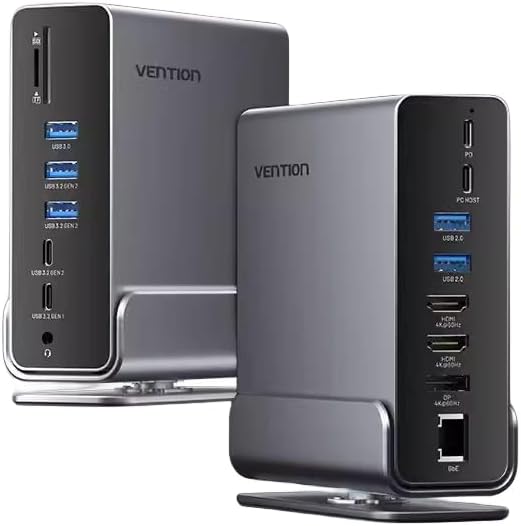
Billede 1.1: Foran og bagpå view of the Vention 15-in-1 USB-C MST Docking Station, showcasing dens kompakte design og forskellige porte.
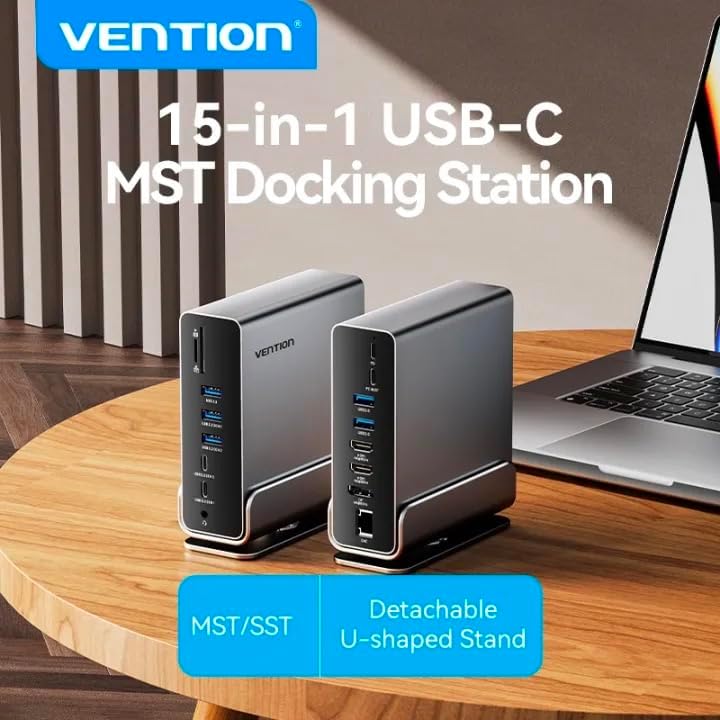
Image 1.2: The Vention 15-in-1 USB-C MST Docking Station connected to a laptop, illustrating its role as a central hub for multiple peripherals.
2. Nøglefunktioner
- 15-in-1 Multi-Ports: Comprehensive connectivity including DP, HDMI, USB-A, USB-C, RJ45, SD/TF card slots, and 3.5mm audio jack.
- Højhastighedsdataoverførsel: Up to 10Gbps via USB 3.2 Gen 2 ports, 5Gbps via USB 3.2 Gen 1 and USB 3.0, and 480Mbps via USB 2.0.
- 4K@60Hz HD Display: Supports high-resolution video output for single, dual, or triple monitor setups.
- MST/SST Modes: Enables extended or mirrored display configurations for Windows and macOS systems.
- 100W strømforsyning: Provides pass-through charging for your host device.
- gigabit ethernet: Integrated RJ45 port for stable 1000Mbps wired network connection.
- SD/TF-kortlæser: Simultaneously read and write from SD and TF cards.
- Detachable U-shaped Stand: Allows for vertical docking and efficient space utilization.

Image 2.1: Detailed diagram illustrating all 15 ports and their functions on the docking station, highlighting its comprehensive connectivity.
3. Pakkens indhold
Kontroller venligst, at alle varer er til stede og i god stand, når du åbner pakken:
- Vention 15-in-1 USB-C MST Docking Station
- Detachable U-shaped Stand
- Brugervejledning (dette dokument)
4. Opsætningsvejledning
4.1 Attaching the U-shaped Stand
The docking station comes with a detachable U-shaped stand for vertical placement, optimizing desk space and improving heat dissipation.
- Align the grooves on the bottom of the docking station with the rails on the U-shaped stand.
- Gently slide the docking station onto the stand until it clicks securely into place.
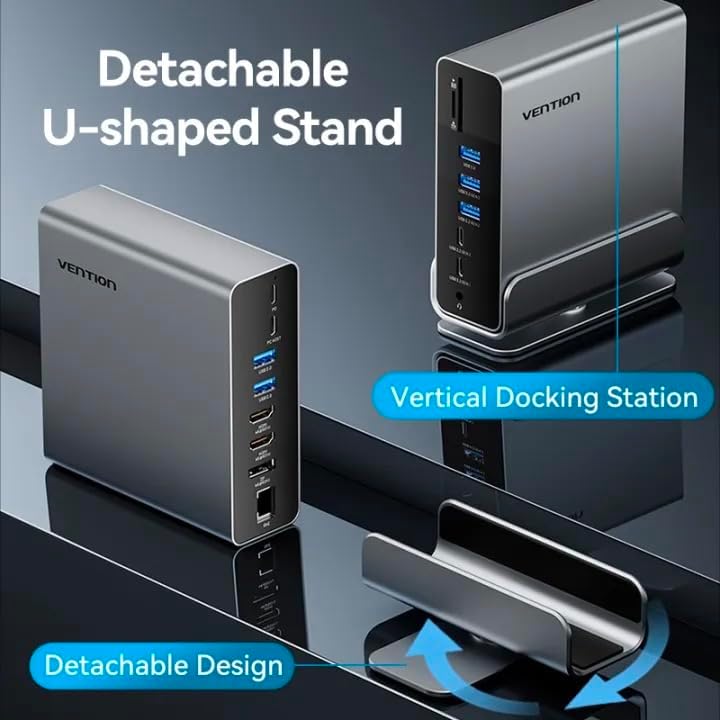
Image 4.1: Illustration of the detachable U-shaped stand and how it supports the docking station in a vertical orientation.
4.2 Tilslutning til din værtsenhed
Ensure your host device (laptop, smartphone, etc.) has a full-featured USB-C port that supports video output (DisplayPort Alternate Mode), data transfer, and power delivery.
- Connect the USB-C cable from the docking station's Host Port to the USB-C port on your laptop or compatible device.
- For power delivery to your host device, connect your laptop's original USB-C power adapter to the Strømforsyning (PD) port on the docking station. The docking station supports up to 100W power pass-through.
5. Betjeningsvejledning
5.1 Display Connections (HDMI & DisplayPort)
The docking station supports single, dual, and triple display setups with resolutions up to 4K@60Hz. It supports both MST (Multi-Stream Transport) and SST (Single-Stream Transport) modes.
- Connect your monitors to the HDMI og/eller DP ports on the docking station using appropriate cables.
- MST Mode: Allows for extended desktop across multiple displays (Windows) or mirrored/extended displays (macOS, depending on specific model/chipset limitations).
- SST Mode: Mirrors the display across all connected monitors.
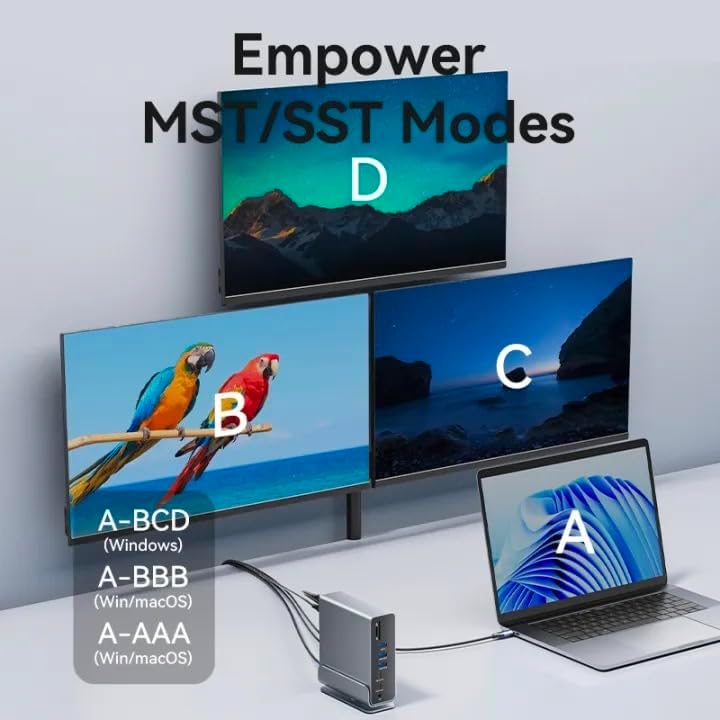
Image 5.1: Visual representation of MST (Multi-Stream Transport) and SST (Single-Stream Transport) display modes, demonstrating how the docking station can extend or mirror your desktop across multiple screens.

Billede 5.2: Eks.amples of various display configurations (A-BCD, A-BBB, A-AAA) achievable on both Windows and macOS systems using the docking station.

Image 5.3: Table detailing the maximum resolution performance for single, dual, and triple display setups on Windows and macOS systems, including MST/SST support.
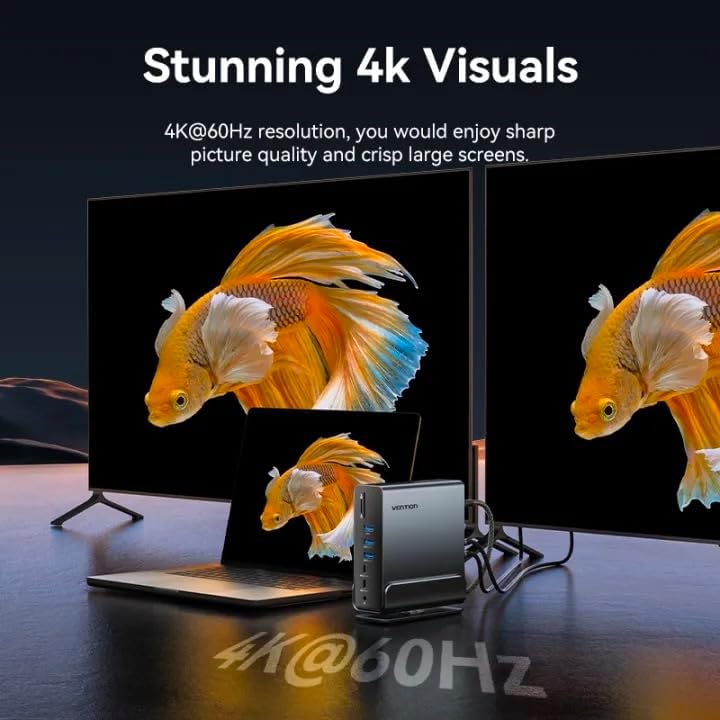
Image 5.4: A visual demonstrating the crisp 4K@60Hz resolution output achievable when connecting displays through the docking station.
5.2 Data Transfer Ports
Connect your USB devices (external hard drives, flash drives, keyboards, mice, etc.) to the available USB ports:
- USB 3.2 Gen 2-C (10Gbps): For high-speed USB-C peripherals.
- USB 3.2 Gen 2-A (10Gbps): For high-speed USB-A peripherals.
- USB 3.2 Gen 1-C (5Gbps): For standard USB-C peripherals.
- USB 3.0-A (5Gbps): For standard USB-A peripherals.
- USB 2.0-A (480Mbps): For peripherals like keyboards, mice, or printers.
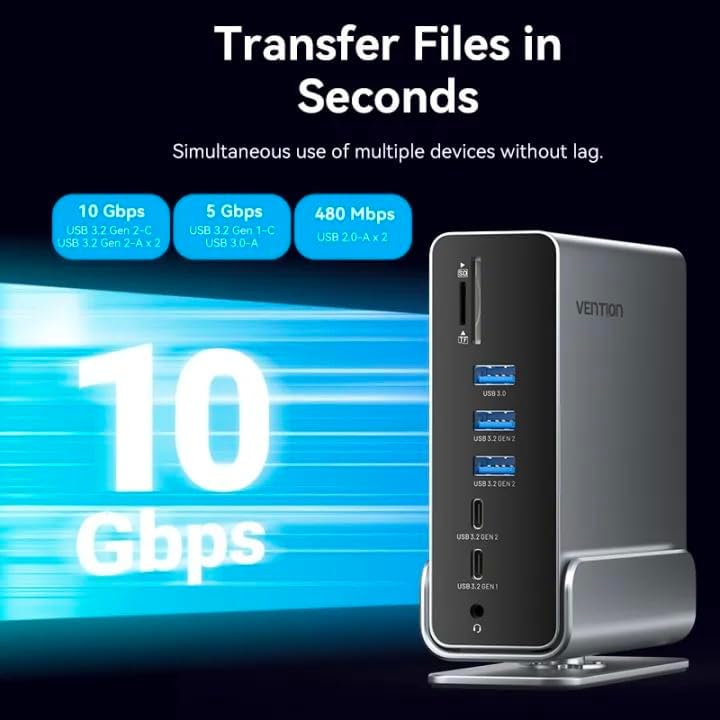
Image 5.5: Illustration highlighting the various data transfer speeds supported by the docking station's USB ports, including 10Gbps, 5Gbps, and 480Mbps.
5.3 Network Connection (RJ45)
For a stable and fast wired internet connection:
- Tilslut et Ethernet-kabel fra din router eller dit modem til RJ45 port on the docking station.
- The docking station supports Gigabit Ethernet (1000Mbps).
5.4 Audio Connection (3.5mm TRRS)
Connect your headphones, speakers, or microphone to the 3.5 mm TRRS jack for audio input/output.
5.5 SD/TF-kortlæser
Insert your SD or TF (microSD) cards into the respective slots. The docking station supports simultaneous reading and writing of two cards.
6. Fejlfinding
- Ingen skærmoutput:
- Sørg for, at din værtsenheds USB-C-port understøtter DisplayPort Alternative Mode.
- Check all cable connections (USB-C to host, HDMI/DP to monitors).
- Prøv at opdatere dine grafikdrivere på din værtsenhed.
- Restart your host device and reconnect the docking station.
- Ingen strømforsyning:
- Sørg for, at din strømadapter er tilsluttet PD-porten på dockingstationen.
- Verify your power adapter meets the required wattage for your laptop (e.g., 65W, 100W).
- USB-enheder genkendes ikke:
- Prøv at tilslutte USB-enheden til en anden port på dockingstationen.
- Ensure the device drivers are installed on your host system.
- Frakobl og tilslut dockingstationen fra din værtsenhed igen.
- Problemer med netværksforbindelse:
- Kontroller Ethernet-kabelforbindelsen til både dockingstationen og din router/modem.
- Bekræft netværksindstillingerne på din værtsenhed.
7. Specifikationer
| Feature | Beskrivelse |
|---|---|
| Modelnavn | 15-in-1 USB-C MST Docking Station |
| Mærke | VENTION |
| Værtsforbindelse | USB-C (fuldt udstyret) |
| Video output | 1x DisplayPort (DP), 2x HDMI (4K@60Hz Max) |
| USB-dataporte | 1x USB 3.2 Gen 2 Type-C (10 Gbps) 2x USB 3.2 Gen 2 Type-A (10 Gbps) 1x USB 3.2 Gen 1 Type-C (5 Gbps) 1x USB 3.0 Type-A (5 Gbps) 2x USB 2.0 Type-A (480Mbps) |
| Ethernet | 1x RJ45 Gigabit Ethernet (1000Mbps) |
| Kortlæser | 1x SD Card Slot, 1x TF (MicroSD) Card Slot (Simultaneous Read/Write) |
| Lyd | 1x 3.5mm TRRS Audio Jack (Microphone/Audio) |
| Strøm levering | Up to 100W (Max) via USB-C PD port |
| Materiale | Aluminiumslegering |
| Farve | Grå |
| Kompatible enheder | Laptops, Smartphones, Other Type-C Devices |
| Oprindelsesland | Kina |
8. Pleje og vedligeholdelse
- Rensning: Brug en blød, tør klud til at rengøre overfladen på dockingstationen. Undgå flydende rengøringsmidler eller slibende materialer.
- Opbevaring: Opbevar enheden et køligt, tørt sted væk fra direkte sollys og ekstreme temperaturer.
- Håndtering: Undgå at tabe enheden eller udsætte den for kraftige stød. Forsøg ikke at skille enheden ad.
- Ventilation: Ensure the ventilation openings are not blocked to prevent overheating, especially when using the vertical stand.
9. Garanti og support
For garantioplysninger og teknisk support henvises til den officielle VENTION-side. webwebstedet eller kontakt din lokale forhandler. Gem din købskvittering til garantikrav.
For further assistance, you may visit the VENTION Store online: Vention Official Store


