1. Introduktion
Thank you for choosing the VENTION 16-in-1 USB C Docking Station. This versatile docking station is designed to expand the connectivity of your USB-C or Thunderbolt 3/4 enabled laptop, providing multiple ports for displays, data transfer, network, and power delivery. Please read this manual carefully before use to ensure proper operation and maximize the product's potential.

Image: The VENTION 16-in-1 USB C Docking Station shown with its included USB-C cable, highlighting its compact design and various ports.
2. Sikkerhedsoplysninger
- Udsæt ikke enheden for vand, fugt eller ekstreme temperaturer.
- Undgå at tabe eller udsætte enheden for kraftige stød.
- Forsøg ikke selv at skille enheden ad eller reparere den. Kontakt kvalificeret servicepersonale.
- Use only the provided USB-C cable or a certified USB-C 4.0 cable for optimal performance.
- Ensure proper ventilation around the docking station during operation.
3. Pakkens indhold
- 1 x VENTION 16-in-1 USB C Docking Station
- 1 x USB-C 4.0 Cable (1.5 ft)
- 1 x brugermanual
Bemærk: Strømadapter medfølger ikke.

Image: Illustration showing the contents included in the package: the docking station, USB-C cable, and user manual.
4. Produktet er slutview og havne
The VENTION 16-in-1 Docking Station offers a comprehensive array of ports to meet diverse connectivity needs:
- Frontpanel:
- 1 x SD Card Slot (90MB/s)
- 1 x TF Card Slot (90MB/s)
- 1 x USB 3.0 Type-A Port (5Gbps)
- 1 x USB 3.2 Gen 1 Type-C Port (5Gbps)
- 2 x USB 3.2 Gen 2 Type-A Ports (10Gbps)
- 1 x 3.5mm TRRS Audio Jack (Microphone/Audio)
- Bagside:
- 1 x PD (Power Delivery) Port (100W Max Input)
- 1 x PC HOST Port (Connects to Laptop, 85W Max Output)
- 2 x USB 2.0 Type-A Ports (480Mbps)
- 2 x HDMI 2.0 Ports (4K@60Hz)
- 1 x DisplayPort 1.4 (4K@60Hz)
- 1 x RJ45 Gigabit Ethernet Port (10/100/1000Mbps)

Image: Detailed diagram illustrating all 16 ports on the VENTION docking station, including their types and maximum speeds/resolutions.
5. Opsætningsvejledning
5.1 Første tilslutning
- Connect the provided USB-C 4.0 cable from the "PC HOST" port on the docking station to a full-featured USB-C or Thunderbolt 3/4 port on your laptop.
- (Optional) For power delivery to your laptop, connect a USB-C power adapter (not included) to the "PD" port on the docking station. The docking station supports up to 100W power input, delivering up to 85W to your laptop.
- The docking station is plug-and-play for most operating systems and does not require driver installation.

Image: Visual guide on how to identify a compatible full-featured USB-C or Thunderbolt port on your laptop for proper functionality.
5.2 Tilslutning af eksterne enheder
Once the docking station is connected to your laptop, you can connect various peripherals:
- Monitorer: Connect up to three external monitors using the HDMI and DisplayPort outputs.
- USB-enheder: Connect USB flash drives, external hard drives, keyboards, mice, and other USB devices to the available USB-A and USB-C data ports.
- Netværk: Connect an Ethernet cable to the RJ45 port for a stable wired network connection.
- Lyd: Tilslut hovedtelefoner eller højttalere til 3.5 mm lydstikket.
- Hukommelseskort: Indsæt SD- eller TF-kort i de respektive slots for at få adgang til data.
5.3 Display Configuration (Windows & macOS)
The docking station supports triple monitor display. Configuration varies slightly between Windows and macOS:
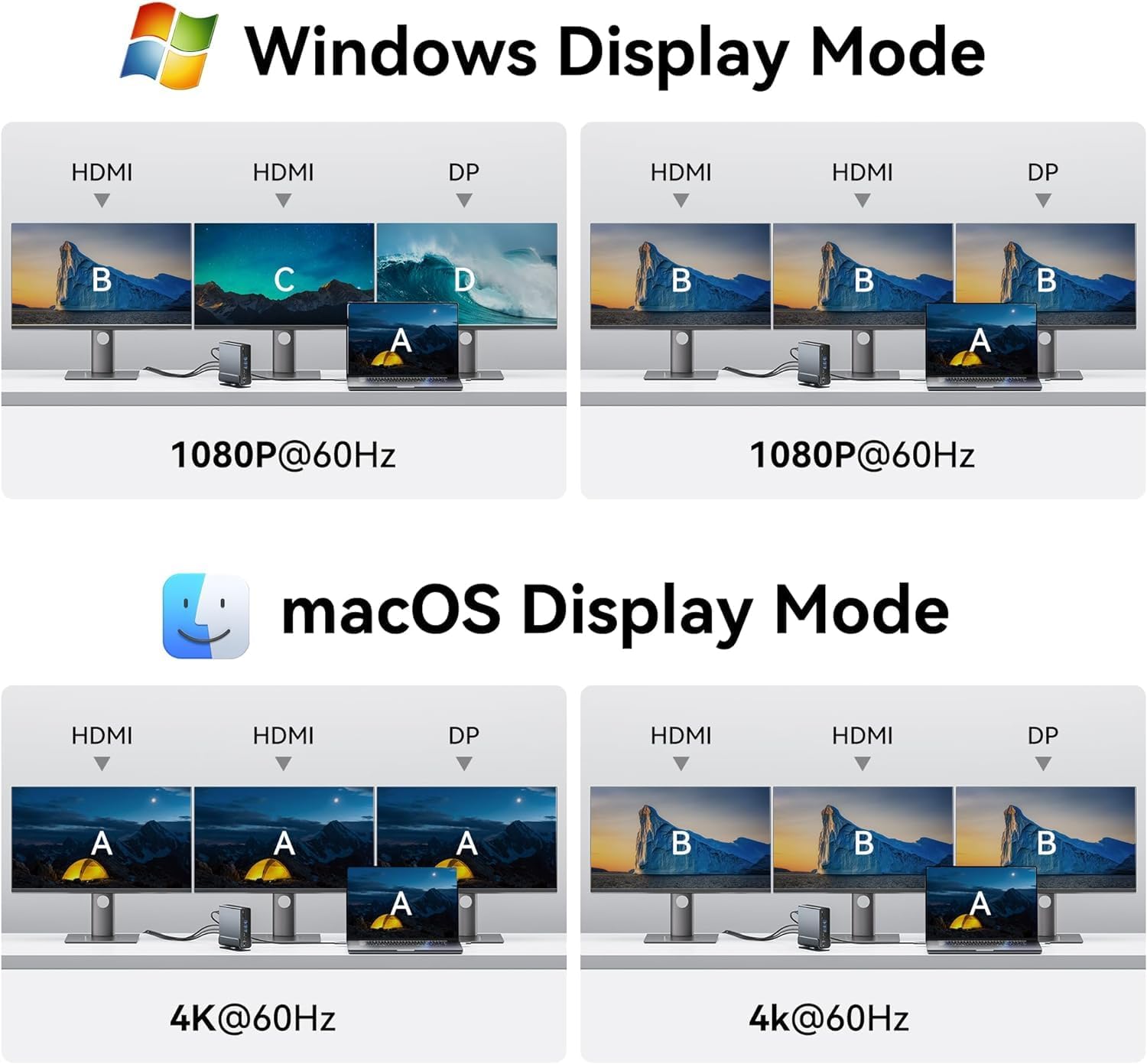
Image: Diagrams illustrating various display configurations for Windows (Extend/Mirror) and macOS (Mirror only for extended displays).
Windows system:
- Opsætning af dobbelt skærm: Supports 4K@30Hz for two extended monitors.
- Triple Monitor Setup: Supports 1080P@60Hz for three extended monitors.
- You can configure display modes (Extend, Duplicate, Second screen only) via Windows Display Settings.

Image: A laptop connected to three external monitors, demonstrating the triple display setup for Windows operating systems.

Image: A laptop connected to two large 4K monitors, showcasing the stunning 4K display capabilities of the docking station.
macOS System:
- macOS laptops only support SST (Single Stream Transport) mode. All external monitors will mirror the desktop interface (A-AAA or A-BBB mode).
- Highest resolution for single, dual, or triple monitors is 4K@60Hz.
| OS | Monitorer | Højeste opløsning | Visningstilstande | Porttype |
|---|---|---|---|---|
| Windows | Enkelt display | 4K@60Hz Max | A-A / A-B | HDMI / DP |
| Dobbelt skærm | 4K@30Hz Max | A-AB / A-BB / A-AA | HDMI / DP | |
| Triple Display | 1080P@60Hz Max | A-ABC / A-BBB / A-AAA | HDMI / DP | |
| macOS | Enkelt display | 4K@60Hz Max | A-A / A-B | HDMI / DP |
| Dobbelt skærm | 4K@60Hz Max | A-BB / A-AA | HDMI / DP | |
| Triple Display | 4K@60Hz Max | A-BBB / A-AAA | HDMI / DP |
6. Betjeningsvejledning
6.1 Højhastighedsdataoverførsel
The docking station features multiple high-speed USB ports for efficient data transfer:
- USB 3.2 Gen 2 Type-A & Type-C: Up to 10Gbps for rapid file transfers with compatible devices like SSDs.
- USB 3.0 Type-A & USB 3.2 Gen 1 Type-C: Up to 5Gbps for general data transfer.
- USB 2.0 Type-A: 480Mbps, ideal for connecting keyboards, mice, and other low-bandwidth devices.
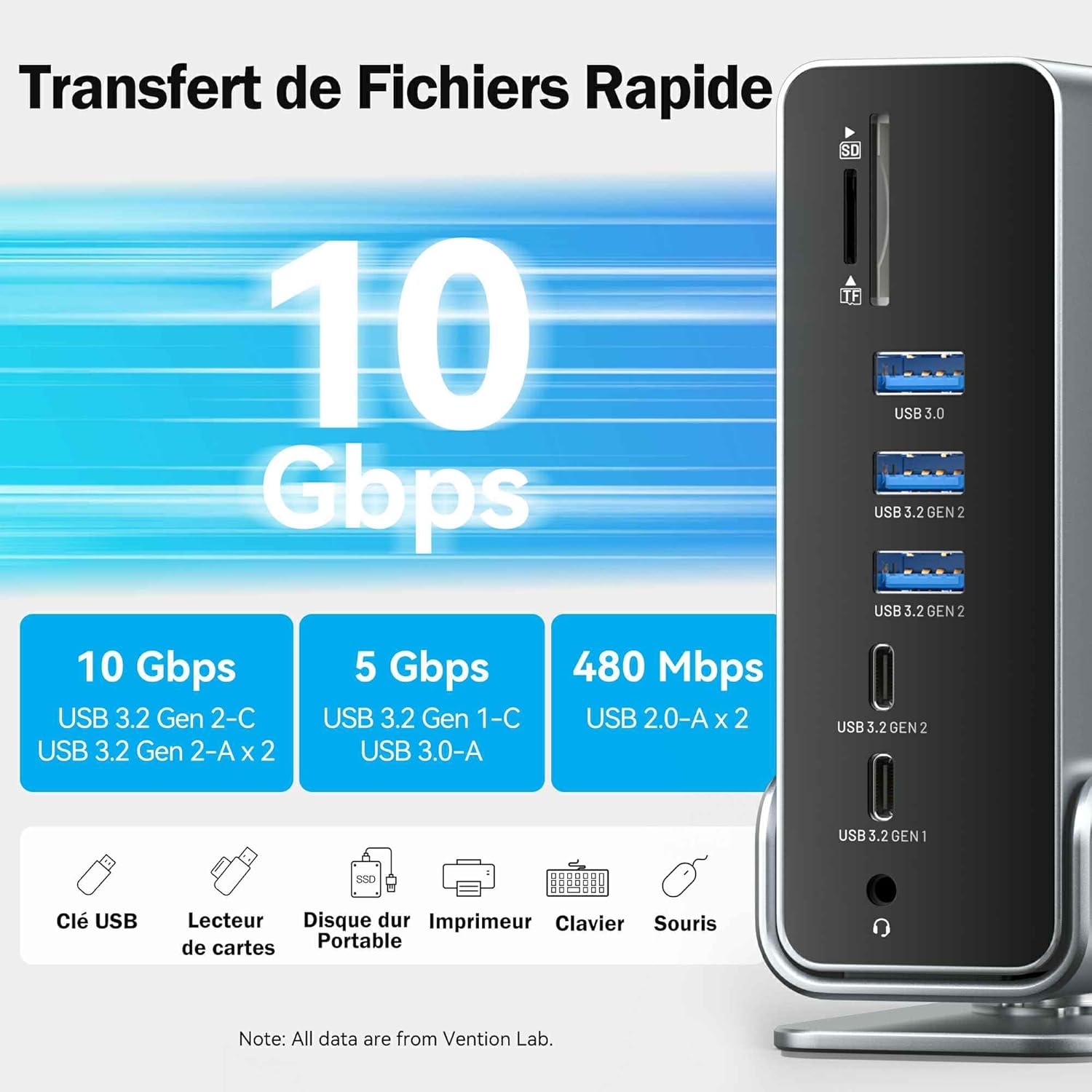
Image: Visual representation of different USB port speeds (10Gbps, 5Gbps, 480Mbps) and examples of devices that can be connected, such as USB drives, card readers, and printers.

Image: A laptop connected to the docking station, demonstrating high-speed data transfer with external devices like an SSD, showing files transferring in seconds.
6.2 Strømforsyning (PD)
The PD port supports up to 100W power input, allowing the docking station to charge your laptop with up to 85W output. This eliminates the need for a separate laptop charger, simplifying your workspace.

Image: The VENTION docking station connected to a laptop and a power adapter, illustrating its 100W fast charging capability.
6.3 Gigabit Ethernet -forbindelse
The integrated RJ45 Gigabit Ethernet port provides a stable and fast wired network connection, supporting speeds of 10/100/1000Mbps. This is ideal for online gaming, streaming, and large file downloads where Wi-Fi might be unstable.

Image: A laptop connected to the docking station, which is then connected to an Ethernet cable, demonstrating a fast and stable 1Gbps network connection.
7. Vedligeholdelse
- Clean the docking station with a soft, dry cloth. Do not use liquid cleaners or aerosols.
- Keep the ports free of dust and debris. Use compressed air if necessary.
- Opbevar enheden på et køligt, tørt sted, når det ikke er i brug.
- The aluminum alloy shell and cutting-edge chip design ensure optimal heat dissipation, preventing overheating during prolonged use.

Image: Features of the docking station including optimal heat dissipation through its aluminum shell, anti-slip pads for stability, and a detachable/rotatable U-shaped stand for vertical or horizontal placement.
8. Fejlfinding
| Problem | Mulig årsag | Løsning |
|---|---|---|
| Ingen visning på ekstern(e) skærm(e). | Laptop USB-C port does not support DisplayPort Alternate Mode; incorrect cable connection; monitor input not selected. | Ensure your laptop's USB-C port is full-featured (supports video output). Check all cable connections. Select the correct input source on your monitor. Restart your laptop. |
| External monitors are mirroring on macOS. | This is expected behavior for macOS. | macOS only supports SST (Single Stream Transport) for extended displays via this docking station. All external monitors will show the same content. |
| USB-enheder genkendes ikke. | Loose connection; insufficient power; driver issue. | Reconnect the USB device. Ensure the docking station is powered (if using PD). Try a different USB port. Update USB drivers on your laptop. |
| Langsomme dataoverførselshastigheder. | Device connected to a lower speed port; cable quality. | Ensure high-speed devices are connected to 10Gbps or 5Gbps ports. Use high-quality USB cables. |
| Network connection unstable or not working. | Loose Ethernet cable; network driver issue; router problem. | Check Ethernet cable connection. Restart your router/modem. Update network drivers on your laptop. |
9. Specifikationer
- Model: TPUH0
- Porte: 2x HDMI 2.0, 1x DisplayPort 1.4, 1x USB-C 10Gbps, 2x USB-A 10Gbps, 1x USB-C 5Gbps, 1x USB-A 5Gbps, 2x USB-A 480Mbps, 1x RJ45 Gigabit Ethernet, 1x 3.5mm Audio, 1x SD Card, 1x TF Card, 1x PD 100W Input, 1x PC Host Output
- Video output:
- Single Display: Up to 4K@60Hz (HDMI/DP)
- Dual Display (Windows): Up to 4K@30Hz
- Triple Display (Windows): Up to 1080P@60Hz
- Dual/Triple Display (macOS): Up to 4K@60Hz (Mirrored)
- Dataoverførselshastighed: Up to 10Gbps (USB 3.2 Gen 2), 5Gbps (USB 3.0/3.2 Gen 1), 480Mbps (USB 2.0)
- Strømforsyning: 100W Max Input (85W Max Output to Laptop)
- Ethernet: 10/100/1000 Mbps Gigabit Ethernet
- Kortlæser: SD/TF (90MB/s)
- Materiale: Aluminiumslegering
- Kompatibilitet: Laptops with full-featured USB-C or Thunderbolt 3/4 ports (Windows, macOS, Linux, Android, iPadOS)
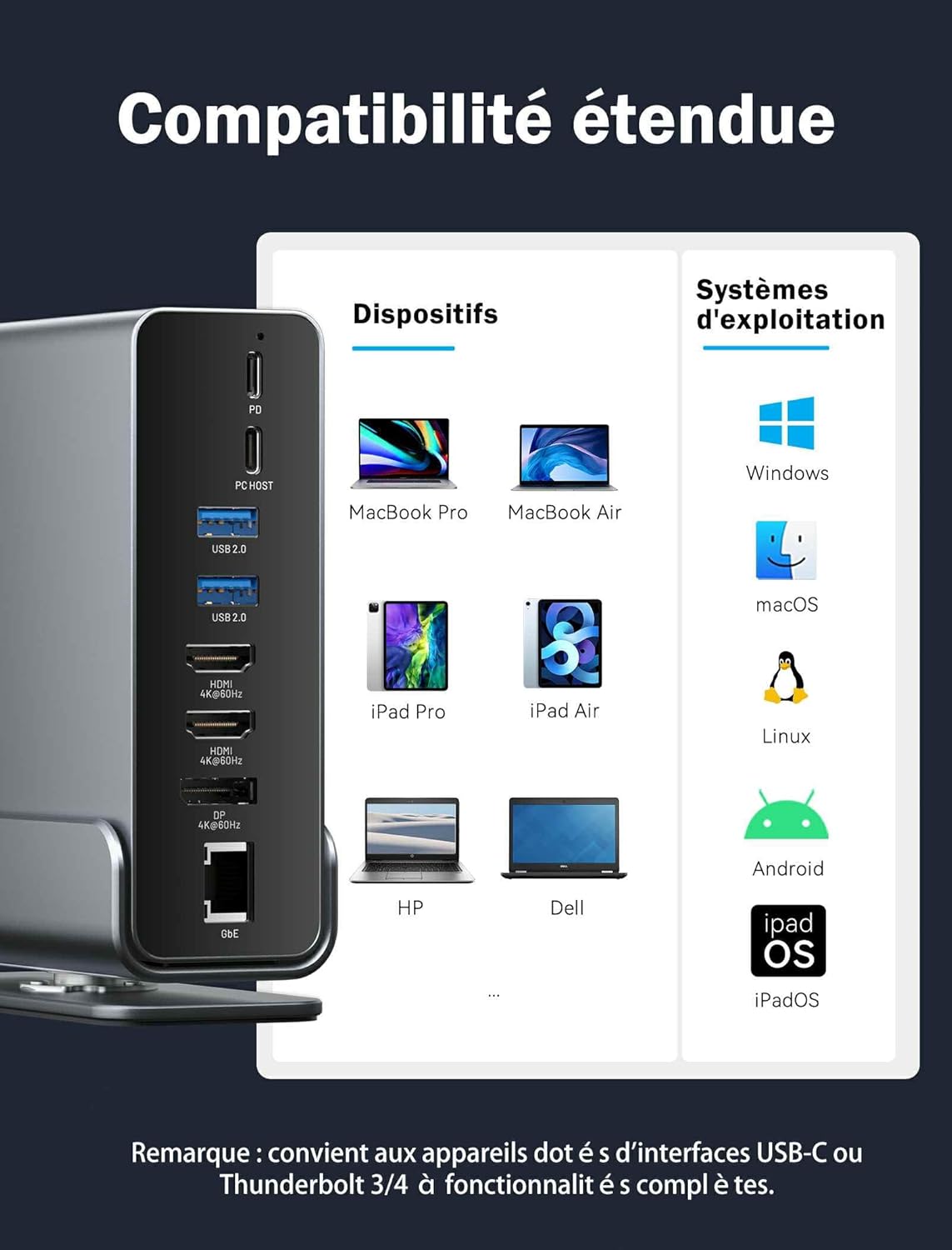
Image: A comprehensive compatibility chart showing various compatible devices (MacBook Pro/Air, iPad Pro/Air, HP, Dell) and operating systems (Windows, macOS, Linux, Android, iPadOS).
10. Garanti og support
VENTION provides a 12-month warranty for this product. If you encounter any issues or have questions, please contact VENTION customer support through the retailer where you purchased the product or visit the official VENTION webwebsted for hjælp.
Kundeservice email: [Refer to retailer or official VENTION webwebsted]
Webwebsted: www.vention.cn
Note: Please retain your purchase receipt for warranty claims.


