1. Introduktion
This manual provides detailed instructions for the setup, operation, and maintenance of your FIFINE Gaming Audio Mixer with XLR Cable Bundle (SC3+L9). This device is designed to enhance your audio experience for gaming, streaming, podcasting, and vocal recording by providing individual channel control, XLR microphone input, and various audio effects.
2. Hvad er der i æsken
Kontroller venligst, at alle nedenstående varer er inkluderet i din pakke:
- FIFINE Gaming Audio Mixer (SC3)
- USB-C to USB-A/C Cable (for connecting to computer via USB Port)
- 3.5mm to 3.5mm Audio Cable (for connecting audio devices via LINE IN)
- XLR Microphone Cable (L9)
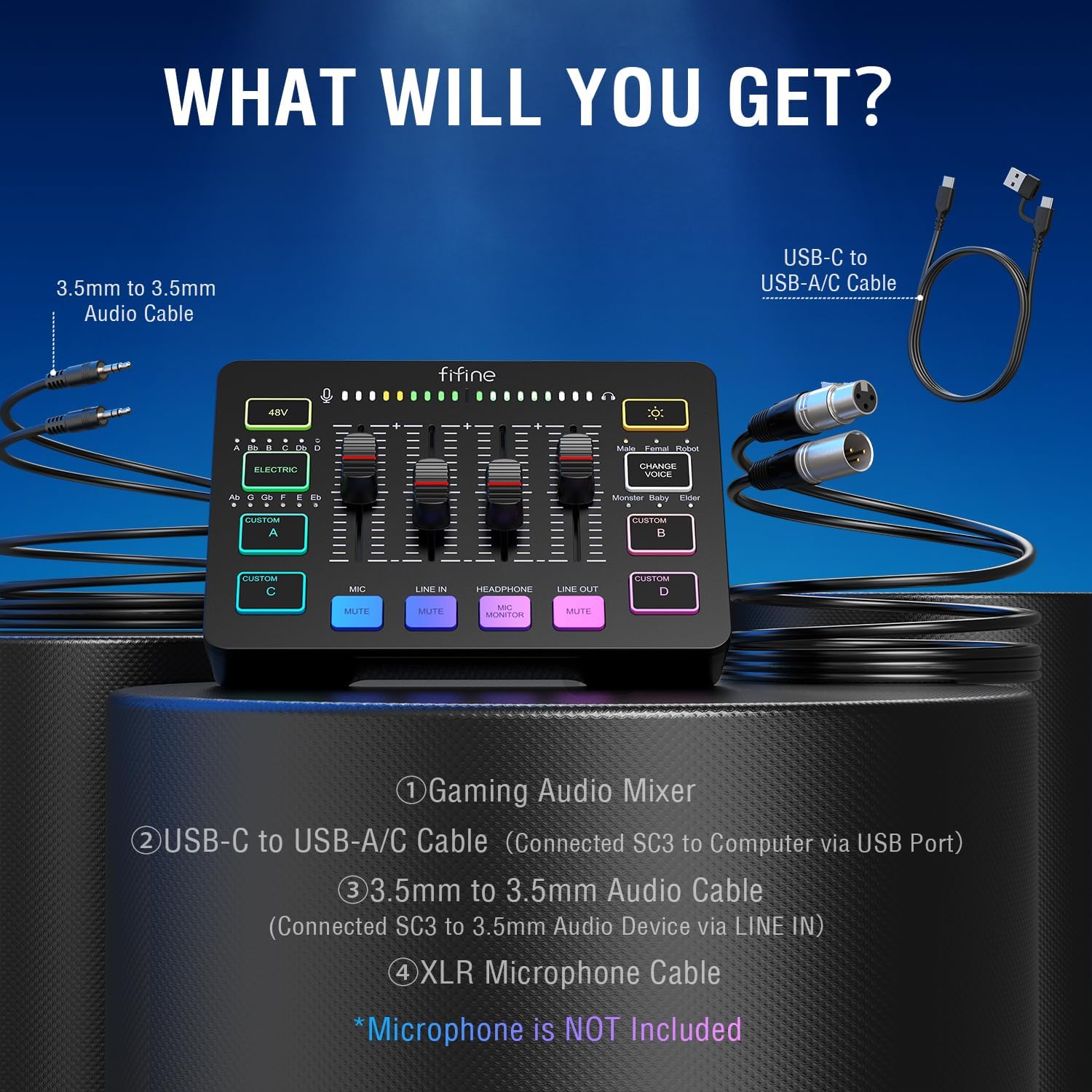
Image: Components included in the FIFINE Gaming Audio Mixer package. Note: Microphone is not included.
3. Produktet er slutview
3.1 Nøglefunktioner
- XLR mikrofonindgang: Supports XLR microphones and includes built-in 48V phantom power for condenser microphones.
- Individuel kanalkontrol: Four independent volume faders for Microphone, Line In, Headphone, and Line Out channels.
- Controllable Vibrant RGB: Customizable RGB lighting with various modes to match your setup.
- Stemmeeffekter: Built-in voice changer and auto-tune functions.
- Brugerdefinerede lydeffekter: Four customizable buttons for recording and playing short audio clips.
- Overvågning i realtid: Headphone output for direct audio monitoring with zero delay.
- Slå lyd fra-knapper: Dedicated mute buttons for Microphone, Line In, and Line Out channels.
3.2 Kontroller og indikatorer

Image: Front panel layout of the FIFINE Gaming Audio Mixer.
- 48V knap: Activates/deactivates 48V phantom power for condenser microphones.
- ELECTRIC Button: Toggles auto-tune effect.
- CUSTOM A/B/C/D Buttons: Customizable sound effect buttons.
- MIC Fader: Justerer mikrofonens inputlydstyrke.
- LINE IN Fader: Adjusts line-in audio volume.
- HEADPHONE Fader: Justerer lydstyrken på hovedtelefonerne.
- LINE OUT Fader: Adjusts line-out audio volume.
- MUTE Buttons (MIC, LINE IN, LINE OUT): Mutes respective audio channels.
- MIC MONITOR Button: Toggles microphone monitoring through headphones.
- RGB knap: Cycles through RGB lighting modes and colors.
- CHANGE VOICE Button: Cycles through voice changer effects (Male, Female, Robot, Monster, Baby, Elder).
- Lydniveauindikatorer: LED lights indicating input/output audio levels.

Image: Detail of volume faders and effect buttons.
3.3 Forbindelsesporte
Image: Rear panel connectivity ports.
- OTG/PC Port (USB-C): Connects the mixer to a computer or mobile device for power and data transfer.
- LINE OUT Port (3.5mm): Audio output to speakers, headphones, or other recording devices.
- HEADPHONE Port (3.5mm): Connects headphones for monitoring.
- LINE IN Port (3.5mm): Audio input from external devices like phones or media players.
- HEADSET Port (3.5mm): Connects a gaming headset (TRRS).
- Mikrofonindgang (XLR): Connects an XLR microphone.
- Dynamic/Condenser Switch: Selects microphone type for optimal performance.
4. Opsætningsvejledning
Follow these steps to set up your FIFINE Gaming Audio Mixer:
- Connect to Power/Computer: Use the provided USB-C to USB-A/C cable to connect the mixer's OTG/PC port to your computer's USB port. The mixer will power on automatically.
- Tilslut mikrofon:
- For XLR microphones, connect your microphone to the XLR MIC Input port using the provided XLR cable.
- If using a condenser microphone, ensure the 48V button on the mixer is activated (illuminated). For dynamic microphones, ensure 48V is off.
- Set the Dynamic/Condenser switch on the rear panel according to your microphone type.

Image: Connecting an XLR microphone to the mixer.
- Connect Headphones/Speakers: Connect your headphones to the HEADPHONE port for real-time audio monitoring. Alternatively, connect speakers to the LINE OUT port.
- Connect External Audio Devices (Optional): If you wish to input audio from a phone or other device, connect it to the LINE IN port using the 3.5mm audio cable.
- Systemgenkendelse: Your computer should automatically recognize the FIFINE Gaming Audio Mixer as an audio input/output device. Select it as your default audio device in your operating system's sound settings and your streaming/recording software.

Image: Simplified connection diagram for the mixer.
5. Betjeningsvejledning
5.1 Justering af lydstyrkeniveauer
Use the individual faders to control the volume of each channel:
- MIC Fader: Slide up to increase microphone volume, down to decrease.
- LINE IN Fader: Slide up to increase volume from external devices, down to decrease.
- HEADPHONE Fader: Slide up to increase headphone monitoring volume, down to decrease.
- LINE OUT Fader: Slide up to increase main output volume, down to decrease.

Image: Adjusting volume faders.
5.2 Mute Functions
Press the dedicated MUTE buttons below each fader to instantly mute or unmute the corresponding channel. The button will illuminate when muted.

Image: Mute buttons for Microphone, Line In, and Line Out.
5.3 Voice Effects and Auto-Tune
- CHANGE VOICE Button: Press this button to cycle through different voice effects: Male, Female, Robot, Monster, Baby, Elder.
- ELECTRIC Button: Press this button to activate or deactivate the auto-tune effect.

Image: Voice change and auto-tune controls.
5.4 Custom Sound Effects
The CUSTOM A, B, C, and D buttons allow you to record and play short sound effects:
- At optage: Press and hold one of the CUSTOM buttons (A, B, C, or D) until it illuminates white. Begin speaking into your microphone or playing audio through the LINE IN. Release the button when finished recording. The button will return to its normal color sequence.
- At spille: Briefly press the CUSTOM button to play the recorded sound effect. Press again to stop playback.
5.5 RGB-lysstyring
Press the RGB button to cycle through various lighting modes and static colors. This allows you to customize the aesthetic of your mixer.

Image: RGB lighting control button.
6. Vedligeholdelse
To ensure the longevity and optimal performance of your FIFINE Gaming Audio Mixer, follow these maintenance guidelines:
- Rensning: Use a soft, dry cloth to wipe down the mixer's surface. For stubborn dirt, slightly dampRengør kluden med vand. Undgå at bruge skrappe kemikalier, opløsningsmidler eller slibende rengøringsmidler.
- Opbevaring: Når mixeren ikke er i brug i længere perioder, skal den opbevares køligt og tørt, væk fra direkte sollys og ekstreme temperaturer.
- Håndtering: Avoid dropping the mixer or subjecting it to strong impacts. Do not pull on cables excessively when disconnecting.
- Ventilation: Ensure the mixer is placed in an area with adequate airflow to prevent overheating.
7. Fejlfinding
If you encounter issues with your FIFINE Gaming Audio Mixer, refer to the following common problems and solutions:
| Problem | Mulig årsag | Løsning |
|---|---|---|
| Ingen lyd fra hovedtelefoner/højttalere. | Volume faders are too low; incorrect output selected on computer; cables loose. | Increase HEADPHONE/LINE OUT fader. Check computer's sound settings to ensure mixer is selected as output. Reconnect audio cables securely. |
| Mikrofonen opfanger ikke lyd. | MIC fader too low; microphone muted; 48V phantom power incorrect; incorrect mic type selected. | Increase MIC fader. Ensure MIC MUTE button is off. Activate 48V for condenser mics, deactivate for dynamic mics. Check Dynamic/Condenser switch. |
| Voice effects or auto-tune not working. | Feature not activated; microphone input too low. | Press the CHANGE VOICE or ELECTRIC button to activate. Ensure microphone input is at an audible level. |
| Custom sound effects not recording/playing. | Button not held long enough for recording; no audio input during recording. | Hold the CUSTOM button until it illuminates white for recording. Ensure microphone or LINE IN audio is present during recording. Briefly press to play. |
| Mixer not recognized by computer. | USB cable issue; driver conflict. | Try a different USB port or cable. Restart your computer. Check device manager for driver issues. |
If the problem persists after trying these solutions, please contact FIFINE customer support for further assistance.
8. Specifikationer
| Feature | Detalje |
|---|---|
| Model | SC3+L9 |
| Mærke | FIFIN |
| Antal kanaler | 4 (Microphone, Line In, Headphone, Line Out) |
| Forbindelsesteknologi | XLR, USB-C, 3.5mm |
| Udgangsstiktype | XLR, 3.5 mm |
| Strømkilde | Elektrisk ledning (USB-drevet) |
| Fantomkraft | 48V (selectable) |
9. Garanti og support
FIFINE products are designed for reliability and performance. For information regarding warranty coverage, technical support, or service inquiries, please refer to the official FIFINE webwebstedet eller kontakt deres kundeservice direkte. Gem din købskvittering som købsbevis i tilfælde af garantikrav.
For the latest support resources, FAQs, and contact information, visit the official FIFINE store on Amazon: FIFINE Store


