1. Introduktion
The PTZOptics Move SE PT12X-SE-GY-G3 is a high-resolution PTZ camera designed for professional video applications such as remote meetings, presentations, classrooms, houses of worship, and conference rooms. It offers advanced features including auto-tracking and versatile output options to integrate seamlessly into various production environments.
This manual provides detailed instructions for setting up, operating, and maintaining your PTZOptics Move SE camera to ensure optimal performance and longevity.
2. Pakkens indhold
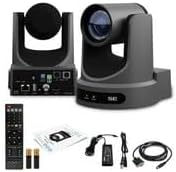
Upon unboxing your PTZOptics Move SE camera, verify that all the following items are included:
- 1 x PTZOptics Move SE SDI/HDMI/USB/IP PTZ Camera with 12x Optical Zoom (Gray)
- 1 x strømforsyning (12V DC)
- 1 x USB-A til USB-A-kabel
- 1 x RS-232 kabel
- 1 x IR fjernbetjening
- 2 x AA Batteries (for IR Remote)
- 1 x Quick Start Guide


3. Opsætning
3.1. Indledende inspektion
Before proceeding with installation, carefully inspect the camera and all accessories for any signs of damage. Report any issues to your vendor immediately.
3.2. Tænd for kameraet
The Move SE camera can be powered via the included 12V DC power supply or Power over Ethernet (PoE) through the LAN port. Choose the method that best suits your installation requirements.
- Connect the 12V DC power adapter to the DC 12V port on the rear of the camera.
- Alternatively, connect an Ethernet cable from a PoE-enabled network switch to the LAN port on the camera.


3.3. Video Output Configuration
The camera supports multiple video output options. Select the appropriate output based on your setup:
- HDMI: Connect an HDMI cable to the HDMI port for direct video output to a display or capture device.
- 3G-SDI: Use a 3G-SDI cable for professional video workflows, supporting long cable runs without signal degradation.
- USB-C: Connect a USB-C cable to a computer for use as a webcam or for USB video capture.
- IP (Ethernet): Connect an Ethernet cable to the LAN port for IP streaming and control. This also supports PoE.
Refer to the Quick Start Guide for detailed instructions on setting video resolution and frame rates using the system select dial on the camera's rear panel.

4. Betjeningsvejledning
4.1. Fjernbetjeningsfunktioner
The included IR remote control allows for easy manipulation of the camera's pan, tilt, zoom, and focus functions. It also supports up to 255 presets for quick scene changes.
- Panorering/vip: Use the directional arrows to adjust the camera's horizontal and vertical orientation.
- Zoom: Use the zoom buttons to zoom in or out, utilizing the 12x optical zoom lens.
- Fokus: Adjust the focus manually or use auto-focus settings.
- Presets: Store and recall specific camera positions and zoom levels using the preset buttons.
The camera features a built-in tally light above the lens to indicate when the camera is live, helping talent stay in sync with the production.
4.2. Automatisk sporing
The Move SE camera features impressive auto-tracking capabilities, ideal for dynamic presentations where the subject moves around the room. This feature eliminates the need for a dedicated camera operator, ensuring the subject remains in frame and in focus.
- Activate auto-tracking via the camera's web interface eller kompatibel kontrolsoftware.
- The camera will automatically pan, tilt, and zoom to follow the designated subject.

4.3. IP Control and Streaming
The camera can be controlled and streamed over an IP network. This allows for remote operation and integration with various streaming platforms and video production software.
- Få adgang til kameraets web grænseflade ved at indtaste dens IP-adresse i en web browser.
- Configure streaming settings, including resolution, frame rate, and compression (H.265/H.264/MJPEG).
- Stream directly to platforms like YouTube, Facebook Live, or any RTMP(S) service.
- Optional NDI|HX upgrade is available for real-time collaboration and low-latency video transmission over IP.

Video 4.1: An unboxing video for the PTZOptics Move 4K camera, demonstrating the contents of the package and initial setup steps. This video highlights the camera's features and connectivity options.
5. Vedligeholdelse
5.1. Rensning
- Brug en blød, tør klud til at rengøre kamerahuset.
- For the lens, use a lens cleaning cloth and specialized lens cleaning solution. Avoid abrasive materials that could scratch the lens.
- Sørg for, at kameraet er slukket, inden rengøring.
5.2. Firmwareopdateringer
Periodically check the PTZOptics website for firmware updates. Firmware updates can improve performance, add new features, and resolve potential issues. Follow the instructions provided with the firmware update package carefully.
5.3. Opbevaring
When not in use, store the camera in a cool, dry place away from direct sunlight and extreme temperatures. Use the lens cap to protect the lens from dust and scratches.
6. Fejlfinding
| Problem | Mulig årsag | Løsning |
|---|---|---|
| Ingen videoudgang | Incorrect cable connection, wrong input selected on display, camera not powered on. | Verify all cables are securely connected. Ensure the display/switcher input matches the camera output. Check power indicator lights. |
| Camera not responding to remote control | Low/dead batteries, IR sensor blocked, incorrect camera ID selected. | Replace batteries. Ensure no obstructions between remote and camera IR sensor. Check camera ID setting on remote. |
| Auto-tracking not working | Feature not enabled, subject too far/close, poor lighting conditions. | Enable auto-tracking in settings. Ensure subject is within optimal range and lighting is adequate. |
| Dårlig billedkvalitet | Dirty lens, incorrect resolution/frame rate, poor lighting. | Clean the lens. Adjust resolution/frame rate settings. Improve lighting in the environment. |
If issues persist after attempting these solutions, please contact PTZOptics technical support.
7. Specifikationer
- Model: PT12X-SE-GY-G3
- Optisk zoom: 12x
- Videooptagelsesopløsning: Op til 1080p60
- Output muligheder: IP, HDMI, USB-C, 3G-SDI
- Forbindelse teknologi: HDMI, Ethernet, USB
- Lyd: 3.5mm Line In/Out
- Kontrollere: RS-232, RS-485, IP Control, IR Remote
- Kompression: H.265 / H.264 / MJPEG
- Magt: DC 12V, Power over Ethernet (PoE)
- Særlige funktioner: Auto-Tracking, Low Light Performance, 255 Presets, Tally Light
- Dimensioner: 5.6 x 6.5 x 6.7 tommer
- Varens vægt: 6.19 pund
- Farve: Grå
8. Support og garanti
8.1. Teknisk support
For technical assistance, product inquiries, or troubleshooting beyond this manual, please visit the official PTZOptics support website or contact their customer service team. Contact information can typically be found on the PTZOptics webwebstedet eller i hurtigstartguiden.
8.2. Garantioplysninger
Warranty details for the PTZOptics Move SE camera are provided with your purchase documentation. Please refer to the warranty card or the official PTZOptics website for comprehensive information regarding warranty coverage, terms, and conditions.
Optional protection plans may be available for extended coverage. For example, a 3-Year Protection Plan is offered for $119.99, and a Complete Protect plan is available for $16.99/month, covering eligible past and future purchases.


