1. Introduktion
Thank you for choosing the NOVOO 11-in-1 USB-C Docking Station. This device is designed to expand the connectivity of your USB-C enabled laptop, providing multiple ports for display, data transfer, networking, and power delivery. Please read this manual carefully to ensure proper setup and operation.

Image 1.1: The NOVOO 11-in-1 USB-C Docking Station with connected peripherals.
2. Produktet er slutview
The NOVOO 11-in-1 USB-C Docking Station provides a comprehensive solution for expanding your laptop's connectivity. It features the following ports:
- 2 x HDMI-porte: For connecting external displays (HDMI 1: up to 4K@30Hz, HDMI 2: up to 4K@60Hz).
- 1 x VGA-port: For connecting external displays (up to 1080P@60Hz).
- 1 x Gigabit Ethernet Port (RJ45): For stable wired network connection (up to 1Gbps).
- 2 x USB-A 3.0-porte: For high-speed data transfer (up to 5Gbps).
- 2 x USB-A 2.0-porte: For connecting peripherals like keyboards and mice (up to 480Mbps).
- 1 x USB-C PD Port: For power delivery to your laptop (up to 100W).
- 1 x SD-kortlæser: For accessing SD memory cards.
- 1 x TF (Micro SD) Card Reader: For accessing Micro SD memory cards.

Image 2.1: Labeled diagram of the 11-in-1 docking station ports.
3. Opsætningsvejledning
Follow these steps to set up your NOVOO 11-in-1 USB-C Docking Station:
- Bekræft kompatibilitet med bærbare computere: Ensure your laptop's USB-C port supports video output (DisplayPort Alternate Mode) and power delivery. Refer to your laptop's manual or the port symbols shown below. Ports that only support charging or data transfer will not enable full docking station functionality.
- Tilslut til bærbar computer: Sæt det integrerede USB-C-kabel fra dockingstationen i en kompatibel USB-C-port på din bærbare computer.
- Tilslut strømadapter (valgfrit, men anbefalet): For optimal performance, especially when using multiple peripherals or monitors, connect a 100W or higher-rated USB-C power adapter (not included) to the docking station's USB-C PD port. This ensures stable power delivery to your laptop and connected devices.
- Tilslut eksterne skærme: Tilslut dine skærme til HDMI- og/eller VGA-portene på dockingstationen med de relevante kabler.
- Tilslut ydre enheder: Plug in your USB devices (keyboard, mouse, external drives, etc.) into the USB-A 3.0 and USB-A 2.0 ports. Insert SD or TF cards into their respective slots if needed.
- Tilslut Ethernet-kabel: For a wired network connection, plug an Ethernet cable into the RJ45 port on the docking station.

Image 3.1: USB-C port symbol guide for compatibility check.

Billede 3.2: Eks.ample setup of the docking station with a laptop and multiple displays.
4. Betjeningsvejledning
4.1 Skærmtilstande
Dockingstationen understøtter forskellige skærmkonfigurationer afhængigt af dit operativsystem.
Windows OS:
- MirrorMode: Displays the same content on all connected screens (laptop and external monitors).
- Udvid tilstand: Udvider dit skrivebord på tværs af flere skærme, hvilket giver mere arbejdsplads.
- MST (Multi-Stream Transport) Mode: Allows for independent display output to multiple external monitors. This mode supports extending to up to 3 displays simultaneously, provided your laptop's USB-C port supports DP1.4 or Thunderbolt 3/4.
Resolution Support for Windows:
- Single Display: HDMI 1 (4K@30Hz), HDMI 2 (4K@60Hz), VGA (1920x1080@60Hz).
- Dual Display: Up to 4K@30Hz (HDMI 1) + 1080P@60Hz (HDMI 2 or VGA). May vary to dual 1080P@60Hz depending on monitor capabilities.
- Triple Display: Up to 1920x1080@60Hz on all three external displays (HDMI 1, HDMI 2, VGA). Requires DP1.4 or Thunderbolt 3/4.

Image 4.1: Single Display Configurations (Windows/Mac OS).

Image 4.2: Windows Dual Display Configurations.

Image 4.3: Windows Triple Display Configurations.
MacOS:
Due to macOS system limitations, only screen mirroring is supported for multiple external displays. MST (Multi-Stream Transport) is not supported by macOS, resulting in identical images displayed on external monitors.
Resolution Support for macOS:
- Mirror & Extend Mode: Supports 4K@30Hz.
- Dual Display: Up to 4K@30Hz (HDMI 1) + 4K@30Hz (HDMI 2) or 1920x1080@60Hz (HDMI 1/2) + 1920x1080@60Hz (VGA).
- Triple Display: Up to 1920x1080@60Hz on all three external displays (HDMI 1, HDMI 2, VGA) in mirror or extend mode (extended desktop on all external monitors will show the same content).

Image 4.4: Mac OS Dual Display Configurations.

Image 4.5: Mac OS Triple Display Configurations.
4.2 Dataoverførsel
Utilize the USB-A ports and card readers for efficient data management:
- USB-A 3.0: Connect external hard drives, USB flash drives, or other high-speed devices for data transfer up to 5Gbps.
- USB-A 2.0: Ideal for connecting standard peripherals like keyboards, mice, and printers.
- SD/TF-kortlæsere: Insert your memory cards to quickly access photos and files.
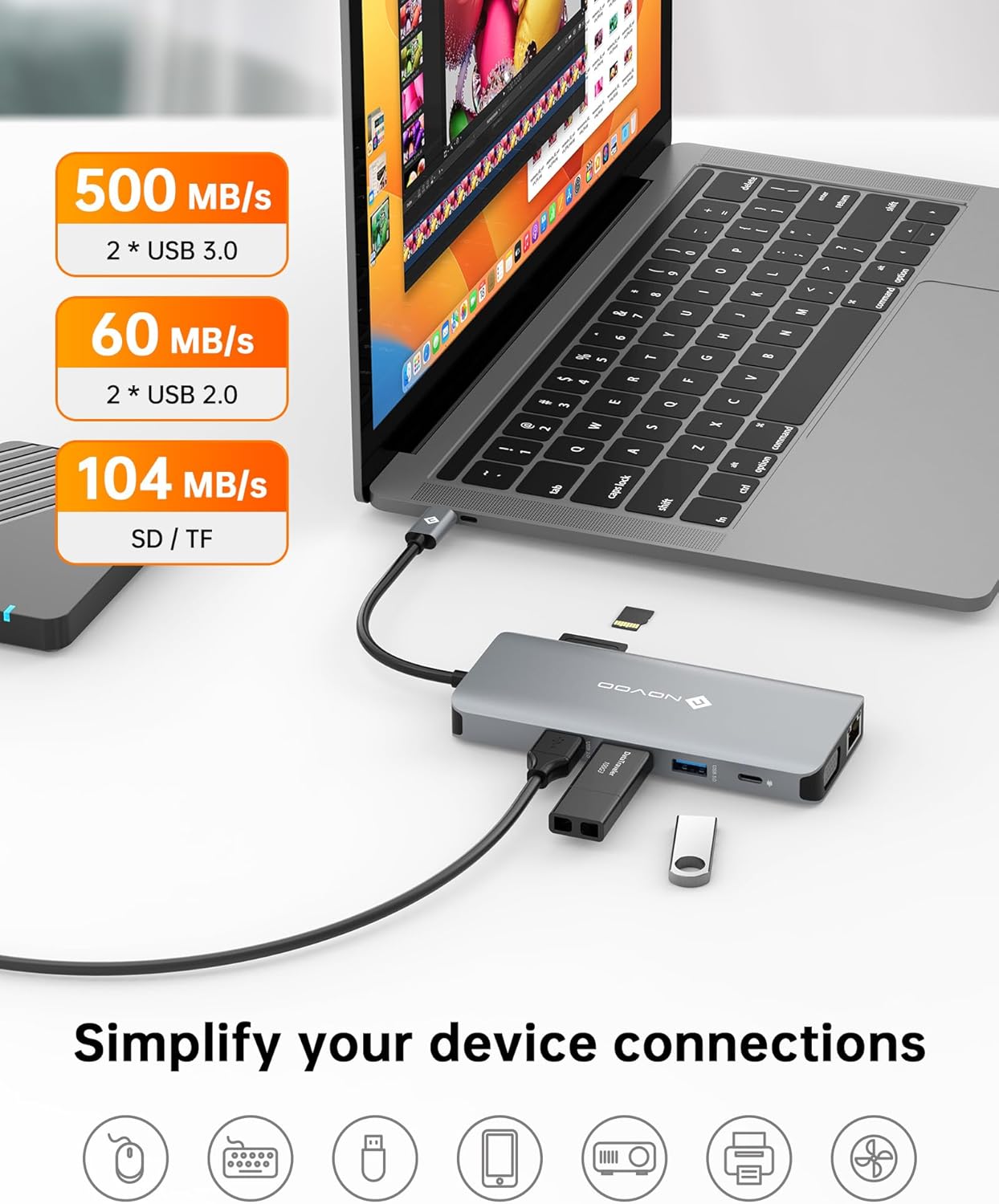
Image 4.6: Data transfer capabilities with USB 3.0, USB 2.0, and SD/TF card slots.
4.3 Netværksforbindelse
The Gigabit Ethernet port provides a reliable and fast internet connection:
- Connect an Ethernet cable to the RJ45 port for speeds up to 1Gbps, offering a more stable connection than Wi-Fi.

Image 4.7: Gigabit Ethernet port for stable internet connection.
4.4 Strømforsyning
The USB-C PD port allows you to charge your laptop while using the docking station:
- Connect your laptop's original USB-C power adapter (or a compatible 100W+ USB-C PD charger) to the docking station's PD port. This will pass power through to your laptop, ensuring it remains charged during use.

Image 4.8: 100W Power Delivery feature.
5. Vedligeholdelse
For at sikre din dockingstations levetid og optimale ydeevne skal du følge disse vedligeholdelsesretningslinjer:
- Rensning: Brug en blød, tør klud til at rengøre dockingstationens yderside. Undgå flydende rengøringsmidler eller slibende materialer.
- Opbevaring: Opbevar dockingstationen et køligt, tørt sted væk fra direkte sollys og ekstreme temperaturer.
- Håndtering: Undgå at tabe enheden eller udsætte den for kraftige stød. Forsøg ikke at skille enheden ad.
- Kabelstyring: Sørg for, at kablerne ikke er for bøjede eller forstrakte, da dette kan føre til skader over tid.
6. Fejlfinding
Hvis du støder på problemer med din dockingstation, kan du se følgende almindelige problemer og løsninger:
| Problem | Mulig årsag | Løsning |
|---|---|---|
| No display output on external monitor(s). |
|
|
| External monitors are mirroring instead of extending (macOS). | macOS limitation. | This is expected behavior for macOS when connecting multiple external displays via a single MST-enabled hub. macOS does not support MST for extended displays. |
| Langsomme dataoverførselshastigheder. | Enhed tilsluttet USB 2.0-port i stedet for USB 3.0. | Ensure high-speed devices are connected to the blue USB-A 3.0 ports. |
| Bærbar computer oplader ikke eller oplader langsomt. |
|
|
| Problemer med Ethernet-forbindelse. |
|
|
7. Specifikationer
| Feature | Detalje |
|---|---|
| Modelnummer | NHM11D-111S2 |
| Produktdimensioner | 2.2 x 0.6 x 5.1 tommer |
| Varens vægt | 3.84 ounce |
| Farve | Sølvgrå |
| Hardware-interface | USB Type C |
| HDMI 1 udgang | Op til 4K@30Hz |
| HDMI 2 udgang | Op til 4K@60Hz |
| VGA-output | Op til 1080P@60Hz |
| USB-A 3.0 Data Transfer | Op til 5 Gbps |
| USB-A 2.0 Data Transfer | Op til 480 Mbps |
| Ethernet hastighed | 10/100/1000 Mbps (Gigabit) |
| USB-C PD-indgang | Op til 100W |
| Kortlæser | SD/TF (Micro SD) |
| Kompatible enheder | Laptops with full-function USB-C ports (DisplayPort Alt Mode, Power Delivery) |
| Fabrikant | NOVOO |
8. Garanti og support
NOVOO provides a 2 års eftersalgsservice for this product. If you encounter any issues or require assistance, please contact NOVOO customer support. We are committed to ensuring customer satisfaction.
For support, please refer to the contact information provided with your product packaging or visit the official NOVOO webwebsted.


