Indledning
This manual provides comprehensive instructions for the installation, operation, and maintenance of your Cuifati B75 S Mining Mainboard. This ATX DDR3 LGA1155 Desktop Motherboard is designed to support various Intel Core processors and offers robust performance for desktop computing and mining applications. It features dual-channel DDR3 memory slots, multiple output interfaces including VGA, DVI, and HD Multimedia Interface, and Gigabit Ethernet support.

Figur 1: Overview of the Cuifati B75 S Mining Mainboard.
Opsætning og installation
Follow these steps to properly install your B75 S Mining Mainboard into your computer system.
1. Klargøring af bundkortet
Ensure you are working in a static-free environment. Place the motherboard on an anti-static mat or in its original anti-static bag before installation.
2. Installation af CPU'en
- Find LGA1155 CPU-sokkelen på bundkortet.
- Løft forsigtigt belastningshåndtaget, og åbn CPU-sokkeldækslet.
- Align the CPU with the socket, ensuring the golden triangle on the CPU matches the triangle on the socket. Do not force the CPU into place.
- Lower the CPU into the socket, close the cover, and secure it with the load lever.

Figure 2: Diagram illustrating the various components and interfaces on the B75 S Mainboard, including the LGA1155 CPU socket.
3. Installing RAM (DDR3 Memory)
The motherboard features dual-channel DDR3 memory slots for enhanced performance.
- Åbn klipsene i begge ender af DDR3-hukommelsespladserne.
- Juster hakket på DDR3-hukommelsesmodulet med nøglen i hukommelsesporten.
- Tryk godt ned i begge ender af hukommelsesmodulet, indtil klipsene klikker på plads.

Figure 3: The DDR3 dual channel memory slots, designed to significantly improve motherboard performance.
4. Tilslutning af strømforsyning
- Connect the 24-pin ATX power connector from your power supply unit (PSU) to the corresponding port on the motherboard.
- Connect the 4-pin CPU power connector (ATX_12V) to its designated port near the CPU socket.
5. Installing Storage Devices (SATA)
Connect your SATA hard drives or SSDs to the SATA ports on the motherboard. This motherboard supports SATA 2.0 and SATA 3.0.

Figure 4: Illustrates the process of connecting a SATA cable for storage devices.
6. Tilslutning af frontpanelstik
Connect the power switch, reset switch, HDD LED, and power LED connectors from your PC case to the corresponding pins on the motherboard's front panel header. Refer to the motherboard diagram for exact pin locations.
7. Tilslutning af eksterne enheder
Connect your monitor to the appropriate video output (VGA, DVI, or HD Multimedia Interface) on the motherboard's rear I/O panel. Connect USB devices, keyboard, and mouse to the available ports.
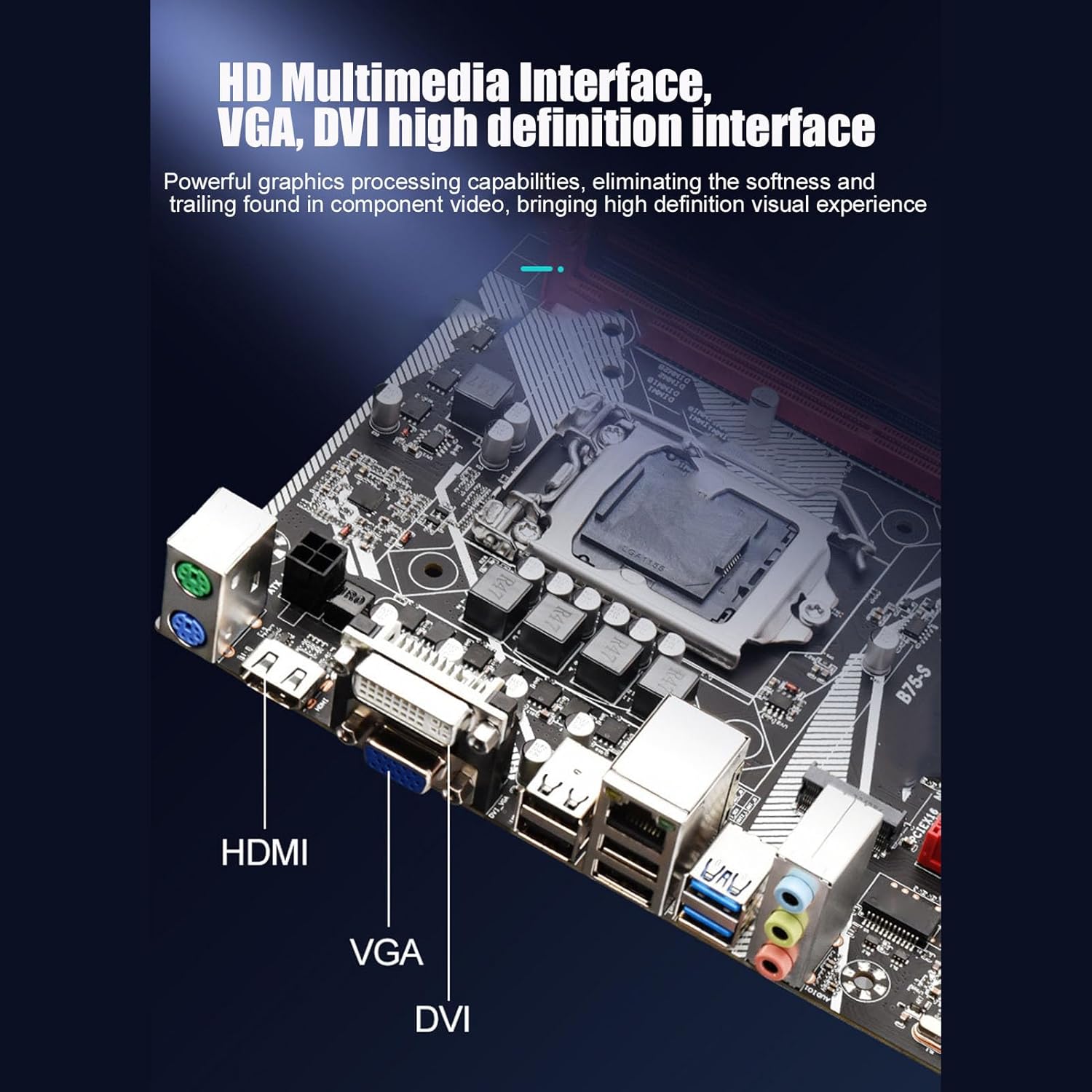
Figure 5: The rear I/O panel featuring HD Multimedia Interface, VGA, and DVI ports for high-definition visual output.

Figur 6: Detaljeret view of the rear I/O ports, including USB 2.0, USB 3.0, Gigabit Ethernet, and audio jacks.
Betjeningsvejledning
Når alle komponenter er installeret og tilsluttet, kan du tænde dit system.
1. Første opstart
- After connecting all necessary cables, turn on the power supply.
- Tryk på tænd/sluk-knappen på dit pc-kabinet.
- The system should boot up and display the BIOS/UEFI screen or begin the operating system installation process.
2. BIOS/UEFI-konfiguration
During the initial boot, press the designated key (usually DEL or F2) to enter the BIOS/UEFI setup. Here you can configure boot order, system time, and other advanced settings. Ensure your storage devices are recognized and set the correct boot priority for your operating system installation media.
3. Installation af operativsystem
Insert your Windows 10 (or other compatible OS) installation media (USB drive or DVD) and follow the on-screen prompts to install the operating system. After installation, install the necessary drivers for the motherboard components, including chipset, audio, LAN, and graphics drivers.
4. Utilizing Features
- Front USB 3.0 Interface: Connect compatible devices to the front USB 3.0 ports for faster data transfer speeds (up to 10x faster than USB 2.0).
- gigabit ethernet: For high-performance network connectivity, connect your Ethernet cable to the Gigabit LAN port. This is ideal for online gaming and high-speed data transfer.
- HD-multimediegrænseflade: Use the HD Multimedia Interface port for high-definition audio and video output to compatible displays.
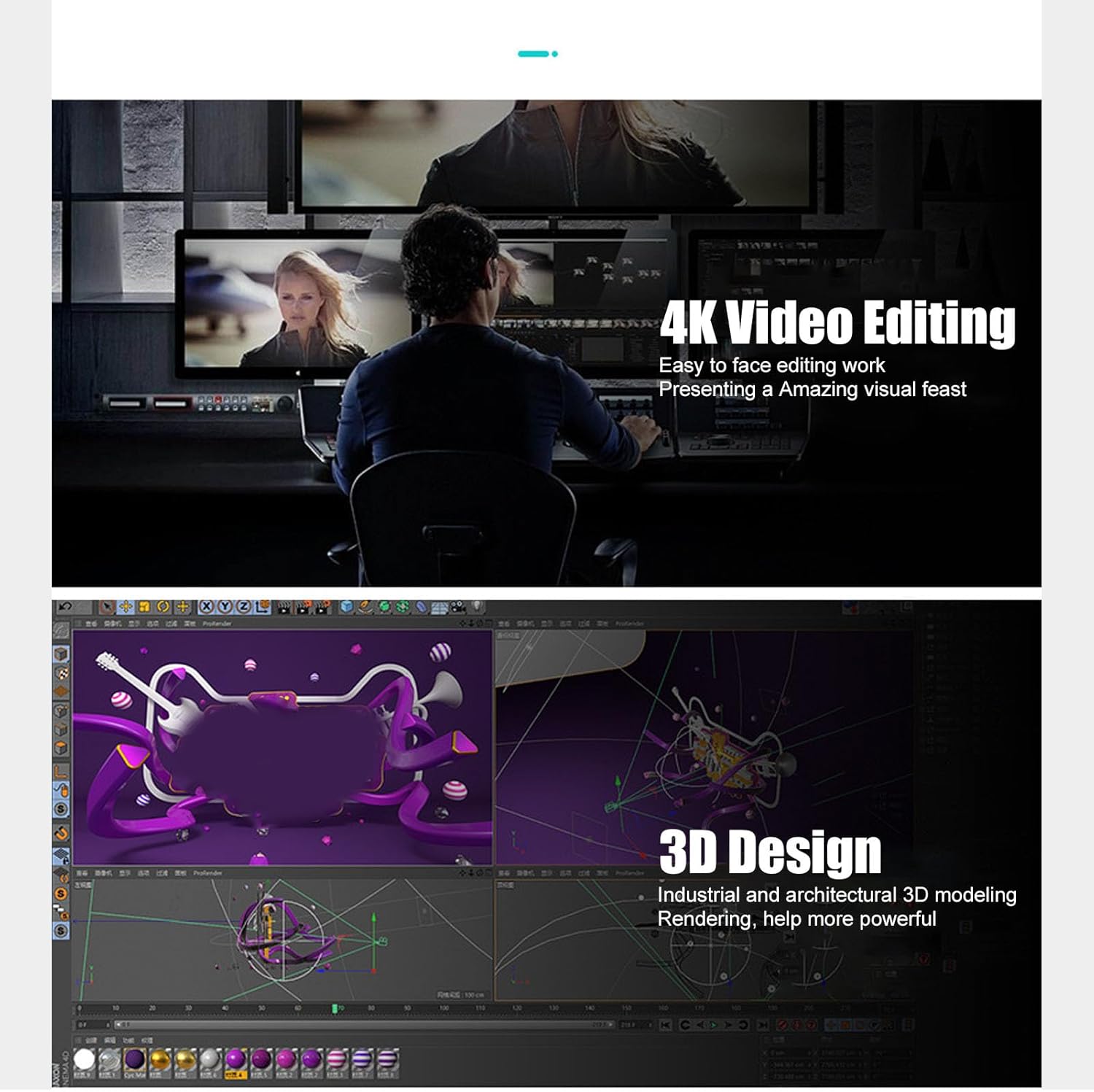
Figure 7: The motherboard's capabilities support demanding tasks such as 4K video editing and 3D design, providing a powerful visual experience.
Opretholdelse
Korrekt vedligeholdelse sikrer dit bundkorts levetid og optimale ydeevne.
- Fjernelse af støv: Regularly clean dust from inside your PC case, especially around the motherboard, CPU cooler, and fan vents. Use compressed air for best results. Ensure the system is powered off and unplugged before cleaning.
- Temperaturovervågning: Monitor CPU and chipset temperatures using system monitoring software to prevent overheating. Ensure adequate airflow within the PC case.
- Driver opdateringer: Keep your motherboard drivers (chipset, audio, LAN, etc.) updated to the latest versions from the manufacturer's website for improved stability and performance.
- Solid Capacitors: The motherboard utilizes all solid-state capacitors, which contribute to its stability and extended lifespan. While these are highly durable, proper cooling and power supply are still essential.
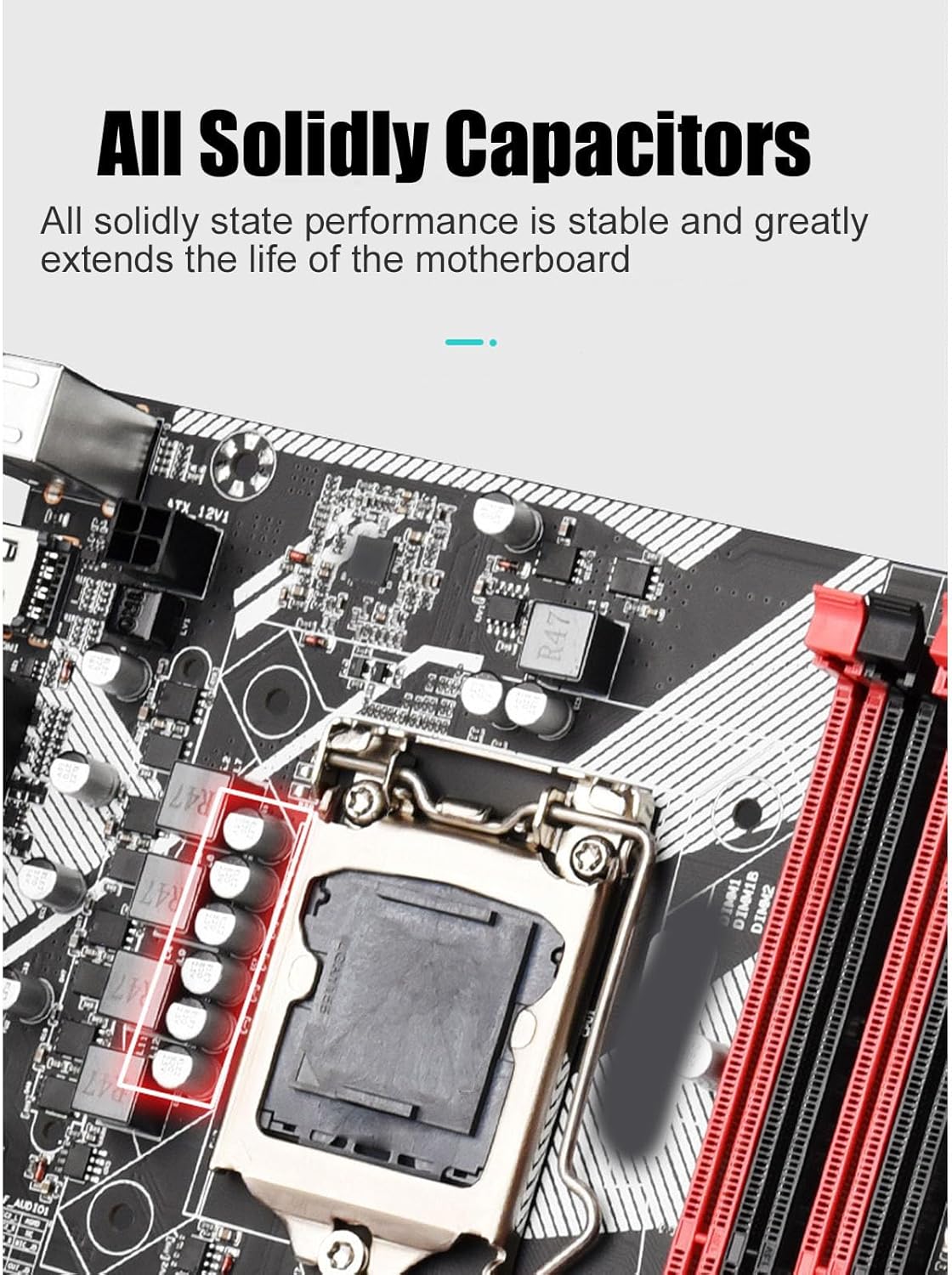
Figure 8: The all solid-state capacitors on the motherboard ensure stable performance and extended durability.
Fejlfinding
Dette afsnit omhandler almindelige problemer, du kan støde på.
- Ingen strøm/Ingen opstart:
- Check if the power supply unit (PSU) is properly connected to the motherboard (24-pin ATX and 4-pin CPU power).
- Ensure the front panel power switch connector is correctly attached to the motherboard.
- Verify the PSU is switched on and receiving power from the wall outlet.
- Ingen visning:
- Ensure the monitor is properly connected to the motherboard's video output (VGA, DVI, or HD Multimedia Interface) and is powered on.
- Genindsæt RAM-modulerne. Forkert isat RAM er en almindelig årsag til manglende visning.
- If using a dedicated graphics card, ensure it is properly seated in the PCIe slot and has adequate power.
- Systemustabilitet/nedbrud:
- Kontroller for overophedning. Sørg for, at CPU-køleren er korrekt installeret, og at blæserne fungerer.
- Kør hukommelsesdiagnosticeringsværktøjer for at kontrollere for defekt RAM.
- Update motherboard chipset drivers and BIOS/UEFI firmware.
- USB-enheder genkendes ikke:
- Sørg for, at USB-driverne er installeret.
- Prøv at tilslutte enheden til en anden USB-port.
- Check BIOS/UEFI settings to ensure USB ports are enabled.
Specifikationer
| Feature | Detalje |
|---|---|
| Mærke | Cuifati |
| Modelnavn | Cuifati9ue1rxghng |
| CPU socket | LGA 1155 |
| Kompatible processorer | Intel Core i3-3xxx, Intel Core i5-3xxx, Intel Core i7-3xxx, Intel Core i3-4xxx, Intel Core i5-4xxx, Intel Core i7-4xxx |
| RAM-hukommelsesteknologi | DDR3 |
| Hukommelses urhastighed | 2400 MHz |
| Hukommelseskapacitet (maks.) | 64 GB |
| Chipsættype | Intel B75 Express |
| Kompatible enheder | Personlig computer |
| Platform | Windows 10 |
| Udgangsgrænseflader | HD Multimedia Interface, VGA, DVI |
| Ethernet | Gigabit Ethernet |
| USB-grænseflader | Front USB 3.0, USB 2.0 |
| Kondensatorer | All Solid State Capacitors |
| Pakkedimensioner | 11.57 x 9.53 x 2.4 tommer |
| Varens vægt | 1.67 pund |
| Fabrikant | Cuifati |
| Dato først tilgængelig | 18. juli 2023 |

Figure 9: Key performance features of the Cuifati B75 S Mainboard.
Garanti og support
For warranty information and technical support, please refer to the official Cuifati webwebstedet eller kontakt din forhandler. Gem din købskvittering som købsbevis i tilfælde af garantikrav.
- Returpolitik: The product typically comes with a 30-day return/replacement policy from the date of purchase.
- Beskyttelsesplaner: Additional protection plans (e.g., 3-Year or 4-Year Protection Plans) may be available for extended coverage. Please check with your retailer for details.