Indledning
This manual provides detailed instructions for the setup, operation, maintenance, and troubleshooting of your TECPHILE B102D Bluetooth Wireless Keyboard with Multi-Touch Trackpad. Please read this manual thoroughly before using the product to ensure optimal performance and longevity.

Image: The TECPHILE B102D Bluetooth Wireless Keyboard, showcasing its compact design and backlit keys.
Pakkens indhold
Bekræft at alle varer er til stede i pakken:
- 1x TECPHILE B102D Bluetooth Wireless Keyboard
- 1x USB opladningskabel
- 1x Brugermanual (dette dokument)
Opsætning
1. Opladning af tastaturet
Before initial use, fully charge the keyboard. Connect the provided USB charging cable to the keyboard's USB-C port and the other end to a 5V 1A power adapter (not included) or a computer's USB port. The charging indicator light will illuminate during charging and turn off when fully charged.
Disclaimer: Kindly use the device with a 5V 1A power adapter only. This will improve the lifespan of your gear and its batteries.

Image: Close-up of the keyboard's USB-C charging port, indicating its location for power connection.
2. Pairing with Devices (Multi-Device Connectivity)
The TECPHILE B102D keyboard can connect to up to three devices simultaneously via Bluetooth.
- Aktiver parringstilstand: Turn on the keyboard. Press and hold the Fn key along with either Q, W, eller E for 3-5 seconds until the Bluetooth indicator light flashes. This indicates the keyboard is in pairing mode for the selected device slot.
- Aktivér Bluetooth på din enhed: Gå til Bluetooth-indstillingerne på din computer, tablet eller smartphone, og slå Bluetooth til.
- Vælg tastatur: Look for "TECPHILE B102D" or a similar name in the list of available Bluetooth devices and select it to connect.
- Bekræft forbindelse: Once connected, the Bluetooth indicator light on the keyboard will stop flashing and remain solid for a moment, then turn off.
- Repeat for Additional Devices: To pair with a second or third device, repeat steps 1-3, using a different Fn + Q/W/E combination for each new device.

Image: Visual guide demonstrating how to pair the keyboard with multiple devices using Fn+Q/W/E keys.
3. Kompatibilitet
The TECPHILE B102D keyboard is widely compatible with various operating systems and devices, including:
- Windows (2000 and later)
- macOS
- iOS (iPad, iPhone)
- iPadOS
- Android
- ChromeOS

Image: Illustration showing the keyboard's compatibility with various operating systems and device types.
Betjeningsvejledning
1. Grundlæggende maskinskrivning
Tastaturet har et standard QWERTY-layout. Skriv blot som på ethvert andet tastatur.
2. Multi-Touch Trackpad
The integrated trackpad supports various gestures for navigation and control:
- Tryk med en enkelt finger: Venstre klik.
- To-finger tryk: Højreklik.
- To-finger rulning: Rul op/ned eller venstre/højre.
- Additional gestures may be supported depending on your operating system.

Image: Diagram illustrating the left and right click functionality of the large trackpad.
3. Baggrundslysstyring
The keyboard features 7-color backlighting with adjustable brightness.
- Skift farve: Tryk på RGB key (often combined with the light bulb icon) to cycle through the 7 available colors.
- Juster lysstyrke: Use the dedicated brightness keys (often combined with the light bulb icon and up/down arrows) to increase or decrease backlight intensity.
- Tænd/sluk: Press the backlight key to toggle the backlight on or off.
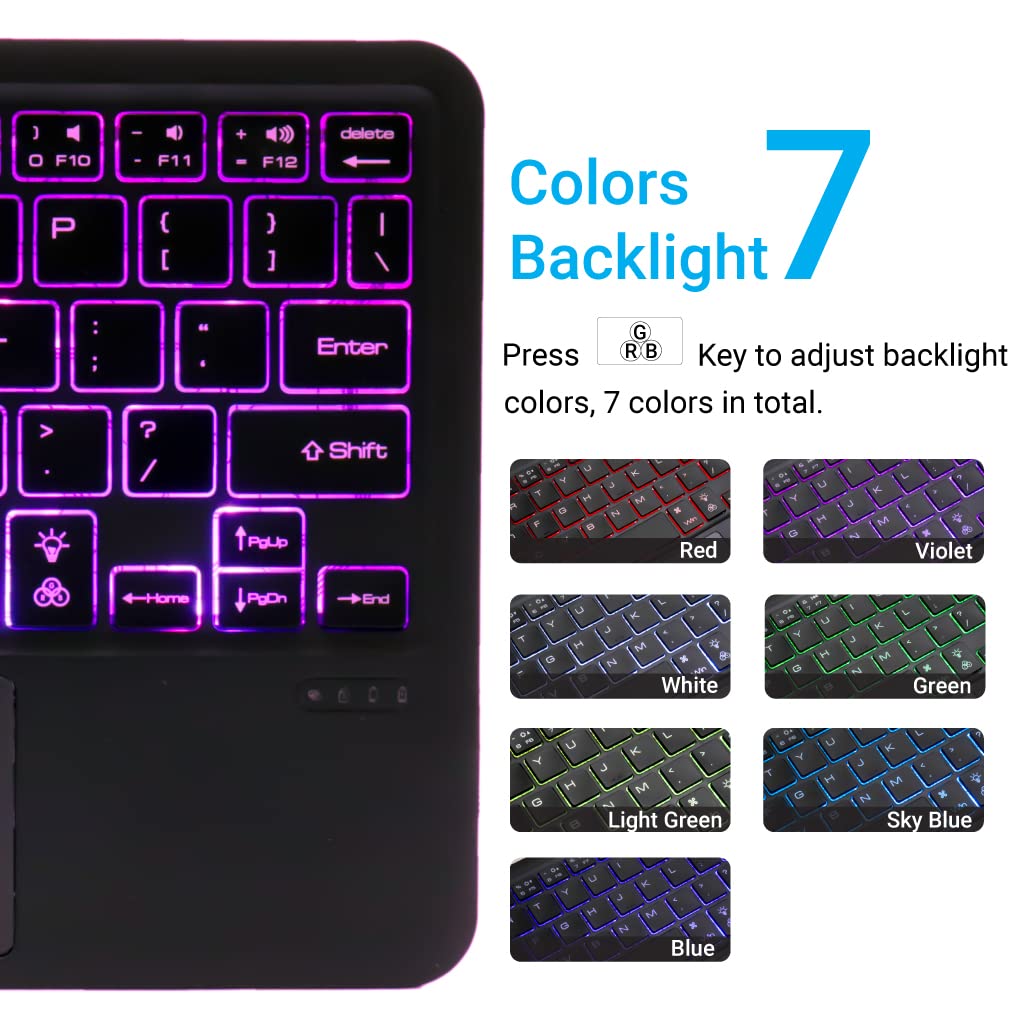
Image: Display of the 7 different backlight colors available on the keyboard.
4. Skift mellem tilsluttede enheder
To switch between the three paired devices, simply short press the Fn key along with the corresponding device key (Q, W, eller E).
- Trykke Fn + Q for at skifte til Enhed 1.
- Trykke Fn + W for at skifte til Enhed 2.
- Trykke Fn + E for at skifte til Enhed 3.

Image: Visual guide for connecting and seamlessly switching between multiple paired devices.
5. Funktionstaster
The keyboard includes a full set of function and media keys. These keys often require pressing the Fn key simultaneously with the desired function key to activate their secondary functions (e.g., volume control, media playback).
Opretholdelse
1. Rensning
For at rengøre tastaturet skal du forsigtigt tørre overfladen af med en blød kludamp, lint-free cloth. Avoid using harsh chemicals, abrasive cleaners, or excessive moisture, as these can damage the keyboard's finish or internal components.
2. Batteripleje
- Always use a 5V 1A power adapter for charging to prevent battery damage and ensure optimal lifespan.
- Undgå at aflade batteriet helt ofte.
- Hvis tastaturet opbevares i længere tid, skal det oplades til ca. 50% og opbevares et køligt og tørt sted.
3. Opbevaring
Store the keyboard in a dry environment, away from extreme temperatures, direct sunlight, and humidity. When not in use, it is recommended to turn off the keyboard to conserve battery life.
Fejlfinding
| Problem | Mulig årsag | Løsning |
|---|---|---|
| Tastaturet tænder ikke. | Lavt batteri. | Charge the keyboard using the provided USB-C cable and a 5V 1A power adapter. |
| Kan ikke oprette forbindelse via Bluetooth. | Keyboard not in pairing mode; Bluetooth off on device; device already connected to 3 keyboards. | Ensure keyboard is in pairing mode (Fn + Q/W/E for 3-5s). Check device's Bluetooth settings. Forget previous connections if necessary. |
| Trackpad not responding. | Software issue; trackpad disabled. | Restart the keyboard and the connected device. Ensure trackpad is not accidentally disabled (check function keys). |
| Baggrundsbelysningen virker ikke. | Backlight turned off; low battery. | Press the backlight key to turn it on. Charge the keyboard. |
| Keys are unresponsive or delayed. | Low battery; interference; distance from device. | Charge the keyboard. Move closer to the connected device. Reduce potential wireless interference. |
Specifikationer
- Mærke: TECPIL
- Model: B102D
- Forbindelse: Bluetooth
- Tastatur layout: QWERTY
- Særlige funktioner: Multi-Touch Trackpad, 7-Color Backlit, Multi-Device Connectivity (up to 3), USB-C Rechargeable
- Batteri: 1x Lithium Ion (included)
- Produktdimensioner: 25 x 1 x 15 cm (L x B x H)
- Varens vægt: 300 g
- Materiale: Plast
- Kompatible operativsystemer: Windows, macOS, iOS, iPadOS, Android, ChromeOS

Image: Diagram showing the ultra-slim profile and dimensions of the keyboard (24.7 cm x 15 cm x 0.5 cm).
Garanti og support
TECPHILE products are designed for reliability and performance. For warranty information, please refer to the warranty card included with your purchase or visit the official TECPHILE website. For technical support or further assistance, please contact TECPHILE customer service through the contact details provided on the product packaging or the official webwebsted.
