1. Introduktion
This manual provides detailed instructions for the setup, operation, and maintenance of your iClever BK50 Compact Bluetooth Keyboard. Please read this manual thoroughly before using the product to ensure optimal performance and longevity.
2. Hvad er der i æsken
- iClever BK50 Bluetooth-tastatur
- USB kabel
- Brugermanual
3. Produktet er slutview
Familiarize yourself with the layout and key features of your iClever BK50 keyboard.

Image: The iClever BK50 Compact Bluetooth Keyboard, showcasing dens fulde layout.
Nøglefunktioner:
- Compact 78-key Layout: Designed for portability without sacrificing essential keys.
- Saksekontaktnøgler: Provides a quiet and comfortable typing experience.
- Tilslutning til flere enheder: Connects to up to 3 Bluetooth devices simultaneously.
- Universal kompatibilitet: Supports iOS/macOS, Android, and Windows operating systems.
- USB-C genopladeligt batteri: Built-in 180 mAh battery for extended use.
4. Opsætningsvejledning
4.1 Opladning af tastaturet
Before initial use, fully charge your iClever BK50 keyboard.
- Find USB-C-opladningsporten på siden af tastaturet.
- Connect the provided USB-C cable to the keyboard and the other end to a USB power source (e.g., computer, wall adapter).
- Opladningsindikatorlampen lyser. Når den er fuldt opladet (ca. 2 timer), skifter eller slukker lampen.
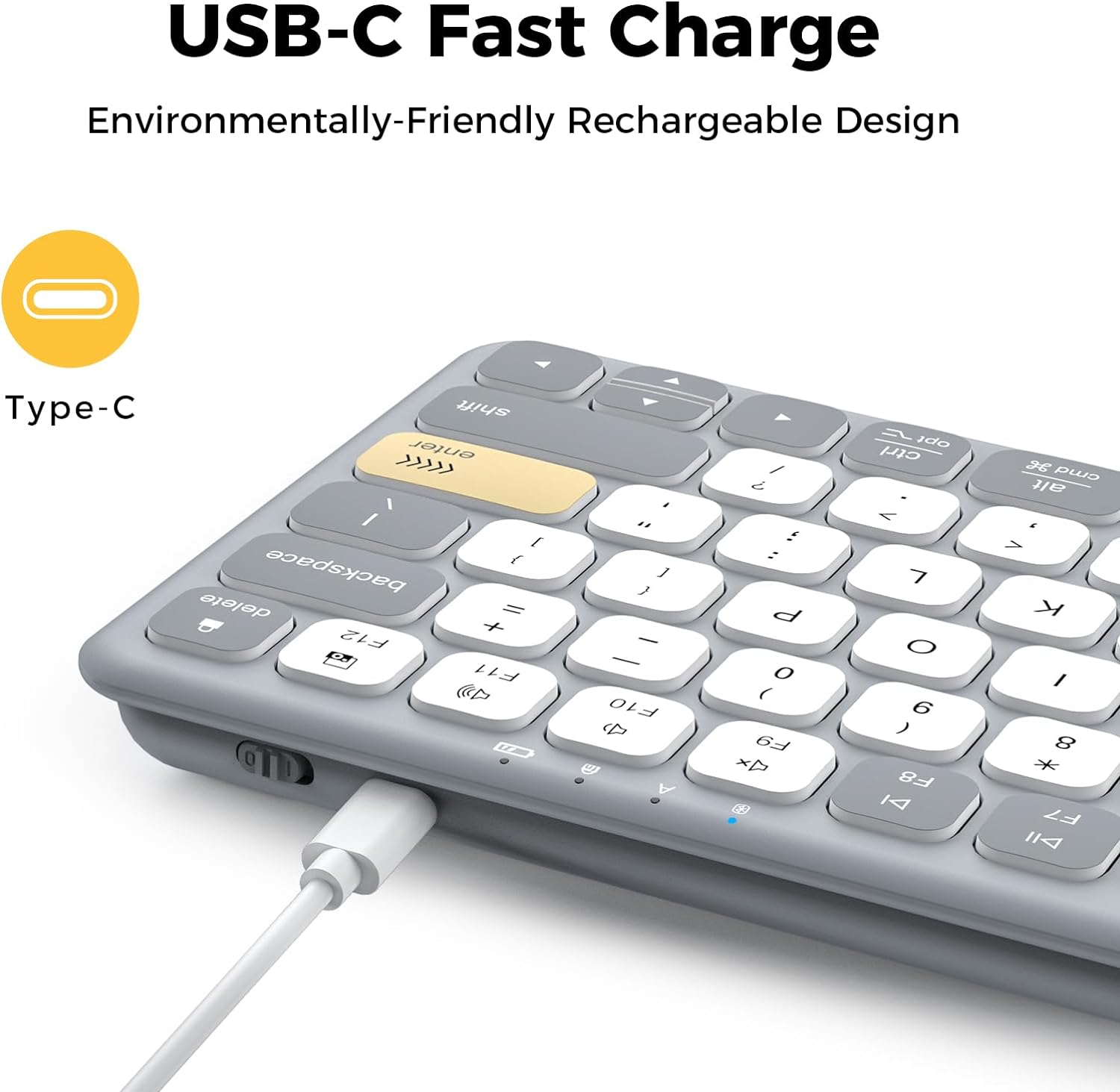
Image: Close-up of the iClever BK50 keyboard's USB-C charging port with a cable connected, illustrating the charging process.
A full charge provides up to a month of use, depending on usage patterns.
4.2 Parring med enheder
The iClever BK50 keyboard can connect to up to three Bluetooth devices simultaneously.
- Tænd for tastaturet ved hjælp af strømafbryderen på siden.
- Tryk og hold på Fn tasten, og tryk derefter på en af Bluetooth-kanaltasterne (Q, W, eller E) i 3-5 sekunder, indtil den tilsvarende indikatorlampe blinker hurtigt. Dette indikerer, at tastaturet er i parringstilstand.
- On your device (tablet, iPad, iPhone, Windows PC, Android device), navigate to its Bluetooth settings.
- Søg efter available Bluetooth devices and select "iClever BK50" from the list.
- If prompted, enter the pairing code displayed on your device using the iClever BK50 keyboard and press Indtast.
- Once connected, the indicator light for the selected channel will stop flashing and remain solid for a few seconds before turning off.

Image: The iClever BK50 keyboard shown connected to a laptop, tablet, and smartphone, demonstrating its multi-device pairing capability.

Image: The iClever BK50 keyboard displayed with icons representing iOS/macOS, Android, and Windows, indicating its broad operating system compatibility.
5. Betjeningsvejledning
5.1 Tænd/sluk
- To turn on the keyboard, slide the power switch to the 'ON' position.
- To turn off the keyboard, slide the power switch to the 'OFF' position.
5.2 Skift mellem enheder
Once paired with multiple devices, you can switch between them instantly:
- Trykke Fn + Q to switch to Device 1.
- Trykke Fn + W to switch to Device 2.
- Trykke Fn + E to switch to Device 3.
5.3 Function Keys and Media Controls
The top row of keys (F1-F12) on the iClever BK50 keyboard serves dual functions. By default, they may act as standard function keys or media control keys, depending on your operating system and settings.
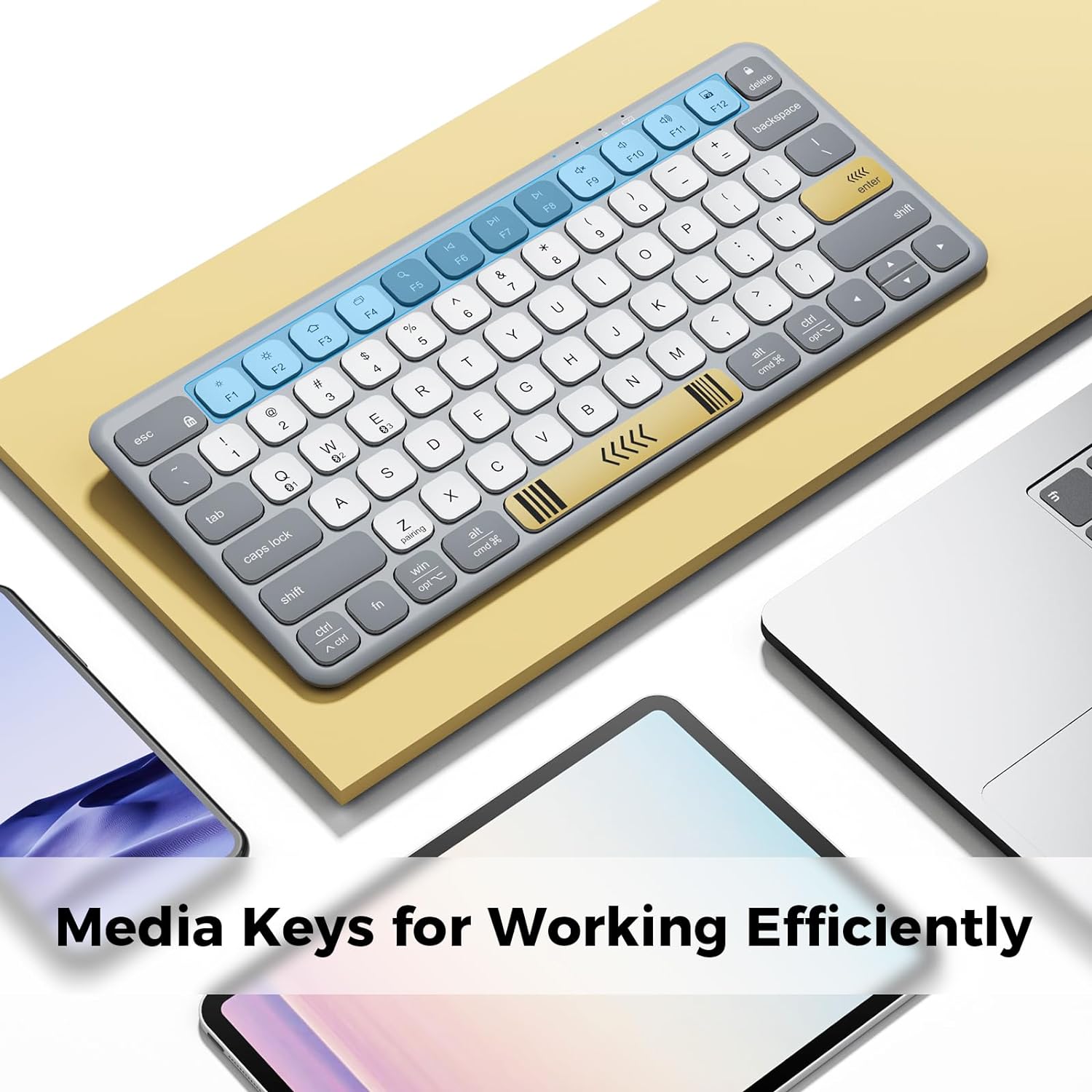
Image: The iClever BK50 keyboard with the F-keys highlighted, indicating their role as media control keys for efficient operation.
- For at få adgang til secondary function (e.g., media controls, brightness, volume), press the Fn tasten samtidigt med den ønskede F-tast.
- The keyboard automatically detects and adapts to your device's operating system, mapping keys to a familiar layout and enabling OS-specific shortcuts.
5.4 Skriveerfaring
The iClever BK50 features scissor-switch keys designed for a quiet and comfortable typing experience, similar to a laptop keyboard.

Billede: Et nærbillede view of the iClever BK50 keyboard, emphasizing its laptop-style keys and comfortable, silent typing design.

Image: A person's hands typing on the iClever BK50 keyboard, demonstrating its use in a typical work setting.
6. Vedligeholdelse
Korrekt pleje sikrer dit tastaturs levetid og ydeevne.
- Rensning: Brug en blød, fnugfri klud lidt dampened with water or a mild cleaning solution to wipe the surface of the keyboard. Avoid excessive moisture. Do not spray cleaners directly onto the keyboard.
- Fjernelse af støv: Brug trykluft til at fjerne støv og snavs mellem tasterne.
- Opbevaring: When not in use for extended periods, store the keyboard in a cool, dry place. Avoid extreme temperatures and direct sunlight.
- Batteripleje: To maintain battery health, avoid fully discharging the keyboard frequently. Recharge it when the low battery indicator appears.
7. Fejlfinding
Hvis du støder på problemer med dit iClever BK50-tastatur, kan du se følgende almindelige løsninger:
7.1 Keyboard Not Connecting/Pairing
- Ensure Keyboard is On: Kontroller, at tænd/sluk-knappen er i 'ON'-positionen.
- Tjek batteri: Ensure the keyboard has sufficient charge. Recharge if necessary.
- Genindtast parringstilstand: Tryk og hold Fn + Q/W/E for 3-5 seconds until the indicator flashes.
- Enhedens Bluetooth: Sørg for, at Bluetooth er aktiveret på din enhed, og at den kan ses.
- Glem enhed: If previously paired, try 'forgetting' or 'removing' the keyboard from your device's Bluetooth list and then re-pair.
- Genstart enheder: Restart both the keyboard and your connecting device.
7.2 Missed Keystrokes or Lag
- Afstand: Ensure the keyboard is within the effective range of your Bluetooth device (typically up to 10 meters).
- Interferens: Flyt dig væk fra andre trådløse enheder eller stærke elektromagnetiske felter, der kan forårsage interferens.
- Batteriniveau: Low battery can affect performance. Charge the keyboard.
- Reconnection Latency: After the keyboard enters auto-sleep mode (30 minutes of inactivity), there might be a slight delay when reconnecting. Ensure all keystrokes register after the connection is re-established.
7.3 Batteriet aflades hurtigt
- Anvendelse: Heavy usage, especially continuous typing, will consume battery faster.
- Opladningscyklus: Ensure the keyboard is fully charged each time.
- Auto-søvn: The keyboard has a 30-minute auto-sleep feature to conserve power. Ensure it's activating when idle.
8. Specifikationer
| Feature | Detalje |
|---|---|
| Produktdimensioner | 11.73 x 5.16 x 0.83 tommer |
| Varens vægt | 15.5 ounce |
| Forbindelsesteknologi | Bluetooth 5.1 (wireless only, no USB receiver, no wired mode) |
| Kompatible enheder | Windows PC (Win 8 +), macOS 10.15 +, iPadOS 13 +, iOS 13 +, Android 8 +, ChromeOS laptops/tablets |
| Batteri | USB-C rechargeable 180 mAh battery (approx. 2h charge) |
| Særlige funktioner | ≤ 50dB quiet keys, 30min auto-sleep, 3-device switch |
| Tastaturbeskrivelse | Compact 78-key Bluetooth Keyboard, Non-Backlit, US QWERTY |
9. Garanti og support
iClever products are designed for reliability and performance. For information regarding warranty coverage, please refer to the warranty card included with your product or visit the official iClever webwebsted.
If you require technical assistance or have questions not covered in this manual, please contact iClever customer support through their official channels. Details can typically be found on the iClever webwebstedet eller på produktemballagen.


