1. Produktet er slutview
The CUPEISI Android 15 Tablet YQ10S MAX is a versatile 10-inch device designed for both productivity and entertainment. Running on the latest Android 15.0 system with Google GMS certification, it offers a smooth and secure user experience. This 2-in-1 tablet comes equipped with a powerful quad-core processor, ample memory, and a high-definition IPS screen, making it ideal for various tasks from gaming and multimedia consumption to work and study.

Figure 1.1: CUPEISI Android 15 Tablet with included accessories.
Nøglefunktioner:
- Operativsystem: Android 15.0 with Google GMS certification for enhanced security and performance.
- Hukommelse og opbevaring: 18GB RAM (6GB + 12GB expansion) and 128GB ROM, expandable up to 2TB via microSD card (not included).
- Processor: New generation ultra-high performance and low power consumption 2.0GHz Quad-core CPU.
- Vise: 10.1-inch IPS HD screen with 1280x800 resolution, featuring a sensitive touchscreen and a comfortable "reading mode".
- Kameraer: 8MP rear camera and 2MP front camera for capturing moments and video calls.
- Forbindelse: Supports 2.4G/5G Wi-Fi 6.0 and Bluetooth 5.0 for stable and fast wireless connections.
- Batteri: 6000mAh battery providing up to 10 hours of usage on a single charge.
- 2-i-1 funktionalitet: Transforms into a laptop-style device with the included Bluetooth keyboard, wireless mouse, and stylus.
2. Hvad er der i æsken
Kontroller venligst indholdet af din pakke for at sikre, at alle varer er til stede:
- CUPEISI Android 15 Tablet (YQ10S MAX)
- Trådløst tastatur
- Bluetooth Mouse
- Foldable Protective Cover
- Stylus
- Type-C kabel

Figur 2.1: Alle komponenter inkluderet i pakken.
3. Opsætningsvejledning
3.1 Indledende opladning
- Connect the provided Type-C cable to the tablet's charging port.
- Tilslut den anden ende af kablet til en kompatibel USB-strømadapter (medfølger ikke), og sæt den i en stikkontakt.
- Lad tabletten oplades helt, før den tages i brug første gang. Batteriindikatoren på skærmen viser opladningsstatus.
3.2 Tænd/sluk
- For at tænde: Press and hold the Power button on the side of the tablet until the screen lights up.
- For at slukke: Tryk på tænd/sluk-knappen og hold den nede, indtil der vises en sluk-menu. Vælg "Sluk" for at slukke enheden.
- For at genstarte: Fra sluk-menuen skal du vælge "Genstart".
3.3 Tilslutning af tilbehør
The tablet comes with a Bluetooth keyboard, wireless mouse, and stylus for enhanced usability.

Figure 3.1: Tablet used with various accessories.
Connecting the Bluetooth Keyboard:
- Tænd tastaturet ved hjælp af dets tænd/sluk-knap.
- Press the "Connect" button on the keyboard to enter pairing mode (indicator light will blink).
- Gå til din tablet på Indstillinger > Tilsluttede enheder > Bluetooth.
- Ensure Bluetooth is enabled. The tablet will search for available devices.
- Select the keyboard from the list (e.g., "Bluetooth Keyboard") and follow any on-screen prompts to complete pairing.
Connecting the Wireless Mouse:
- Insert the necessary batteries into the wireless mouse (refer to mouse instructions for battery type and insertion).
- Locate the USB receiver for the mouse, usually found in a compartment on the mouse itself.
- Plug the USB receiver into the tablet's USB-C port using an appropriate adapter if necessary (adapter not included).
- The tablet should automatically detect and connect to the mouse.
Brug af pennen:
The stylus does not require pairing. Simply use it to navigate the touchscreen, draw, or write as you would with your finger.
4. Betjeningsvejledning
4.1 Grundlæggende navigation
- Røre: Tryk på et ikon for at åbne en app eller vælge et element.
- Stryg: Træk fingeren hen over skærmen for at rulle gennem sider eller indhold.
- Knib-for-at-zoome: Place two fingers on the screen and spread them apart to zoom in, or pinch them together to zoom out.
- Startskærm: Tryk på Hjem-knappen (normalt et cirkel- eller husikon) for at vende tilbage til hovedskærmen.
- Tilbage: Tap the Back button (usually a triangle or arrow icon) to return to the previous screen.
- Seneste apps: Tryk på knappen Seneste apps (normalt et firkantet ikon) for at view og skift mellem senest brugte programmer.
4.2 Wi-Fi-forbindelse
The tablet supports both 2.4GHz and 5GHz Wi-Fi 6 for fast and stable internet access.

Figure 4.1: Tablet showing Wi-Fi connection capabilities.
- Gå til Indstillinger > Netværk og internet > Wi-Fi.
- Toggle the Wi-Fi switch to the "On" position.
- Vælg dit ønskede Wi-Fi-netværk fra listen over tilgængelige netværk.
- Hvis du bliver bedt om det, skal du indtaste netværksadgangskoden og trykke på "Opret forbindelse".
4.3 Multimedieafspilning
Enjoy high-definition multimedia content with Widevine L1 support, ensuring a premium viewing experience for streaming services like Netflix and YouTube.
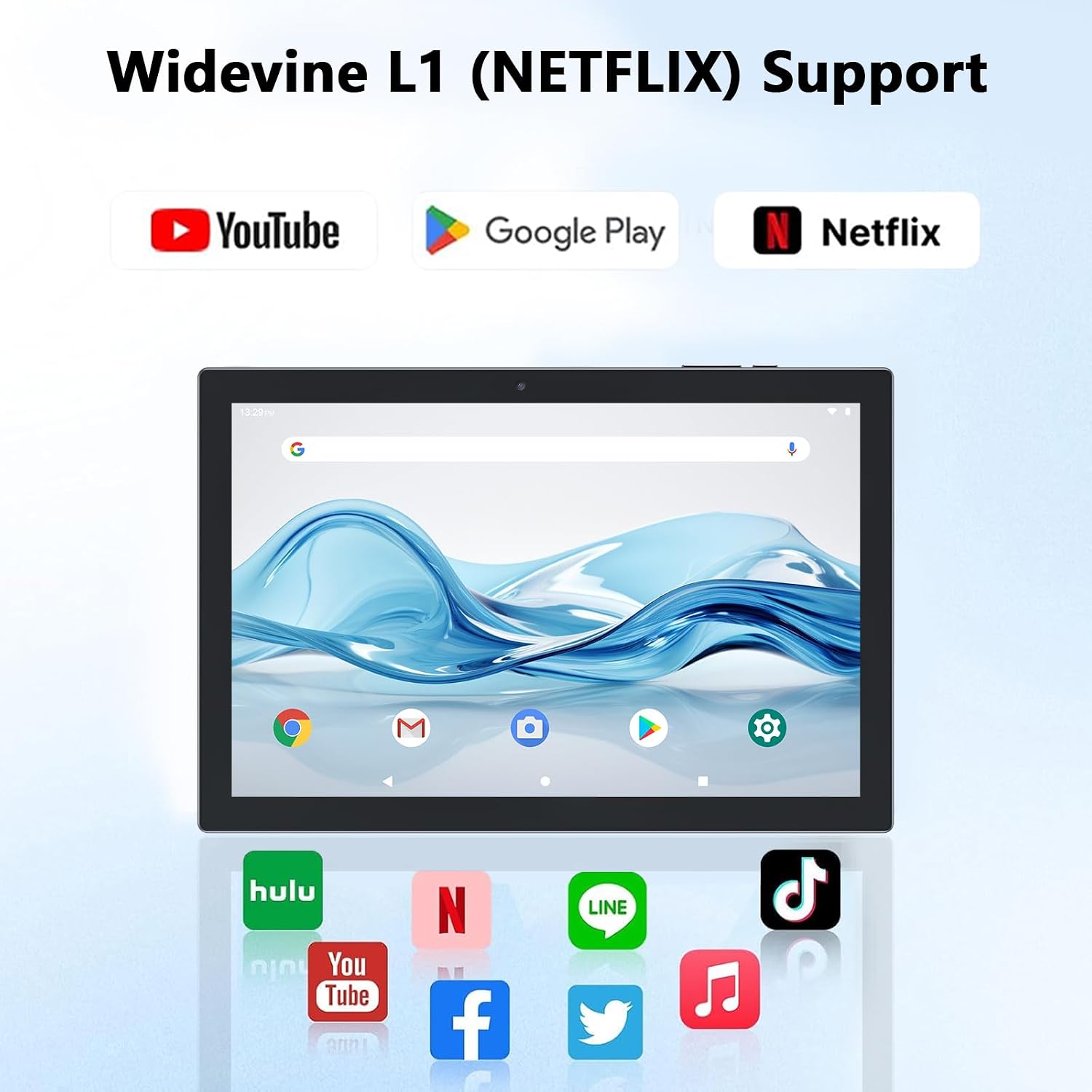
Figure 4.2: Widevine L1 support for popular streaming platforms.
The tablet's IPS HD screen provides vibrant colors and advanced visual effects. Utilize the pre-installed media players or download your preferred streaming apps from the Google Play Store.
Video 4.1: En overview of the YQ10SMAX Android 15 tablet's features and performance, demonstrating its capabilities for daily use and entertainment.
4.4 Brug af kameraer
Tabletten har et 8MP bagkamera og et 2MP frontkamera.

Figure 4.3: Dual cameras for photos and video calls.
- Open the "Camera" application from the home screen or app drawer.
- Tryk på kameraikonet for at skifte mellem forreste og bageste kamera.
- Tryk på udløserknappen for at tage et billede eller starte/stoppe videooptagelse.
4.5 Lagring og udvidelse
The tablet comes with 128GB of internal storage and supports up to 2TB expansion via a microSD card.

Figure 4.4: Mass storage and easy expansion options.
- For at indsætte et microSD-kort skal du finde kortstikket på siden af tabletten og forsigtigt skubbe kortet ind, indtil det klikker.
- For at administrere lagerplads, gå til Indstillinger > Opbevaring.
5. Vedligeholdelse
5.1 Rengøring af din tablet
- Brug en blød, fnugfri klud til at rengøre skærmen og tablettens kabinet.
- Til genstridige pletter, let dampRengør kluden med vand eller en skærmsikker rengøringsopløsning.
- Undgå at bruge skrappe kemikalier, slibende materialer eller for meget fugt.
5.2 Pleje af batterier
The tablet is equipped with a 6000mAh battery for long-lasting performance.

Figure 5.1: Large-capacity battery with long-lasting battery life.
- Charge the tablet regularly, but avoid leaving it plugged in for extended periods after it's fully charged.
- Brug kun det medfølgende Type-C-kabel til opladning.
- Undgå at udsætte tabletten for ekstreme temperaturer, da dette kan påvirke batteriets levetid.
5.3 Softwareopdateringer
Tjek regelmæssigt for systemopdateringer for at sikre optimal ydeevne og sikkerhed.
- Gå til Indstillinger > System > Systemopdatering.
- Følg instruktionerne på skærmen for at downloade og installere alle tilgængelige opdateringer.
6. Fejlfinding
If you encounter any issues with your tablet, please refer to the following common problems and solutions:
| Problem | Mulig årsag | Løsning |
|---|---|---|
| Tabletten tænder ikke | Lavt batteri; Systemnedbrud | Oplad tabletten i mindst 30 minutter. Tryk på tænd/sluk-knappen og hold den nede i 10-15 sekunder for at tvinge genstart. |
| Problemer med Wi-Fi-forbindelse | Forkert adgangskode; Routerproblem; Uden for rækkevidde | Bekræft Wi-Fi-adgangskoden. Genstart din router. Flyt tættere på Wi-Fi-routeren. |
| Langsom ydeevne | For mange apps kører; Lav lagerplads; Forældet software | Close unnecessary apps. Clear cache/uninstall unused apps. Check for system updates. |
| Accessories not connecting | Bluetooth off; Incorrect pairing; Low battery in accessory | Ensure Bluetooth is on. Re-pair the accessory. Check accessory batteries. |
| Skærmen reagerer ikke | Midlertidig softwarefejl | Tving genstart af tabletten ved at holde tænd/sluk-knappen nede. |
7. Specifikationer
| Feature | Detalje |
|---|---|
| Mærke | CUPEISI |
| Modelnavn | YQ10S MAX |
| Operativsystem | Android 15 |
| Skærmstørrelse | 10.1 tommer |
| Skærmopløsning | 1280 x 800 pixels (IPS HD) |
| Processor | 2.0 GHz firekernet |
| VÆDDER | 18GB (6GB + 12GB expansion) |
| Intern opbevaring | 128 GB |
| Udvidelig opbevaring | Up to 2TB (microSD card not included) |
| Bagkamera | 8 MP |
| Forreste kamera | 2 MP |
| Trådløs type | 802.11ax (Wi-Fi 6), 2.4G/5G Dual-band |
| Bluetooth | Bluetooth 5.0 |
| Batterikapacitet | 6000 mAh Lithium Polymer |
| Gennemsnitlig batterilevetid | Op til 10 timer |
| Varens vægt | 2.75 pund (ca. 1.25 kg) |
| Produktdimensioner | 9.45 x 5.91 x 0.39 tommer (ca. 24 x 15 x 1 cm) |
8. Garanti og support
CUPEISI products are manufactured to the highest quality standards. This product is covered by a standard manufacturer's warranty against defects in materials and workmanship from the date of purchase. Please retain your proof of purchase for warranty claims.
For technical support, warranty inquiries, or any questions regarding your CUPEISI Android 15 Tablet, please contact our customer service team through the retailer's platform or visit the official CUPEISI webwebsted for kontaktoplysninger.
Please note that the warranty does not cover damage caused by misuse, accidents, unauthorized repairs, or normal wear and tear.


