1. Introduktion
Thank you for choosing the AKAMATE Portable 7-Inch QLED Touch Screen Car Stereo. This device is designed to enhance your driving experience by providing seamless integration with your smartphone via Wireless Apple CarPlay and Android Auto. Enjoy features such as GPS navigation, music streaming, hands-free calling, and voice commands on a vibrant QLED display. This manual provides detailed instructions for setup, operation, and maintenance to ensure optimal performance and longevity of your device.

Figure 1: AKAMATE Portable 7-Inch QLED Car Stereo. This image displays the main unit of the portable car stereo with its 7-inch QLED touchscreen, showing a typical smartphone interface with app icons for phone, music, maps, and messages. A suction cup mount is visible at the bottom, and a steering wheel control remote is shown in the bottom right corner.
2. Hvad er der i æsken
Kontroller venligst, at alle følgende komponenter er inkluderet i din pakke:
- Portable Car Screen
- Suction Cup Holder & Suction Cup Mount Base
- Cigarette Lighter Power Cable & Sunshade Cover
- AUX Cable & Backup Camera Input Cable
- Brugervejledning (dette dokument)
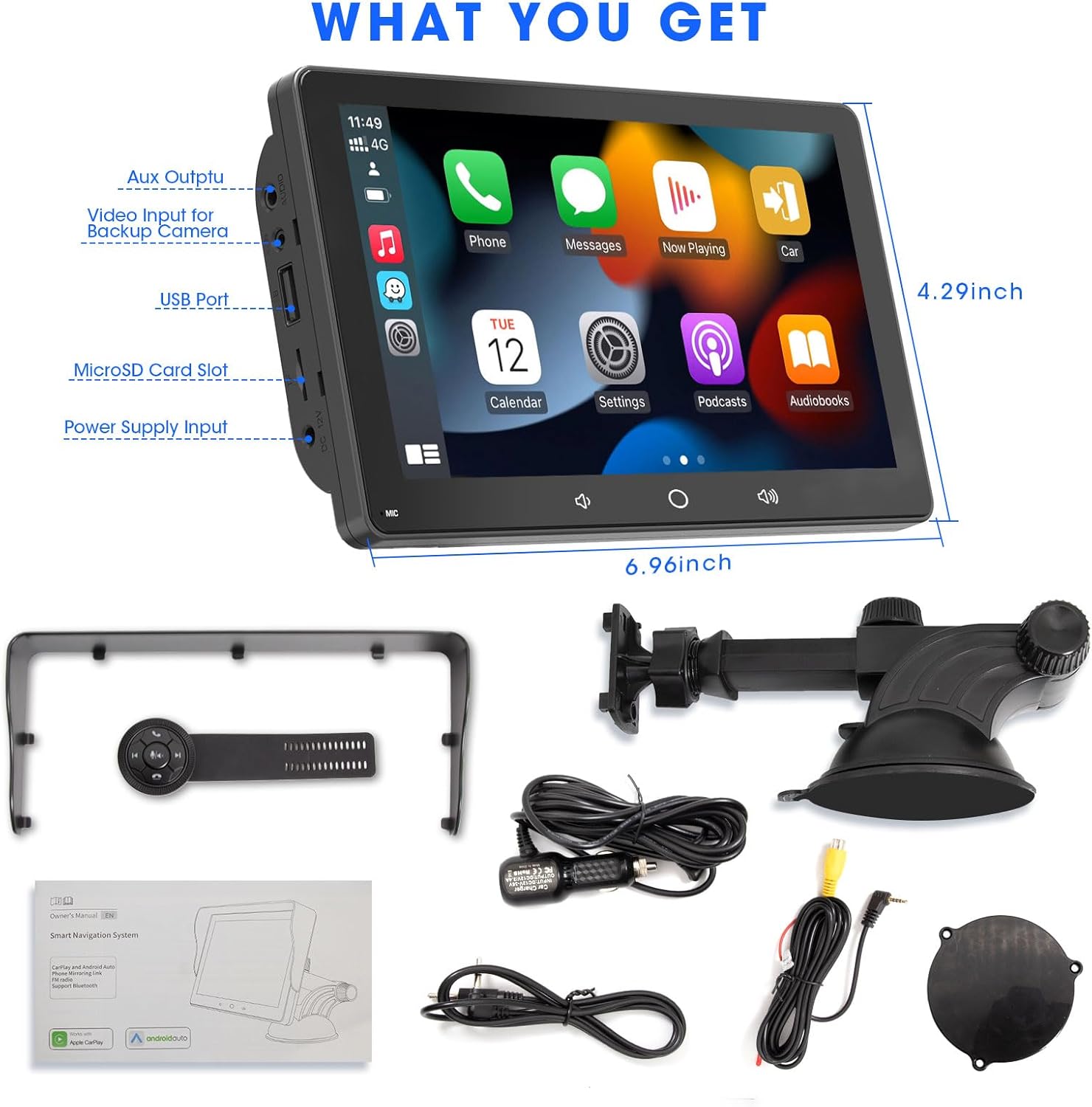
Figure 2: Package Contents. This image illustrates all the items included in the product box: the portable car screen, suction cup holder, cigarette lighter power cable, sunshade cover, AUX cable, backup camera input cable, and the user manual. Dimensions of the main unit are also indicated.
3. Opsætning og installation
The AKAMATE Portable Car Stereo is designed for easy plug-and-play installation. Follow these steps to set up your device:
- Vælg monteringssted: Decide whether to mount the unit on your dashboard or windshield. The suction cup mount allows for flexible positioning.
- Attach Mount to Unit: Align the four holes on the back of the portable car screen with the corresponding pegs on the suction cup holder. Gently push until it clicks into place.
- Sikker montering:
- For Windshield: Press the suction cup firmly against the clean windshield surface and engage the locking lever to create a strong vacuum seal.
- For Dashboard: Use the self-adhesive bracket (if included, or a separate adhesive pad) to secure the mount to a flat, clean area of your dashboard.
- Tilslut strøm: Insert the cigarette lighter power cable into your vehicle's 12V/24V cigarette lighter socket. Connect the other end to the "Power Supply Input" port on the side of the portable car screen.
- Første gang tændt: The device should power on automatically once connected to power. Follow any on-screen prompts for initial setup.

Figure 3: Mounting Options. This diagram illustrates two common mounting methods: dashboard mounted and windshield mounted, both utilizing the strong suction cup holder for secure placement.

Figure 4: Plug & Play Installation. This image provides a visual guide for the simple three-step installation process: aligning the unit with the mount, securing the mount to the dashboard or windshield, and connecting the power cable to the car's cigarette lighter.
4. Betjeningsvejledning
4.1. Trådløs CarPlay / Android Auto-forbindelse
Tilslut din smartphone trådløst for at få adgang til navigation, musik, opkald og meget mere.
- Sørg for, at din telefons Bluetooth og Wi-Fi er aktiveret.
- On the car stereo, go to the "CarPlay" or "Android Auto" icon.
- The device will search for available phones. Select your phone from the list.
- Follow the on-screen prompts on both the car stereo and your phone to complete the pairing process. This may involve confirming a code.
- Once connected, your phone's CarPlay or Android Auto interface will appear on the QLED screen.

Figure 5: Wireless Connection. This image demonstrates the wireless connectivity feature, showing a smartphone connected to the car stereo via Bluetooth and Wi-Fi for seamless Apple CarPlay and Android Auto integration, enabling access to GPS navigation, voice control, music, and messages.

Figure 6: Core Features. This image highlights the main functionalities of the device, including CarPlay, Android Auto, Mirrorlink, FM Transmission, Steering Wheel Control (SWC), and QLED Touchscreen.
4.2. Wireless Mirrorlink
The device supports wireless mirror-link for both iOS and Android phones, allowing you to display your phone's screen directly on the QLED display.
- Select the "MirrorLink" icon on the main interface.
- Follow the specific instructions displayed on the screen for iOS or Android devices to establish the connection.

Figure 7: Wireless Mirrorlink. This image demonstrates the wireless mirrorlink function, where a smartphone's screen is mirrored onto the portable car stereo, allowing users to view content like videos directly on the larger display.
4.3. Ratbetjening
The included IR remote with 5 buttons and a rotary knob can be attached to your steering wheel for convenient control of the unit.
- Lydstyrkekontrol: Use the rotary knob to adjust volume up or down.
- Sporkontrol: Use the skip forward/backward buttons to change music tracks.
- Opkaldshåndtering: Answer or hang up calls using the dedicated buttons.
- Mute/Play/Pause: Control audio playback with the central button.

Figure 8: Wireless Steering Wheel Control. This image shows the smart car steering wheel remote, designed for safe and convenient control of the screen's functions, including call management and music navigation, without taking hands off the wheel.

Figure 9: Steering Wheel Control for Calls. This image illustrates how the steering wheel remote can be used to manage phone calls and music playback, providing a safe and convenient way to interact with the car stereo.
4.4. Audio Output Options (Bluetooth 5.0, AUX, FM Transmission)
The device offers multiple ways to output audio to your car's stereo system:
- Indbygget højttaler: For basic audio output directly from the unit.
- Bluetooth 5.0: Connect to your car's Bluetooth system for high-quality audio streaming and hands-free calling.
- AUX udgang: Connect the portable dash screen to your car's head unit using the provided 3.5mm audio cable for a direct wired connection.
- FM transmission: Set the portable car screen and your car's head unit to the same FM frequency to transmit audio wirelessly. This is ideal for vehicles without AUX or Bluetooth input.

Figure 10: FM & AUX Audio Output. This image shows the various audio output methods available: FM Transmitter, AUX-output, and the built-in speaker, allowing flexibility in how audio is played through your vehicle's sound system.

Figure 11: AUX and FM Transmission. This image highlights the AUX and FM transmission capabilities, providing alternative methods for audio output to your car's stereo system.
4.5. QLED Touchscreen and Settings
The 7-inch QLED display offers a high-resolution (1024*600) and responsive touch interface. Navigate through menus and settings by tapping and swiping.
- Systemindstillinger: Adjust general device settings, including language, time, and display options.
- EQ -indstilling: Customize audio equalization with the 16-band pre-set EQ to match your preferences.
- Tapet: Change the background image of the interface.
- Lysstyrke: Adjust screen brightness for optimal visibility in various lighting conditions.

Figure 12: QLED HD Touchscreen. This image compares the QLED display quality ("Ours") against a generic display ("Others"), emphasizing its 1024*600 high resolution, 99% sRGB, HDR support, and responsive touchscreen for a superior viewoplevelse.

Figure 13: QLED Smart Display. This image highlights the QLED smart display, emphasizing its ability to deliver brighter, richer, and more lifelike colors for an enhanced viewing experience of movies, shows, and sports.
4.6. Yderligere funktioner
- USB-porte: The power plug includes 2 USB ports for multi-device fast charging.
- SD Card Slot & USB Flash Disk: Supports digital multimedia playback (up to 128GB).
- Indgang for bakkamera: The portable car stereo supports input from a backup camera (camera not included).

Figure 14: Backup Camera Input. This image shows the portable car stereo displaying a backup camera feed, indicating its compatibility with external backup cameras (camera not included).
5. Vedligeholdelse
To ensure the longevity and optimal performance of your AKAMATE Portable Car Stereo, follow these maintenance guidelines:
- Rensning: Brug en blød, tør klud til at rengøre skærmen og ydersiden. Undgå slibende rengøringsmidler eller opløsningsmidler, der kan beskadige overfladen.
- Temperatur: Do not expose the device to extreme temperatures (hot or cold) for extended periods, as this can affect internal components and battery life.
- Opbevaring: Hvis enheden skal opbevares i længere tid, skal den afbrydes fra strømmen og opbevares et køligt og tørt sted.
- Håndtering: Håndter enheden forsigtigt. Undgå at tabe den eller udsætte den for hårde stød.
- Strømtilslutning: Ensure the power cable is securely connected but do not force it. Disconnect by pulling the plug, not the cable.
6. Fejlfinding
If you encounter issues with your AKAMATE Portable Car Stereo, please refer to the following common problems and solutions:
| Problem | Mulig årsag | Løsning |
|---|---|---|
| Enheden tænder ikke. | Ingen strøm fra cigarettænderen; løs forbindelse. | Check if the cigarette lighter socket is working. Ensure the power cable is securely plugged into both the device and the car socket. |
| Touch screen malfunction. | Unit reset incorrectly. | Do not reset the unit unless instructed by support. If this occurs, contact customer support for assistance. |
| Kan ikke oprette trådløs forbindelse til CarPlay/Android Auto. | Bluetooth/Wi-Fi off; incorrect pairing; interference. | Ensure Bluetooth and Wi-Fi are active on your phone. Forget the device in your phone's Bluetooth settings and re-pair. Try restarting both the phone and the car stereo. |
| Ingen lyd eller dårlig lydkvalitet. | Incorrect audio output setting; FM interference; loose AUX cable. |
|
| Steering wheel control not responding. | Fjernbetjeningens batteri er lavt; fjernbetjeningen er ikke parret. | Check the remote's battery. Ensure the remote is properly paired with the unit according to the setup instructions. |
For issues not listed here, please contact AKAMATE customer support.
7. Specifikationer
| Feature | Detalje |
|---|---|
| Produktdimensioner | 6.96 x 0.78 x 4.29 tommer |
| Varens vægt | 1.7 pund |
| Display Type | 7-Inch QLED Touch Screen |
| Skærmopløsning | 1024*600 |
| Forbindelsesteknologi | Wireless CarPlay, Android Auto, AirPlay, Autolink, Bluetooth 5.0, Wi-Fi, USB, AUX, FM |
| Strømforsyning | 12V/24V Cigarette Lighter |
| Kompatible enheder | Smartphone |
| Lydudgangstilstand | Stereoanlæg |
| SD Card/USB Flash Disk Support | Max 128 GB |
| EQ-forudindstillinger | 16-Band |
8. Garanti og support
AKAMATE products are designed for reliability and performance. For specific warranty details, please refer to the warranty card included in your product packaging or visit the official AKAMATE webwebsted.
Kundesupport
If you require further assistance, technical support, or have questions regarding your AKAMATE Portable Car Stereo, please contact our customer service team:
- Online support: Besøg AKAMATE Store on Amazon for ofte stillede spørgsmål og kontaktmuligheder.
- E-mail support: Se din produktemballage eller den officielle webwebstedet for den dedikerede support-e-mailadresse.
When contacting support, please have your product model number (B0C8CGGHBW) and purchase details ready.


