1. Introduktion til din Google Pixel 7a
This manual provides essential information for setting up, operating, and maintaining your Google Pixel 7a 5G smartphone. The Pixel 7a is designed to offer a seamless and intelligent user experience, powered by the Google Tensor G2 chip and advanced camera capabilities.
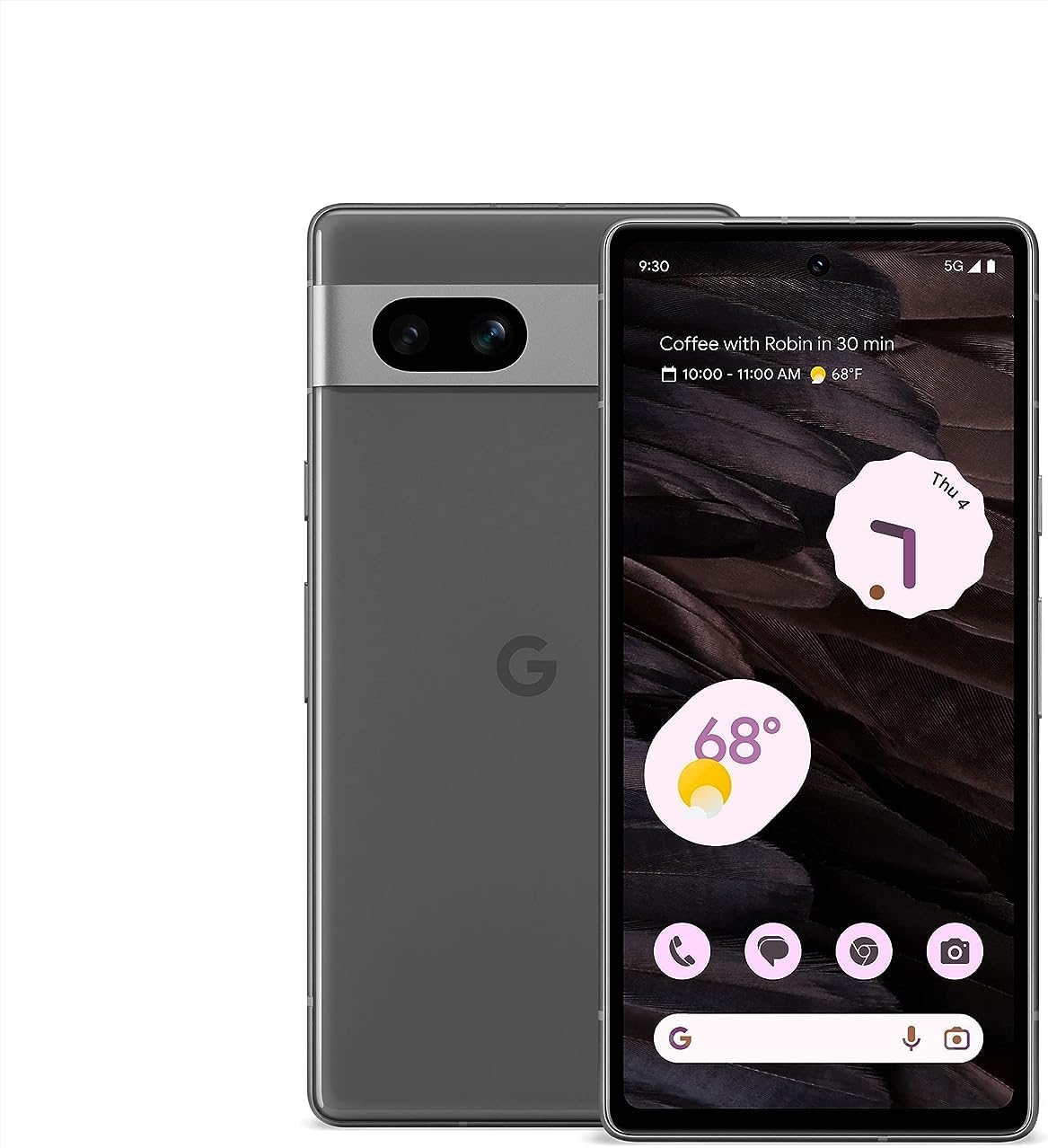
Billede 1.1: Forside og bagside view of the Google Pixel 7a 5G smartphone. The device features a sleek design with a prominent camera bar on the rear.
Your Pixel 7a comes equipped with features like advanced image processing for clear photos, enhanced security, and intelligent call management. This guide will help you get the most out of your device.
2. Indledende opsætning
Follow these steps to set up your new Google Pixel 7a.
2.1. Unboxing and Device Overview
Carefully remove all items from the packaging. The box typically contains the Pixel 7a smartphone and a USB-C to USB-C cable. Other accessories may vary.
2.2. Isætning af dit SIM-kort
- Find SIM-kortbakken på siden af din Pixel 7a.
- Insert the SIM ejector tool (if provided, or a small paperclip) into the small hole on the SIM tray. Press firmly until the tray pops out.
- Place your nano-SIM card into the tray with the gold contacts facing down. Ensure it fits securely.
- Skub forsigtigt SIM-kortbakken tilbage i telefonen, indtil den klikker på plads.
2.3. Tænd og indledende konfiguration
- Press and hold the Power button (located on the right side) until the Google logo appears.
- Follow the on-screen prompts to select your language, connect to a Wi-Fi network, and copy data from an old device (optional).
- Log ind med din Google-konto, eller opret en ny. Dette er vigtigt for at få adgang til Google-tjenester og Play Butik.
- Opsæt en skærmlås (pinkode, mønster, adgangskode, fingeraftryk eller ansigtslåsning) for at sikre sikkerheden.
3. Operating Your Pixel 7a
This section covers the primary functions and features of your smartphone.
3.1. Foretage opkald og sende beskeder
- Telefonapp: Tap the Phone icon to make calls. Use the dial pad or select a contact.
- Beskeder-app: Tap the Messages icon to send and receive text messages.
- Call Assist: The Google Assistant can screen calls from unknown numbers, show optimal times to call businesses, and wait on hold for you. This feature enhances call management.

Image 3.1: Illustration of the Call Assist feature, highlighting its ability to screen calls, suggest optimal call times, and wait on hold.
3.2. Kamerafunktioner
The Pixel 7a camera system offers advanced capabilities for capturing high-quality photos and videos, even in challenging conditions.
- Fjern sløring af foto: Improves the clarity of blurry images.
- Magisk viskelæder: Removes unwanted objects or distractions from your photos.
- Nattesyn: Enhances photos taken in low-light environments, capturing more detail and color.

Billede 3.2: Visuelt eksempelamples of Photo Unblur, Magic Eraser, and Night Sight features in action, demonstrating their effects on images.
3.3. Sikkerhed og privatliv
Your Pixel 7a integrates multiple layers of security to protect your data and online activity.
- Google Tensor G2 & Titan M2: The custom Google Tensor G2 chip and the dedicated Titan M2 security chip work together to provide robust hardware-level security.
- VPN by Google One: Helps secure your internet connection across various apps and browsers.
- Security & Privacy Hub: Access and manage all your security settings from one central location.

Image 3.3: Screenshot of the Pixel 7a's Security & privacy settings, showing options for app security, device lock, Google Security Checkup, and Find My Device.
3.4. Liveoversættelse
The Live Translate feature allows for real-time language translation, facilitating communication across different languages.
- Face-to-face conversations: Translate spoken language in real-time.
- Messaging apps: Translate text within your messaging applications.
- Kameraoversættelse: Use your camera to translate text from signs, menus, and documents.

Image 3.4: A person using the Google Pixel 7a to translate a conversation in real-time, demonstrating the Live Translate feature.
4. Vedligeholdelse og pleje
Korrekt pleje sikrer din Pixel 7as lange levetid og optimale ydeevne.
4.1. Batteristyring og opladning
- Adaptivt batteri: Your Pixel 7a's battery is designed to last over 24 hours with typical usage.
- Ekstrem batteribesparelse: Activate this mode to extend battery life up to 72 hours by limiting app activity and features.
- Trådløs opladning: The device supports wireless charging for convenience. Place the phone on a compatible wireless charger.
- Kablet opladning: Use the provided USB-C cable and a compatible power adapter for wired charging.

Image 4.1: The Google Pixel 7a being charged wirelessly on a charging stand, illustrating its wireless charging capability.
4.2. Softwareopdateringer
Google regularly releases software updates that include security patches, bug fixes, and new features. Ensure your device is updated to maintain optimal performance and security.
- To check for updates: Go to Indstillinger > System > Systemopdatering.
- It is recommended to perform updates over a Wi-Fi connection and with sufficient battery charge.
4.3. Rengøring af din enhed
Brug en blød, fnugfri klud til at rengøre skærmen og kabinettet på din telefon. Undgå slibende materialer eller barske kemikalier.
5. Fejlfinding af almindelige problemer
This section addresses common problems you might encounter with your Pixel 7a.
- Enheden tænder ikke: Sørg for, at batteriet er opladet. Tilslut telefonen til en oplader i mindst 15 minutter, og prøv derefter at tænde den igen.
- Apps der går ned eller fryser:
- Luk og genstart appen.
- Clear the app's cache and data (Settings > Apps > See all apps > [App Name] > Storage & cache).
- Opdater appen fra Google Play Butik.
- Dårlig batterilevetid:
- Tjek batteriforbruget i Indstillinger for at identificere strømkrævende apps.
- Reduce screen brightness and screen timeout.
- Deaktiver unødvendige funktioner som GPS, Bluetooth eller Wi-Fi, når de ikke er i brug.
- Enable Adaptive Battery or Extreme Battery Saver.
- Problemer med netværksforbindelse (Wi-Fi/mobil):
- Slå Wi-Fi eller mobildata fra og til.
- Genstart din telefon.
- Nulstil netværksindstillinger (Indstillinger > System > Nulstil indstillinger > Nulstil Wi-Fi, mobil og Bluetooth).
- Fingeraftrykssensoren virker ikke:
- Sørg for, at din finger er ren og tør.
- Re-register your fingerprints in Settings > Security & privacy > Device unlock > Fingerprint Unlock.
If issues persist, consider performing a factory reset (back up your data first) or contacting Google Support.
6. Tekniske specifikationer
Key technical specifications for the Google Pixel 7a:
| Feature | Specifikation |
|---|---|
| Modelnavn | Pixel 7a |
| Operativsystem | Android |
| CPU model | Google Tensor G2 |
| VÆDDER | 8 GB |
| Hukommelseslagringskapacitet | 128 GB |
| Skærmstørrelse | 6.1 tommer |
| Opløsning | 1080 x 2400 pixels |
| Batterikapacitet | 4385 mioamp Timer |
| Varens vægt | 6.7 ounce |
| Produktdimensioner | 5.89 x 2.87 x 0.35 tommer |
| Særlige funktioner | Altid på skærmen, trådløs opladning |
| Trådløs bærer | Ulåst |

Image 6.1: Diagram illustrating the Google Tensor G2 chip, the core processor of the Pixel 7a, emphasizing its role in efficiency, security, and media quality.
7. Garanti og support
For information regarding your device's warranty, please refer to the warranty card included with your purchase or visit the official Google support website. As this is a renewed product, warranty terms may differ from new devices. Please consult your seller for specific warranty details.
For technical assistance, troubleshooting, or further inquiries, please visit the official Google Pixel Support page or contact your retailer.
- Google Support: support.google.com/pixelphone
- Sælgersupport: Contact the seller from whom you purchased this renewed device for specific support related to your purchase.


