Indledning
The j5create Wireless Extender (Model JVW120) is designed to transform your wired USB camera, microphone, or speaker into a wireless device, providing cable-free convenience for video conferencing, streaming, and broadcasting setups. This extender allows for extended range and reduces visual clutter, ensuring seamless audio and video transmission.

Image: The j5create Wireless Extender system, showing both the transmitter and receiver units with their respective USB cables.
Hvad er der i æsken
The package for the j5create Wireless Extender typically includes the following components:
- 1 x j5create Wireless Extender Transmitter (TX) Unit
- 1 x j5create Wireless Extender Receiver (RX) Unit
- 1 x Power Adapter (for TX unit)
- Hurtig installationsvejledning

Billede: Et nærbillede view of the j5create Wireless Extender receiver unit, highlighting its compact design and connection ports.
Funktioner
- Kabelfri bekvemmelighed: Eliminates tangled cables and reduces visual clutter for video conferencing, streaming, or broadcasting.
- Trådløs frihed: Extends the range of wired USB cameras up to 82 ft. (25m).
- Seamless Audio and Video Transmission: Ensures low-latency, synchronized, and high-quality audio and video via USB.
- Alsidig kompatibilitet: Compatible with Windows, macOS, and Chrome OS computers.
- Stabil forbindelse: Utilizes 5 GHz frequency for reliable wireless connection and supports H.264 and MJPEG video formats.
- Plug and Play: Ingen driverinstallation kræves for de fleste operativsystemer.
- Audio ON/OFF Switch: Allows quick enabling or disabling of audio stream transmission.
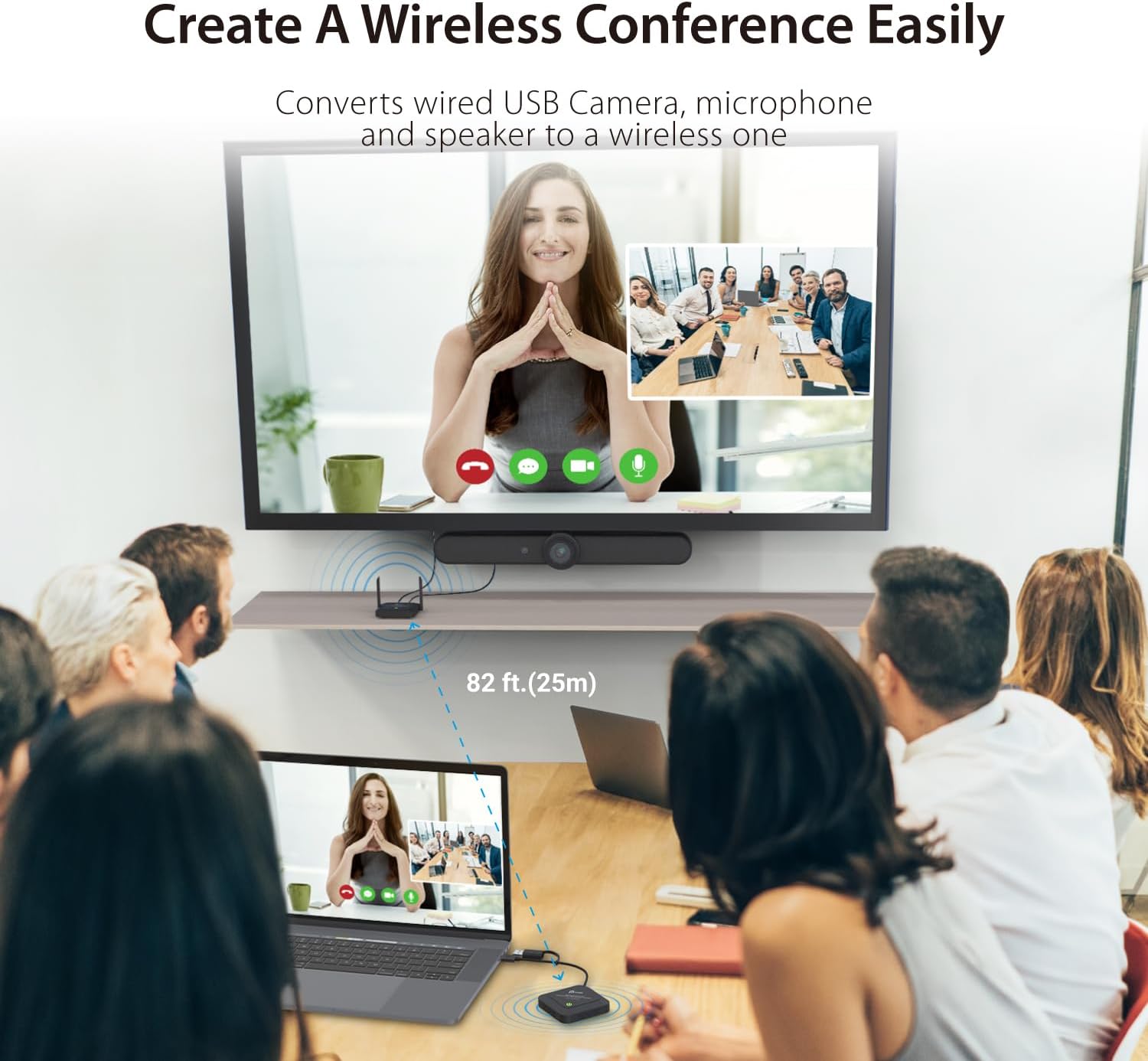
Image: An illustration showing the j5create Wireless Extender in a conference room setting, demonstrating its ability to convert a wired USB camera, microphone, and speaker to a wireless setup, extending the range up to 82 feet (25 meters).

Image: A comparison showing how the wireless extender allows for an enhanced field of view by removing cable length limitations, ensuring all participants are clearly visible in a meeting.
Kompatibilitet
The j5create Wireless Extender is designed for broad compatibility with various operating systems and USB devices:
- Operativsystemer: Windows, macOS, and Chrome OS.
- Kompatible enheder: Laptops, desktops, and tablets running the supported operating systems.
- USB-enheder: Primarily designed for USB webcams, microphones, and speakers. Note: Not compatible with USB mouse/keyboard.
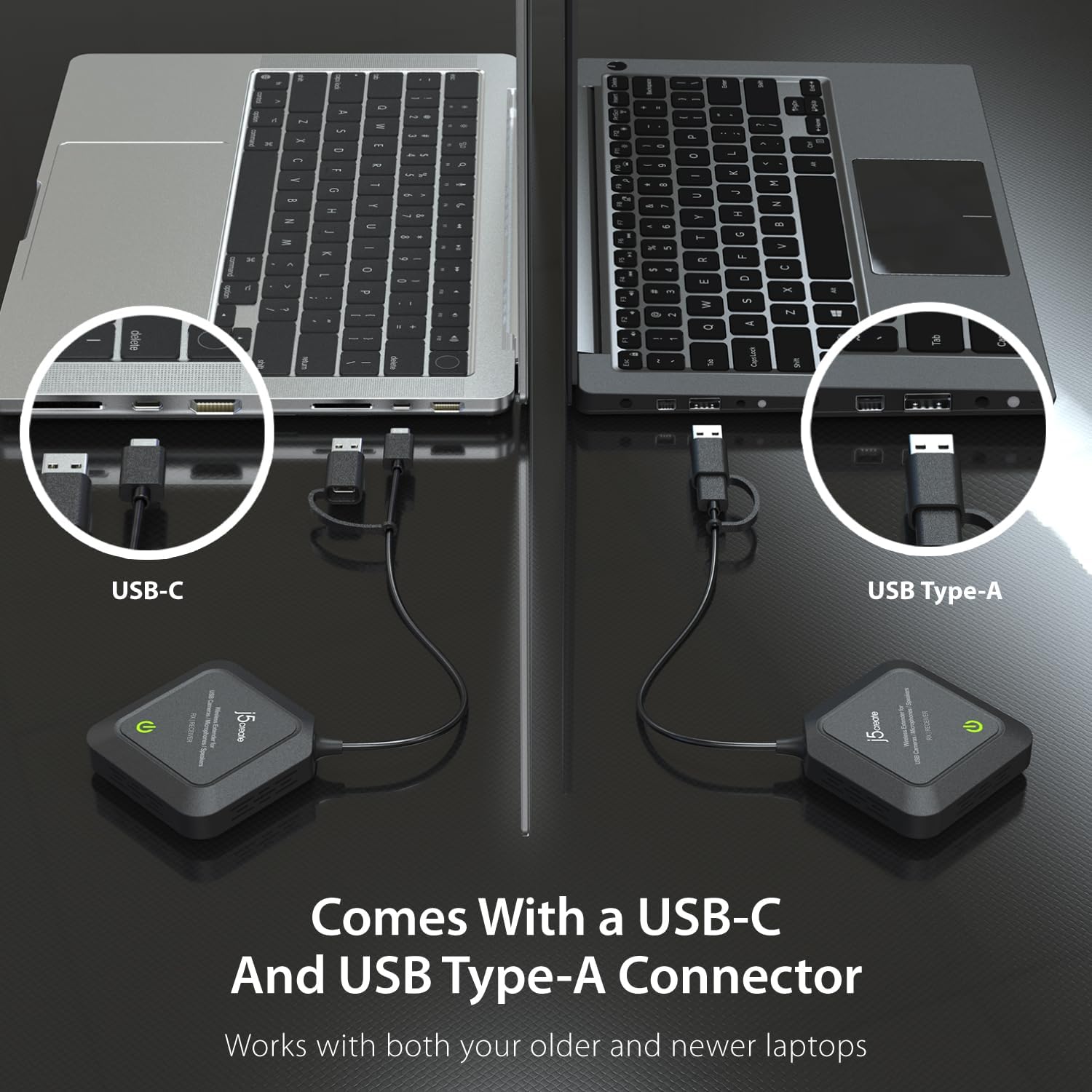
Image: The extender comes with both USB-C and USB Type-A connectors, ensuring compatibility with both older and newer laptops.

Image: The extender is compatible with all j5create and other standard webcam models, offering broad device support.
Opsætning
Follow these steps to set up your j5create Wireless Extender:
- Connect the Transmitter (TX) Unit:
- Connect your USB camera, microphone, or speaker to the USB port(s) on the TX unit.
- Connect the power adapter to the TX unit and plug it into a power outlet.
- Connect the Receiver (RX) Unit:
- Plug the USB cable from the RX unit into an available USB port on your computer (USB-A or USB-C, depending on your laptop's port).
- Parring:
- The TX and RX units are pre-paired from the factory. Once both units are powered on and connected, they should automatically establish a wireless connection.
- Observe the LED indicators on both units. A solid green light typically indicates a successful connection.
- Driver installation:
- The device is designed for plug-and-play functionality. No additional drivers are usually required for Windows, macOS, or Chrome OS. Your computer should automatically recognize the connected USB device.

Image: A visual representation of the plug-and-play setup, showing the receiver unit connected to a laptop via USB, indicating no driver is required for Windows, macOS, and Chrome OS.
Betjeningsvejledning
Once set up, operating the j5create Wireless Extender is straightforward:
- Tænd: Ensure both the TX and RX units are powered on and their indicator lights are solid green, signifying a stable connection.
- Enhedsgenkendelse: Your computer should recognize the connected USB camera, microphone, or speaker as if it were directly connected via a cable.
- Softwarebrug: Open your preferred video conferencing, streaming, or recording software (e.g., Zoom, Microsoft Teams, OBS Studio). Select your wirelessly connected USB device as the input source within the software settings.
- Lydkontrol: Use the dedicated Audio ON/OFF switch on the TX unit to quickly enable or disable audio transmission as needed.

Image: A close-up of the Audio ON/OFF switch located on the extender unit, allowing for quick control over audio stream transmission.

Billede: Et overheadbillede view of a conference room where the j5create Wireless Extender facilitates a clear video call, demonstrating its utility in professional settings.

Image: A user streaming content with a webcam connected via the j5create Wireless Extender, showcasing its application in personal broadcasting and content creation.
Opretholdelse
To ensure the longevity and optimal performance of your j5create Wireless Extender, follow these maintenance guidelines:
- Rensning: Use a soft, dry cloth to clean the exterior of the units. Avoid using liquid cleaners or aerosols.
- Opbevaring: Når enhederne ikke er i brug i længere perioder, skal de opbevares køligt og tørt, væk fra direkte sollys og ekstreme temperaturer.
- Ventilation: Ensure the ventilation slots on the units are not blocked to prevent overheating.
- Kabelpleje: Handle USB cables and connectors gently to prevent damage.
Fejlfinding
If you encounter issues with your j5create Wireless Extender, refer to the following common troubleshooting steps:
- Ingen forbindelse / Intermitterende forbindelse:
- Ensure both TX and RX units are powered on and their indicator lights are solid green.
- Verify that the TX and RX units are within the specified 82 ft (25m) range and in the same space, without significant obstructions like walls.
- Check for other 5 GHz wireless signals that might be causing interference. Try moving the units to a different location.
- Unplug and replug both the TX and RX units to reset the connection.
- Poor Image/Audio Quality:
- Ensure the connected USB camera/microphone/speaker is functioning correctly when directly connected to the computer.
- Reducer afstanden mellem TX- og RX-enhederne.
- Minimér trådløs interferens fra andre enheder.
- Check if your computer's USB port is providing sufficient power. Try a different USB port.
- Enhed genkendes ikke af computeren:
- Ensure the RX unit is securely plugged into a working USB port on your computer.
- Prøv en anden USB-port på din computer.
- Genstart din computer.
- Verify your operating system is supported (Windows, macOS, Chrome OS).
- Volume Changes Automatically (Mac Specific):
- Some users have reported automatic volume changes on Mac computers when the receiver is connected or wakes up. This behavior is unusual and may require checking system audio settings or contacting support if persistent.
Specifikationer
| Modelnummer | JVW120 |
| Produktdimensioner | 3.74 x 3.74 x 0.91 tommer |
| Varens vægt | 14 ounce (0.4 kilo) |
| Mærke | j5 skabe |
| Hardware-interface | USB |
| Farve | Sort |
| Kompatible enheder | Laptops, desktops, and tablets running Windows, macOS, and Chrome OS |
| Data Link Protocol | USB |
| Dataoverførselshastighed | 5E+1 megabit pr. sekund |
| Trådløs frekvens | 5 GHz |
| Wireless Range | Op til 82 fod (25 m) |
| Understøttede videoformater | H.264, MJPEG |
| UPC | 847626006210 |
Garanti og support
j5create products typically come with a limited warranty. For specific warranty details, technical support, or service inquiries, please refer to the warranty card included with your product or visit the official j5create website. You can also find additional resources and contact information on their support pages.
For the latest drivers, firmware updates, and detailed product information, please visit: www.j5create.com


