ZZB Android Tablet 10 Inch User Manual
Model: ZB10SGrayNEW | Brand: ZZB
1. Introduktion
This manual provides essential information for the proper use and maintenance of your ZZB Android Tablet 10 Inch. Please read this manual thoroughly before operating the device to ensure optimal performance and longevity.

Billede 1.1: Foran og bagpå view of the ZZB Android Tablet, showcasing dets elegante design og kameraplacering.
2. Opsætning
2.1 Indledende opladning
Before first use, fully charge the tablet using the provided USB cable and power adapter. The battery indicator on the screen will show charging status. A full charge typically takes several hours.
2.2 Tænd/sluk
- For at tænde: Press and hold the Power button (located on the side) until the ZZB logo appears on the screen.
- For at slukke: Tryk på tænd/sluk-knappen og hold den nede, indtil der vises en sluk-menu. Vælg "Sluk", og bekræft.
- For at genstarte: From the power-off menu, select "Restart."
2.3 Guide til indledende opsætning
Upon first power-on, the tablet will guide you through a setup wizard. Follow the on-screen prompts to:
- Vælg dit foretrukne sprog.
- Opret forbindelse til et Wi-Fi-netværk.
- Set up your Google account (recommended for app downloads and services).
- Review og accepterer vilkår og betingelser.
3. Betjeningsvejledning
3.1 Navigation og bevægelser
The tablet uses a touch-sensitive IPS HD screen for navigation:
- Tryk på: For at vælge et element eller åbne en app.
- Tryk og hold nede: For at få adgang til kontekstmenuer eller flytte ikoner.
- Stryg: Til at rulle gennem sider eller lister.
- Knib-for-at-zoome: For at zoome ind eller ud på billeder eller web sider.
3.2 Skærmfunktioner
The 10.1-inch IPS display offers a resolution of 1280*800 pixels, providing clear visuals. A dedicated "reading mode" is available to reduce eye strain by adjusting screen colors and brightness for comfortable night reading.

Image 3.1: The 10.1-inch HD IPS screen of the tablet, demonstrating its visual clarity and wide viewing vinkler.
3.3 Tilslutning til Wi-Fi
Sådan opretter du forbindelse til et Wi-Fi-netværk:
- Gå til Indstillinger > Netværk og internet > Wi-Fi.
- Slå Wi-Fi til/fra On.
- Vælg det ønskede netværk fra listen.
- Indtast adgangskoden, hvis du bliver bedt om det, og tryk derefter på Forbinde.
3.4 Download af applikationer
The tablet comes with Google Mobile Service (GMS) certification and pre-installed Google Play Store. You can download a wide variety of applications:
- Åbn Play Butik app.
- Søg efter the app you wish to install.
- Tryk på Installere og følg instruktionerne på skærmen.

Image 3.2: The tablet's screen displaying a wide array of popular applications available for download from the Google Play Store.
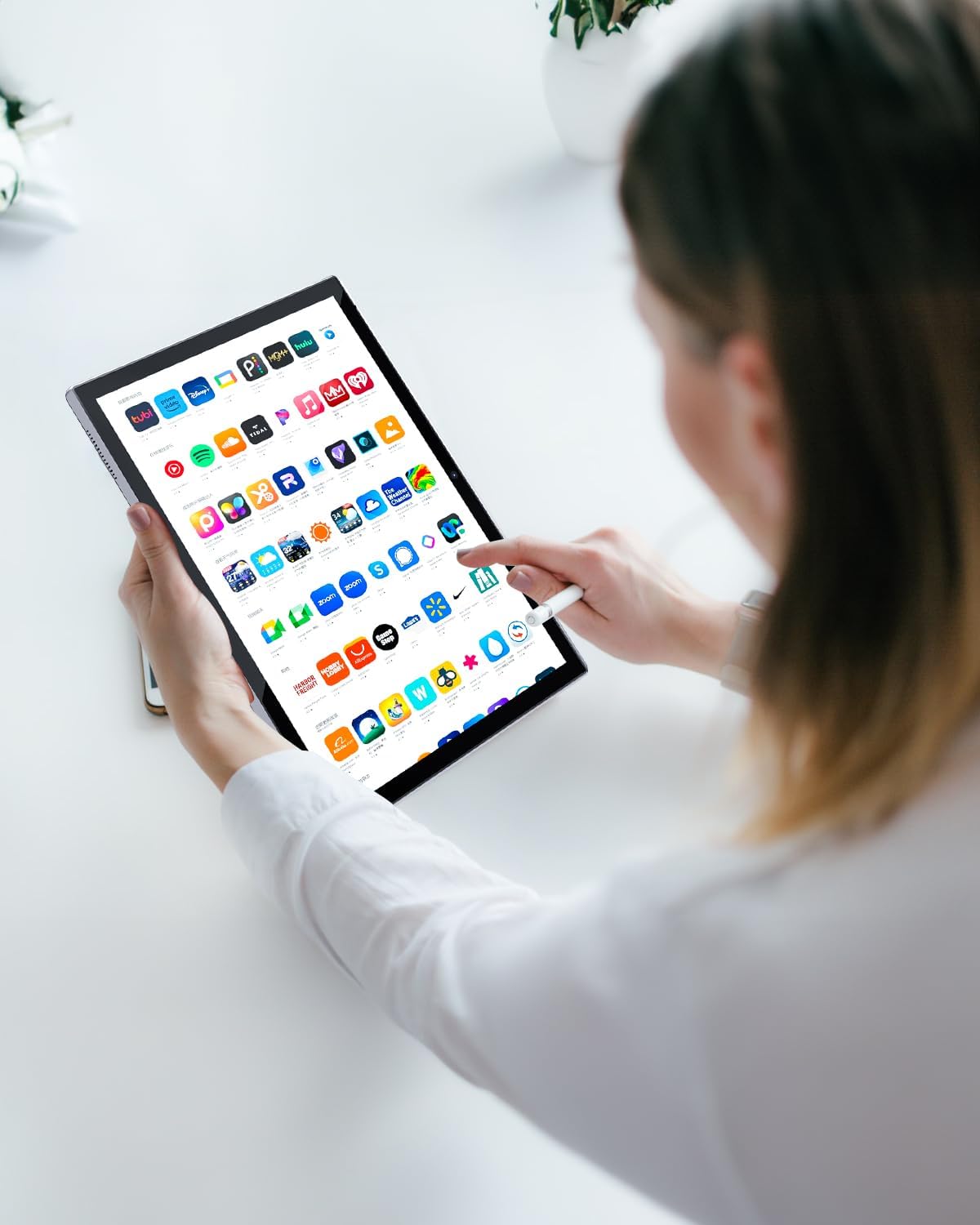
Image 3.3: A user interacting with the tablet, demonstrating the ease of navigating through applications.
3.5 Kamerabrug
The tablet is equipped with dual cameras: an 8-megapixel rear camera and a 2-megapixel front camera. To use the camera:
- Åbn Kamera app.
- Tryk på udløserknappen for at tage billeder.
- Skift mellem for- og bagkamera ved hjælp af kameraikonet.
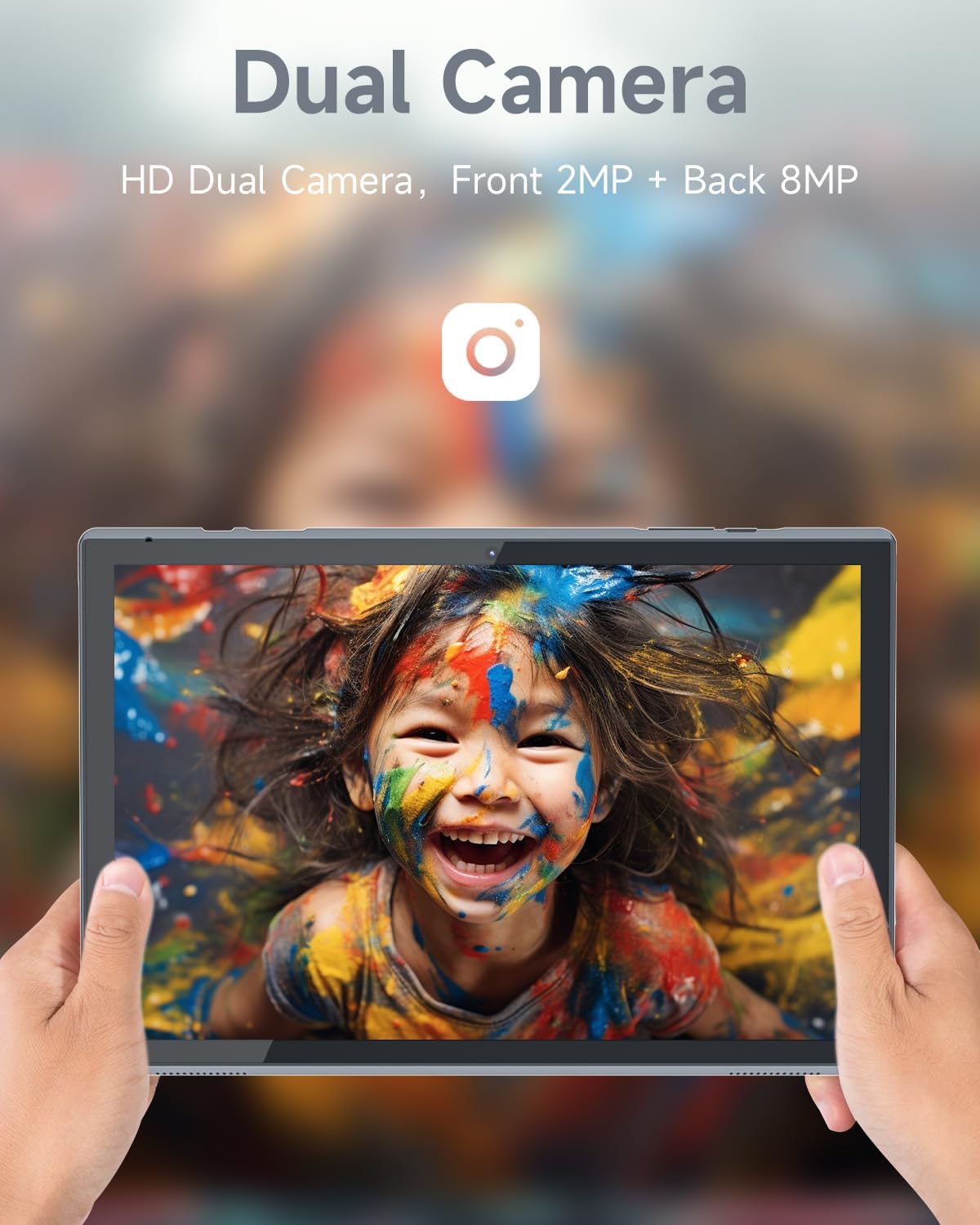
Image 3.4: The tablet's screen showcasing a vibrant image captured by its dual cameras, emphasizing photo and video capabilities.
3.6 Lagerstyring
The tablet has 32GB of internal storage. Storage can be expanded up to 1TB using a microSD card (not included). To manage storage:
- Gå til Indstillinger > Opbevaring til view brug og frigør plads.
- Insert a microSD card into the designated slot to expand storage.
4. Vedligeholdelse
4.1 Rengøring af tabletten
Brug en blød, fnugfri klud til at rengøre skærmen og tablettens kabinet. Tør let ved genstridige pletter.ampRengør kluden med vand eller en skærmrengøringsopløsning. Undgå skrappe kemikalier eller slibende materialer.
4.2 Softwareopdateringer
Tjek regelmæssigt for systemopdateringer for at sikre, at din tablet har de nyeste funktioner og sikkerhedsrettelser. Gå til Indstillinger > System > Systemopdatering.
4.3 Pleje af batterier
The 6000mAh battery provides up to 12 hours of usage. To prolong battery life:
- Undgå ekstreme temperaturer.
- Lad ikke batteriet aflades helt, før du genoplader det ofte.
- Tag stikket ud af opladeren, når batteriet er fuldt opladet.
4.4 Lagringsoptimering
Fjern regelmæssigt unødvendigt files, cache, and unused apps to maintain optimal performance. You can use the built-in storage management tools in Indstillinger.
5. Fejlfinding
Dette afsnit omhandler almindelige problemer, du kan støde på med din tablet.
| Problem | Mulig løsning |
|---|---|
| Tabletten tænder ikke. | Sørg for, at batteriet er opladet. Tilslut opladeren, og vent et par minutter, før du forsøger at tænde den igen. Hvis den ikke reagerer, skal du trykke på tænd/sluk-knappen og holde den nede i 10-15 sekunder for at fremtvinge en genstart. |
| Kan ikke oprette forbindelse til Wi-Fi. | Check if Wi-Fi is enabled in Settings. Restart your Wi-Fi router. Forget the network and reconnect. Ensure you are entering the correct password. |
| Apps går ned eller fryser. | Close and reopen the app. Clear the app's cache (Settings > Apps > [App Name] > Storage > Clear cache). Restart the tablet. Ensure the app is updated to its latest version. |
| Tabletten kører langsomt. | Luk ubrugte apps, der kører i baggrunden. Ryd cache og midlertidige filer. files. Uninstall unnecessary apps. Restart the tablet regularly. |
| Skærmen reagerer ikke. | Genstart tabletten. Sørg for, at skærmen er ren og fri for snavs. Hvis problemet fortsætter, skal du kontakte kundesupport. |
6. Specifikationer
Key technical specifications for the ZZB Android Tablet 10 Inch:

Image 6.1: Visual summary of the tablet's core specifications, including OS, display, camera, battery, CPU, capacity, and WiFi support.
- Mærke: ZZB
- Modelnavn: ZB10SGrayNEW
- Operativsystem: Android OS
- Processor: Quad-Core CPU
- VÆDDER: 2 GB
- Intern opbevaring: 32 GB
- Udvidelig lagerplads: Op til 1 TB via microSD-kort
- Skærmstørrelse: 10.1 tommer
- Skærmopløsning: 1280*800 Pixels (IPS HD)
- Bagkamera: 8 megapixel
- Forreste kamera: 2 megapixel
- Batterikapacitet: 6000mAh
- Forbindelse: Wi-Fi

Billede 6.2: En detaljeret view of a quad-core CPU, illustrating the tablet's high-speed processing capabilities.
7. Garanti og support
For warranty information, technical support, or service inquiries, please refer to the documentation included with your purchase or visit the official ZZB webwebsted. Gem din købsbevis til garantikrav.


