1. Introduktion
This manual provides detailed instructions for the installation, operation, and maintenance of your CAMECHO Android Car Stereo. Please read this manual thoroughly before installation and use to ensure proper function and safety.
1.1 Produkt overview
The CAMECHO Android Car Stereo features a 9-inch 2.5D capacitive touch screen with a 1024x600 pixel display. It operates on an Android system with 1GB RAM and 16GB ROM, offering GPS navigation, Bluetooth connectivity, FM radio, WiFi support, and mirror link functionality for both Android and iOS devices. It also supports a backup camera for enhanced safety.
1.2 Køretøjskompatibilitet
This car stereo is specifically designed for BMW X3 E83 models manufactured between 2004 and 2010.
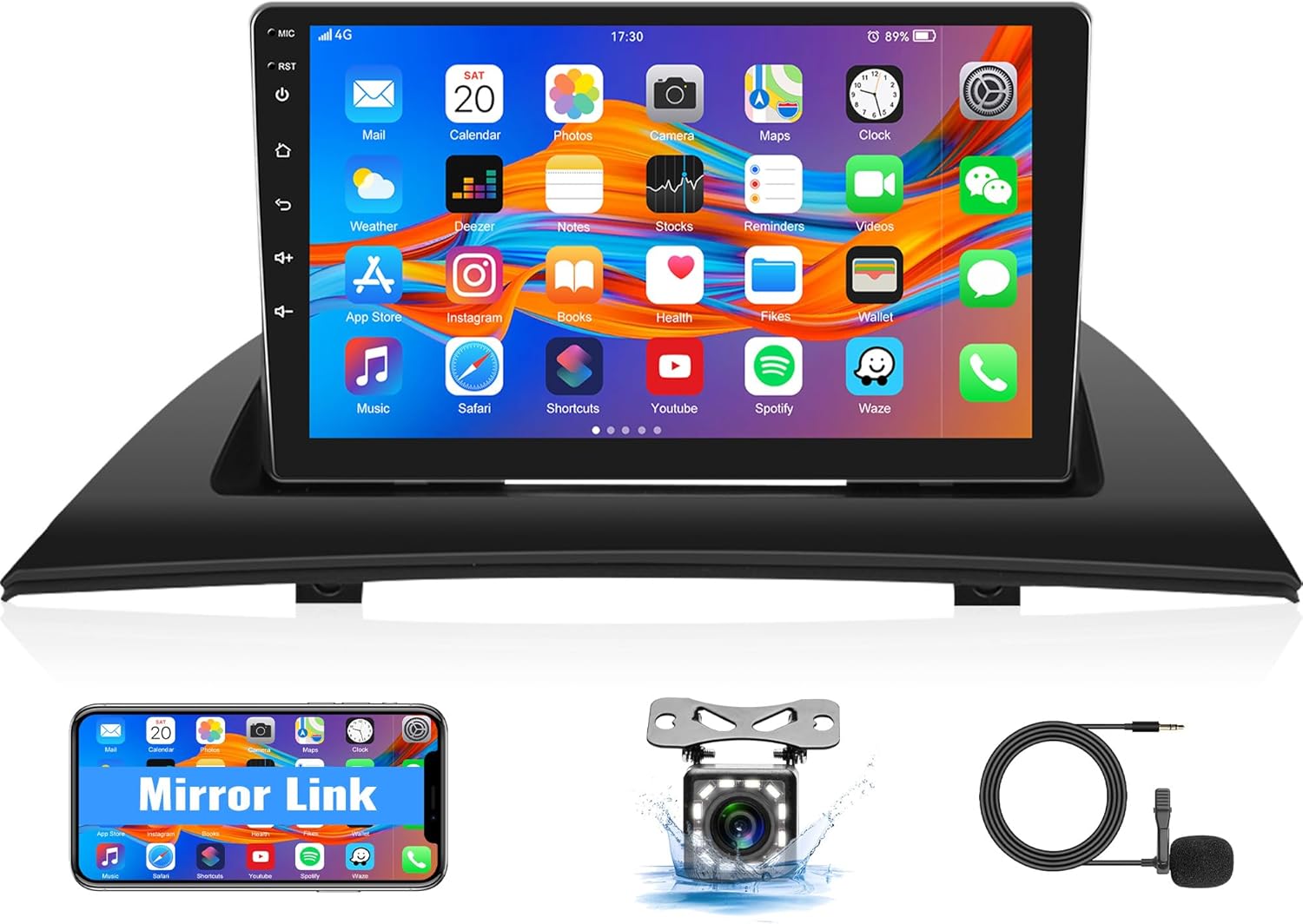
Figure 1.1: CAMECHO Android Car Stereo and included components.
2. Pakkens indhold
Bekræft, at alle nedenstående varer er til stede i din pakke:
- 1 x Android Head Unit
- 1 x Radio Housing
- 1 x backup kamera
- 1 x ekstern mikrofon
- 1 x Canbus
- 1 x GPS-antenne
- 1 x installationsværktøj
- 1 x Brugsanvisning (dette dokument)
- 1 x strømkabel
- 1 x kameraindgangskabel
- 1 x RCA indgangs- og udgangskabel
- 2 x USB-kabler
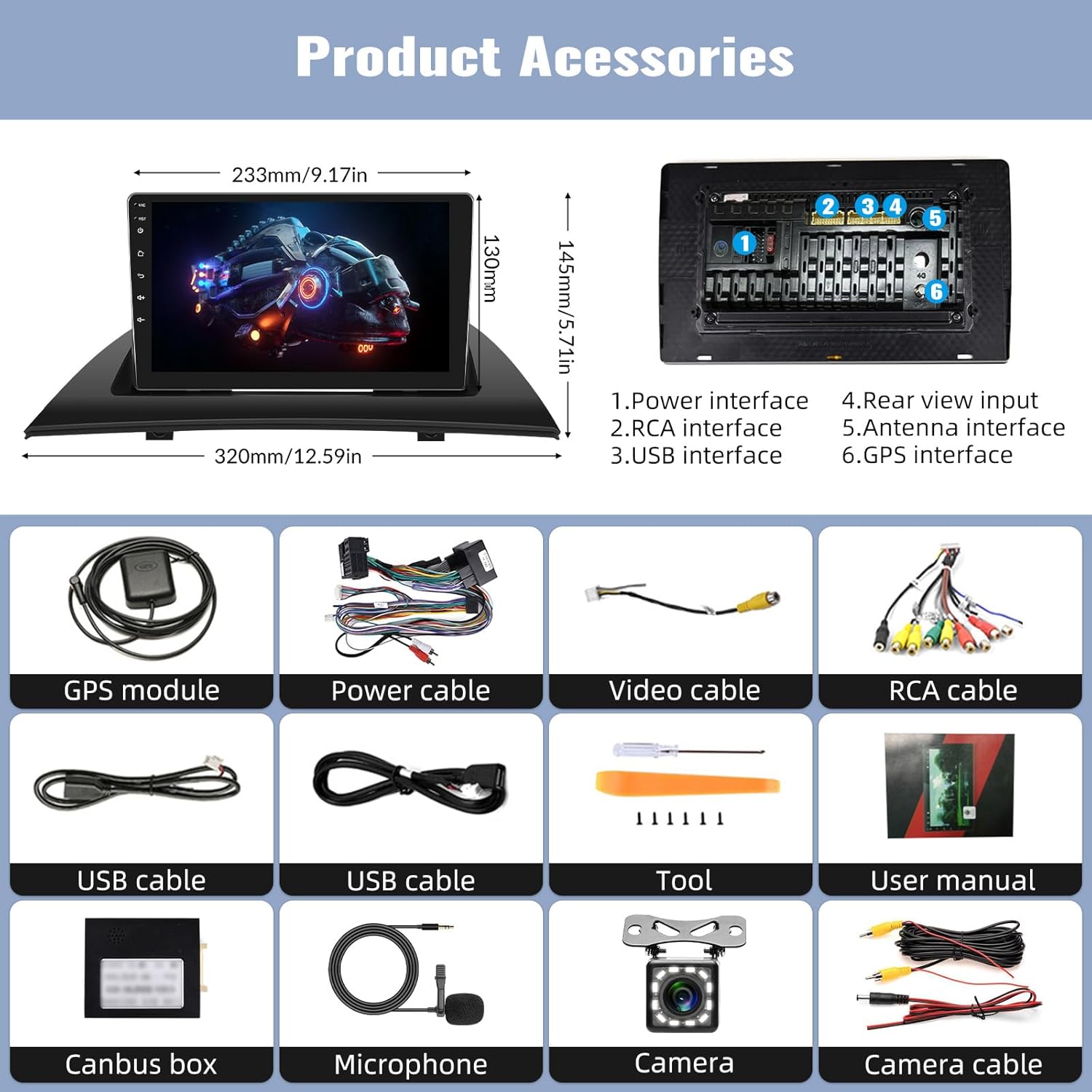
Figure 2.1: Visual representation of all components included in the package.
3. Installationsvejledning
Professionel installation anbefales. Sørg for, at køretøjets batteri er frakoblet, inden installationen påbegyndes, for at forhindre elektrisk skade.
3.1 Kontrol før installation
Before installing the new head unit, compare the original car stereo's dimensions and connectors with the new unit to ensure compatibility.

Figure 3.1: Visual comparison of the dashboard before and after the stereo installation.
3.2 Ledningsforbindelser
Carefully connect all cables according to the provided wiring diagram. Ensure secure connections to prevent intermittent issues.
3.2.1 Main Power and CANBUS Connection
Connect the 8-pin power cable into the head unit's connector. Ensure the CANBUS box is properly connected to enable steering wheel controls and other vehicle-specific functions.

Figure 3.2: CANBUS and main power cable connection diagram.
Note:
After connecting the CANBUS, you must set the Protocol correctly for steering wheel controls to function. Navigate to Bilindstillinger > Fabriksindstilling (Password: 8888) > Protokolindstillinger, then select "Audi + the year and model of your car."
3.2.2 Backup Camera Wiring
The reversing input must be connected even if the reversing camera is not used. Follow these steps for backup camera wiring:
- Connect the positive pole of the camera's power supply to the car's reversing light positive.
- Connect the negative pole of the camera's power supply to the car's reversing light negative.
- The reversing trigger is controlled by the stereo and does not require a separate connection.

Figure 3.3: Backup camera wiring diagram.
After wiring, set the camera resolution via Bilindstillinger > Fabriksindstillinger (Password: 8888) > Protocol parameter settings > Omvendt indstillinger > Reverse video resolution to "NTSC/PAL", then restart your car.
The white plug must be connected to the main device; otherwise, Bluetooth and WiFi signals may not function correctly.
4. Betjeningsvejledning
4.1 GPS-navigation
The unit includes a built-in GPS module supporting both offline and online navigation applications. Connect to WiFi to download preferred map applications like Waze, Navfree, or Yandex Map from the Play Store.

Figure 4.1: GPS navigation interface and available applications.
4.2 WiFi-forbindelse
Connect the stereo to a WiFi network or mobile hotspot to access online features, download apps, and stream media.

Figure 4.2: WiFi connectivity for online services.
4.3 Bluetooth-funktionalitet
Pair your mobile phone via Bluetooth for hands-free calling and audio streaming. This feature enhances driving safety by allowing you to manage calls and music without handling your phone.
- Håndfri opkald: Foretag og modtag opkald direkte fra stereo-interfacet.
- Lydstreaming: Afspil musik fra din telefon gennem bilens højttalere.
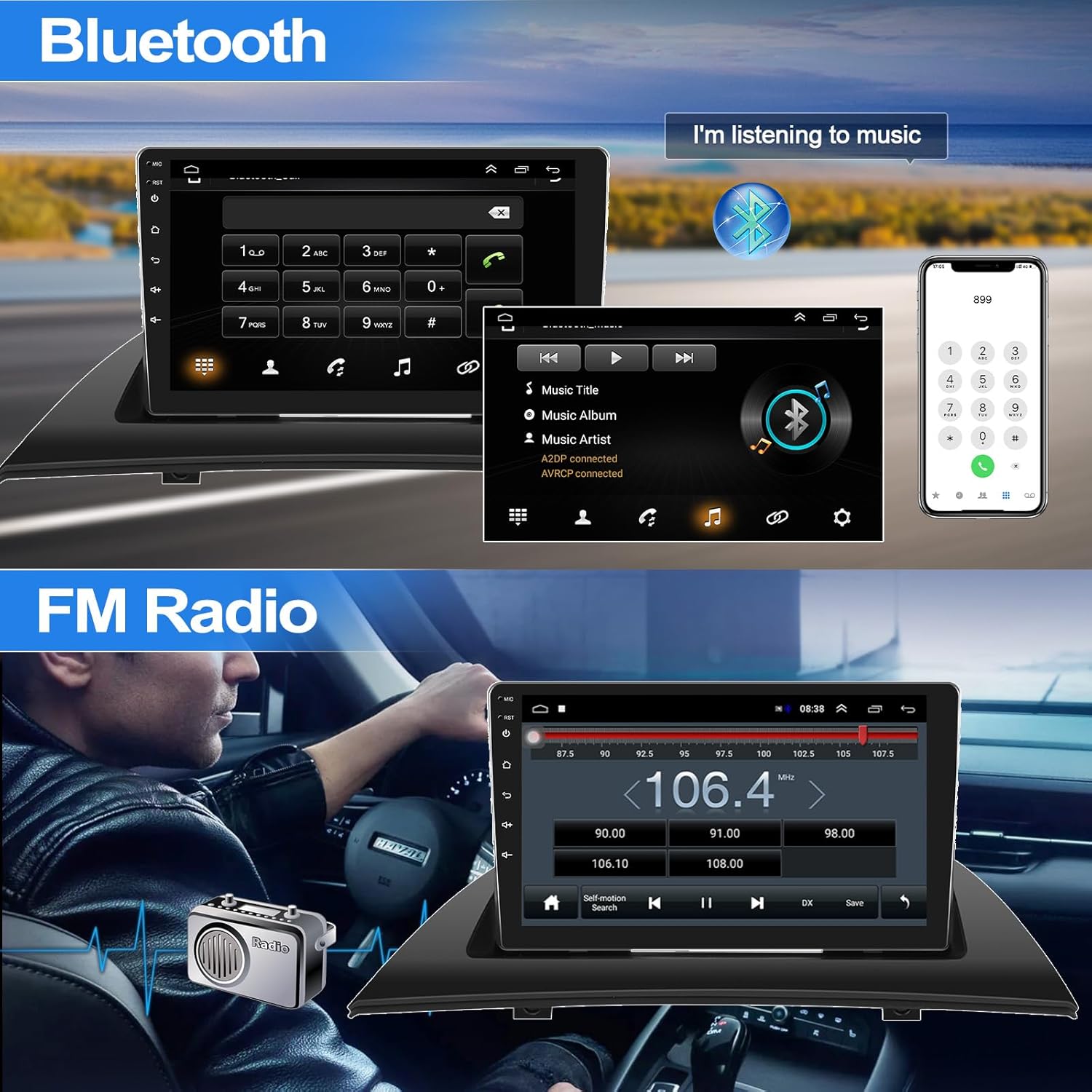
Figur 4.3: Bluetooth-grænseflade til opkald og musik.
4.4 FM radio
Tune into your favorite FM radio stations. The unit provides clear radio signal reception for an enjoyable listening experience.
Figure 4.4: FM radio tuner interface.
4.5 Mirror Link Functionality
Mirror Link allows you to display your smartphone's screen content (videos, music, navigation) directly on the car stereo's touch screen.
4.5.1 For iOS Phones (Wireless)
- Turn on your iPhone's personal hotspot.
- Connect the car radio to your iPhone's hotspot via WiFi.
- On the car unit, open the "phonelink" app. Follow the on-screen indications.
- On your iPhone, enter the AirPlay function and select this car radio to start mirroring.
4.5.2 For Android Phones (USB/WiFi)
- Open the "phonelink" app on the car unit and scan the QR code to download the companion app on your Android phone.
- Connect via USB cable or WiFi as prompted by the app.
- If using USB, ensure "USB debugging" is enabled in your phone's developer options, and set the USB configuration to data transmission.

Figure 4.5: Mirror Link in operation, displaying phone content on the stereo.

Figure 4.6: Step-by-step guide for Mirror Link setup.
4.6 Bakkameravisning
The included 12-LED backup camera with night vision and IP68 waterproof rating provides clear visibility when reversing. The display automatically switches to the camera feed when the vehicle is in reverse gear.
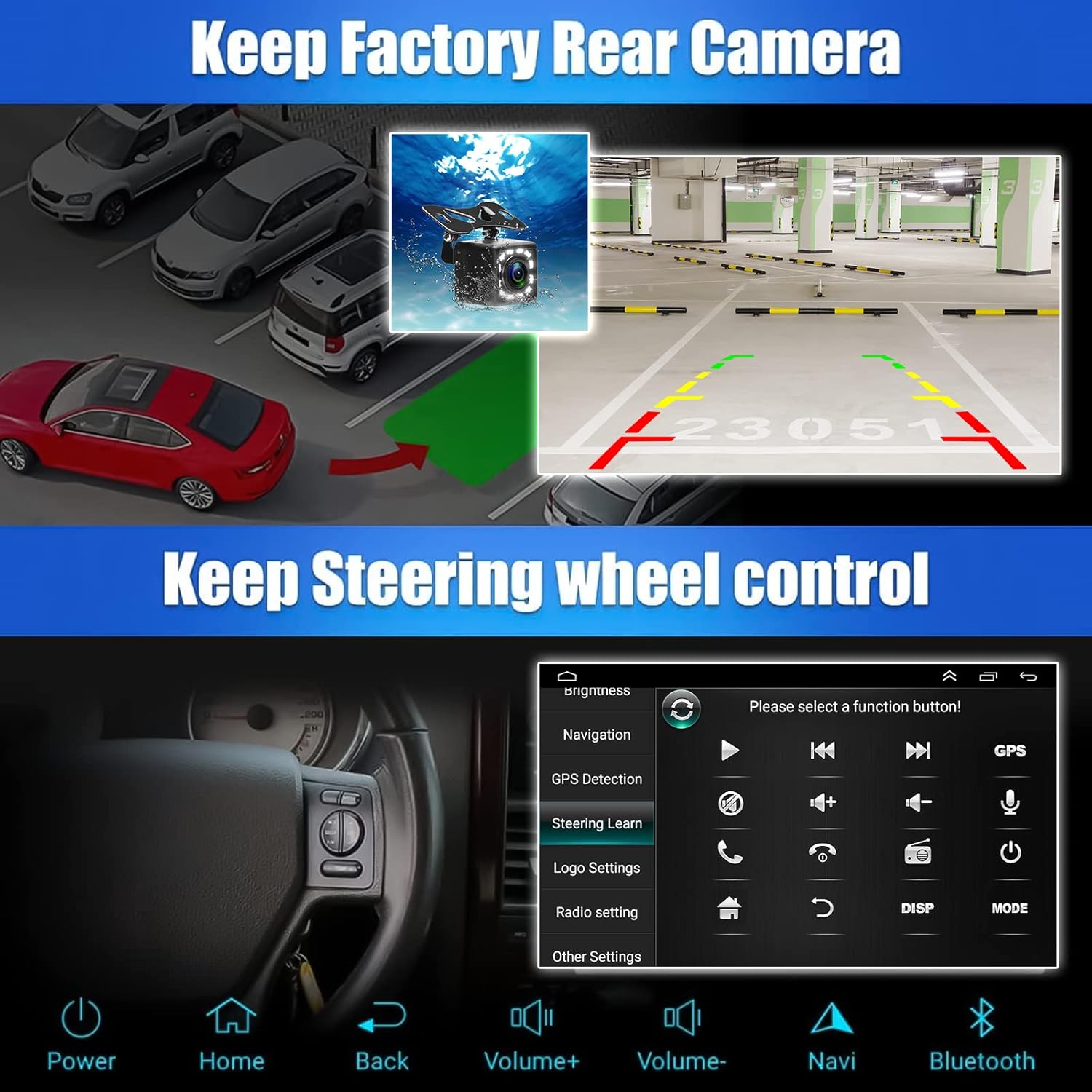
Figure 4.7: Backup camera view with parking assistance.
4.7 Ratstyring
After proper CANBUS connection and protocol settings (refer to Section 3.2.1), the unit supports your vehicle's original steering wheel controls. This allows for convenient operation of volume, track changes, and other functions without taking your hands off the wheel.

Figure 4.8: Steering wheel control interface.
4.8 Equalizer-indstillinger
Adjust audio output with the built-in equalizer. Customize sound profiles (e.g., Pop, Rock, Jazz) or create a custom setting to match your preferences.

Figure 4.9: Audio equalizer settings.
4.9 Opdelt skærmfunktionalitet
The split-screen feature allows you to run two applications simultaneously, such as navigation on one side and music playback on the other.

Figur 4.10: Delt skærmtilstand med visning af navigation og musik.
5. Specifikationer
| Feature | Detalje |
|---|---|
| Produktdimensioner | 12.6 x 8.66 x 5.7 tommer |
| Varens vægt | 3.98 pund |
| Modelnummer | A7284A2516KT |
| Skærmstørrelse | 9 tommer |
| Opløsning | 1024 x 600 |
| Operativsystem | Android |
| Speciel funktion | Touchskærm |
| Forbindelsesteknologi | Bluetooth, WiFi |
| Korttype | Worldwide (supports online/offline apps) |
| Lydudgangstilstand | Stereoanlæg |
| Type køretøjstjeneste | Car (BMW X3 E83 2004-2010) |
6. Fejlfinding
Dette afsnit omhandler almindelige problemer, du kan støde på. Ved problemer, der ikke er nævnt her, bedes du kontakte kundesupport.
- Enheden tændes ikke:
- Check all power cable connections. Ensure the main power cable is securely plugged into the head unit and the vehicle's power source.
- Verify the vehicle's fuse related to the stereo is intact.
- Ingen lyd:
- Kontroller højttalerledningernes forbindelser.
- Sørg for, at lydstyrken ikke er slået fra eller indstillet for lavt.
- Verify audio output settings in the system menu.
- Ratbetjeningen virker ikke:
- Confirm the CANBUS box is correctly connected.
- Gå til Bilindstillinger > Fabriksindstilling (Password: 8888) > Protokolindstillinger and ensure the correct vehicle model and year are selected.
- GPS signal issues or inaccurate navigation:
- Sørg for, at GPS-antennen er korrekt installeret og har en klar view of the sky (e.g., on the dashboard).
- Verify that location services are enabled in the unit's settings.
- Update map data if using offline maps.
- Bluetooth connection problems:
- Sørg for, at Bluetooth er aktiveret på både stereoanlægget og din mobilenhed.
- Slet tidligere parringer, og forsøg at parre enhederne igen.
- Confirm the white plug for the camera input is connected to the main device, as it affects Bluetooth/WiFi signals.
- Mirror Link not functioning:
- For iOS: Ensure iPhone hotspot is active and the stereo is connected to it. Verify AirPlay is used.
- For Android: Check USB debugging and data transmission settings if using a wired connection. Ensure the companion app is installed and updated.
- Confirm the white plug for the camera input is connected to the main device, as it affects Bluetooth/WiFi signals.
- Backup camera display issues:
- Check all camera wiring connections, especially to the reversing light.
- Verify camera resolution settings in Bilindstillinger > Fabriksindstillinger > Protocol parameter settings > Omvendt indstillinger.
- Sørg for, at køretøjet er i bakgear.
7. Vedligeholdelse
Regelmæssig vedligeholdelse er med til at sikre din bilstereos levetid og optimale ydeevne.
- Rengøring af skærm: Brug en blød, fnugfri klud til forsigtigt at tørre berøringsskærmen af. Ved genstridige pletter, tør let afampRengør kluden med vand eller et skærmsikkert rengøringsmiddel. Undgå skrappe kemikalier.
- Softwareopdateringer: Periodically check for system software updates via the unit's settings menu (requires WiFi connection) to ensure optimal performance and access to new features.
- Kabelforbindelser: Occasionally check all visible cable connections for looseness or damage.
- Miljøforhold: Undgå at udsætte enheden for ekstreme temperaturer, direkte sollys i længere perioder eller for høj fugtighed.
8. Garanti og support
For warranty information, please refer to the documentation provided with your purchase or contact CAMECHO customer service directly. Keep your purchase receipt as proof of purchase.
For technical support or further assistance, please visit the official CAMECHO webwebstedet eller kontakt deres kundesupportkanaler.
Fabrikant: Camecho
Modelnummer: A7284A2516KT


