1. Introduktion
This manual provides essential information for setting up, operating, maintaining, and troubleshooting your MEDION ERAZER Crawler E40 gaming laptop. Please read this manual thoroughly to ensure proper use and to maximize the performance and longevity of your device.

Figur 1: Forside view of the MEDION ERAZER Crawler E40 Gaming Laptop.
The MEDION ERAZER Crawler E40 is a high-performance gaming laptop designed for an immersive gaming experience. It features an Intel i5-12450H processor, 16GB DDR5 RAM, an NVIDIA GeForce RTX 4050 graphics card with 6GB VRAM, and a 512GB SSD. The 15.6-inch Full HD display boasts a 144Hz refresh rate for smooth visuals. It comes pre-installed with Windows 11 Home Plus 64-bit.
2. Indledende opsætning
2.1 Udpakning og første tænding
- Tag forsigtigt den bærbare computer og alt tilbehør ud af emballagen.
- Place the laptop on a stable, flat surface.
- Tilslut strømadapteren til den bærbare computers strømindgang, og sæt den derefter i en stikkontakt.
- Åbn låget på den bærbare computer, og tryk på tænd/sluk-knappen, som typisk er placeret over tastaturet eller på siden.
- Følg instruktionerne på skærmen for at fuldføre den indledende Windows 11-opsætning, herunder valg af sprog, netværksforbindelse og oprettelse af brugerkonto.
2.2 Tilslutning af eksterne enheder
Your ERAZER Crawler E40 laptop offers various ports for connecting external devices:

Figure 2: Left side ports including USB and Ethernet.
- USB-porte: Connect USB devices such as mice, keyboards, or external storage drives. The laptop includes 1x USB 2.0, 1x USB 3.2 Gen 2 Type A, 1x USB 3.2 Gen 1 Type A, and 1x USB 3.2 Gen 2 Type C.
- HDMI-port: Connect an external monitor or TV using an HDMI cable.
- Mini DisplayPort: Connect an external display using a Mini DisplayPort cable.
- Ethernet (RJ45) Port: Til en kablet netværksforbindelse.
- Lydkombinationsstik: For connecting headphones or a headset with a combined microphone and audio jack.

Figure 3: Right side ports including USB and audio jacks.
3. Betjeningsvejledning
3.1 Tastatur og touchpad
The laptop features a QWERTY keyboard with backlighting. You can typically adjust the backlight intensity or turn it off using function keys (Fn + specific F-key, refer to your laptop's key legends). The integrated touchpad supports multi-touch gestures for navigation.
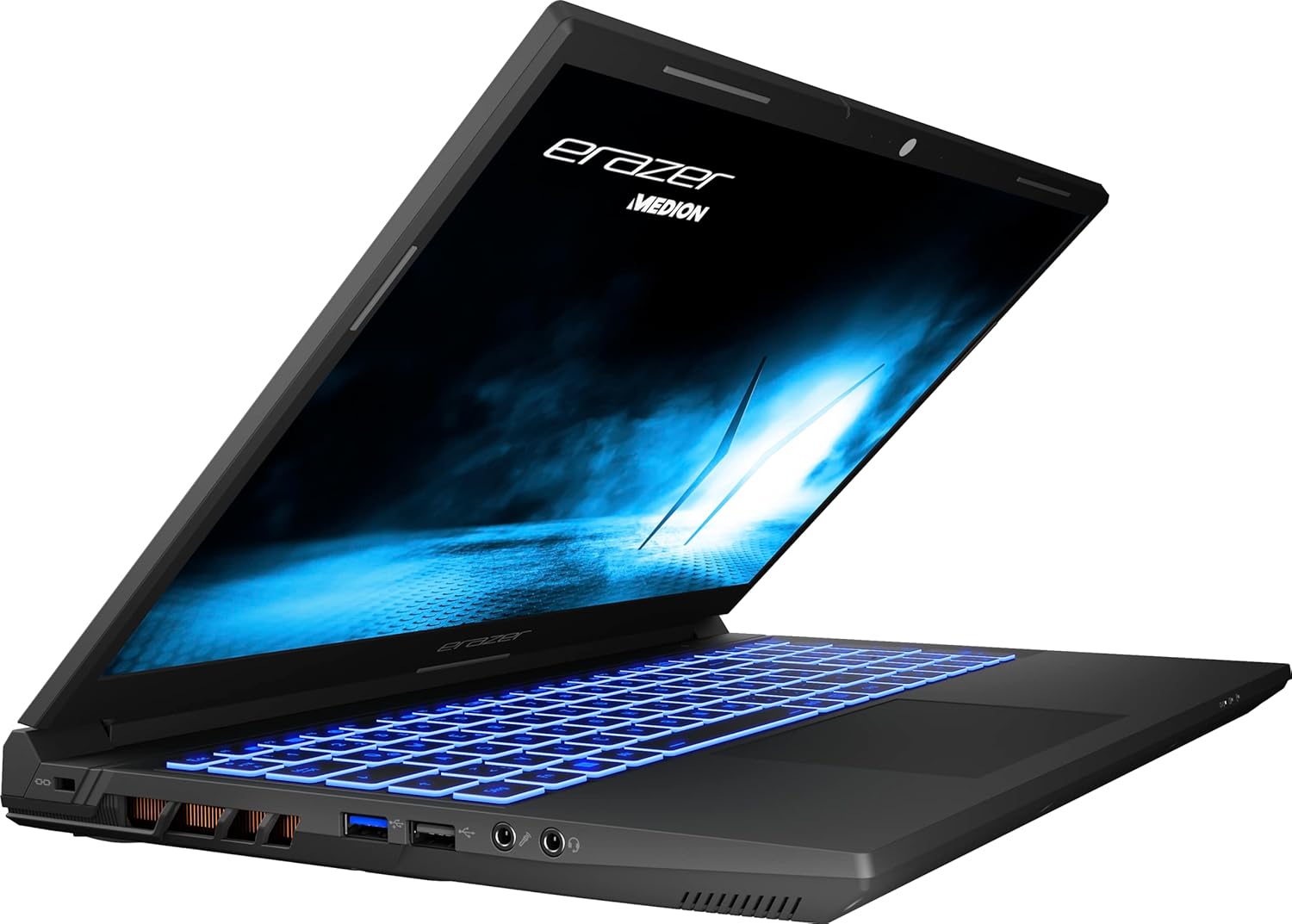
Figure 4: Keyboard and display of the ERAZER Crawler E40.
3.2 Skærmindstillinger
The 15.6-inch Full HD (1920 x 1080) display operates at a 144Hz refresh rate, providing smooth visuals, especially beneficial for gaming. You can adjust display settings, such as brightness, resolution, and refresh rate, through Windows Display Settings (Right-click on desktop > Display settings).
3.3 Trådløs forbindelse
- Wi-Fi: The laptop supports Intel WiFi 6E for high-speed wireless internet access. Connect to available Wi-Fi networks via the Windows network settings.
- Bluetooth: Integrated Bluetooth 5.2 allows you to connect wireless peripherals like headphones, speakers, or game controllers. Enable Bluetooth in Windows settings to pair devices.
4. Vedligeholdelse og pleje
- Rensning: Brug en blød, fnugfri klud til at rengøre skærmen og kabinettet. Tør let ved genstridige mærker.ampRengør kluden med vand eller et skærmsikkert rengøringsmiddel. Undgå skrappe kemikalier.
- Ventilation: Ensure the laptop's ventilation grilles are clear of obstructions to prevent overheating. Regularly clean dust from the vents using compressed air.
- Batteripleje: To prolong battery life, avoid frequently discharging the battery completely. If storing the laptop for an extended period, charge it to around 50-60%.
- Softwareopdateringer: Regularly update your operating system, drivers (especially graphics drivers), and security software to ensure optimal performance and protection.
- Opbevaring: Opbevar den bærbare computer et køligt, tørt sted væk fra direkte sollys og ekstreme temperaturer.
5. Fejlfinding
This section addresses common issues you might encounter with your MEDION ERAZER Crawler E40 laptop.
| Problem | Mulig løsning |
|---|---|
| Den bærbare computer tænder ikke. | Sørg for, at strømadapteren er korrekt tilsluttet både den bærbare computer og en fungerende stikkontakt. Kontroller, om stikkontakten fungerer. Prøv at holde tænd/sluk-knappen nede i 15-20 sekunder for at udføre en hård nulstilling. |
| Skærmen er tom eller sort. | Check if the laptop is powered on. Try connecting an external monitor to see if there is output. Adjust display brightness using function keys. |
| Langsom ydeevne eller frysning. | Close unnecessary applications. Check Task Manager for high CPU/RAM usage. Ensure drivers are updated. Run a virus scan. Ensure adequate ventilation to prevent thermal throttling. |
| Wi-Fi or Bluetooth not working. | Ensure Wi-Fi/Bluetooth is enabled in Windows settings. Restart the laptop. Update wireless drivers. Check for physical switches or function keys that might disable wireless communication. |
| Batteriet aflades hurtigt. | Adjust power settings in Windows to a more power-efficient mode. Reduce screen brightness. Close background applications. Disconnect unnecessary peripherals. |
6. Tekniske specifikationer
| Feature | Specifikation |
|---|---|
| Mærke | MEDION |
| Modelnavn | ERAZER Crawler E40 |
| Modelnummer | BB00188 |
| Farve | Sort |
| Operativsystem | Windows 11 Home Plus 64 Bit |
| Processor | Intel Core i5-12450H (2.0 GHz, boost up to 4.7 GHz) |
| Antal kerner | 6 |
| RAM (Installed) | 16 GB DDR5 4800MHz (2x 8GB Samsung) |
| Maksimal RAM | 16 GB |
| Opbevaring | 512 GB SSD (Phison) |
| Skærmstørrelse | 15.6 tommer |
| Skærmopløsning | 1920 x 1080 pixels (Fuld HD) |
| Opdateringshastighed | 144 Hz |
| Grafikkort | NVIDIA GeForce RTX 4050 (6 GB VRAM) |
| Trådløs forbindelse | Intel WiFi 6E, Bluetooth 5.2 |
| Havne | 1x USB 2.0, 1x USB 3.2 Gen 2 Type A, 1x USB 3.2 Gen 1 Type A, 1x USB 3.2 Gen 2 Type C, 1x Mini Display 1.4a, 1x HDMI v2.1, 1x LAN (RJ45), 1x Audio Combo (audio out & mic in) |
| Tastaturlayout | QWERTY |
| Dimensioner (L x B x H) | 32.9 x 1.6 x 21.9 cm |
| Produktets vægt | 3.66 kilo |
| Batteritype | 1 Lithium-ion batteri påkrævet |
7. Garanti og support
MEDION products are backed by a manufacturer's warranty. For specific warranty terms and conditions, please refer to the documentation included with your product or visit the official MEDION support website. As MEDION is part of the Lenovo group, support resources may also be available through Lenovo channels.
For technical assistance, driver downloads, or service requests, please visit the official MEDION support portal. Have your model number (BB00188) and serial number ready when contacting support.
- Online support: Visit the MEDION official webwebsted med ofte stillede spørgsmål, driverdownloads og kontaktoplysninger.
- Kundeservice: Contact MEDION customer service for direct assistance.


