Indledning
This manual provides essential information for setting up, operating, and maintaining your Microsoft Surface Studio 2+ All-In-One Desktop Computer. The Surface Studio 2+ is designed for productivity and creativity, featuring a versatile 28-inch PixelSense™ touchscreen display.
Læs venligst denne manual grundigt for at sikre korrekt brug og for at maksimere din enheds levetid.
Hvad er der i æsken
Kontroller, at alle varer er til stede i emballagen:
- Surface Studio 2+ All-in-One Computer
- Overflade pen
- Overflade tastatur
- Mus
- Power Cord with Grip-Release Cable
- Hurtig startvejledning
- Sikkerheds- og garantivejledning
Opsætning
- Udpakning: Carefully remove the Surface Studio 2+ and its accessories from the packaging. Place the computer on a stable, flat surface.

Image: The Microsoft Surface Studio 2+ All-in-One computer displaying the Windows 11 desktop interface.
- Strømtilslutning: Connect the power cord to the power port on the back of the Surface Studio 2+ base, then plug the other end into a wall outlet.

Billede: Bagside view of the Surface Studio 2+ base, highlighting the various ports including the power input.
- Tilslut ydre enheder: Connect the Surface Keyboard and Mouse. These devices typically connect wirelessly via Bluetooth. Follow the on-screen instructions during initial setup for pairing.
- Første opstart: Press the power button, usually located on the back or side of the display. The computer will guide you through the Windows 11 Pro setup process, including language selection, network connection, and user account creation.
Betjeningsvejledning
Justering af displayet
The Surface Studio 2+ features a unique Zero Gravity Hinge, allowing the display to be adjusted from an upright desktop mode to a flat studio mode for drawing and writing.

Image: A sequence showing the Surface Studio 2+ display being adjusted from an upright position to a nearly flat angle.
- Desktop -tilstand: Gently push the top of the screen backward to tilt it into an upright position for traditional desktop use.
- Studietilstand: Gently pull the top of the screen forward and down towards the base to transition it into a low-angle, flat position ideal for creative tasks with the Surface Pen.
Using the Surface Pen and Touchscreen
The 28-inch PixelSense™ touchscreen supports multi-touch gestures and is optimized for use with the included Surface Pen.
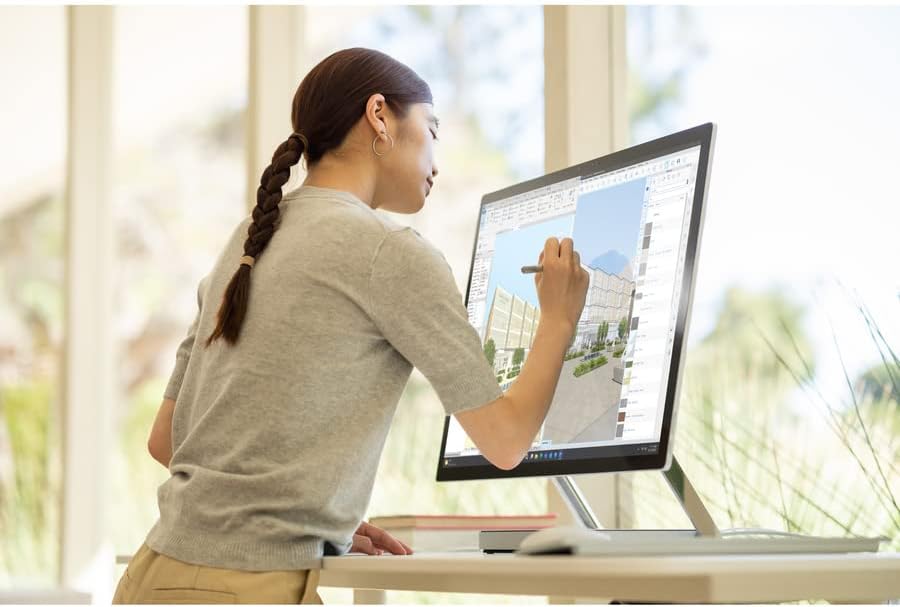
Image: A person using the Surface Pen to interact with the touchscreen of the Microsoft Surface Studio 2+ in studio mode.
- Berøringsbevægelser: Utilize standard Windows touch gestures for navigation, zooming, and scrolling.
- Surface Pen: The Surface Pen allows for precise drawing, writing, and annotation directly on the screen. It can be magnetically attached to the side of the display for storage.
Windows 11 Pro
Your Surface Studio 2+ comes pre-installed with Windows 11 Pro. Familiarize yourself with the operating system's interface and features for optimal productivity.
- Startmenu: Access applications, settings, and power options from the Start Menu.
- Opgavelinje: Pin frequently used applications to the taskbar for quick access.
- Indstillinger: Customize your device, manage accounts, and configure privacy settings through the Settings app.
Funktioner
The Microsoft Surface Studio 2+ is equipped with advanced components for high performance:
- Processor: Intel Core i7 3 GHz processor for demanding tasks.
- Hukommelse: 32 GB DDR4 RAM for smooth multitasking.
- Opbevaring: 1 TB Solid State Drive (SSD) for fast boot times and application loading.
- Grafik: NVIDIA GeForce RTX 3060 with 6GB dedicated memory for graphics-intensive applications and gaming.
- Vise: 28-inch PixelSense™ touchscreen with 4500 x 3000 resolution.
- Operativsystem: Windows 11 Pro.
- Forbindelse: Integrated 802.11ax Wi-Fi and Bluetooth for wireless connections.
Opretholdelse
Rengøring af enheden
- Skærm: Brug en blød, fnugfri klud lidt damprengøres med vand eller en skærmrens, der er specielt designet til elektronik. Undgå skrappe kemikalier.
- Legeme: Tør de udvendige overflader af med en blød, tør klud.
- Ventilation: Ensure the ventilation openings on the base are clear of dust and obstructions to prevent overheating.
Softwareopdateringer
Søg regelmæssigt efter og installer Windows-opdateringer for at sikre, at dit system har de nyeste sikkerhedsrettelser og forbedringer af ydeevnen.
- Gå til Indstillinger > Windows Update.
- Klik Se efter opdateringer og installer alle tilgængelige opdateringer.
Fejlfinding
| Spørgsmål | Mulig løsning |
|---|---|
| Computeren tænder ikke. | Ensure the power cord is securely connected to both the computer and a working electrical outlet. Try a different outlet. |
| Displayet er tomt. | Check power connection. Ensure the computer is powered on. If connected to an external display, verify display input settings. |
| Surface Pen or Mouse not responding. | Check battery levels. Re-pair the devices via Bluetooth settings in Windows. |
| Langsom ydeevne. | Close unnecessary applications. Check for and install Windows updates. Run a disk cleanup. |
| Problemer med Wi-Fi-forbindelse. | Restart your router and the Surface Studio 2+. Check Wi-Fi settings in Windows to ensure it's enabled and connected to the correct network. |
Specifikationer
| Feature | Detalje |
|---|---|
| Modelnummer | SBG-00001 |
| Skærmstørrelse | 28 tommer |
| Skærmopløsning | 4500 x 3000 |
| Processor | Intel Core i7 (3 GHz) |
| VÆDDER | 32 GB DDR4 |
| Harddisk | 1 TB SSD |
| Grafik coprocessor | NVIDIA GeForce RTX 3060 |
| Grafikkort RAM-størrelse | 6 GB |
| Operativsystem | Windows 11 Pro |
| Trådløs type | 802.11ax, Bluetooth |
| Varens vægt | 21.1 pund |
| Produktmål (LxBxH) | 25.1 x 0.5 x 17.3 tommer |
| Farve | Sølv |
Garanti og support
Your Microsoft Surface Studio 2+ is covered by a manufacturer's warranty. Please refer to the included "Safety and Warranty Guide" for detailed information regarding warranty terms, conditions, and registration.
For technical support, driver downloads, or further assistance, please visit the official Microsoft Support website or contact Microsoft customer service.
Online support: support.microsoft.com/surface


