Indledning
This manual provides instructions for the VisionTek VT7100 Triple Display 4K USB-C Docking Station. The VT7100 is designed to expand the connectivity of your laptop or desktop, enabling multiple external displays, various USB peripherals, network access, and power delivery through a single USB-C connection. It supports Windows, macOS, and Thunderbolt 3 & 4 systems.

Image: The VisionTek VT7100 docking station shown with its included DisplayPort and HDMI cables.
Pakkens indhold
Bekræft at alle varer er til stede i din pakke:
- VisionTek VT7100 Triple Display 4K USB-C Docking Station
- USB-C to USB-C Cable (1 meter)
- Brugervejledning (dette dokument)
- DisplayPort to DisplayPort Cable (2 meters)
- 2x HDMI Cables (2 meters each)

Image: Visual representation of the VT7100 docking station and its bundled cables.
Produkt overview
The VT7100 docking station features a comprehensive array of ports to enhance your workstation. Familiarize yourself with the port layout:

Billede: Foran og bagpå views of the VT7100 docking station, highlighting all available ports and their labels.
Frontpanelporte:
- Power knap: To power on/off the docking station.
- USB-A (QC 3.0): One USB 3.0 port with Quick Charge 3.0 support.
- USB-A (5 Gbps): One USB 3.1 port for data transfer.
- USB-C (5Gbps): One USB 3.1 Type-C port for data transfer.
- Audio In / Mic Out (3.5mm Combo Jack): Til tilslutning af hovedtelefoner med en mikrofon.
Bagpanelporte:
- USB-A (5 Gbps): Three additional USB 3.1 ports for data transfer.
- HDMI (DisplayLink): Two HDMI ports powered by DisplayLink technology for external displays.
- DisplayPort (DP Alt Mode): One DisplayPort for an external display.
- gigabit ethernet: RJ45 port for wired network connectivity (10/100/1000 Mbps).
- USB-C Power In: For connecting the power adapter to the docking station.
- USB-C to Host: Connects the docking station to your laptop/desktop.
- Kensington Lock Slot: For securing the docking station.
Opsætningsinstruktioner
- Tilslut strøm: Connect the power adapter (not included, but required for 100W Power Delivery) to the "USB-C Power In" port on the rear of the VT7100 docking station. Plug the power adapter into a wall outlet.
- Opret forbindelse til værtsenhed: Use the included USB-C to USB-C cable to connect the "USB-C to Host" port on the docking station to a USB-C or Thunderbolt port on your laptop or desktop.
- Tilslut skærme:
- For HDMI displays: Use the included HDMI cables to connect your monitors to the "HDMI (DisplayLink)" ports on the rear of the docking station.
- For DisplayPort displays: Use the included DisplayPort cable to connect your monitor to the "DisplayPort (DP Alt Mode)" port on the rear of the docking station.
- Note: For DisplayLink-powered HDMI ports, ensure DisplayLink drivers are installed on your operating system if not automatically detected.
- Tilslut ydre enheder: Connect your USB devices (keyboard, mouse, external drives, webcam) to the available USB-A and USB-C ports on the front and rear panels.
- Tilslut netværk: For wired internet access, connect an Ethernet cable from your router or modem to the "Gigabit Ethernet" port on the rear of the docking station.
- Tilslut lyd: If using a wired headset, connect it to the 3.5mm Audio Combo Jack on the front panel.
- Tænd: Press the Power Button on the front panel of the docking station. Your host device should detect the connected displays and peripherals.
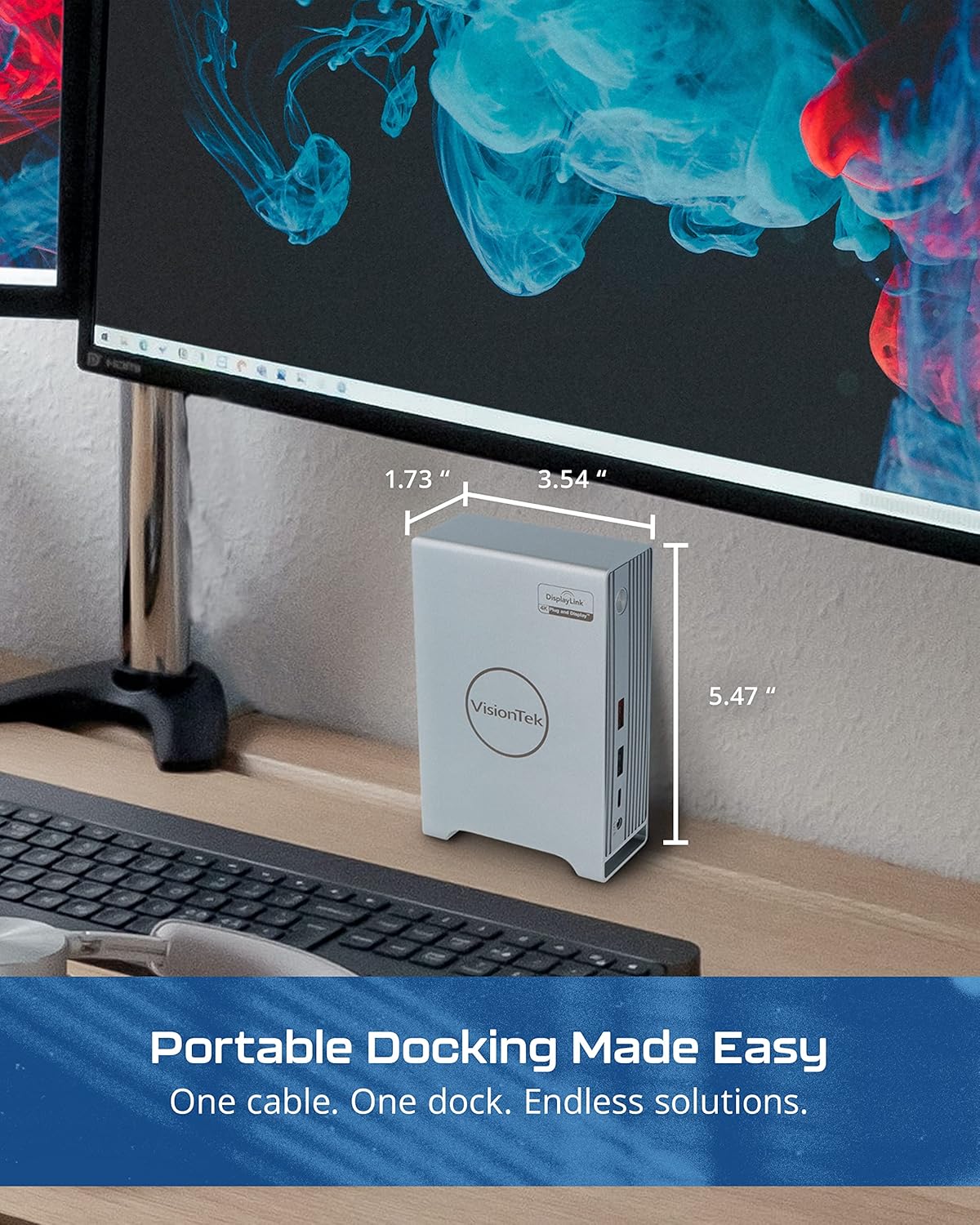
Image: A setup demonstrating the VT7100 docking station connected to a laptop and multiple external displays.
Betjeningsvejledning
Skærmkonfiguration:
Once connected, your operating system (Windows, macOS, ChromeOS) should automatically detect the external displays. You may need to adjust display settings:
- Udvid skærme: To use multiple monitors as an extended desktop, navigate to your operating system's display settings and select "Extend these displays."
- Spejldisplays: To duplicate your primary screen on external monitors, select "Duplicate these displays" in your display settings.
- Resolution and Orientation: Adjust resolution, refresh rate, and screen orientation (portrait/landscape) as needed within your display settings. The VT7100 supports resolutions up to 4K Ultra HD.
Strømforsyning:
The VT7100 provides up to 100W of Power Delivery to your connected laptop via the USB-C to Host cable, provided a compatible power adapter is connected to the dock's "USB-C Power In" port. This allows your laptop to charge while connected to the docking station.
USB-tilbehør:
All connected USB devices will function as if directly connected to your host device. The USB 3.0 QC 3.0 port offers faster charging for compatible devices.
Netværksforbindelse:
The Gigabit Ethernet port provides a stable and fast wired network connection. Ensure your host device's network settings are configured for Ethernet if necessary.
Opretholdelse
- Rensning: Brug en blød, tør klud til at rengøre dockingstationens yderside. Undgå flydende rengøringsmidler eller slibende materialer.
- Ventilation: Ensure the docking station is placed in a well-ventilated area to prevent overheating. Do not block ventilation openings.
- Opbevaring: When not in use for extended periods, store the docking station in a cool, dry place away from direct sunlight.
- Firmware-/driveropdateringer: Periodically check the VisionTek website for any available firmware updates for the docking station or updated DisplayLink drivers.
Fejlfinding
| Problem | Mulig løsning |
|---|---|
| No display output from monitors. |
|
| USB-enheder genkendes ikke. |
|
| No network connection via Ethernet. |
|
| Laptop oplader ikke. |
|
Specifikationer
| Feature | Detalje |
|---|---|
| Model | VT7100 |
| Mærke | VisionTek |
| Værtsforbindelse | USB-C (Thunderbolt 3 & 4 compatible) |
| Video output | 2x HDMI (DisplayLink), 1x DisplayPort (DP Alt Mode) |
| Max opløsning | 4K Ultra HD (per display, depending on configuration) |
| USB-porte | 4x USB 3.0 (5Gbps), 1x USB 3.0 QC 3.0, 1x USB-C (5Gbps) |
| Ethernet | Gigabit Ethernet (10/100/1000 Mbps) |
| Lyd | 3.5 mm Audio Combo Jack |
| Strøm levering | Up to 100W to host (via USB-C Power In) |
| Sikkerhed | Kensington Lock-slot |
| Kompatibel OS | Windows, macOS, ChromeOS |

Image: The VT7100 docking station with its dimensions labeled.
Garanti og support
Specific warranty information and detailed support contacts are not provided in this manual. For warranty details, technical support, or further assistance, please refer to the official VisionTek website or contact VisionTek customer service directly.
Du kan typisk finde supportoplysninger på producentens webwebsted:


